
Dev Error 6068 Modern Warfare(COD)? DirectX, Overlock?
Are you getting the above error on the screen?
You don’t need to worry honestly because you are not alone in this
as many users who have been playing COD Warzone experienced Dev Error 6068.
Whenever they try to launch their game or during the game.
So, we have compiled a list of useful solutions for you to solve COD Warzone Dev Error 6068 below.
But if you want to know the cause behind the error then continue reading down below.
Why does Dev error 6068 occur?
Dev error 6068 can occur due to the following reasons:
- Outdated graphics driver.
- Windows 10 not updated
- Corrupted files of DirectX
- Game settings are not fully optimized.
How do I fix Dev error 6068?
You can fix the Dev error 6068 with the help of the following points
but details are given below in the article:
- Adjusting Video Memory Scale option.
- Updating Windows 10.
- Changing game settings to fullscreen
- Run Modern warfare as administrator
Video Guide: How To Fix COD Warzone Dev Error 6068 | PC | SOLVED
Solution 1: Update Your Graphics Driver
As COD Warzone Dev Error 6068 is mostly related to outdated graphics driver
How do I Update my graphics driver for free?
So, here is how you can update the graphic driver for free:
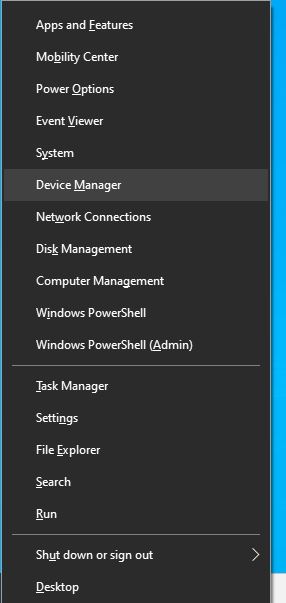
- Press Windows + X keys
- Select Device Manager

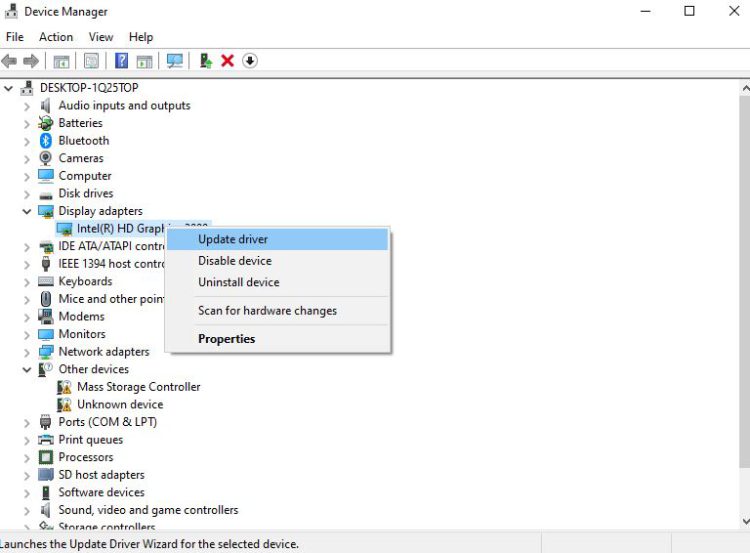
- Now click on Display adapters
- Right-click on Update driver

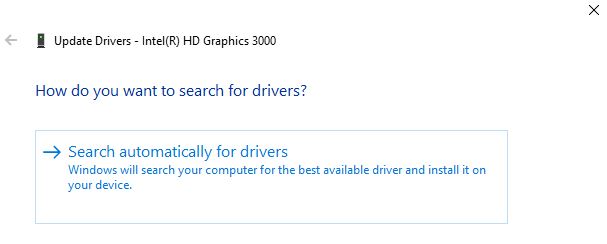
- Click Search automatically for updated driver software

- Now the updated version of the graphic driver will be downloaded and installed
Now after performing this solution now we move on to the next solution.
Solution 2: Run Modern Warefare as Administrator to Fix Dev Error 6068
If the above solution is not working then you should try running COD as Administrator
as sometimes your Modern warfare might not have the proper rights to run on PC.
How do I run Modern warfare as administrator?
Here is how you can run Modern warfare as an administrator:
- Right-click on the Modern Warfare(ModernWarfare.exe) launcher file
- Select properties.
- Now in the pop-up window go to the compatibility tab
- Then click the box next to Run this program as an administrator and click OK
- Launch the game and COD Warzone Dev Error 6068 will be fixed
You can do the same steps for the Battle.net launcher.
If Running Modern Warefare as Administrator didn’t work out, then proceed to the next solution.
Solution 3: Run COD Warzone with DirectX 11
Some users have been able to solve modern warfare DirectX error when they run it through DirectX 11.
How do I fix DirectX errors?
Here’s how you can solve the Direct X errors:
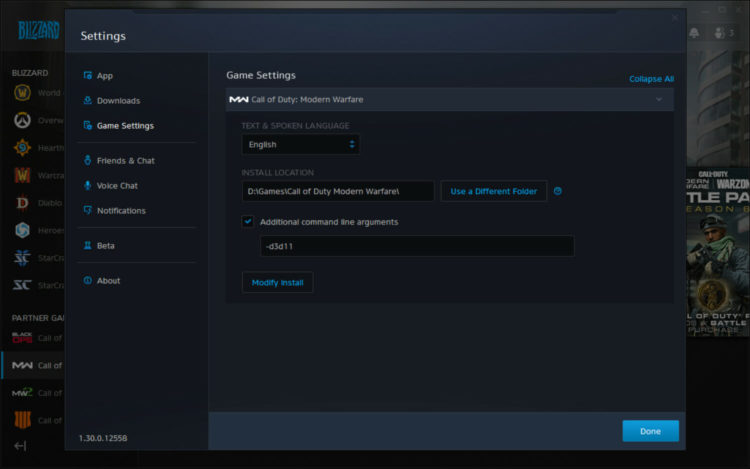
- Launch Battle.net client
- Now select Call of Duty: MW
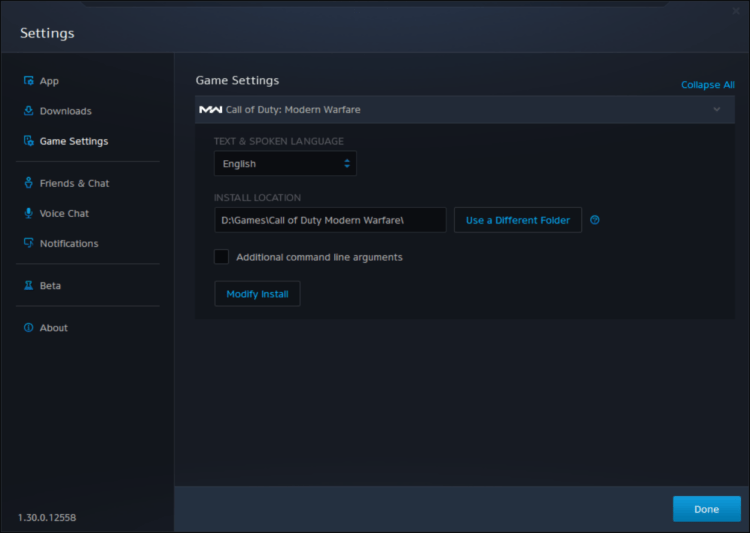
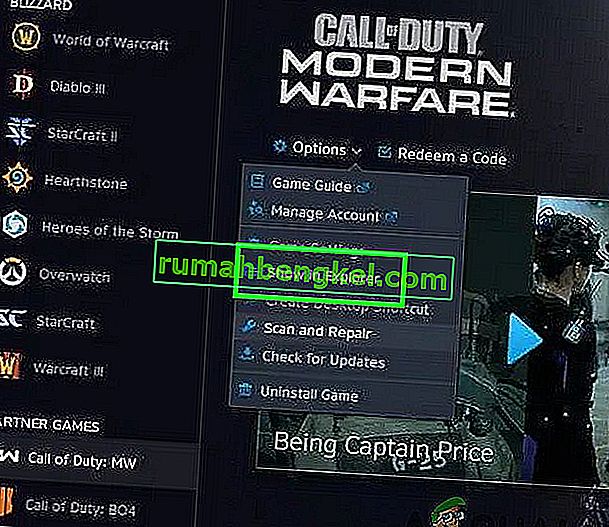
- Click Options > Game Settings

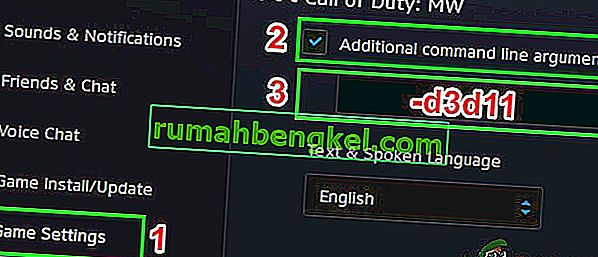
- Tick the check box saying Additional command-line arguments
- In the text box type -d3d11

- And press Done
- Launch Warfare COD and check if Dev Error 6068 is solved
Solution 4: Adjust COD Modern Warfare Graphics Settings
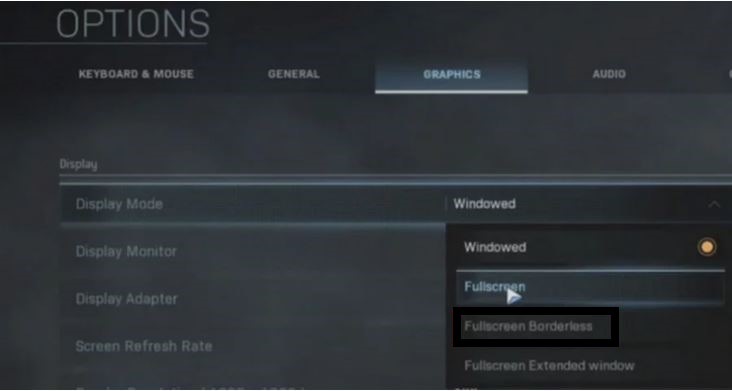
You can run your game on full screen to overcome COD Modern Warfare Dev Error 6068.
How do I get better graphics on CoD?
Here is how you can get a better graphic on COD:
- Launch Call of Duty Modern Warfare
- Go to Settings > Graphics

- Click on Display Mode and select Fullscreen Borderless
If this solution didn’t fix your Dev Error 6068 then try the next solution for Modern Warfare Dev Error 6068
Solution 5: Change Video Memory Scale
A high video memory scale can lead to COD Warzone Dev Error 6068
How do I change the video memory scale?
So, here is how you can change the video memory scale:
- Make sure you quit COD Warzone
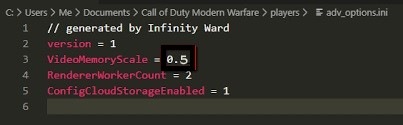
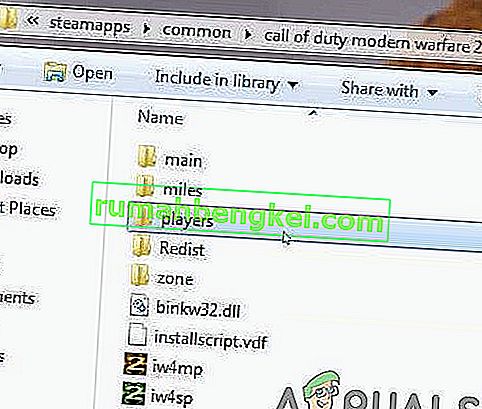
- Now go to Documents\Call of Duty Modern Warfare\players
- Look for adv_options.ini
- Right-click on the folder and open it on Notepad
- Press Ctrl + F and search the VideoMemoryScale
- Change it to 0.5 and save it

- Launch Warzone and check if Warfare Dev Error 6068 is solved
If still the error persists then try to Disable Direct X Raytracing.
Solution 6: Disable DirectX Raytracing and Crossplay
Some specific settings in COD may cause dev error 6068.
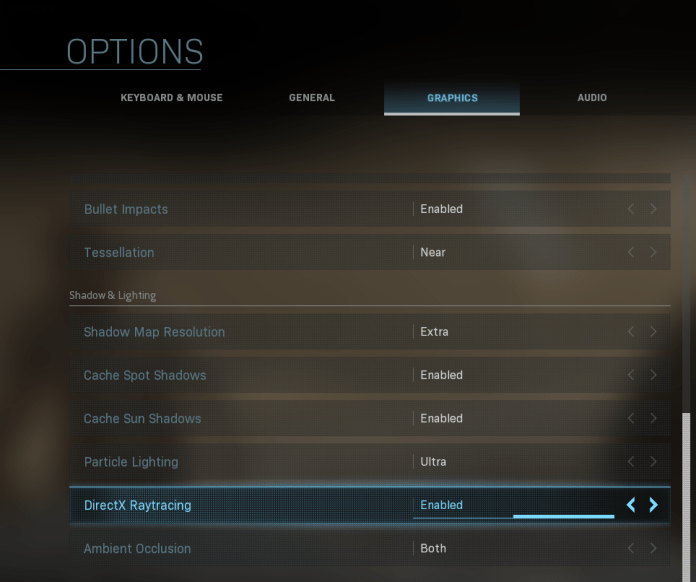
So we have to disable the DirectX Raytracing to get rid of Dev Error 6068.
How do I turn off ray tracing?
Here’s how you can disable/turn off DirectX Raytracing:
- Launch Call of Duty Modern Warfare
- Go to Settings > Graphics
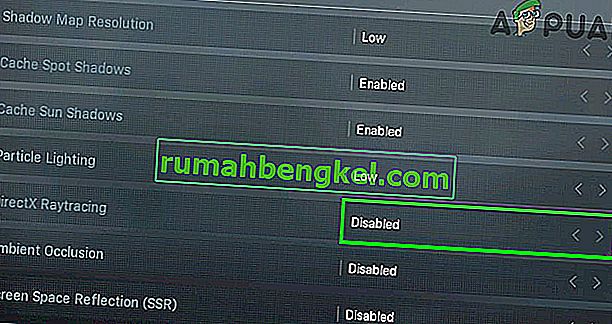
- Under Shadow & Lighting Disable DirectX Raytracing

- Now click on Account
- Diable Crossplay option

- And Launch the game to check if modern warfare DirectX error is fixed
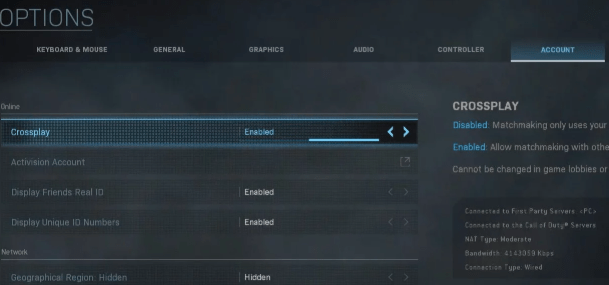
IF this solution also didn’t help you to eliminate the dev error 6068 then the next solution will definitely help you to eliminate the Dev error 6068.
Solution 7: Check For Updates Windows 10
How do I check for Windows updates?
Here is how you can check for Windows updates:
Make sure your Windows 10 is up to date as an outdated version of it may lead to COD Warzone Dev Error 6068
So here’s how you can check for updates:
- Press Windows key + I to open settings
- Click on Update & Security

- Now click on Check for updates and wait for Windows to download and install the updates

- After updating restart your PC and launch Warzone
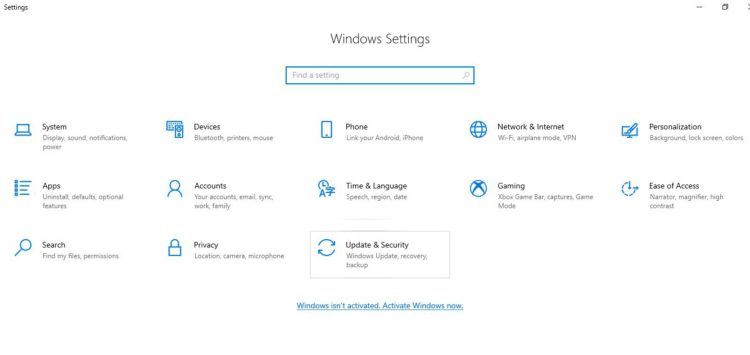
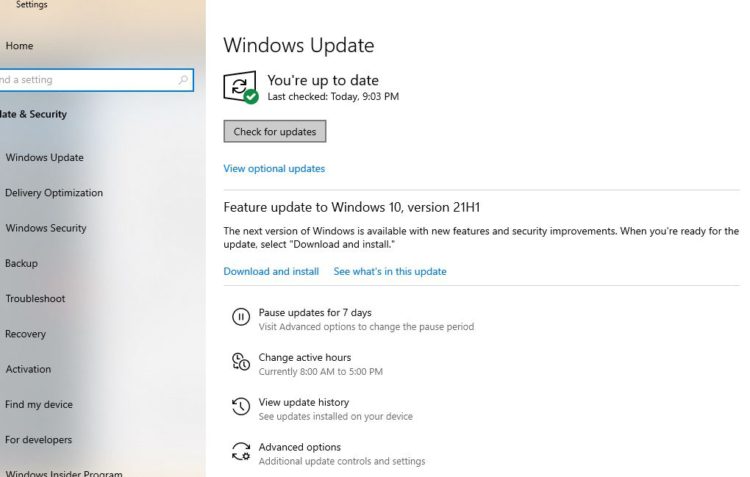
If you are a Windows 11 user then proceed to the next solution to Update Windows 11.
Solution 8: Keep your PC Updated on Windows 11
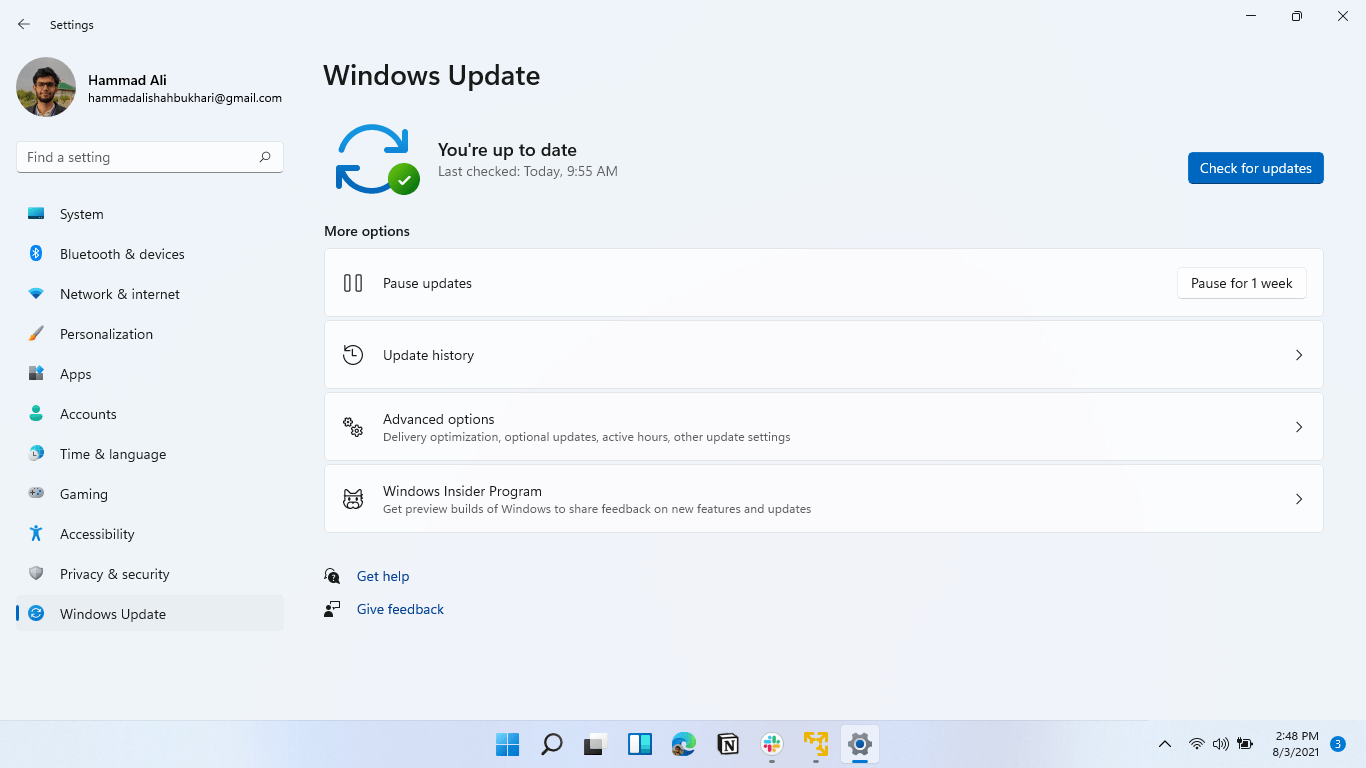
Sometimes your outdated PC is the main cause of the Outdated Graphics Card Driver on Windows 11. Outdated drivers in your PC or your current Windows version are not able to support the new games and software, as you update your Windows the whole running drivers are updated too.
So, here is how you can do it:
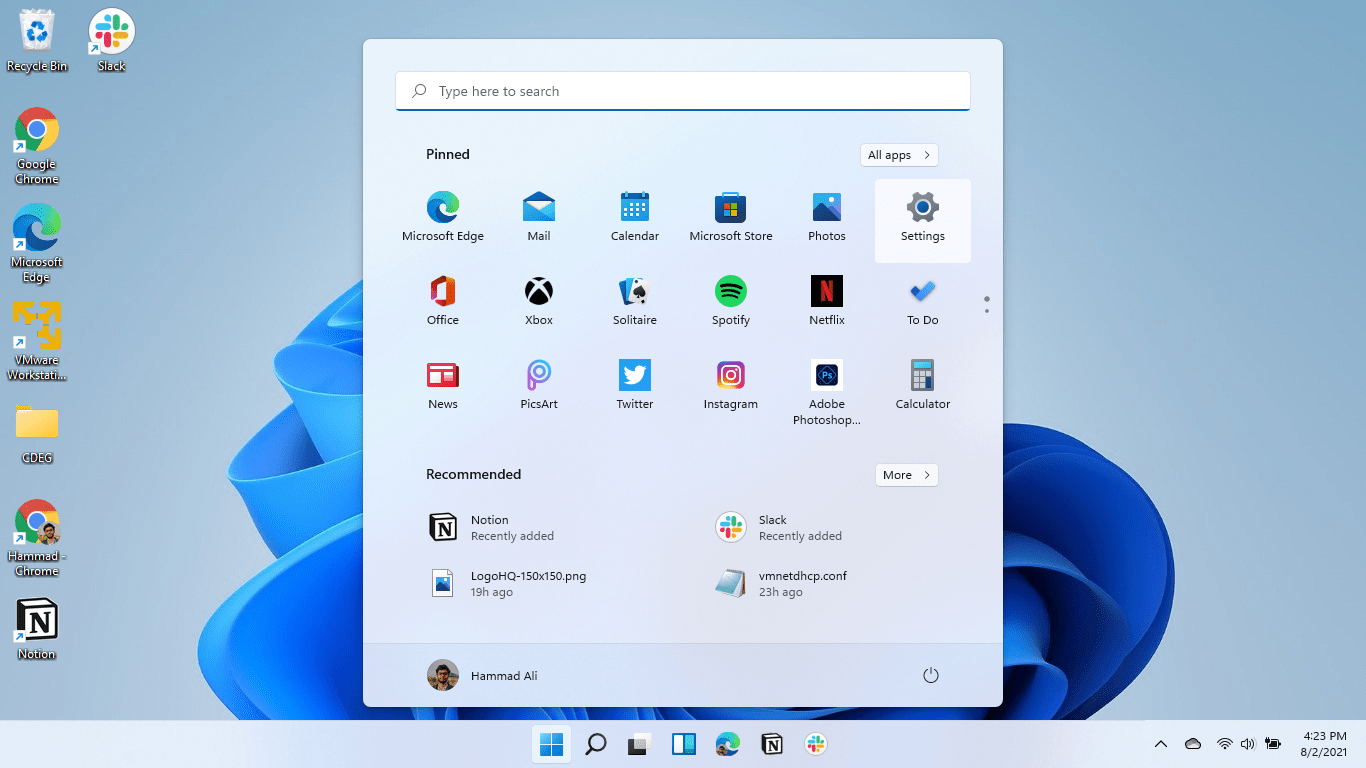
- Click on the Windows icon

- Click on the Settings icon
- A new window will pop up
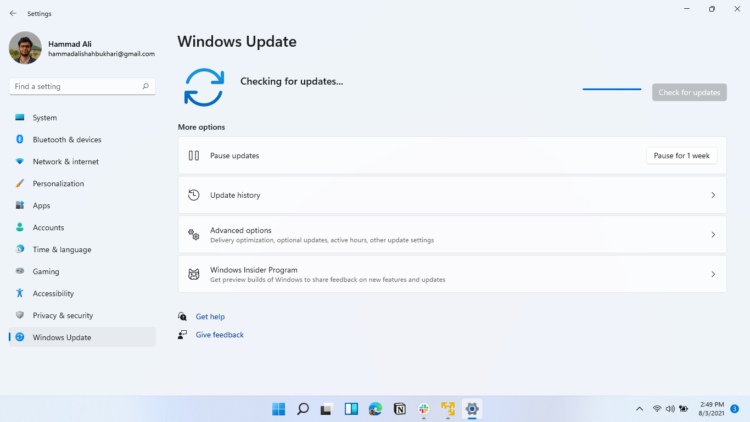
- Select Windows Update from the left menu
- The new window will pop up
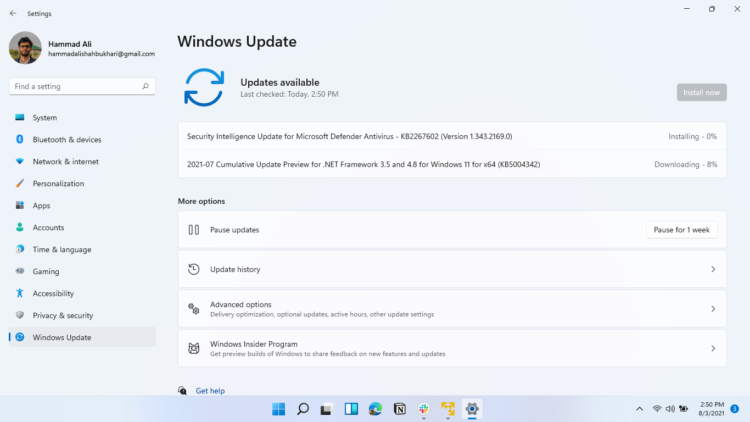
- Then click on Check for updates

- If there is any update it will start updating the PC
I hope the above solutions solved Modern Warefare dev error 6068.
If you got any questions just let us know in the comment section.
How do I fix Dev error 6068 in warzone?
Here is how you can fix dev error 6068 warzones by performing these solutions:
1. Update Your Graphics Driver
2. Run Modern Warefare as Administrator
3. Run COD Warzone with DirectX 11
4. Adjust COD Modern Warfare Graphics Settings
5. Change Video Memory Scale
Why do I keep getting Dev error on modern warfare?

Many Warfare users are experiencing this error whenever they try to launch their game or during the game on PC.
Dev error can be caused due to the following causes:
1. Graphic settings configuration
2. Game not meeting the system requirements
3. G-sync in NVIDIA is enabled.
Can Warzone run on 8GB RAM?
Yes, Warzone can be run 8GB DDR3 but it recommends to run the game on 8GB DDR4.
Are you experiencing random game crashes with an error pop-up box that says “Fatal Error: Dev Error 6068” while playing Call of Duty Warzone? If so, then you are not alone. Many other Call of Duty Warzone players have also been experiencing this error while playing the game or at launch, ever since the release of the game. In this article, we will explain 13 different solutions that have helped a lot of players to fix this problem.
Key Highlights
- Call of Duty MW or Warzone may crash with a “Fatal Error: Dev Error 6068.” This error can occur due to corrupt game or configuration files, graphics settings, outdated Windows, or nonoptimal settings.
Here are the solutions:
- Run the game as administrator.
- Enable DirectX 11 by adding “-d3d11” as a command line argument in the Game Settings tab of the Battle.net Launcher.
- Update Windows to the latest version.
- Use the Scan and Repair feature in the Battle.net client to fix corrupted game files.
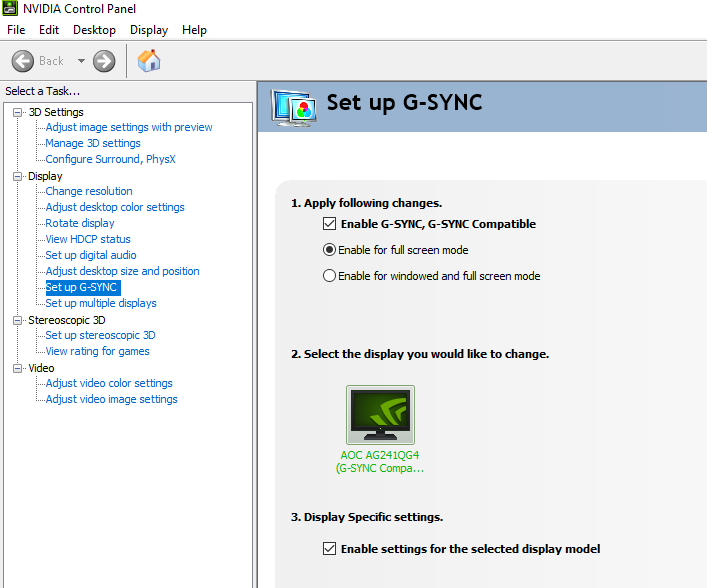
- Disable G-Sync in the NVIDIA Control Panel.
- Reset overclock settings to default.
- Adjust processor priority to Low or High in Task Manager.
- Disable overlays for applications like Geforce Experience, AMD Radeon, or Xbox Game Bar.
- Set VideoMemoryScale to 0.5 in the adv_options.ini file.
- Increase the paging file size as explained in the guide.
- Enable XMP Profile in your PC’s BIOS if supported.
- Delete the “players” folder in the Documents/Call of Duty Modern Warfare directory to remove corrupted Shader Cache files.
- If none of the above works, try downloading and reinstalling the game.
Finally, your last option would be a clean Windows install, which will completely reset all files that could’ve caused the error.
Related: Dev Error 6178
How To Fix Dev Error 6068 in Warzone?
The Dev Error 6068 error could happen due to various issues with the graphics settings, configuration files, outdated Windows, corrupt game files, non-optimal settings, and various other reasons. We have compiled 10 of the best methods that will help you identify the cause of the error and troubleshoot it.
Run Game as Administrator
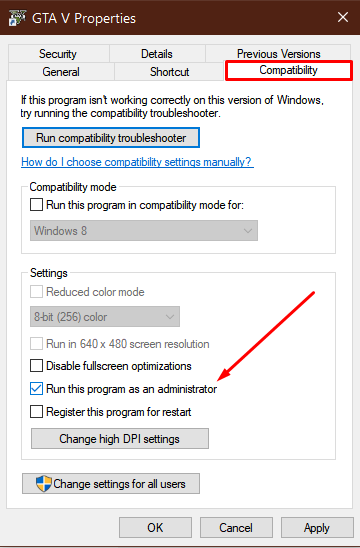
One reason why the Error occurs is that the program is not being run with administrator rights. We suggest that you run Modern Warfare as an administrator to give the program complete access to all the game’s files on your computer. Follow the instructions below to run Modern Warfare as an administrator.
- Click right-click on your Modern Warfare Application on your desktop and choose Properties.
- Head to the Compatibility tab
- Tick – Mark This program can be run with an administrator box.

Run program as administrator - Click OK.
- Try running Modern Warfare to determine whether the issue is solved.
Launch Warzone on DirectX 11
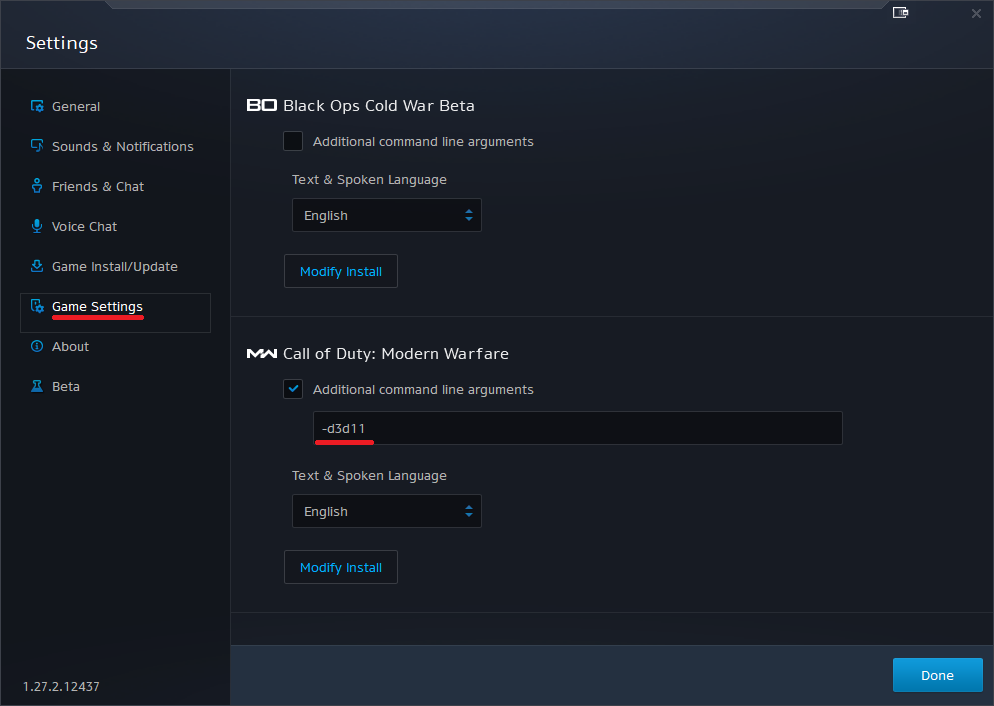
Some players were able to fix Error 6068 by running the game on DirectX 11. You should try this method to see if it works for you too.
- Open your Battle.net client.
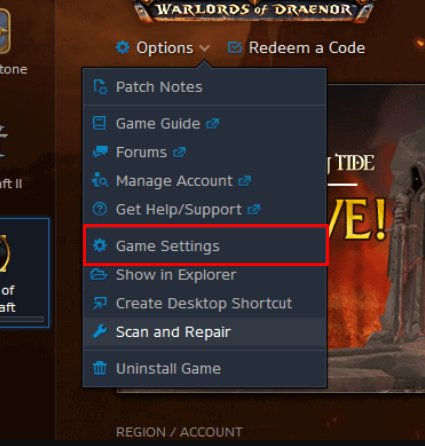
- Select Call of Duty: MW in the left panel. Click Options and select Game Settings.

Game Settings. - Select Game Settings on the left. Check the box next to Additional command line arguments. Type -d3d11 in the box and then click on Done.
Launch Warzone to see if the issue is resolved.
If the error persists, see other fixes below.
Update Windows 10
Updating your Windows 10 to the latest version can help you fix any bugs that could be causing performance problems and errors. We recommend you try this method as it could fix the Modern Warfare Dev Error 6068.
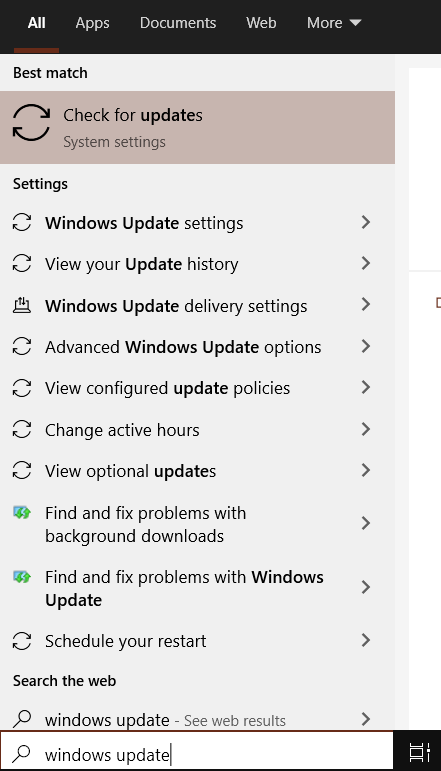
- Start The Windows Search menu with the Windows key on your keyboard.
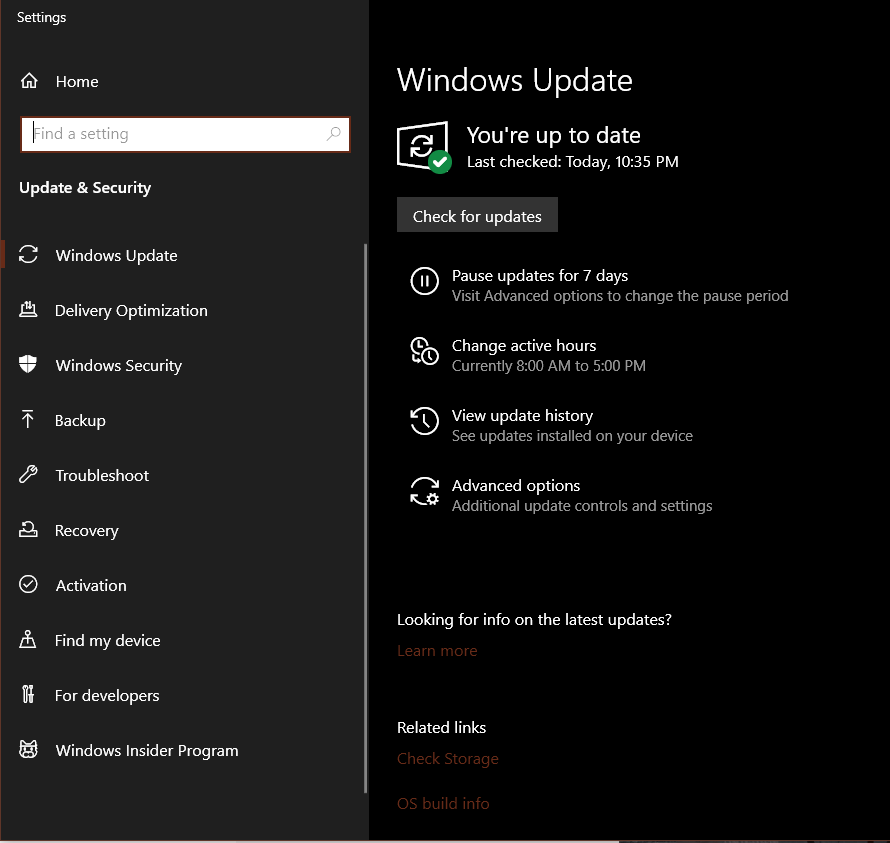
- Enter Windows Update into the box that you search in, then select the Check for any updates option.

Windows Update - Click on Make sure to check for new versions, Windows will search for and download the latest version of the update.

Check for Updates - When the download is completed Restart your computer to install the upgrade.
Repair Game Files Via Battle.net
Fixing Modern Warfare through Battle.net could fix any damaged game files that may cause the game to stop working. We recommend you try this technique before moving to other options as it can be a simple fix for the problem.
- First, begin by launching your Blizzard Battle.net launcher.
- Navigate to the Games tab and choose Modern Warfare.
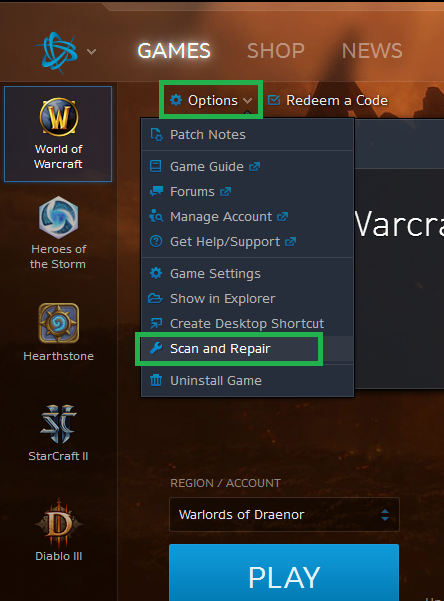
- Click on Options, which is on the left of redeeming a Code.
- Choose now Scan and Repair.

Scan and Repair - Verify be completed.
When the scan is completed Try running the game to determine whether the issue has been resolved.
Turn off Nvidia G-Sync
Some NVIDIA users were able to fix the Error by disabling the G-Sync from the NVIDIA Control Panel.
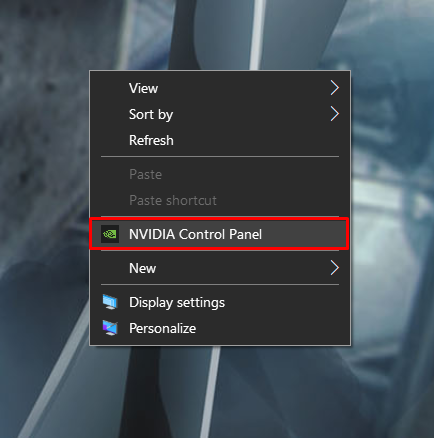
- Right-click on the desktop and click on NVIDIA Control Panel.

NVIDIA Control Panel. - Click on the plus sign next to “Display” on the left to expand the list and choose Set up G-Sync.
- Uncheck the box next to Enable G-Sync and apply the settings.

Disabling G-Sync - Restart your computer and see if you still encounter the error.
Reset the Clock Speed Settings to Default
The Modern Warfare Dev Error 6068 error is likely occurring due to overclocked GPU, CPU, or other hardware components. If that is the case, you should try setting your components’ frequency or clock speed settings back to their defaults and then start Modern Warfare again to see if the error is resolved. If resetting the clock speeds to default does not fix the problem then try the methods down below.
Set the Priority of Call of Duty’s Process to High
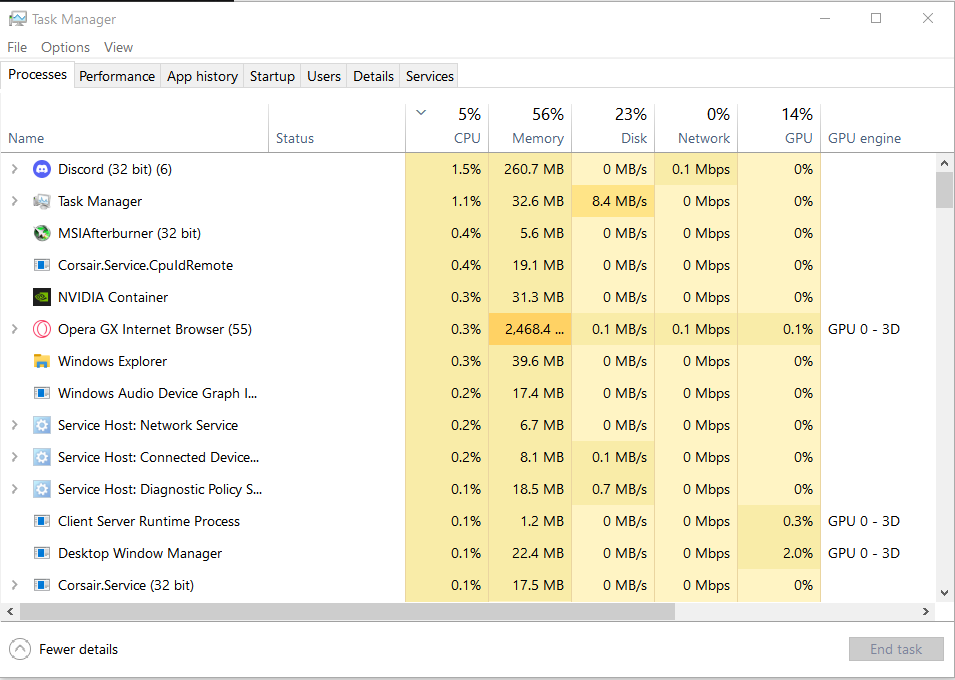
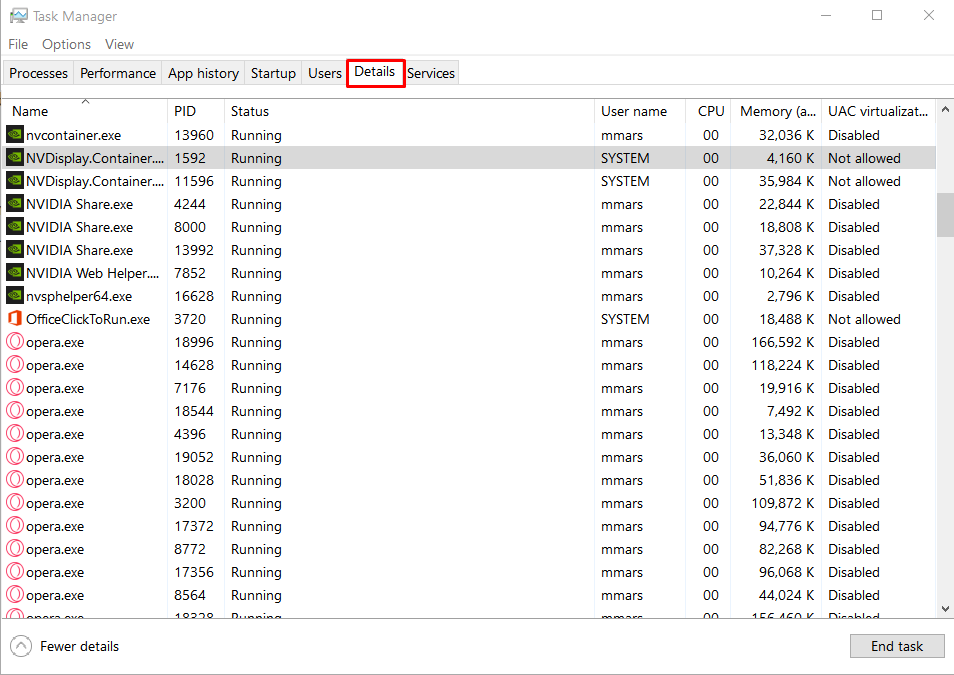
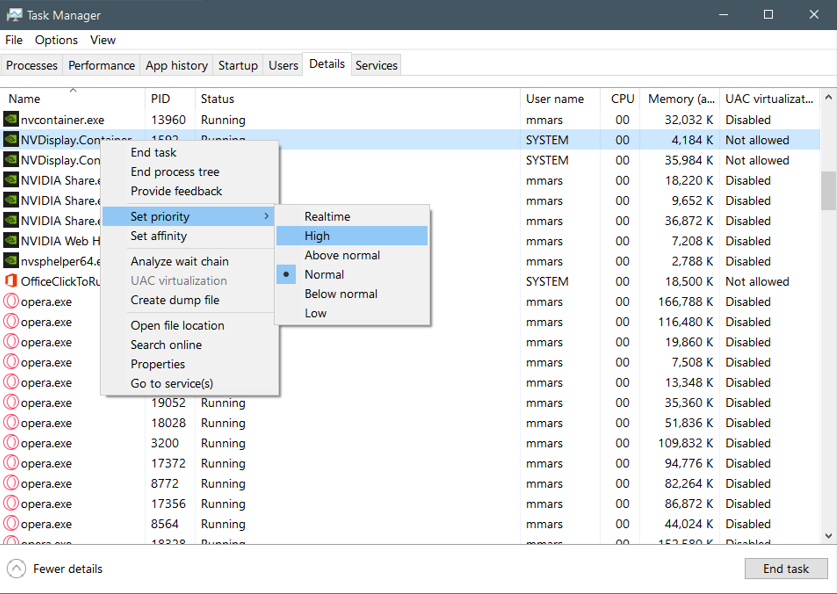
Certain users were able to repair the Modern Warfare Error by switching the processor priority from Low or Normal up to High on the Task Management. We suggest that you test this approach before attempting other solutions that are listed below. Use these instructions to set Modern Warfare to High priority in the Task Manager.
- Launch The Task Manager, by pressing Alt + Control + Delete.

Task Manager - Then head over to the Details Tab.

Details Tab in Task Manager - Search for Modern Warfare within the list of programs.
- Right-click on the program and set the priority to High.

Changing Priority - Check If the error persists when playing the game.
Deactivate In-game Overlays from Programs
Sometimes overlay features of some programs could be causing the Dev Error 6068. These overlay programs include Nvidia’s Geforce Experience, AMD Overlay, Xbox Game Bar, and many others. We recommend that you disable any Overlay feature that could be running in the background. e.g Here’s how to disable the Nvidia Overlay.
- Launch GeForce Experience.
- Click on the Setting Icon.
- Disable the In-game overlay feature.

In-game Overlay. - Save the changes and exit the GeForce Experience.
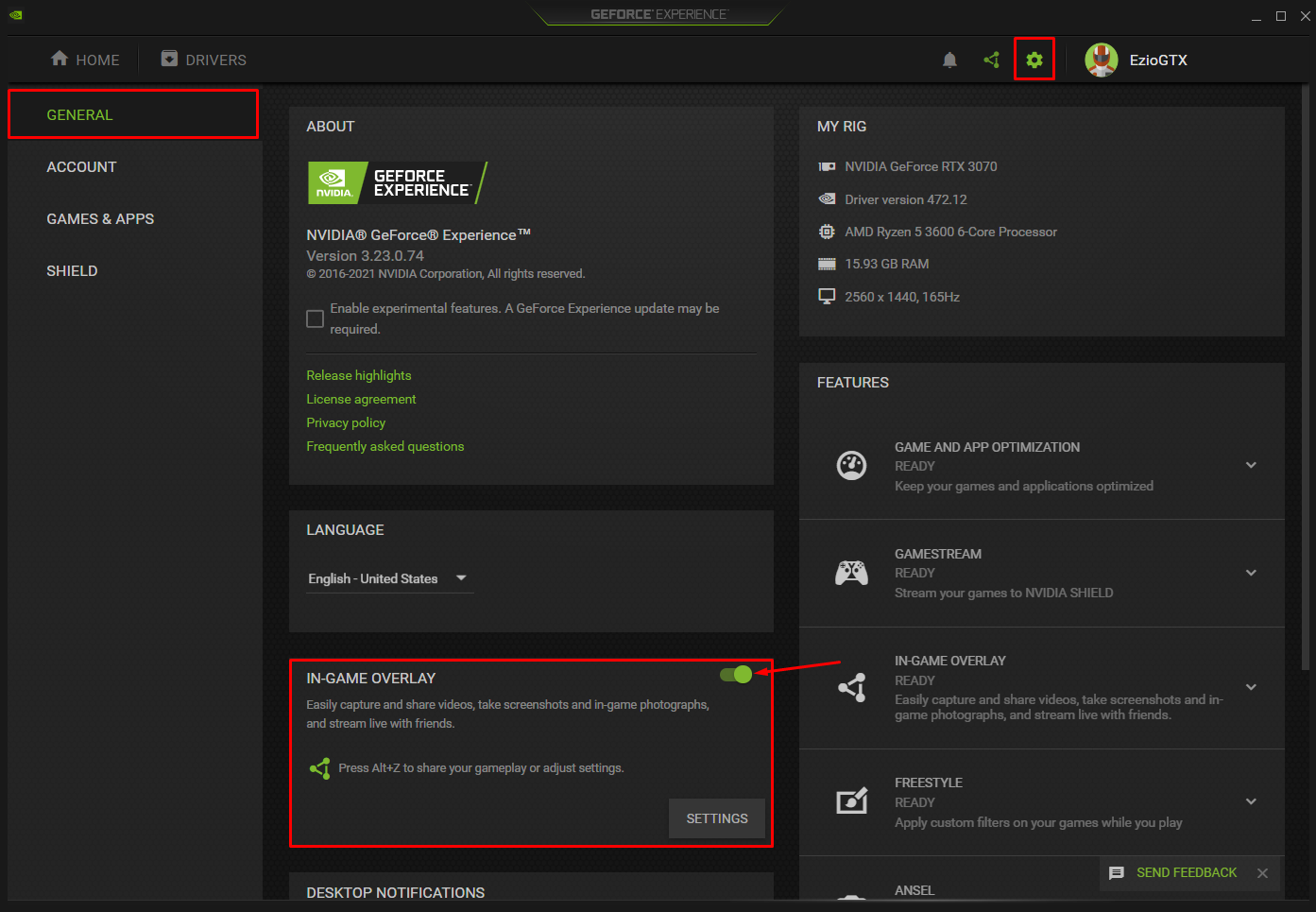
Tweak Graphic Memory Scale
A higher value of the Video Memory Scale in the advanced options configuration file might be causing the Error. Lowering this value could solve the problem.
- Close Call of Duty Modern Warfare and all its related tasks in the Task Manager.
- Now launch the File Explorer.
- Then navigate to the path of your player folder; Usually, this is in:
Documents\Call of Duty Modern Warfare\players
- Now find the file adv_options.ini and open it using notepad.
- Find the line VideoMemoryScale.
- Now change the value of VideoMemoryScale to 0.5.
- Launch Modern Warfare and check if the problem is solved.
Enlarge Pagefile on Windows
A few users were able to solve Dev Error 6068 by enlarging the pagefile in their Windows. If you find that the Windows Pagefile does not have enough space, it may cause games or other software to fail to function.
To expand your pagefile for Windows make sure you follow all of the steps below.
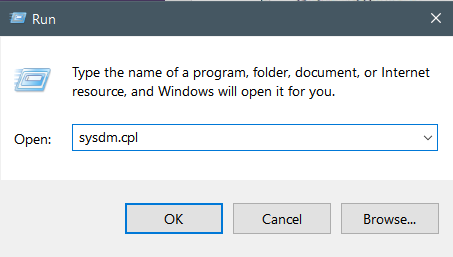
- Press Windows key + R and Type into sysdm.cpl, and then press Enter.

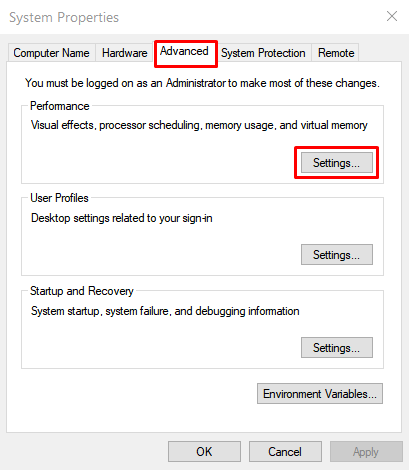
Run - In The System Properties Window, Open The Advanced Tab.
- Select “Settings” under “Performance”. A new window titled “Performance Options” will open.

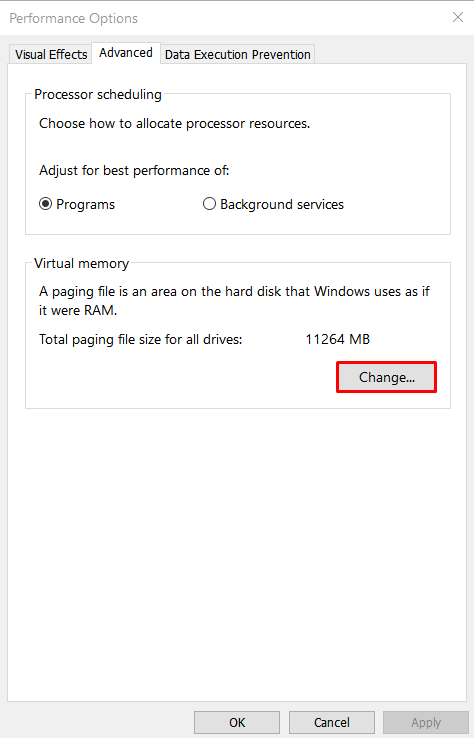
System Properties. - Select “Advanced” and then press “Change”. A new window titled “Virtual Memory” will open.

Changing Virtual Memory. - Deselect “ Automatically manage the size of paging files for all drives “ and then select “Custom size” under the drive of your choice.

Changing Virtual Memory. - The initial size of your paging files is in MB in accordance with the paging file size of the drive specified (if relevant) and then type in the maximum size you want to set which should not exceed four times the size of your RAM to ensure stability in your system. Be sure to click “Set” so that the modifications will be applied.
- Make sure you restart your system.
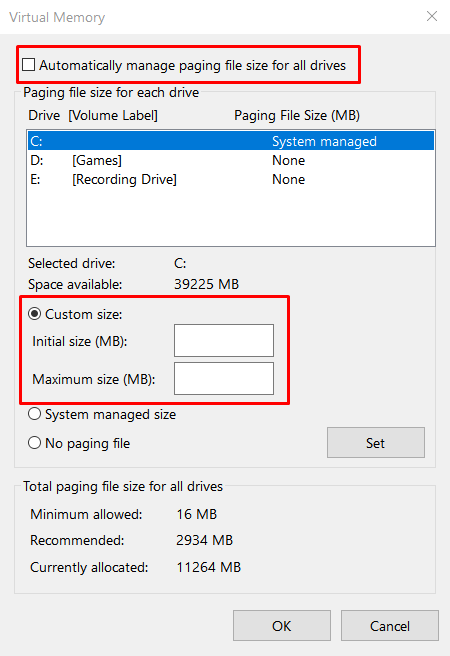
Note: The dimensions of your paging files are 1.5 times the size of your physical memory, at the minimum, and 4 times your physical memory, if you want to ensure the stability of your system. If your PC is equipped with 8GB of RAM. It is possible to calculate the size of your minimum paging file using this formula 8 GB divided by 1.5 and your maximum paging size by using this formula which is 8 GB divided by 4. The total will be 12 GB and 32GB of RAM.
Enable XMP Profile or Replacing RAM
RAM speeds or corrupt Memory Sticks could also be a cause of the Dev Error 6068. If you have an XMP profile in the BIOS of your PC, enable it to unlock the core clocks of your RAM. If doing so did not fix your problem then try replacing the RAM sticks completely and see if it resolves the problem.
Reinstall The Shader Cache
A great way to fix the dev error 6068 in Call of Duty is to reinstall the shader cache. It will have all the temporary shader files that will be responsible for the shadow effects as well as the lights in your game. Since the file is maintained, they do not have to be generated whenever you launch the game. Sometimes the file may get corrupt resulting in an error.
Here’s how you can fix the problem.
- Go to the task manager and kill all of the processes of Call of Duty.
- Now head to File Explorer and go to the Document section. Look for Call of duty Modern Warfare.
- There will be a folder known as Players that you have to locate. Make sure that your back up the folder. You can do so by copy-pasting the backup folder on your desktop.
- Now delete the Player folder and you are done.
Reinstall the Game
Sometimes Battle.net cannot detect the game’s files that are corrupt in the repair process. The only solution to the issue is to complete installing the game. Be sure not to stop the downloading process since it can harm the game that’s being downloaded as this is a recognized problem with the Blizzard Battle.net client.
- Launch the Blizzard Battle.net client on your computer.
- Select and click Call of Duty Modern Warfare from the menu on the right.
- Then, on the right, you can click on the Options drop-down menu and select Uninstall Game.
- When the game stops installing you can start downloading Modern Warfare again.
- Start the game to determine whether the Dev Error is solved.
Reinstall Windows
If all of the other solutions did not help you in fixing the error. As a last resort, you should do a clean install of Windows. This will clean up any corrupt registries, corrupt files, and settings that might be causing Error 6068.
Was this article helpful?
Thanks! Do share your feedback with us. ⚡
How could we improve this post? Please Help us. ✍
Ошибка разработчика 6068 в Call of Duty (любой вариант) может быть вызвана поврежденной установкой DirectX в вашей системе. Это также может быть вызвано устаревшей Windows, системными драйверами и неоптимальными настройками игры.
Ошибка разработчика 6068 в игре приводит к зависанию / сбою игры со следующим сообщением:
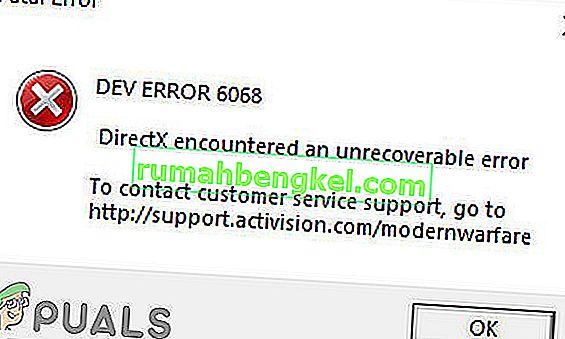
Согласно нашему исследованию, похоже, что проблема в основном связана с программными аспектами компьютерной системы, используемой для игры в Call of Duty, с очень меньшей вероятностью проблем с оборудованием. Вот несколько распространенных средств, на которые следует обратить внимание, прежде чем переходить к конкретным решениям:
- Если вы используете несколько дисплеев , используйте только один дисплей.
- Убедитесь, что все остальные игры работают нормально.
- Для оптимальной работы игре требуется частота ОЗУ 3000 МГц , поэтому убедитесь, что ваша система соответствует требованиям.
- Убедитесь, что у вас стабильная и быстрая скорость интернета .
Запустите игру от имени администратора
Call of Duty требует прав администратора для доступа к определенным файлам и службам. И если ему не предоставлены права администратора, это может привести к ошибке разработчика 6068. В этом случае запуск игры с правами администратора может решить проблему. Для иллюстрации мы обсудим процесс запуска Battle.net. А чтобы запустить Call of Duty от имени администратора, вы можете следовать инструкциям, относящимся к вашей платформе.
- Откройте средство запуска Battle.net и откройте окно Call of Duty .
- Затем щелкните Параметры.
- Теперь нажмите « Показать в проводнике ».

- Теперь в папке Call of Duty найдите и щелкните правой кнопкой мыши файл Call of Duty (файл с расширением .exe).
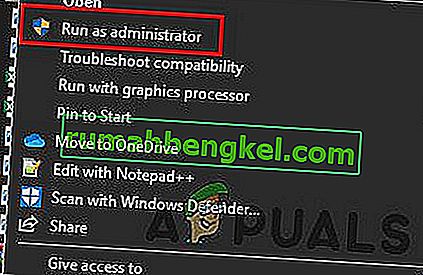
- Теперь в подменю нажмите « Запуск от имени администратора » и проверьте, решена ли проблема.
Установите высокий приоритет процесса Call of Duty
Хотя не рекомендуется играть с приоритетами процесса, если вы не знаете, что делаете, но в текущем сценарии, поскольку игра довольно сильно загружает ваш процессор и графический процессор, меняя приоритет процесса на высокий Приоритет может решить проблему.
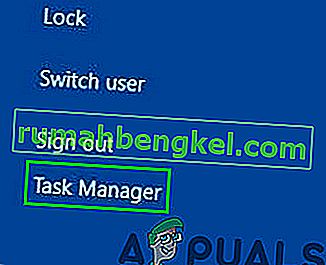
- Щелкните правой кнопкой мыши на панели задач , а затем нажмите на Task Manager .
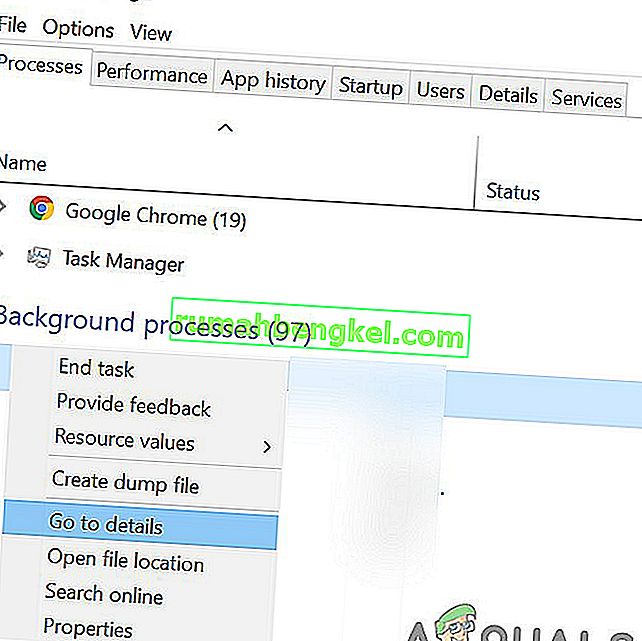
- Теперь найдите и щелкните правой кнопкой мыши процесс Call of Duty, а затем в меню нажмите Перейти к деталям .
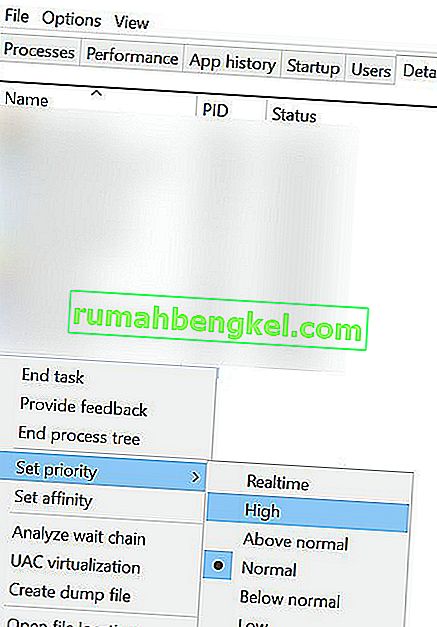
- Теперь во вкладке Details щелкните правой кнопкой мыши процесс Call of Duty (который уже должен быть выделен), теперь в отображаемом меню выберите Priority, а затем в подменю нажмите High .
- Теперь проверьте, нормально ли работает игра.
Обновите Windows и системные драйверы до последней сборки
Корпорация Майкрософт и производители вашей системы выпускают новые обновления для ОС и системных драйверов, чтобы улучшить производительность и исправить известные ошибки. Если вы используете устаревшую версию Windows / системных драйверов, вы можете столкнуться с множеством проблем, включая текущую Dev Error 6068. В этом случае обновление Windows и системных драйверов может решить проблему. Кроме того, обновление Windows устранит любые проблемы с DirectX.
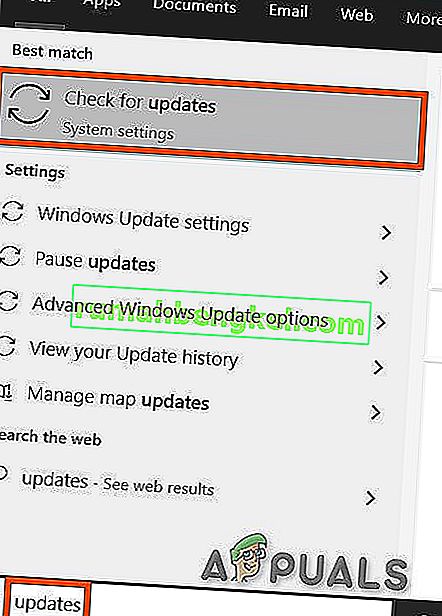
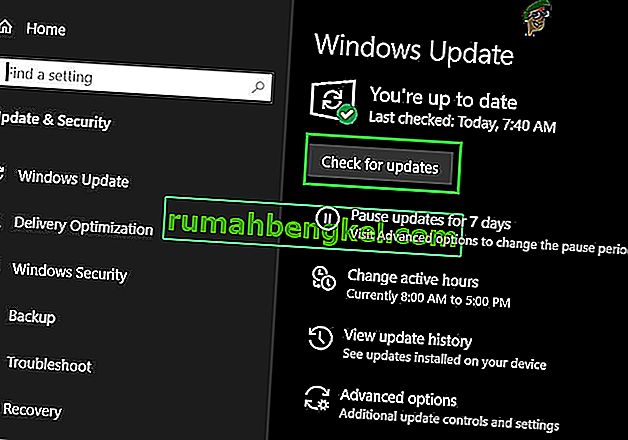
- Нажмите клавишу Windows и введите Обновления . Затем в результатах поиска нажмите Проверить наличие обновлений .
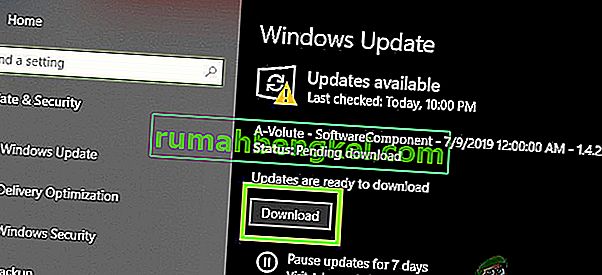
- Теперь нажмите кнопку Проверить наличие обновлений в окне обновлений.
- Скачайте и установите обновления (если есть).
- Загрузите Помощник по обновлению Windows .
- Запустите загруженный файл и следуйте инструкциям на экране, чтобы завершить процесс обновления.
- Также посетите веб-сайт производителя вашей системы , чтобы найти последнюю версию системных драйверов.
- После завершения процесса обновления проверьте, решена ли проблема.
Сканировать и восстановить файлы игры
Если игровые файлы Call of Duty повреждены, это может привести к тому, что игра выдаст ошибку разработчика 6068. В этом случае сканирование и восстановление файлов игры (которое проанализирует файлы игры и повторно загрузит недостающие файлы) может решить проблему. проблема. Для иллюстрации мы обсудим процесс запуска Battle.net.
- Откройте средство запуска Battle.net и щелкните Call of Duty .
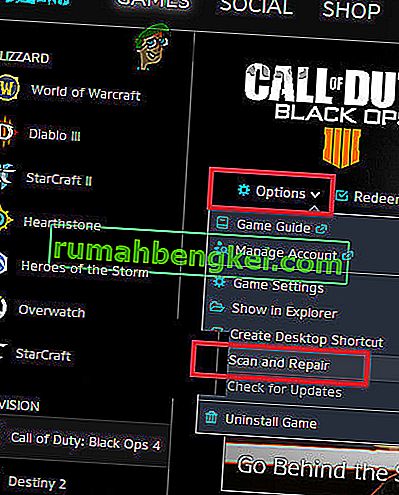
- Теперь щелкните меню « Параметры» (под его заголовком), а затем щелкните « Сканировать и восстановить» .
- Затем нажмите « Начать сканирование» .
- Теперь ваши игровые файлы будут просканированы, а отсутствующие / поврежденные файлы будут загружены (если есть).
- После завершения сканирования и восстановления файлов игры проверьте, решилась ли проблема.
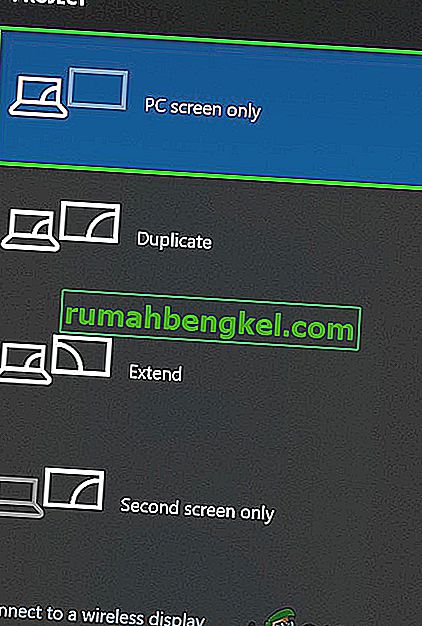
Использовать только экран ПК
Call of Duty плохо сочетается с несколькими дисплеями. Если вы используете несколько дисплеев, это может быть основной причиной вашей проблемы. В этом случае использование только экрана ПК может решить проблему.
- Выйдите из Call of Duty и завершите все связанные с ним процессы через диспетчер задач.
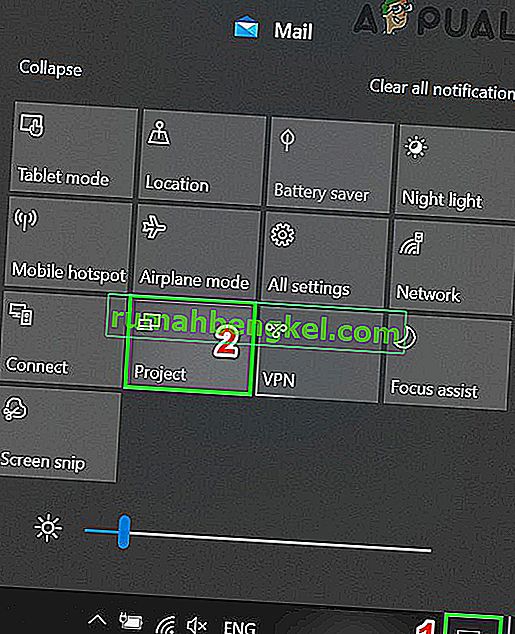
- На панели задач щелкните значок уведомления .
- Затем нажмите Project (вы также можете использовать сочетание клавиш Windows + P).
- Теперь выберите вариант « Только экран ПК ».
- Теперь запустите Call of Duty и проверьте, решена ли проблема.
Установите для игрового окна значение без полей
Если во время игры вы используете несколько дисплеев, то изменение режима игры на без полей может решить вашу проблему. Хотя некоторые пользователи с одним дисплеем сообщают, что переход в режим без полей решил их проблему.
- Запустите Call of Duty, нажмите на настройки, а затем перейдите на вкладку Графика .
- Затем разверните на дисплей режима и в подменю, нажмите на Fullscreen Borderless .
- Теперь сохраните изменения и проверьте, устранена ли ошибка разработчика 6068.

Изменить масштаб видеопамяти
Масштаб видеопамяти позволяет игре, сколько видеопамяти может быть использовано игрой. Если игра очень сильно загружает VRAM и заглушает ее, то уменьшение этого параметра может решить проблему.
- Выйдите из Call of Duty и завершите все связанные с ним процессы через диспетчер задач.
- Теперь запустите проводник.
- Затем перейдите по пути к папке вашего плеера; обычно путь:
Документы \ Call of Duty Modern Warfare \ плееры
- Теперь найдите файл adv_options. ini и откройте его с помощью блокнота .
- Найдите строку VideoMemoryScale .
- Теперь измените значение VideoMemoryScale на 0,5 .
- Затем запустите Call of Duty и проверьте, решена ли проблема.
Деактивировать приложение Game Overlay / Performance Monitoring
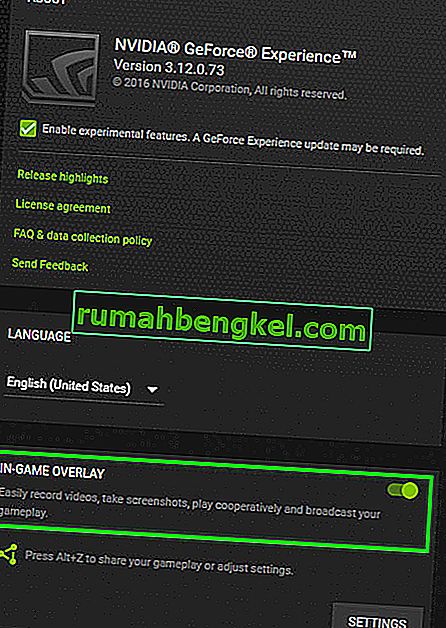
Известно, что программы с функциями наложения являются причиной многих кодов ошибок разработчика, включая ошибку разработчика 6068. Некоторые из этих программ — это Nvidia GeForce Experience, AMD Overlay, Game Bar и Discord Overlay. Кроме того, известно, что программные приложения для мониторинга производительности, такие как MSI Afterburn, вызывают ошибку Dev Error 6068. Если вы используете какие-либо такие программные приложения, отключение приложения может решить проблему.
Чтобы отключить Game Overlay в Nvidia GeForce Experience , следуйте инструкциям, приведенным ниже:
- Выйдите из игры и завершите все связанные с ней процессы через диспетчер задач.
- Запустите GeForce Experience .
- На левой панели окна GeForce Experience щелкните вкладку Общие .
- Прокрутите вниз, чтобы узнать о опции внутриигрового оверлея, и переведите его переключатель в положение « Выкл .».
- Выйдите из GeForce Experience после сохранения изменений .
- Теперь запустите Call of Duty и проверьте, нормально ли он работает.
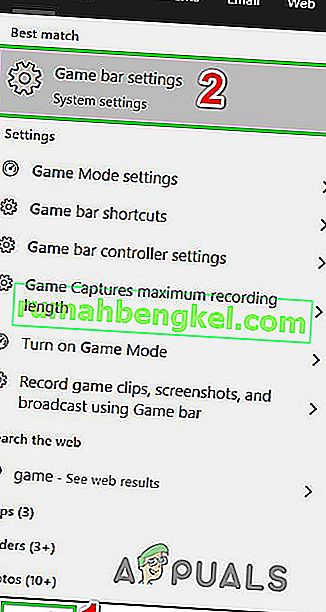
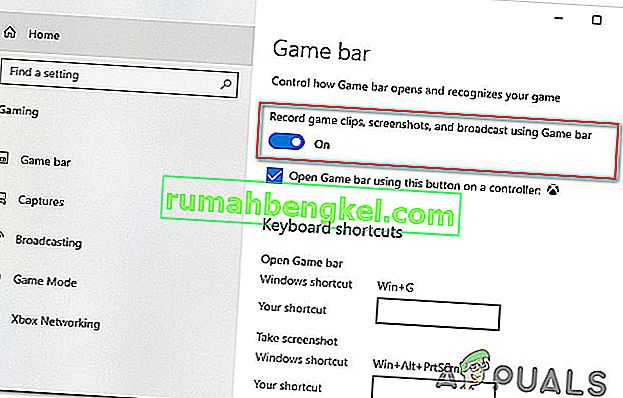
Чтобы выключить игровую панель , следуйте инструкциям, приведенным ниже:
- Выйдите из игры и завершите все запущенные процессы через диспетчер задач.
- Теперь нажмите клавишу Windows и введите Игры . Затем в результатах поиска нажмите Настройки игровой панели .
- В правой части окна настройки игры бар, переключите переключатель Game Bar в Off .
- Теперь запустите Call of Duty и проверьте, решена ли проблема.
Если вы используете какое-либо другое приложение для мониторинга производительности или оверлея, следуйте инструкциям, относящимся к этому конкретному приложению, чтобы отключить его и проверить, нормально ли работает Call of Duty.
Используйте DirectX 11 для Call of Duty
DirectX 12 — это недавно адаптированный API для игр. Но многие игры сталкиваются с различными типами проблем при использовании DirectX 12. Если это причина вашей проблемы, измените аргументы игры для использования DirectX 11, который может исправить ошибку DirectX в Call of Duty и, таким образом, может решить эта проблема. Для иллюстрации мы обсудим процесс запуска Battle.net.
- Откройте средство запуска Battle.net и откройте Параметры .
- Теперь откройте настройки игры .
- Затем для Call of Duty отметьте параметр « Дополнительные аргументы командной строки» и введите -d3d11 .
- Теперь запустите Call of Duty и проверьте, решена ли проблема.
Чистая загрузка вашей системы
Если до сих пор ничего не помогло, проблема, с которой вы столкнулись, может быть результатом конфликтующего стороннего приложения / драйвера. В этом случае чистая загрузка вашей системы может помочь найти конфликтующее приложение и таким образом решить проблему.
- Чистая загрузка вашей системы.
- Теперь запустите Call of Duty от имени администратора (убедитесь, что другие приложения не запущены) и проверьте, решена ли проблема.
- Если да, то попробуйте найти проблемное приложение и решить проблему между приложениями.
Настройка шейдеров
Call of Duty использует шейдеры для отображения теней в 3D-сценах. Однако известно, что шейдеры вызывают множество ошибок разработчика, в том числе ошибку 6068. Проблема с шейдерами в том, что они навязаны разработчиком, и вы не можете просто отключить их. Есть два обходных пути (пока не появится окончательное исправление).
Переустановите шейдеры
- Запустите Call of Duty и начните играть .
- Когда в игре, начать переустановку из шейдерами .
- Продолжайте играть в игру, пока она не установится. Если установка шейдеров завершена во время процесса, перезапустите процесс установки . Продолжайте переустанавливать шейдеры после завершения установки, пока вы не начнете игру.
Удалите папку Players / Players 2.
Удаление этих папок приведет к удалению шейдеров из вашей игры.
- Выйдите из Call of Duty и завершите все запущенные процессы.
- Теперь перейдите в папку игроков в Call of Duty. Обычно он находится по адресу:
Документы \ Call of Duty Modern Warfare \
- Резервное копирование в Игроки папки, на всякий случай! или, если есть папка Players 2 , сделайте ее резервную копию.
- Теперь удалите с Players папку. Или, если есть папка Players 2 , удалите и ее.
- Теперь запустите Call of Duty и проверьте, решена ли проблема.
Измените настройки
Могут быть некоторые неоптимальные настройки Call of Duty и системы, которые могут вызвать ошибку разработчика 6068. В этом случае изменение этих настроек может решить проблему.
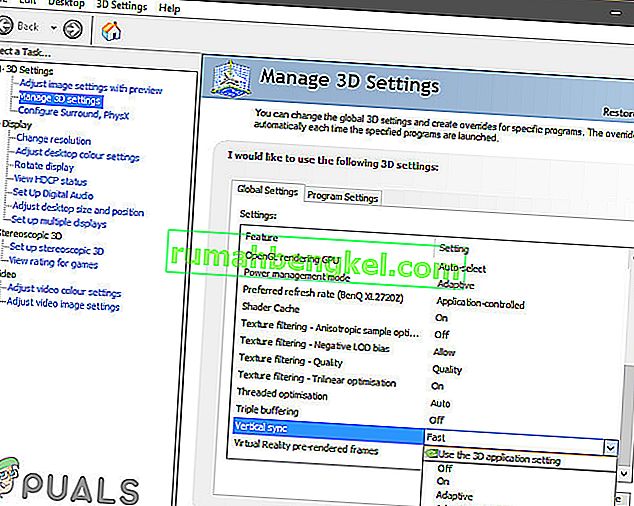
Изменить вертикальную синхронизацию
- Выйдите из Call of Duty.
- Запустите панель управления NVIDIA .
- Затем выберите Управление настройками 3D .
- Теперь измените вертикальную синхронизацию на « Адаптивную половинную частоту обновления ».
- Теперь запустите Call of Duty и проверьте, нормально ли он работает.
- Если нет, отключите вертикальную синхронизацию и проверьте, решена ли проблема.
Отключить трассировку лучей
- Запустите Call of Duty, откройте Параметры и перейдите к Shadow & Lighting .
- Теперь отключите опцию трассировки лучей и проверьте, решена ли проблема.
Отключить кросс-игру
- Запустите игру и откройте Параметры игры .
- Теперь в меню «Параметры» перейдите на вкладку « Учетная запись ».
- Затем выберите опцию Crossplay и выберите Disable .
- Теперь проверьте, нормально ли работает игра.
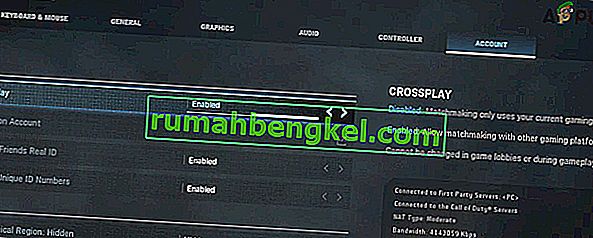
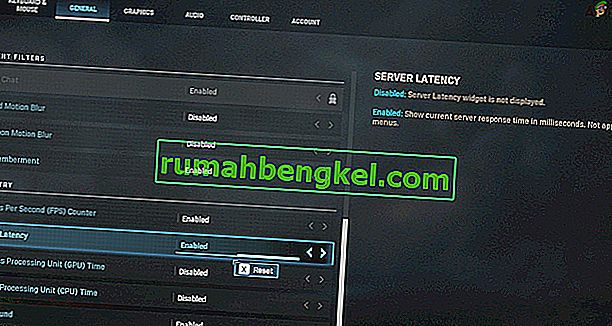
Включить задержку сервера
- Запустите Call of Duty, откройте Параметры и перейдите на вкладку Общие .
- Затем в разделе « Телеметрия » включите параметр « Задержка сервера» .
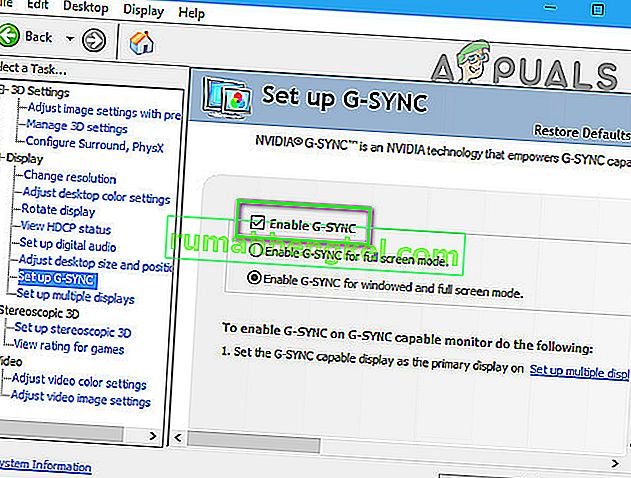
Отключить синхронизацию G
- Запустите панель управления NVIDIA .
- На левой панели окна разверните « Дисплей» и нажмите « Настроить G-Sync» .
- Теперь снимите флажок « Включить G-Sync» и проверьте, решена ли проблема.
Переустановите DirectX
Microsoft DirectX — это API, используемый программными приложениями для связи с аппаратным обеспечением компьютера. Если он поврежден (что может быть связано с тем, что сообщение об ошибке указывает на то, что с DirectX что-то не так), то это может быть причиной текущей проблемы. В этом случае переустановка может решить проблему.
- Переустановите DirectX.
- После переустановки DirectX проверьте, нормально ли работает игра.
Отключить разгон CPU / GPU
Разгон — обычная норма в игровом мире, но, как известно, он создает множество проблем для игр. Разгон вашего CPU / GPU может быть основной причиной ошибки Dev 6068. В этом случае снижение тактовой частоты или сброс вашего CPU / GPU до исходных скоростей может решить проблему.
- Понизьте тактовую частоту. Вам следует изучить механику разгона, прежде чем пытаться снизить тактовую частоту.
- После снижения тактовой частоты вашего процессора / графического процессора проверьте, нормально ли работает игра.
Запустите команды SFC и DISM
Поврежденные файлы ОС, особенно связанные с DirectX, могут привести к ошибке Call of Duty Dev 6068. Но, к счастью, у нас есть встроенные утилиты, которые могут решить проблему повреждения системных файлов. В этом случае выполнение этих команд может решить нашу проблему.
- Запустите SFC
- Запустите DISM
- Затем запустите Call of Duty и проверьте, решена ли проблема.
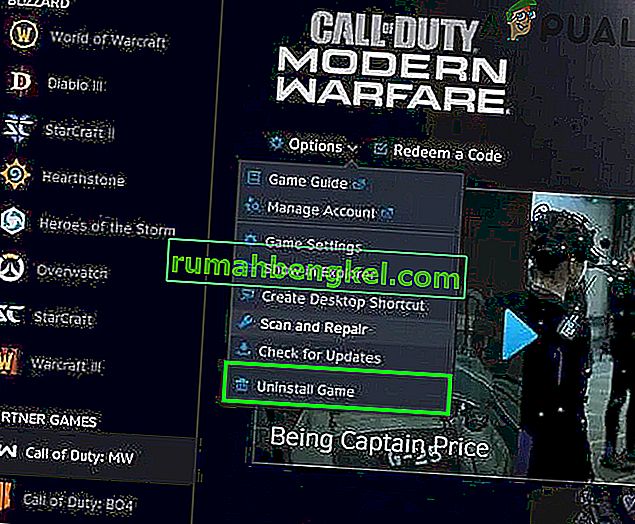
Переустановите игру
Если до сих пор у вас ничего не помогло, пора удалить игру, а затем переустановить ее. Для иллюстрации мы обсудим процесс запуска Battle.net.
- Запустите программу запуска Battle.net и щелкните значок Call of Duty .
- Затем нажмите кнопку удаления игры .
- Теперь следуйте инструкциям на экране, чтобы завершить процесс удаления.
- Затем перезапустите вашу систему.
- Теперь запустите средство запуска Battle.net.
- Затем установите Call of Duty и проверьте, решена ли проблема.
Сброс или чистая установка Windows
Если до сих пор у вас ничего не сработало, то у вас не остается другого выбора, кроме как сбросить Windows или выполнить чистую установку Windows.
Сменить RAM
Возможно, что иногда оперативная память, установленная на вашем компьютере, не позволяет вам играть в эту игру. Поэтому, если у вас есть какие-либо дополнительные RAM-накопители или вы хотите опробовать новую RAM на своем компьютере, попробуйте изменить RAM на своем компьютере.
Нижнее поле зрения:
Некоторые пользователи испытали, что, когда они снижают FOV ниже 100 до 95, они могут отлично играть в игру, не получая ошибки Dev. Поэтому рекомендуется оставить настройки графики по умолчанию и уменьшить FOV примерно до 95.
Learn how to fix your game and get rid of this error
by Matthew Adams
Matthew is a freelancer who has produced a variety of articles on various topics related to technology. His main focus is the Windows OS and all the things… read more
Updated on
- Players can’t launch Call of Duty: Modern Warfare when the Dev Error 6068 issue arises.
- Dev Error 6068 is caused by an issue with your DirectX.
- To fix this error, some players recommend updating the drivers or running the game with elevated privileges.
- If you’re running an AMD GPU, try underclocking it as well.
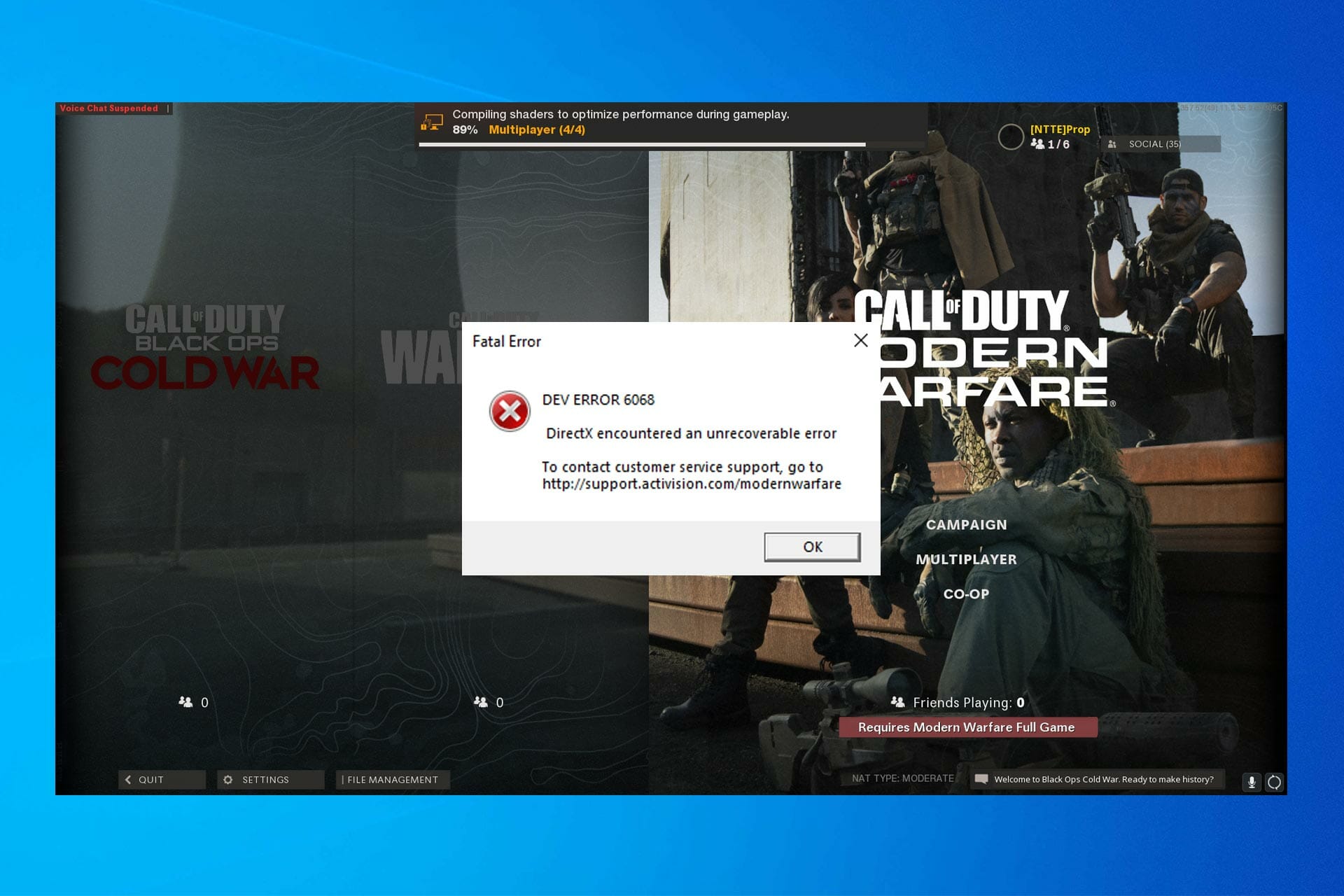
Many Call of Duty: Modern Warfare players posted on support forums during Warzone Season 6 about a Dev Error 6068 Warzone issue.
When those players click Play in Battle.net, an error message pops up that says, DEV ERROR 6068 DirectX encountered an unrecoverable error.
Why do I keep getting Dev error?
This problem can appear if you’re having issues with DirectX, and if this happens, you might experience that DirectX encountered an unrecoverable error.
These errors can appear on almost any version of Windows, and you can expect to see DirectX errors on Windows 11 as well.
In some cases, you might have to reinstall DirectX, but if you’re unable to do that, you can check our can’t install DirectX guide for in-depth solutions.
What does dev error 6068 mean?
The Dev Error 6068 message highlights that there’s a DirectX issue. So, it can mean your DirectX installation is corrupted.
However, the Dev Error 6068 Warzone issue can also be due to antiquated drivers, certain settings, corrupted game files, and other things. Speaking of that, users also reported similar issues, as follows:
- More games (Dev error 6068 Modern Warfare, Vanguard, Caldera)
- Dev error 6068 RAM
- More Windows versions (Dev error 6068 Windows 11)
- Dev error 5763
How do I fix Dev error 6068 in Warzone?
- Why do I keep getting Dev error?
- How do I fix Dev error 6068 in Warzone?
- 1. Update your GPU’s driver
- 2. Run the game with admin rights
- 3. Run Call of Duty Warfare with DirectX 11
- 4. Select the Exit Battle.net completely option
- 5. Update Windows 10
- 6. Adjust VideoMemoryScale
- 7. Select the Scan and Repair option
- 8. Underclock your GPU (AMD Radeon GPU Fix)
1. Update your GPU’s driver
First, check if you need to update your graphics card driver.
You can do that with a dedicated tool for Windows that quickly scans for outdated drivers and automatically updates (installs) them for you.
Ensure your system performs smoothly and avoids all GPU driver errors by using a complete driver update assistant, namely Outbyte Driver Updater, that will do the job for you.
Here’s how to safely update your drivers:
- Download and install the Outbyte Driver Updater app.
- Launch the software and wait for the app to detect all incompatible drivers.
- Now, it will show you a list of all faulty drivers to select the ones to Update or Ignore.
- Click on Update & Apply Selected to download and install the newest versions.
- Restart your PC to ensure the applied changes.

OutByte
Keep your GPU in a flawless state without worrying about possible driver issues.
Disclaimer: You may need to upgrade the app from the free version to perform specific actions.
2. Run the game with admin rights
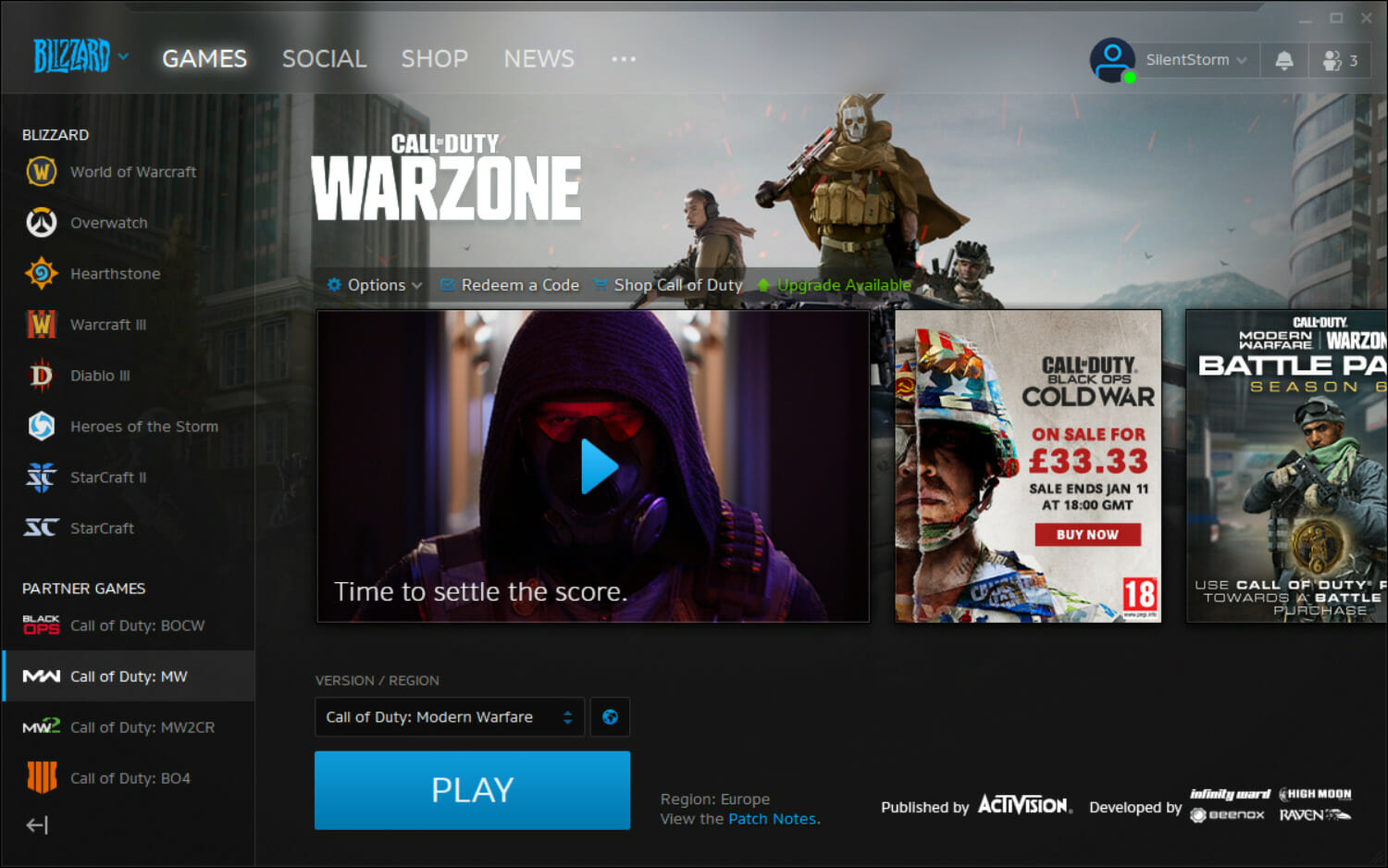
- First, open the Battle.net launcher software.
- Select Call of Duty: MW on the left of the window.

- Click Options > Show in Explorer to open the folder that includes the game’s folder.
- Open the Call of Duty Modern Warfare folder.
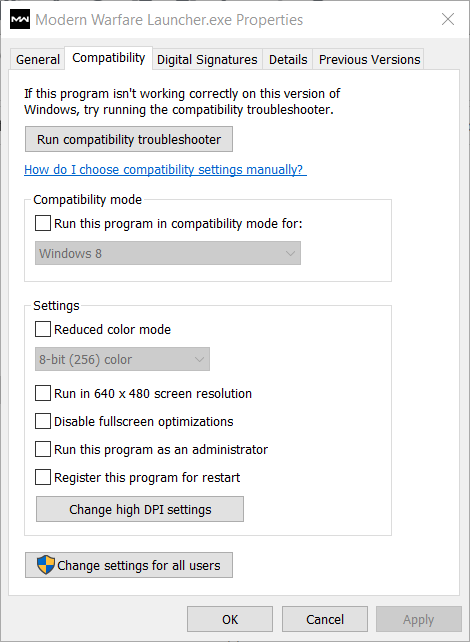
- Right-click ModernWarfare.Exe and select Properties.
- Select the Run this program in administrator option on the Compatibility tab shown directly below.

- Click the Apply option, and press the OK button.
- Then try playing the game again.
3. Run Call of Duty Warfare with DirectX 11
1. Open the Battle.net window.
2. Click on Options and select Game Settings. This will open the window shown directly below.
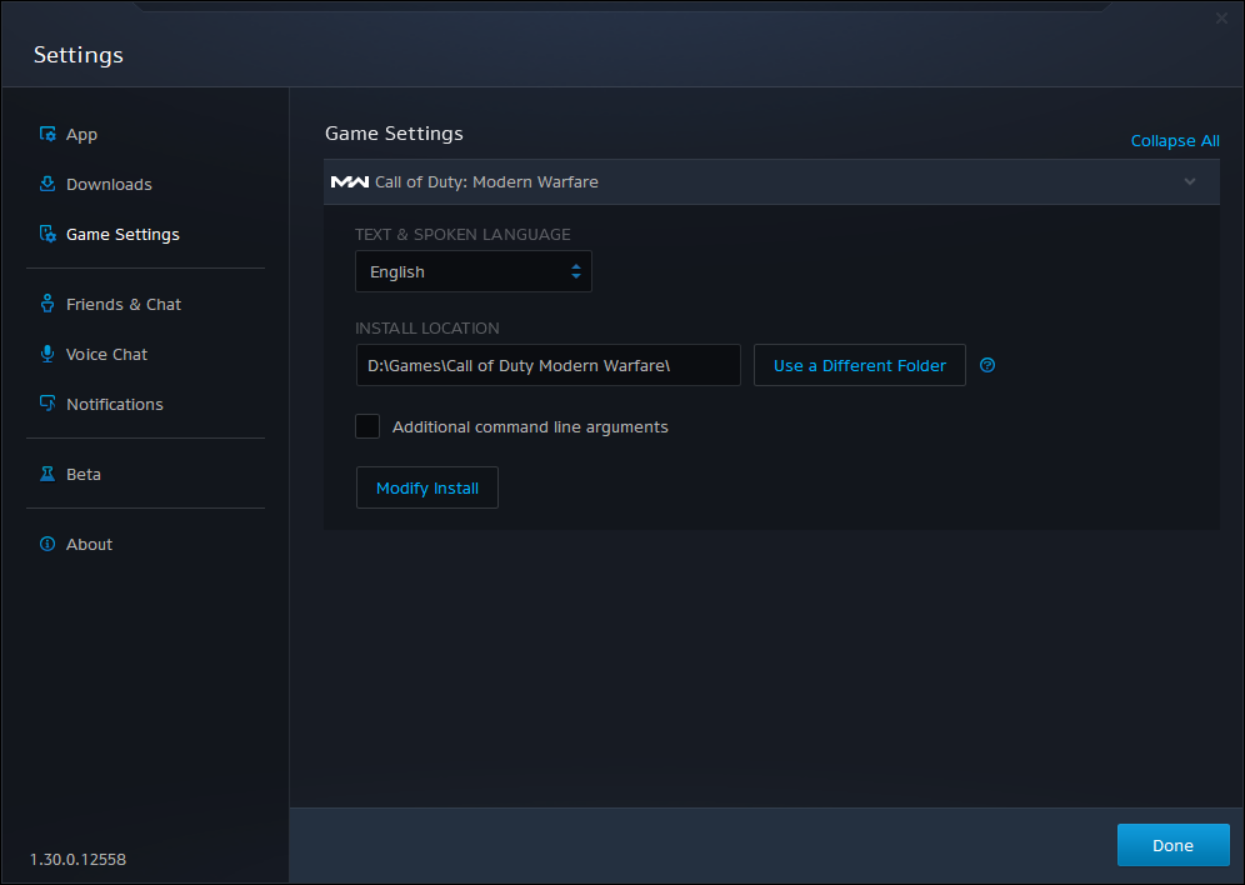
3. Then select the Additional command line arguments checkbox.
4. Type -d3d11 in the command line argument text box.
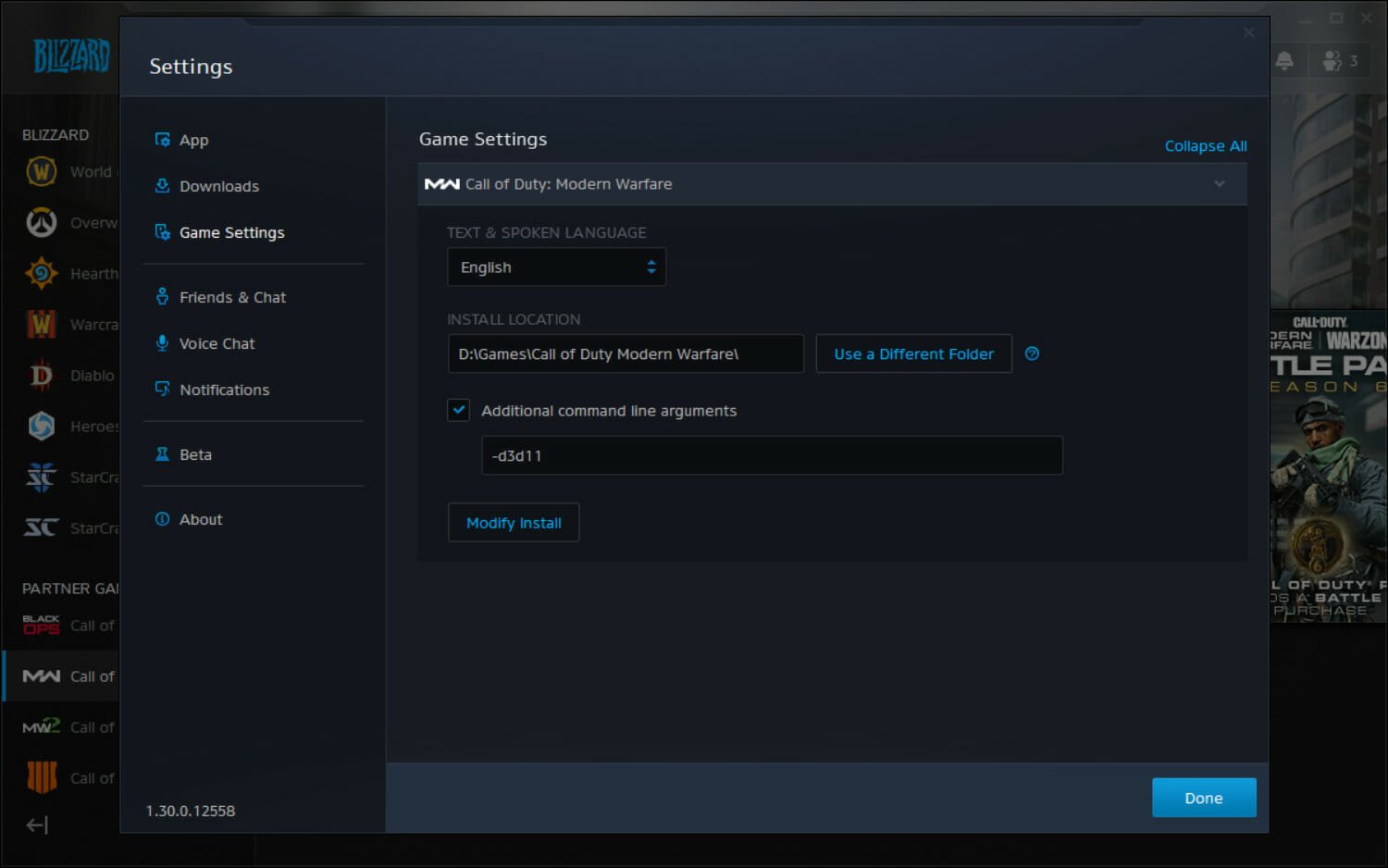
5. Press the Done button to save the settings.
6. Launch Call of Duty: Modern Warfare to see if the error is solved.
Dev Error 6068 is often associated with a DirectX issue. Therefore, running Call of Duty: Modern Warfare on a previous DirectX version, such as DirectX11, fixes the problem for a lot of users.
4. Select the Exit Battle.net completely option
- Open your Battle.net game launcher software.
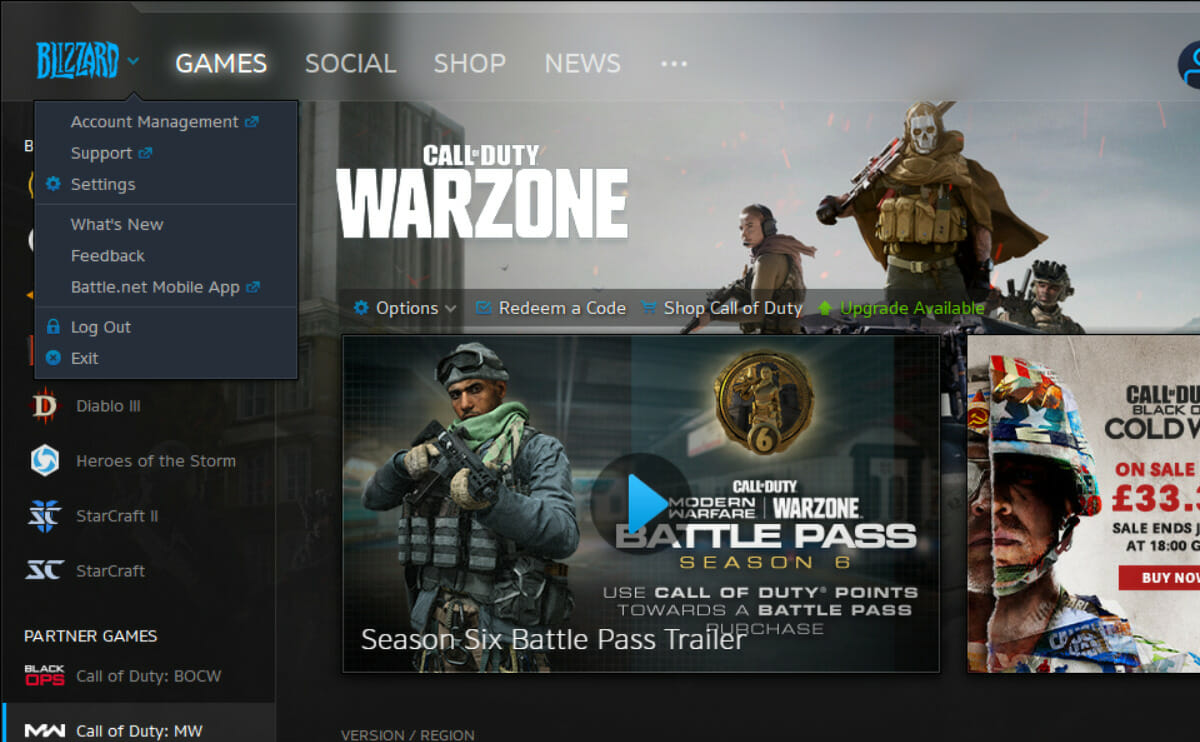
- Click Blizzard at the top left of the Battle.net software.

- Select Settings to open that window.
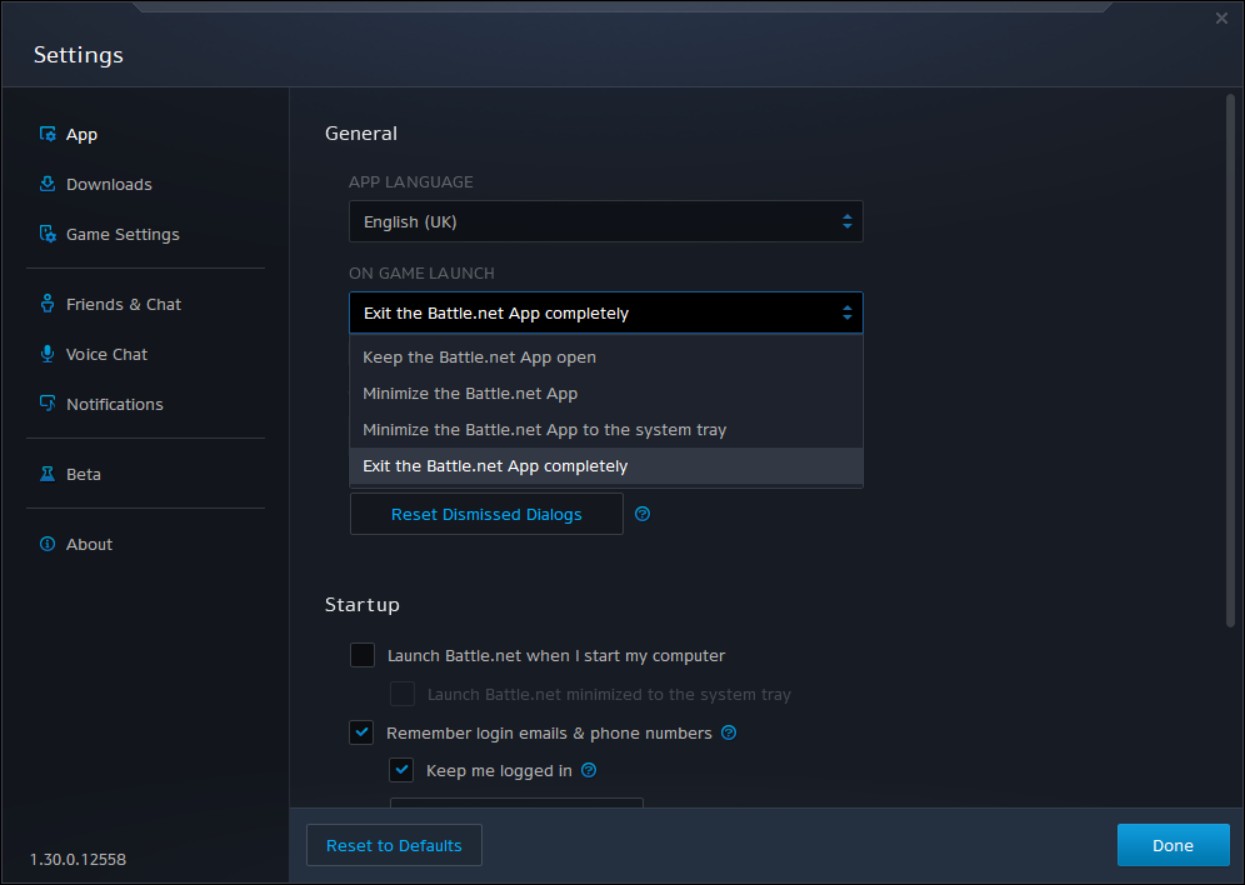
- Click the On Game Launch drop-down menu shown directly below.

- Then select the Exit the Battle.net App completely option.
- Click Done to save the selected settings.
- Can’t install DirectX in Windows 10/11
- How to fix DirectX errors on Windows 11
- Fix League of Legends DirectX errors
- A fatal DirectX error has occurred in Final Fantasy XIV
- Fix DirectX function GetDeviceRemovedReason failed with error
5. Update Windows 10
- Click the Type here to search button on the left side of your Windows 10 taskbar.
- Type Windows Update in the search utility that opens.
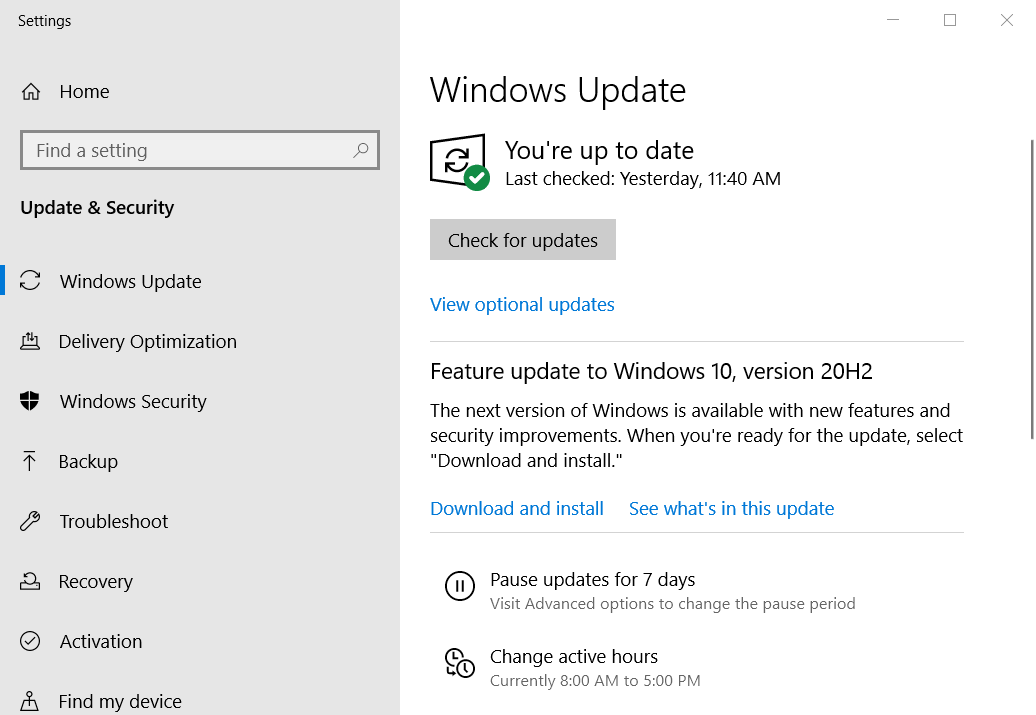
- Click Windows Update settings to open the Settings tab in the shot directly below.

- If there’s a new Windows 10 build available, click Download and install to update the platform with its latest version.
- Click the Check for updates button to download the latest patch updates if a new build version isn’t available.
6. Adjust VideoMemoryScale
- Open File Explorer by clicking its Windows 10 taskbar button.
- Then open your Call of Duty Modern Warfare folder.
- Next, open the players subfolder.
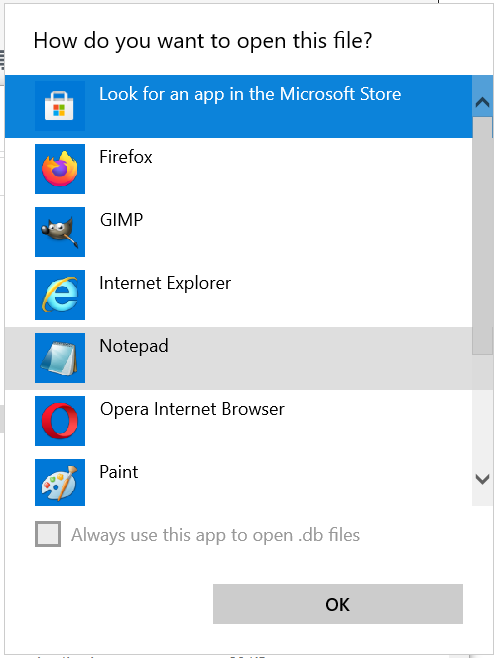
- Right-click the adv_options.ini file and select Open with.
- Select to open the file with Notepad.

- Look for the VideoMemoryScale value in the adv_options.ini file.
- Delete the current value for VideoMemoryScale.
- Then enter 0.5 as the replacement value.
- Click File > Save in Notepad.
7. Select the Scan and Repair option
- Start the Battle.net launcher app for Call of Duty.
- Click Call of Duty: MW on the left side of Battle.net’s window.
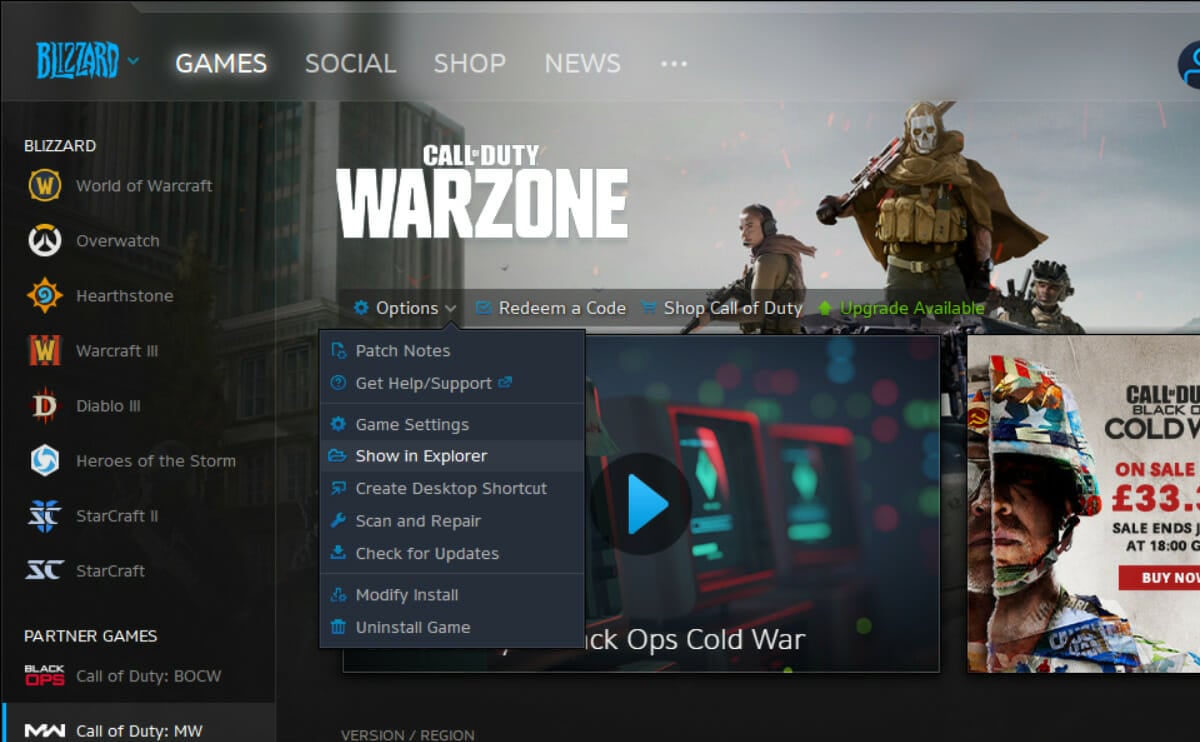
- Click Options to open the menu in the shot directly below.
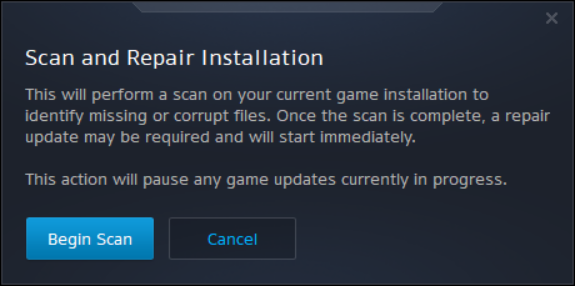
- Then select the Scan and Repair option.

- Press the Begin scan button to confirm.
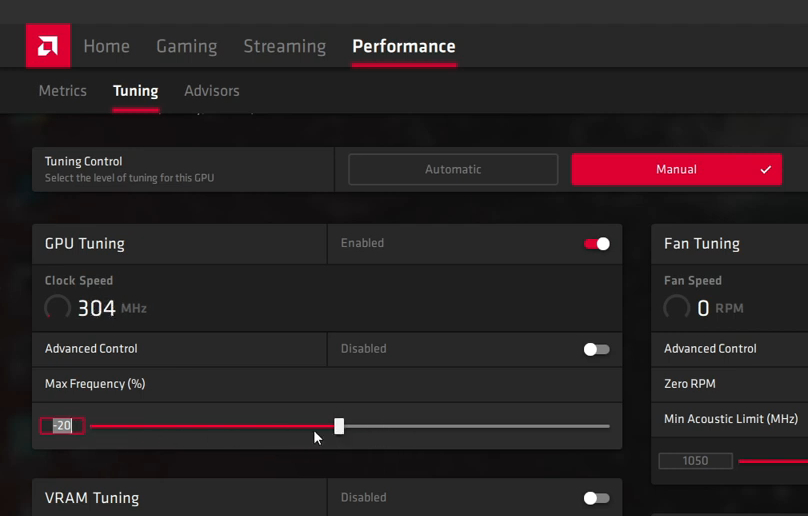
8. Underclock your GPU (AMD Radeon GPU Fix)
- Right-click your desktop and select AMD Radeon software.
- Click the Performance tab to open the options shown directly below.

- Select the Manual option for tuning control.
- Adjust the Max Frequency (%) bar to -20.
Those are some of the various potential resolutions players have confirmed can fix the Dev Error 6068 Warzone issue.
If the game won’t start and you get the notice the DirectX experienced an unrecoverable issue, this guide can help you solve the issue.
Reinstalling Call of Duty: MW Warzone via Battle.net might also resolve the issue. However, that’s only a last resort resolution if the above potential fixes don’t do the trick.
We hope that you managed to fix your game and get it working well again. Let us know in the comments section below if you encountered any difficulties following our solutions and whether you have any questions.


Call Of Duty: WarZone — Ошибка DEV ERROR 6068
Call Of Duty: WarZone — Ошибка DEV ERROR 6068
Сегодня я расскажу вам как исправить ошибку DEV ERROR 6068 в игре Call Of Duty: WarZone.
Перед тем как перейти к основным шагам по устранению ошибки, я рекомендую вам обновить Windows (в моем случае это Windows 10) и драйверы видео карты (в моем случае карта от Nvidia 1060 6Gb).
Исправляем ошибку Direct X Dev Error 6068 в CoD Modern Warfare
И так, вот те самые шаги которые помогли убрать ошибку DEV ERROR 6068:
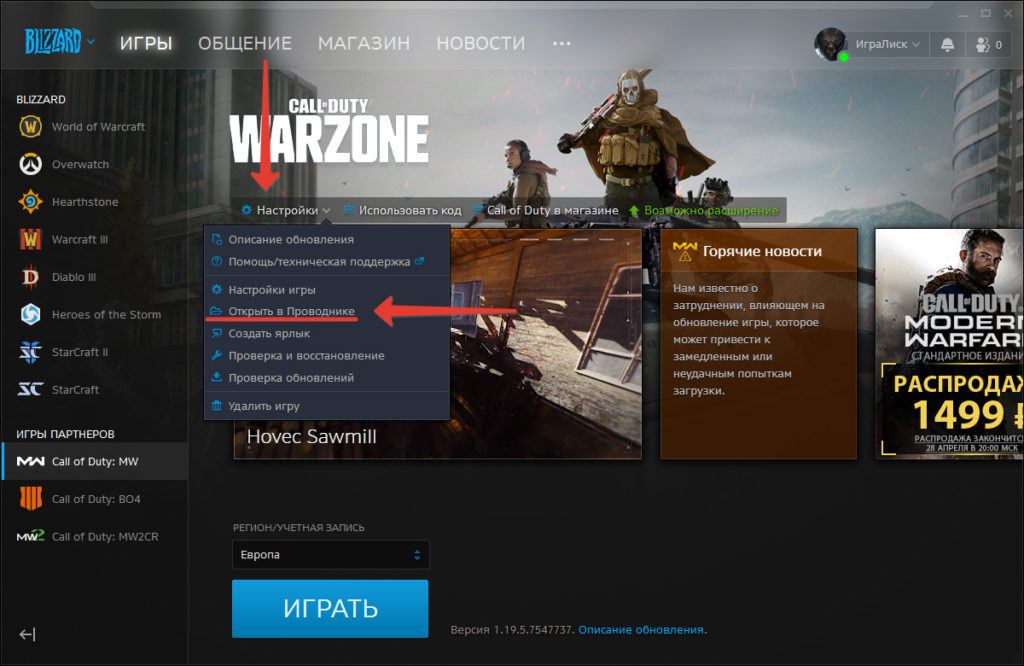
1. Заходим в лаунчер Battle.net и выбираем «Настройки» -> «Открыть в проводнике»
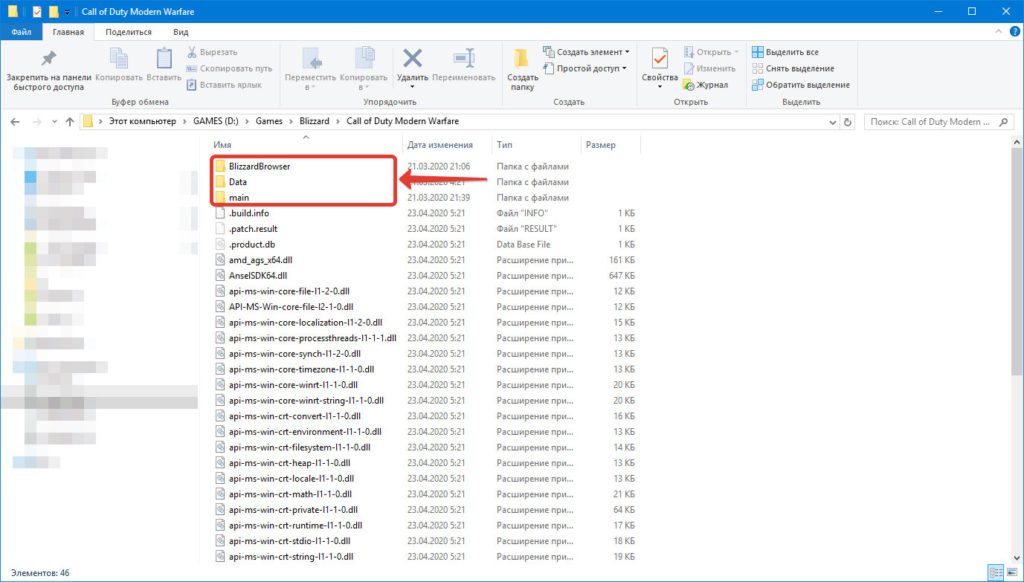
2. Кликаем по папке «Call of Duty Modern Warfare» и в проводнике удаляем все файлы кроме 3-х папок которые отмечены на картинке
3. В лаунчере переходим «Настройки» -> «Проверка и восстановление»
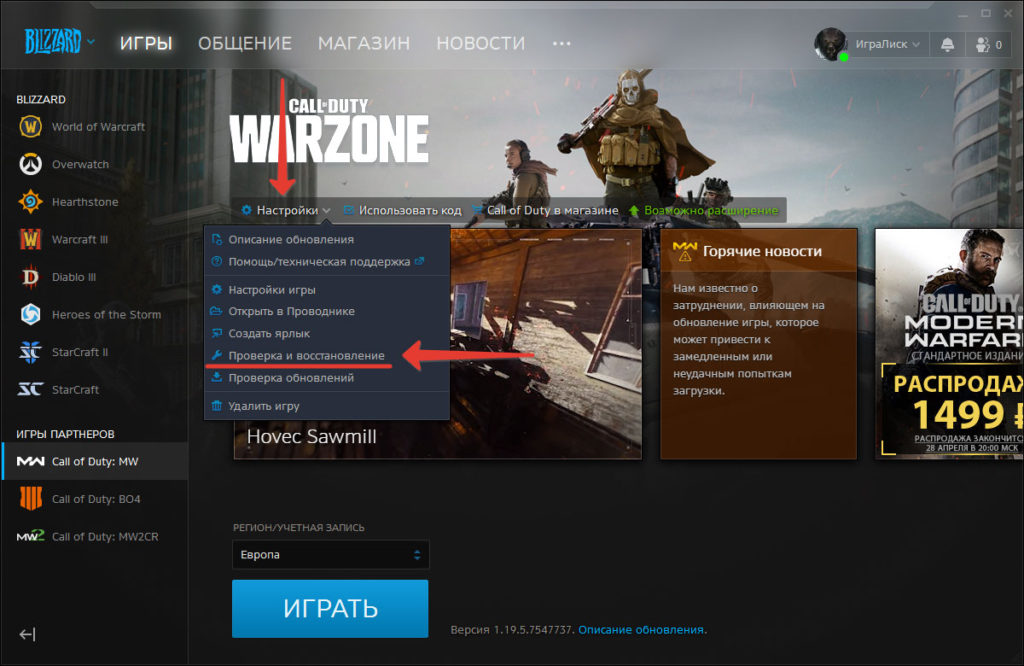
После этого начнется проверка файлов игры и их восстановление, нужно будет подождать минут 5
4. Далее переходим в сохраненные игры, для этого переходим в «Документы» -> «Call of Duty Modern Warfare» -> «players» и находим файл «adv_options»
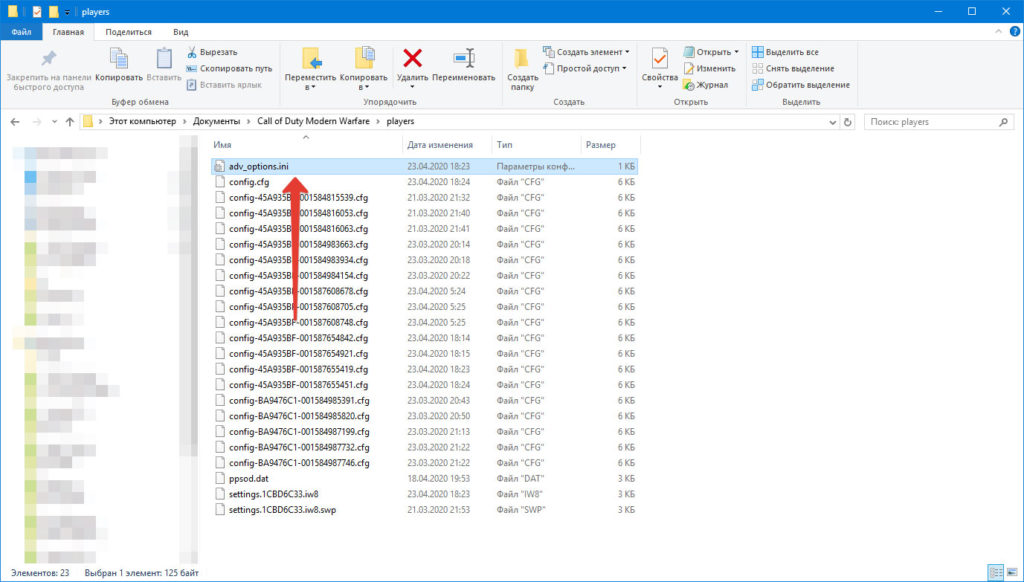
5. Открывает файл блокнотом и находим строку со значением «VideoMemoryScale = 0.85»
Нужно заменить значение 0.85 на 0.05 и сохранить файл
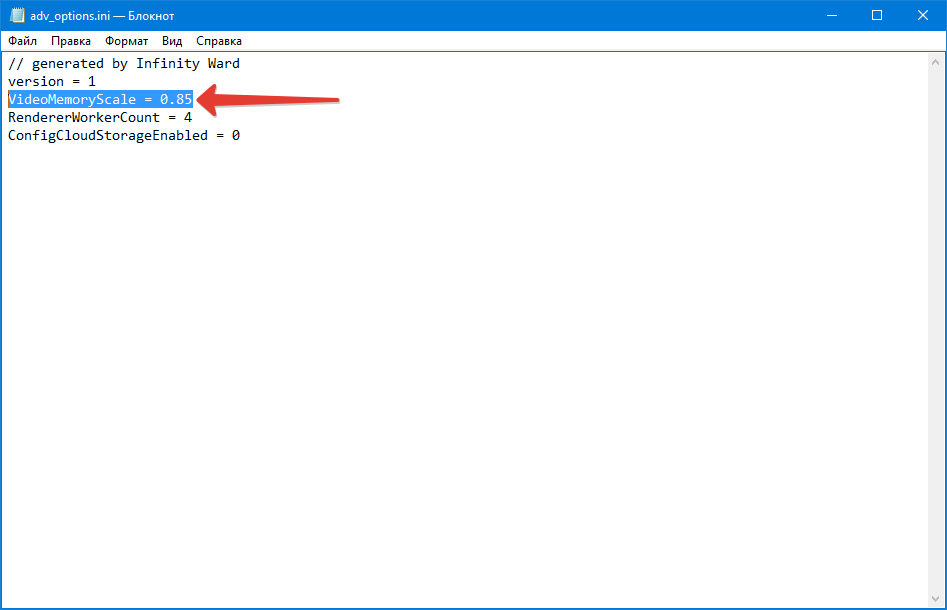
После этого можно запускать игру Call of Duty Modern Warfare, после представленных выше манипуляций, игра перестала виснуть и выдавать ошибку DEV ERROR 6068. Всем удачи в бою!
P.S.: Ну а кому лень читать, я подготовил видео гайд.
Видео инструкция гайд
Related Posts
Page load link