
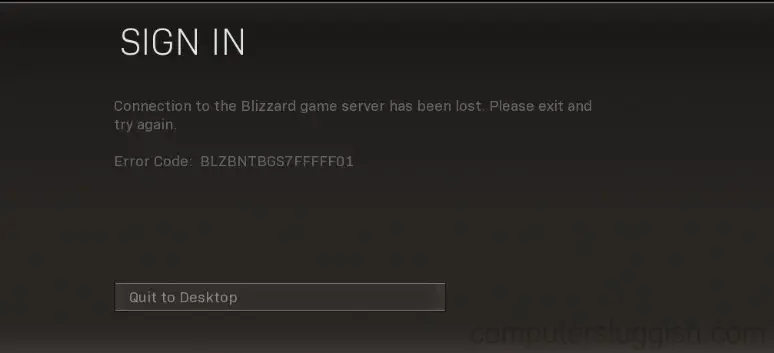
Some Call of Duty Modern Warfare players is experiencing a weird issue where the game terminates the connection to a Warzone server with the error code BLZBNTBGS7FFFFF01 (Connection to the Blizzard game server has been lost. Please exit and try again).
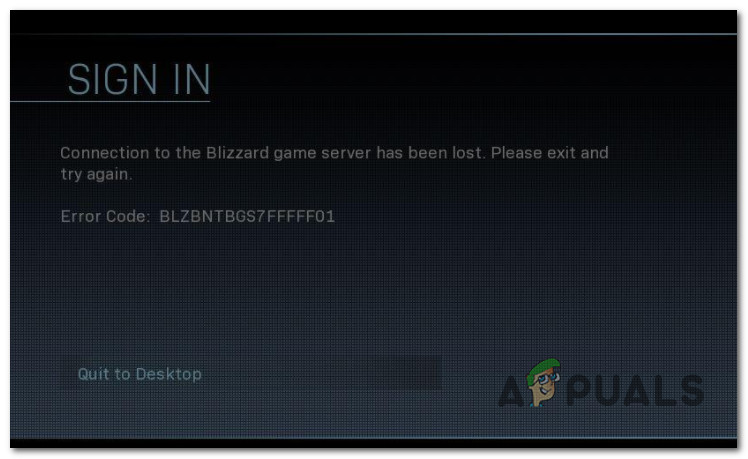
We’ve investigated this particular issue thoroughly to figure out the underlying problem that is currently affecting so many Call of Duty players currently. To our surprise, there are actually a few several different underlying issues that are often blamed for causing the BLZBNTBGS7FFFFF01.
Here’s a list of scenarios that might force your game client to disconnect from the Warzone server:
- Warzone is not updated – When you start troubleshooting this issue, the first thing you should do is ensure that Call of Duty Modern Warfare or Call of Duty Vanguard is updated with the latest version available. Battle.Net is sketchy when it comes to forcing the latest available game version when you cross-launch, so you might need to do it manually.
- The incorrect region is selected – Since Warzone is a game that uses dedicated servers to facilitate online matchmaking, it’s important to select the correct region inside Battle.net. This might be the reason why you’re experiencing the error. To fix it, open Battle.Net and adjust the region to the correct one.
- Missing admin access – Depending on your UAC (User Account Control) settings, you can also experience this error due to the fact that the game (or the game launcher) doesn’t have admin access. Without admin access, the connection with the game server will likely not be established. To fix this issue, you’ll need to force admin privileges on both the game and the game launcher (if necessary).
- Expired Battle.Net Login token – As it turns out, one of the most common causes that might be responsible for this issue is an expired Battle.Net login token that the game expects. This typically during prolonged periods spent in the game lobby. To fix this issue, you’ll simply need to log out of the Battle.Net app and log in again before restarting the game.
- Battle.Net glitch – Another potential scenario that might cause this type of error is a glitch affecting the main launcher that you use to open the game (Battle.Net). Some users that were also dealing with this issue have confirmed that the problem was fixed after they forcibly closed the Battle.net app via Task Manager (while the game was opened).
- Launcher issues – As some affected users have reported, you might be able to bypass this error entirely by opening the game directly from the main executable of the game instead of from Battle.Net. This will be effective in those situations where you get the error at the initial start screen.
- In-game menus are not updated (glitch) – Another method that seemed to be effective for a lot of users is to cross launch the Warzone (from Vanguard or Modern Warfare) and accept the installation of the in-game menu update.
- Game (or game dependency) corruption – Game file corruption is another cause that might ultimately cause the error code when you’re attempting to connect to a Warzone server. If this scenario is applicable, you should be able to fix the problem by forcing a scan & repair operation via Battle.Net.
- DNS inconsistency – A bad Domain Name System inconsistency can also be responsible for this problem. If this scenario is applicable, the best way to fix the issue and make Warzone stable is to make the switch to the DNS provided by Google.
Now that we went over every potential fix that might be causing this issue, let’s go over the actual fixes that should allow you to pinpoint and fix the BLZBNTBGS7FFFFF01 error and play multiplayer Warzone games normally.
Update game version to the latest
When you begin to troubleshoot this issue, the first thing that you should do is ensure that you are running the latest available game version.
Keep in mind that Battle.net is notoriously bad at updating sub-game instances. This is most likely the case with Warzone since it’s most likely a sub instance of Call of Duty Modern Warfare or Call of Duty Vanguard.
If this scenario is applicable, chances are the BLZBNTBGS7FFFFF01 error is occurring due to the fact that the current Warzone version you are attempting to launch is not the latest version available.
If this scenario is applicable, you should be able to fix the problem by using Battle.net to force the game to update manually.
Follow the instructions below for complete steps of making sure you update Warzone to the latest version available:
- First things first, start by closing the Warzone and any instance of Call of Duty that you might currently have running.
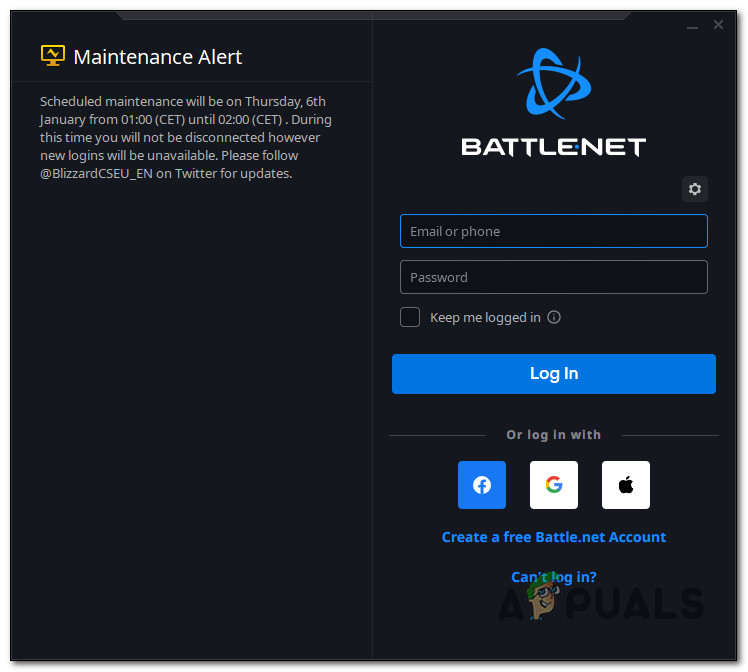
- Next, open Battle.Net and log in with your account.

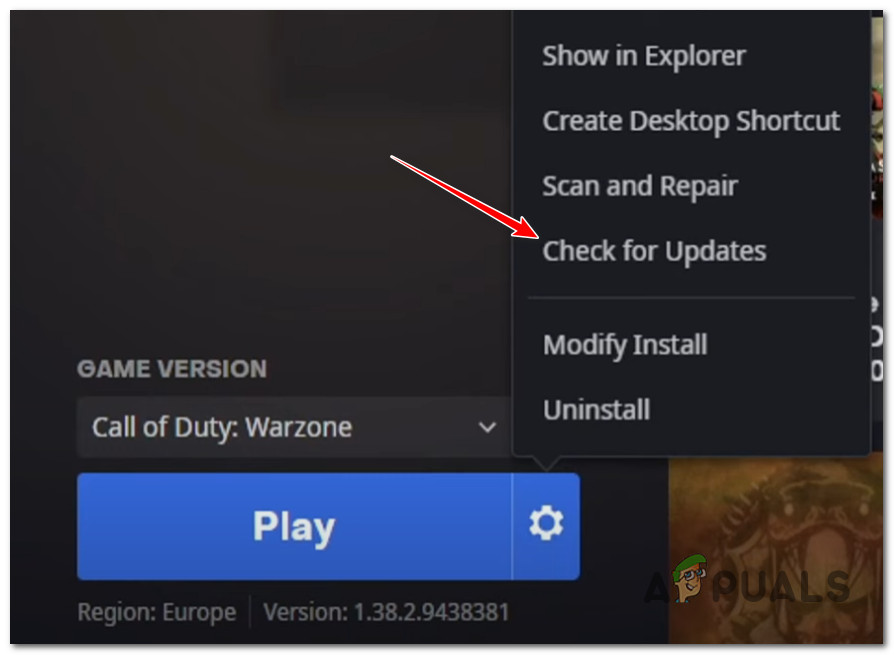
Logging into Battle.Net - Once you’re inside Battle.Net, select your Call of Duty Warzone from the library (left-hand section of the screen), then click on the Settings (gear icon).
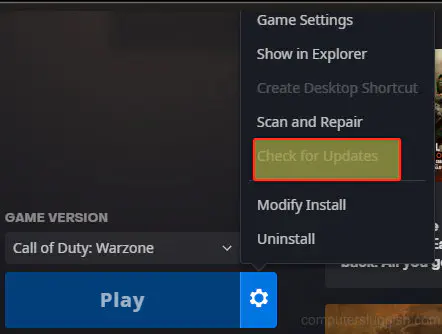
- From the context menu that just appeared, click on Check for Updates.

Check for Updates for Call of Duty - If a new game update is found, then follow the on-screen prompts to install the update, then reboot your PC.
- Once the next startup is complete, launch the game again normally and see if the problem is now fixed.
In case the same kind of issue is still occurring, move down to the next potential fix below.
Force the game to run with admin access
Another viable reason why you might notice the BLZBNTBGS7FFFFF01 error occurring on PC is due to missing admin privileges.
This problem is typically an issue on Windows 10 and Windows 11 computers that are using more aggressive UAC (User Account Control) settings.
If the launcher or the main game both lack admin privileges, chances are the connection with the game server will not be established.
To test if this scenario is applicable and fix the issue, simply right-click on the executable that you use to launch the game and click Run as Administrator from the context menu.
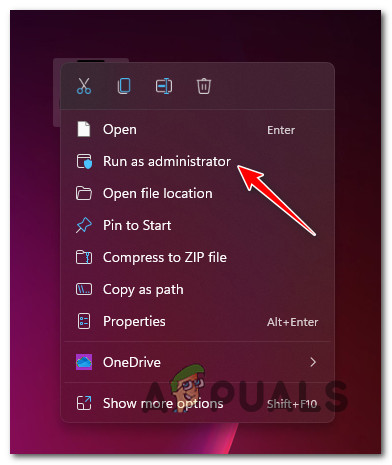
Note: If you launch the game via Battle.net, right-click on Battle.net’s shortcut instead.
If the BLZBNTBGS7FFFFF01 error no longer occurs when you launch with admin access, the issue is solved. The only problem is, you’ll need to repeat this operation every time you launch the game.
Fortunately, you can adjust the Properties menu of both Battle.net and the main game executable so that both of them will run with admin access even when they’re opened conventionally.
For specific instructions on how to do this, follow the steps below:
- Ensure that Battle.net and any instance of Call of Duty are completely closed.
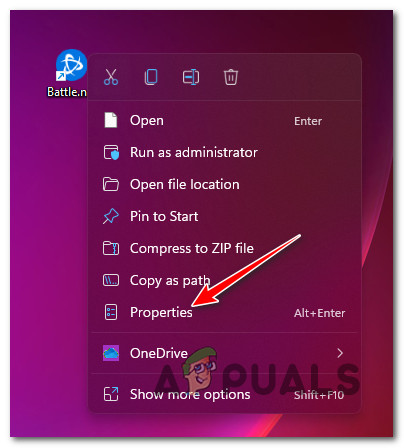
- Right-click on Battle.net and choose Properties from the context menu.

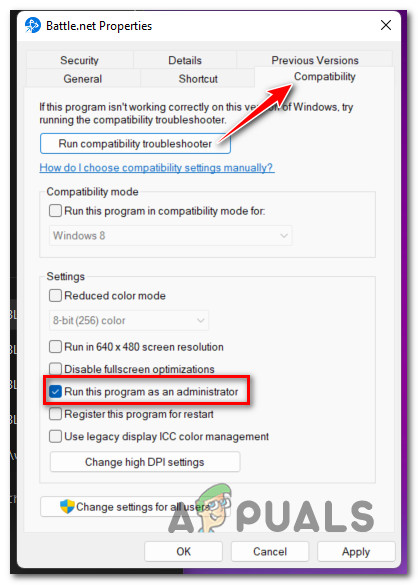
Accessing the Properties menu of Battle.net - Once you’re inside the main Battle.Net Properties menu, access the Compatibility tab from the cluster of menu options at the top.
- From the Compatibility tab, go over to the Settings options and check the box associated with Run this program as administrator.

Run this program as administrator - Hit Apply to save the changes.
- Do the same thing (steps 2 to 5) with the Warzone executable and check if the error is now fixed.
In case you’re still experiencing the BLZBNTBGS7FFFFF01 error when you attempt to connect to a Warzone server, move down to the next potential fix.
Log out and back into your Battle.net app
Since the most common scenario that will cause this problem is an expired login token belonging to Battle.net, the first thing you should do when troubleshooting the BLZBNTBGS7FFFFF01 error is to ensure that the token gets refreshed.
This type of issue is only reported on PC and it typically occurs when players spend a lot of time in the lobby (PC enters sleep, then wakes up).
Fortunately, the fix, in this case, is extremely simple – all you need to do is log out from the Battle.Net app and log in again conventionally.
If you’re looking for specific instructions on how to do this, follow the steps below:
- First things first, close Call of Duty: Modern Warfare and bring Battle.Net forward (if it’s running in the background).
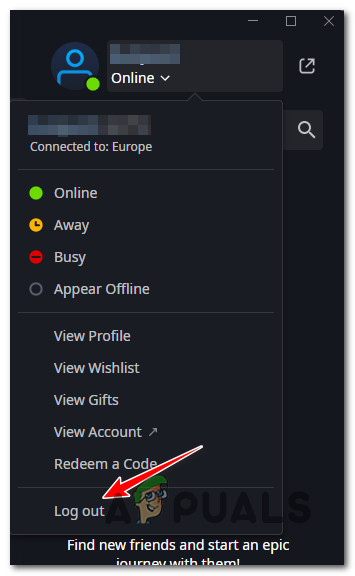
- Next, from the main window of Battle.net, click on your account name (top-right) section, then click on the Log Out menu from the context menu that just appeared.

Logging out of Battle.net - At the confirmation prompt, click Yes to confirm the process.
- Once you are back to the login screen of Battle.Net, simply enter your login credentials in the presented boxes, then click on Log in to sign back in.
Log back into Battle.Net - Once you are signed back into your Battle.Net account, the login token is now refreshed, so you can safely open Call of Duty: Modern Warfare again and attempt to join another multiplayer Warzone server to see if the problem is now fixed.
If the same kind of issue is still occurring, move down to the next potential fix below.
Set the correct region inside Battle.net
This type of issue can very well be related to a region inconsistency. As other affected users have reported, it’s important to ensure that the region inside Battle.net is correctly set according to your physical location.
This is not important for every game, but it’s crucial for games like Warzone that uses dedicated servers to sustain online matchmaking.
If you’re not certain if you’re using the correct region inside Battle.Net, follow the instructions below for steps of doing so:
- First things first, ensure that no instance of Call of Duty (Vanguard, Modern Warfare, or Warzone) is currently running in the background.
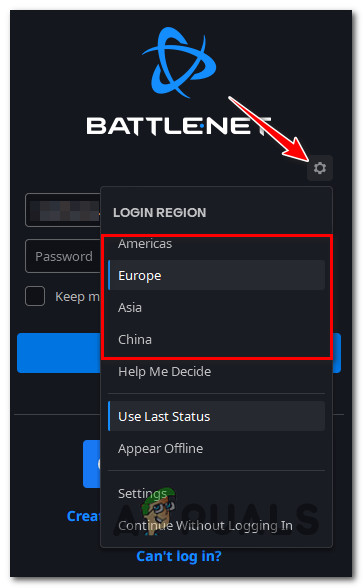
- Open Battle.Net and before you sign in with your account, click on the gear icon (hidden settings menu) and select the appropriate region from the context menu that just appeared.

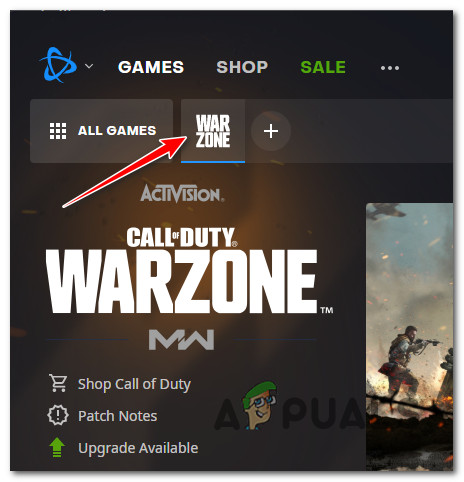
Select the appropriate region for Battle.net - Select Call of from the Library bar at the top.

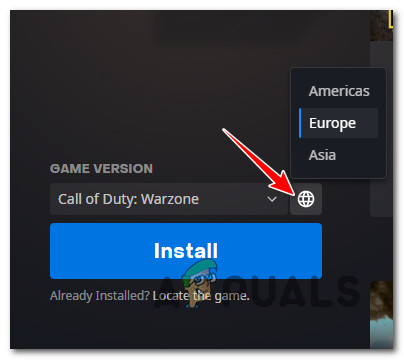
Selecting Warzone inside Battle.net - Next, while the game is selected, click on the region (globe icon) and select the appropriate server from the list of available regions.

Selecting the correct region Note: You can do this prior to installing the game or after the game is already installed.
- Launch the game normally and see if the problem is now fixed.
If you’re still experiencing the same BLZBNTBGS7FFFFF01 error, try the next method below.
End the Battle.Net task
If the first solution was not applicable or did not work in your case, one other thing that you can try is to use Task Manager to end the entire Battle.Net while you’re already inside Call of Duty Modern Warfare.
This fix is not confirmed by the developers and there’s no official explanation on why this method is effective, but a lot of users that we’re previously encountering the BLZBNTBGS7FFFFF01 error have reported that they were finally able to join a Warzone server after doing this.
Note: Some users that have used this method to bypass the error argue that this problem occurs due to a Battle.net glitch.
If you want to try this workaround too, follow the instructions below:
- Open Call of Duty Modern Warfare normally via Battle.net.
- Wait until you get past the initial screen, and press Ctrl + Shift + Esc to open up Task Manager.
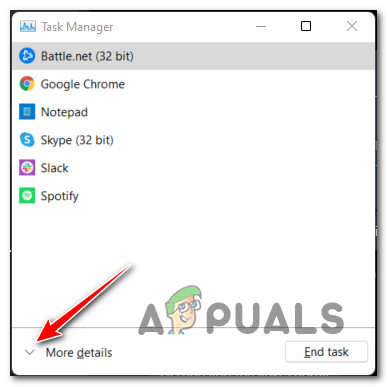
Note: The game will automatically be minimized but will still run in the background. - In case Task Manager opens with the simple interface, click on More Details to make the larger version of Task Manager visible.

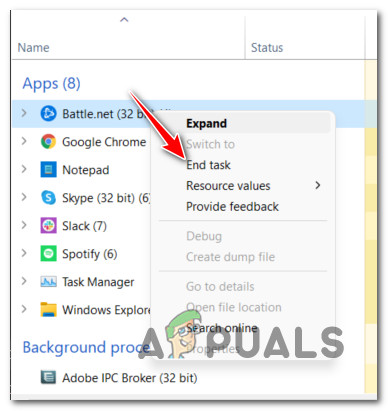
Make the expert interface of Task Manager visible - Next, from the expert interface of Task Manager, click on the Processes tab at the top, then right-click on Battle.net and choose End Task from the context menu that just appeared.

End Task with Battle.Net - Once the entire Battle.net tree is closed, you can safely close Task Manager and bring the game forward again from the background.
- Attempt to reconnect to a Warzone server once again and see if the problem is now fixed.
In case the issue is still not fixed, move down to the next potential fix below.
Launch the game directly (via ModernWarfare.exe)
If you’ve come this far without a viable fix, another thing that you should try is to bypass the functionality of Battle.Net entirely and launch the game directly via the main executable (ModernWarfare.exe).
Of course, this will not exclude Battle.net from the mix since it’s an important game dependency, but some affected users that were previously experiencing the BLZBNTBGS7FFFFF01 error during the initial startup screen have confirmed that this operation finally allowed them to get past it.
See if you can bypass the issue too by accessing the game install folder (right-click on the icon and choose Open File Location).
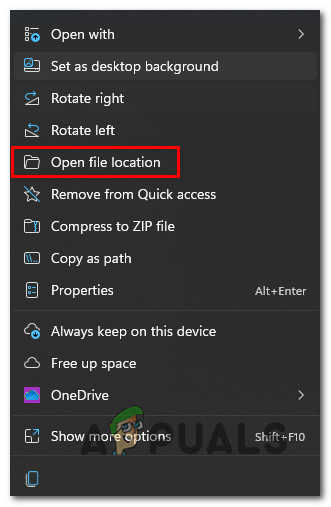
Once you’re inside the main game folder, double-click on the main game executable (ModernWarfare.exe) and see if you are able to bypass the game error.
If this workaround allows you to bypass the Battle.net servers and join Warzone servers without experiencing the same issues, you can make this process easier for you by modifying the Target attribute of your main shortcut so that it will always have this behavior.
Here’s what you need to do:
- Right-click on the desktop shortcut of your Call of Duty Warfare game and choose Properties from the context menu.

Accessing the Properties screen - Once you’re inside the Properties screen of the game shortcut, access the Shortcut tab from the menu at the top, then modify the Target tab so that it ends up pointing to “Modern Warfare Launcher.exe” (in the same game folder)
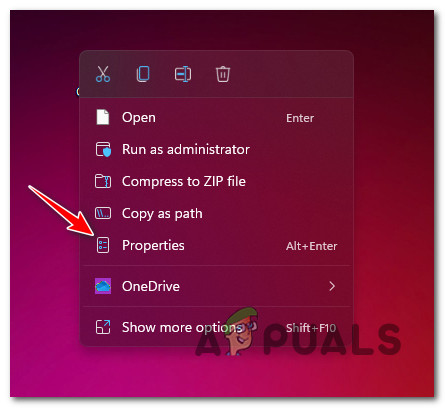
If this method was not helpful in your case, try the next fix below.
Force the in-game update to appear (if applicable)
As it turns out, another reason why you might notice that the game refuses to connect to a Warzone server and displays the BLZBNTBGS7FFFFF01 error instead might be due to a missing in-game update or a shader update that is not yet installed.
This might be due to a bug that’s quite prevalent among Warzone users. Fortunately, you can get this issue resolved and force the in-game update to appear by cross-launching the game from Modern Warfare or Vanguard.
Note: Of course, this method is only applicable as long as you have ownership of either Vanguard or Modern Warfare. Otherwise, you won’t be able to cross-launch.
If this method is applicable to you, follow the instructions below to cross-launch Warzone and see if this fixes the problem for you:
- Open up Vanguard or Modern Warfare (depending on which game you own).
- At the initial screen, you will be prompted to select from different game modes. When you see this menu, click on Warzone.

Opening up Warzone by cross launching - Once you prompt the opening of Warzone via cross launching, you should see a window asking you if you want to apply the in-game update. Hit Yes and wait until it’s installed.
- After the in-game update is installed, Warzone will automatically open and you should be able to join a multiplayer game without encountering the same kind of issue.
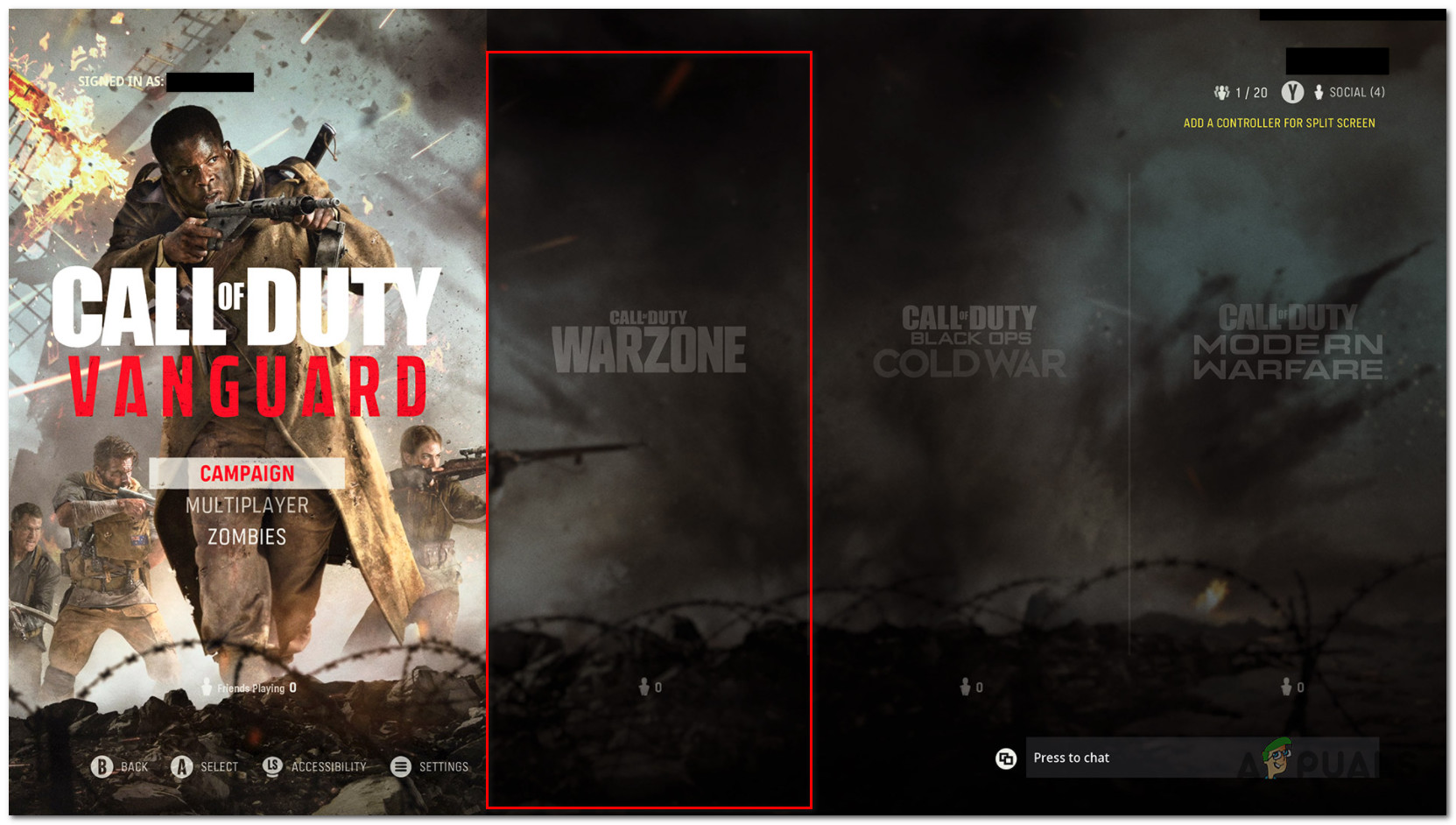
If the BLZBNTBGS7FFFFF01 error is still not fixed, move down to the next potential fix below.
Verify the integrity of the game via Battle.Net
If you’ve come this far without a viable fix, the next thing you should do is ensure that you’re not experiencing this issue due to an underlying game corruption issue.
Several users that were dealing with the same kind of error have confirmed that the problem was entirely resolved after they forced the main launcher (Battle.Net) to verify the integrity of the game files and game dependencies.
If you haven’t tried this fix already, follow the instructions below for specific instructions on triggering a game repair procedure for Warzone via the in-game settings of Battle.Net:
- Ensure that the Call of Duty game is closed and not running in the background.
- Open Battle.Net and sign in with the account that holds ownership of the game.
Logging into Battle.Net - Once you’re inside the main Battle.Net app, click on on the game (left-hand section) to select it.
- Next, click on the Settings (gear icon), then click on Scan and Repair (from the context menu that just appears) to check the file integrity and repair Call of Duty.

Scan and Repair the Call of Duty game - At the next prompt, confirm the operation, then wait patiently until the scan and repair procedure is complete.
- Once the operation is complete, restart the game and see if the problem is now fixed.
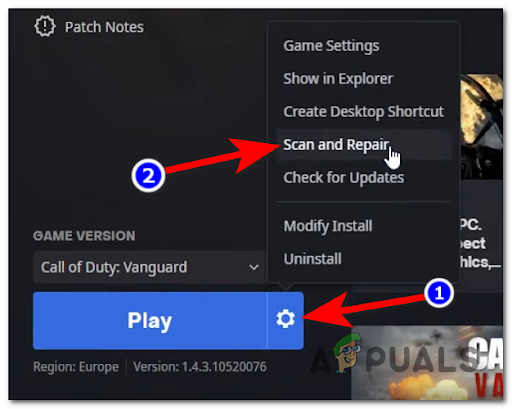
If the same problem is occurring, move down to the final fix below.
Change the DNS to Google Equivalents
If you’ve come this far and no method featured above was effective in your case, the last thing that you should do before concluding that the issue is entirely beyond your control is to change the DNS from the default range to a range provided by Google.
This is known to make the game a lot more stable and should allow you to fix the BLZBNTBGS7FFFFF01 error with Warzone if it’s occurring due to a network inconsistency.
Here are the complete instructions on making the switch from your default DNS range to the equivalent provided by Google (for both IPv4 and IPv6):
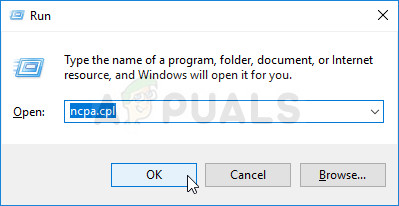
- Start by pressing Windows key + R to open up a Run dialog box.
- Next, type ‘ncpa.cpl’ inside the text box, then press Enter to open up the Network Connections window.

Opening the Network Connections menu - From the Network Connections menu, right-click on Wi-Fi (Wireless Network Connection) or Ethernet (Local Area Connection) - depending on if you’re using a wireless or wired connection respectively.

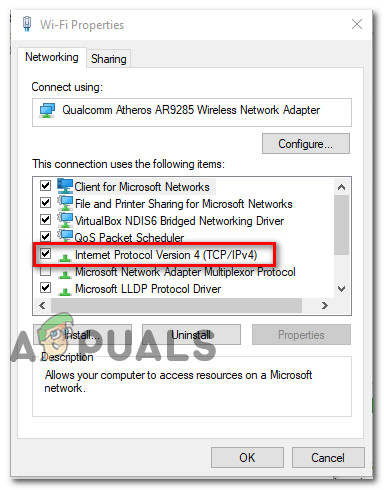
Open up the Properties screen - Inside the dedicated Ethernet or Wi-Fi menu, use the menus to access the Networking tab.
- From the next menu, navigate to the ‘This connection uses the following items section‘, select Internet Protocol Version 4 (TCP / IPv4) , and click on the Properties menu.

Accessing the IPv4 settings - Once you get to the next menu, click on the General tab, then check the box associated with Use the following DNS server address.
- Once the boxes become available, replace the current values for Preferred DNS server and Alternate DNS server with the following and click Apply to save the changes:
Preferred DNS server – 8.8.8.8
Alternate DNS server – 8.8.4.4 - Next, you should repeat this process for IPv6. To do this, return to the Wi-Fi Properties screen, select Internet Protocol Version 6 (TCP/IPv6) and click on Properties once again.
- Finally, check the Use the following DNS server address box and paste the following values for the Preferred DNS server and Alternate DNS server and hit Apply to save the changes:
Preferred DNS server – 2001:4860:4860::8844
Alternate DNS server – 2001:4860:4860::8888 - After the changes have been saved, reboot this PC and launch the game once again to see if the issue is now fixed.

Исправление ошибки Call Of Duty Warzone BLZBNTBGS7FFFF01 на Windows 10 PC или ноутбуке
В этом посте мы рассмотрим, как вы можете исправить ошибку COD Warzone Sign In error BLZBNTBGS7FFFF01 на вашем Windows 10 PC или ноутбуке.
Содержание
Эта ошибка Warzone полностью останавливает работу игры и дает вам только возможность выйти на рабочий стол.
Есть несколько причин, по которым вы можете получить эту ошибку Warzone BLZBNTBGS7FFFF01 . Ниже мы перечислили несколько вещей, которые вы можете сделать, чтобы устранить проблему и как можно скорее вернуться в Warzone.
Сообщение об ошибке будет выглядеть следующим образом:
«SIGN IN — Соединение с игровым сервером Blizzard было потеряно. Пожалуйста, выйдите и попробуйте снова.»
«Код ошибки : BLZBNTBGS7FFFF01
Устранение ошибки Warzone BLZBNTBGS7FFFF01 : 1. Убедитесь, что ваш ПК или ноутбук подключен к интернету — Если у вас нет доступа к интернету, это может вызвать ошибку Warzone, так как для игры требуется подключение к интернету
2. Если вы используете Wi-Fi, попробуйте использовать кабель — он будет более стабильным, чем Wi-Fi
3. Убедитесь, что приложение Battle.net работает в фоновом режиме — Это наиболее распространенная причина ошибки BLZBNTBGS7FFFF01 sign in
4. Убедитесь, что вы установили последнее обновление Warzone :
- В Battle.net нажмите кнопку .Вкладка Warzone
- Нажмите на кнопку настроек > Нажмите на » Проверить наличие обновлений »
5. Убедитесь, что ваш брандмауэр не блокирует приложение battle.net и Warzone
6. Просканируйте и восстановите Warzone — это позволит убедиться, что ни один из файлов не поврежден или отсутствует, что может вызвать сообщение об ошибке BLZBNTBGS7FFFFF01:
- Откройте приложение Battle.net > Нажмите на вкладку Warzone
- Нажмите на кнопку настроек > Сканировать и восстановить > Начать сканирование
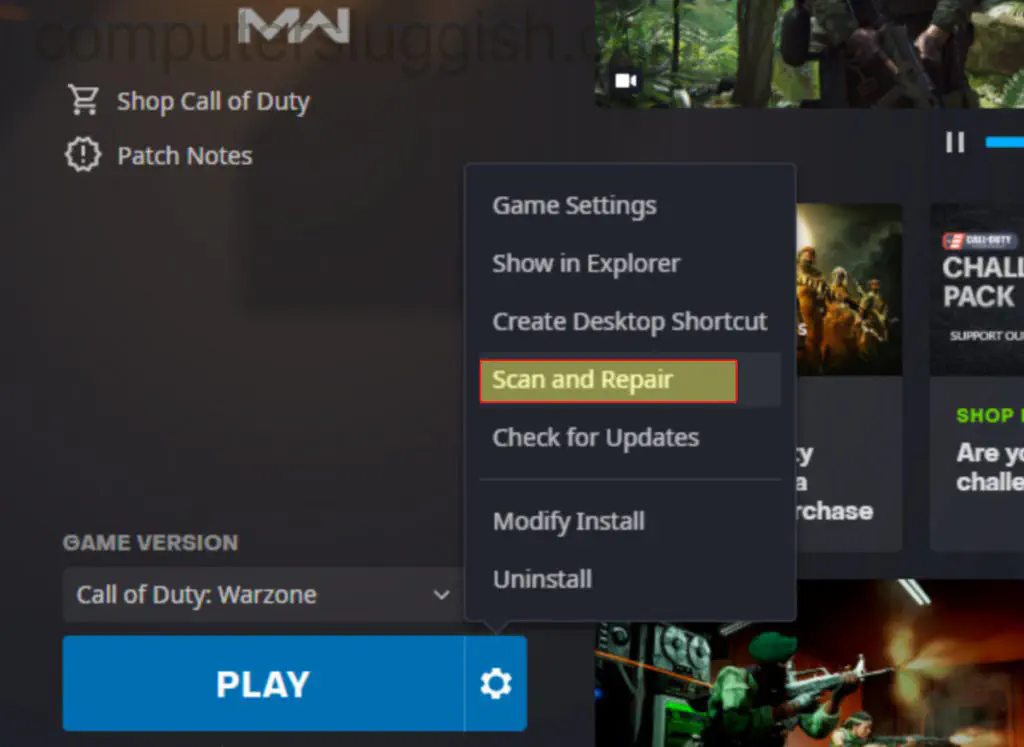
Вот и все, как исправить ошибку Call Of Duty Warzone Sign In BLZBNTBGS7FFFF01 на вашем компьютере или ноутбуке с Windows 10. Прокомментируйте ниже и сообщите всем, какой метод помог исправить вашу Warzone.
Если вы все еще получаете ту же ошибку после выполнения вышеуказанных шагов, то есть вероятность, что вам придется переустановить Warzone или переустановить Windows 10.
YouTube видео: Как исправить ошибку входа в COD Warzone BLZBNTBGS7FFFFF01 на ПК
Вопросы и ответы по теме: “Как исправить ошибку входа в COD Warzone BLZBNTBGS7FFFFF01 на ПК”
Что делать если не запускается Call of Duty Modern Warfare?
Call of Duty: Modern Warfare не запускаетсяМногие проблемы с запуском игр случаются по причине некорректной установки. Проверьте, не было ли ошибок во время установки, попробуйте удалить игру и запустить установщик снова, предварительно отключив антивирус – часто нужные для работы игры файлы по ошибке удаляются.
Почему вылетает Call of Duty Modern Warfare 2?
Ошибка 0xc000007b / вылет с ошибкой 0x887A0005 Fix в Call of Duty: Modern Warfare 2 (2022) Переустановите или обновите драйвера NVIDIA. Желательно сделать чистую установку, чтобы сбросить неудачные настройки. Если вылеты или ошибки не прекратились, то попробуйте поставить более старую версию драйверов.
Как запустить кампанию в Call of Duty Modern Warfare?
Распространенные проблемы1. Запустите приложение Blizzard.
2. Авторизуйтесь, используя адрес электронной почты вашей учетной записи Blizzard.
3. Выберите Call of Duty: Warzone в меню.
4. Выберите игровой контент, который вы желаете установить: Кампания, Сетевая игра или Спецоперации.
5. Нажмите кнопку Установить.
Что делать если при запуске Варзон черный экран?
Поэтому порекомендовать можем только стандартный для таких случаев набор мер: перезапустить игру, перезагрузить комп/консоль, обновить драйвера видеокарты и очистить кэш. Ну, и ждать следующую обнову. Со вторым, бегающим черным экраном тоже непросто, но рабочий вариант есть.
Почему не заходит в Call of Duty warzone?
Call of Duty: Warzone не запускаетсяМногие проблемы с запуском игр случаются по причине некорректной установки. Проверьте, не было ли ошибок во время установки, попробуйте удалить игру и запустить установщик снова, предварительно отключив антивирус – часто нужные для работы игры файлы по ошибке удаляются.
Можно ли играть в Warzone без Modern Warfare?
Итак, нужна ли вам Modern Warfare 2 для Warzone 2? Как ранее подтвердила Activision Blizzard, вам не нужно покупать MW2, чтобы играть в новую Warzone.
Loading
Warzone is an awesome game where you can try to win the Battle Royale style game in the Verdansk map. With the latest Warzone update, you can try out the Caldera map in Warzone Pacific. This awesome game is free to download and play however, there can sometimes be issues with the game such as crashing, blurry graphics, and sign-in errors and issues.
So in this post, we will be taking a look at how you can fix the COD Warzone Sign In error BLZBNTBGS7FFFFF01 on your Windows 10 PC or laptop.
There are a couple of reasons why you might be getting this Warzone error BLZBNTBGS7FFFFF01. Below we have listed a few things you can do which will hopefully fix the problem so you can get back into Warzone as soon as possible.
Table Of Contents
What is the BLZBNTBGS7FFFFF01 error?
This Warzone error will stop the game from working completely and only give you the option to exit to your desktop.
The error message will pop up on your screen and say the following:
“SIGN IN – Connection to the Blizzard game server has been lost. Please exit and try again.”
“Error code : BLZBNTBGS7FFFFF01“
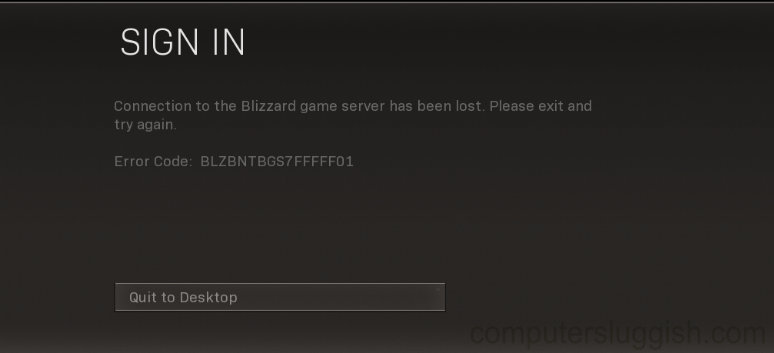
Why am I getting error code BLZBNTBGS7FFFFF01 in Warzone?
Unfortunately, there are many errors you will come across in the Warzone game such as the one we are covering in this guide, and also errors like BLZBNTBNA00000012.
There are a few reasons you may have the Warzone sign in error. It could be down to your internet connection, not having the latest update of the game, or even your PC security. It is more than likely an issue with the game or its files.
How to fix Call Of Duty Warzone Error BLZBNTBGS7FFFFF01 On Windows PC:
Now you know a little about the error let’s take a look at the steps on how to fix this issue and hopefully, you will be able to launch into the game and join your friends as soon as possible, without an annoying error message.
Fix 1: Internet connection
Ensure your PC or Laptop is connected to the internet, if you do not have internet access then this can cause the Warzone error as an internet connection is required to play
Fix 2: Ethernet cable
If you are using Wi-Fi try using cable instead and plug in directly to the router. It will be more stable than Wi-Fi.
Fix 3: Battle.net
Make sure to launch with the Battle.net app and keep it running in the background, This is the most common cause for the BLZBNTBGS7FFFFF01 sign-in error message, so make sure you launch the game using the Battle net app and keep it running.
Fix 4: Update Warzone
Ensure you have installed the latest Warzone update, not having the latest update of the game installed could be the cause of your error, so make sure you check you have the latest version installed on your PC:
- In Battle.net click the Warzone tab
- Click on the settings cog > Click on “Check for updates“
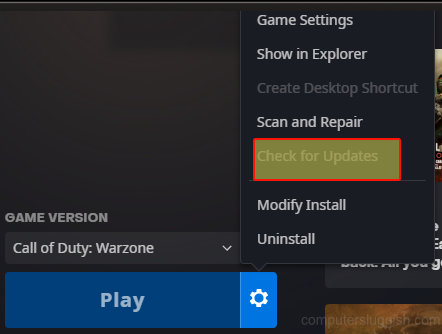
Fix 5: Check your Firewall
Make sure your firewall is not blocking the battle.net app and Warzone.
Fix 6: Game files
Scan and repair Warzone This will ensure none of the files have become corrupt or missing which could cause the BLZBNTBGS7FFFFF01 error message:
- Open the Battle.net app > Click the Warzone tab
- Click on the settings cog > Scan & Repair > Begin Scan
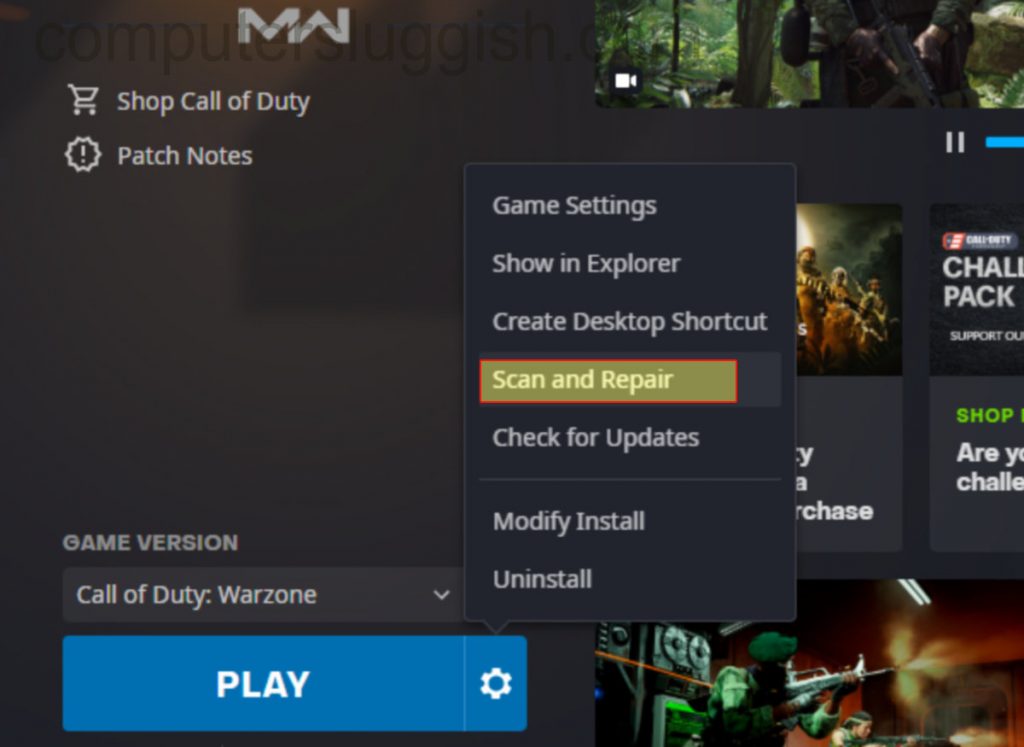
There you go that is how you fix the Call Of Duty Warzone Sign In BLZBNTBGS7FFFFF01 error on your Windows 10 PC or Laptop. If you are still getting the same error after doing the above steps then the chances are you might have to reinstall Warzone or reset Windows 10. Check out our other gaming guides here.
Check out the video here on How To Fix COD Warzone Sign In Error BLZBNTBGS7FFFFF01 On PC Tutorial, if you are getting stuck.
Check out our latest guides:
Пользовательский ROM | CyanogenMod | Приложения для Android | Обновление прошивки | MiUi | Все стоковые прошивки | Lineage OS |
Кажется, что для Call of Duty Modern Warfare и Warzone ошибкам нет конца и нет конца. Поскольку у игроков одна за другой появляется множество ошибок и других багов, которых совсем не ожидают. Современная Война игроков буквально раздражают эти проблемы, и код ошибки Modern Warfare и Warzone BLZBNTBGS7FFFFF01 является одним из них. Если вы тоже испытываете то же самое, ознакомьтесь с приведенным ниже руководством по устранению неполадок.
По словам множества пострадавших игроков, всякий раз, когда они пытаются запустить игру COD Modern Warfare или Warzone, говорится: «Соединение с игровым сервером Blizzard было потеряно» вместе с конкретным кодом ошибки. Некоторые игроки отметили, что выбор региона / аккаунта в Азии также вызывает проблему. Но при выборе Европы или Америки игра проходит гладко. Итак, если вы тоже сталкиваетесь с подобной проблемой, выполните следующие действия.

Как исправить код ошибки COD Modern Warfare и Warzone BLZBNTBGS7FFFFF01?
Итак, по мнению многих продвинутых игроков, существует проблема с ярлыком игры Modern Warfare, которая вызывает проблему. Каждый раз, когда игроки пытаются запустить игру с помощью ярлыка modernwarfare.exe, игра пытается запуститься напрямую, без подключения к серверам battle.net.
- Вам необходимо запустить игру с помощью ярлыка Modern Warfare Launcher (exe), который будет иметь доступ к серверам battle.net.
- Кроме того, вы можете сбросить настройки сетевых устройств, например маршрутизатора, чтобы решить эту проблему.
- Попробуйте использовать проводное соединение или мобильную точку доступа, чтобы проверить код ошибки.
- Обновите ОС Windows и графические драйверы до последней версии.
- Попросите вашего интернет-провайдера обновить ваш IP-адрес и очистить DNS, чтобы устранить любую ошибку, связанную с сетью.
- Откройте Диспетчер задач и полностью закройте все ваши Modern Warfare, battle.net, браузер или сервисы оверлейных приложений.
- Также отключите VPN или прокси-сервер.
- Проверьте, не вызывает ли у вас брандмауэр Windows или какая-либо антивирусная программа.
Вот и все, ребята. Надеемся, вы нашли это руководство полезным. Не стесняйтесь спрашивать в разделе комментариев ниже.