
I wanted to get the Intel® Extreme Tuning Utility installed and play around with some overclocking on my 2017 HP Spectre X360 13″, which I’m currently running with an HP Omen e-gpu and an Nvidia GTX-1060Ti.
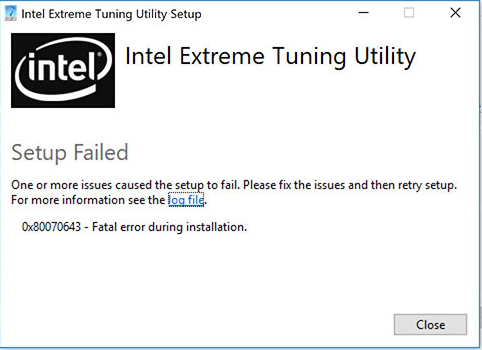
I downloaded the software from Intel (version 6.5.1.321) and it would not install: error 0x80070643 attempted to install on an unsupported platform.

I found this article and used it for the basis of this post since these instructions did not work for me, although it got me 99% there.
Note that the installer seems to have changed how it runs. It used to be that you could click Ok in the image below and the file you need would still be there. Now it appears that once you click Ok it deletes the folders and files.
Here’s what to do:
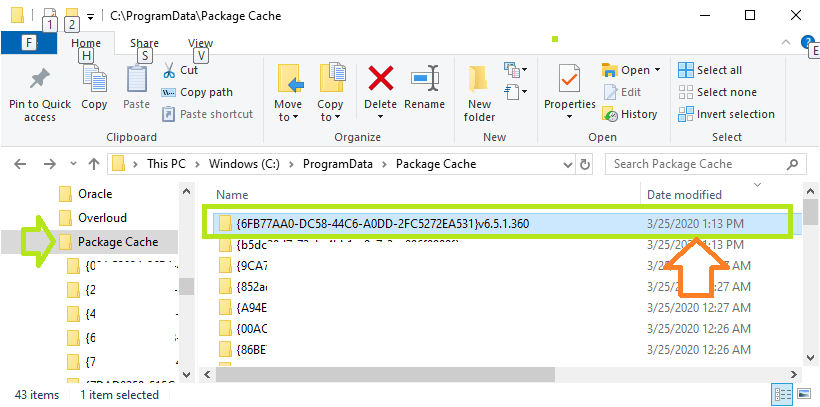
Open this folder in windows explorer C:\ProgramData\Package Cache\ and sort by date, newest at the top. Take note of the last folder date in the right pane.
Download the installer and run it. When it gives you the error, do not click Ok. Make sure it still looks like this. Do not click Ok.
- Now go back to explorer. You should see one or two new folders with the date and time close to when you ran the application.
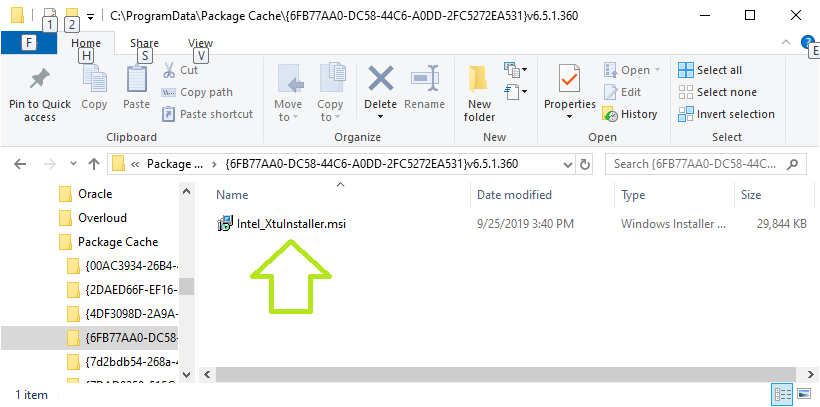
- In one of those folders you will find Intel_XtuInstaller.msi
- You must have local Admin rights.
- Copy Intel_XtuInstaller.msi to your desktop.
- In the article linked above you run the .msi from the command line, but I only got errors, so do this instead:
- Right-click on the MSI file and hold, drag a little ways onto a blank spot on your desktop and select “create shortcut here”.
- Right-click > properties of the shortcut
- In the “Target” field, at the end add a space and then the following DISABLEPLATFORMCHECK=1
- It will look something like this: “
C:\Users\your-user-name\Desktop\Intel_XtuInstaller.msi DISABLEPLATFORMCHECK=1“ - Click Ok
- Double-click the shortcut
That’s it, happy overclocking and possibly damaging your machine!
I have a 10900K on an EVGA Z490 Dark and am having trouble installing XTU. I started the process, but the install hung and I had to do a hard shutdown. Now I can’t seem to get the install working. The install log appears to indicate it found a previous installation, but it doesn’t appear in the installed apps and I can’t find where it locates the indicated MSI file:
[7AE4:7AB8][2020-11-04T09:41:09]i001: Burn v3.11.1.2318, Windows v10.0 (Build 19042: Service Pack 0), path: C:\WINDOWS\Temp\{0068445B-DAD4-413A-808C-8EAC786A72E6}\.cr\XTUSetup.exe
[7AE4:7AB8][2020-11-04T09:41:09]i000: Initializing string variable ‘RemoveAllDataCheckboxValue’ to value ‘[RemoveAllDataCheckbox]’
[7AE4:7AB8][2020-11-04T09:41:09]i000: Initializing version variable ‘BundleVersionNumber’ to value ‘7.0.1.4’
[7AE4:7AB8][2020-11-04T09:41:09]i009: Command Line: ‘-burn.clean.room=E:\Downloads\XTUSetup.exe -burn.filehandle.attached=552 -burn.filehandle.self=652’
[7AE4:7AB8][2020-11-04T09:41:09]i000: Setting string variable ‘WixBundleOriginalSource’ to value ‘E:\Downloads\XTUSetup.exe’
[7AE4:7AB8][2020-11-04T09:41:09]i000: Setting string variable ‘WixBundleOriginalSourceFolder’ to value ‘E:\Downloads\’
[7AE4:7AB8][2020-11-04T09:41:09]i000: Setting string variable ‘WixBundleLog’ to value ‘C:\Users\tgraf\AppData\Local\Temp\Intel(R)_Extreme_Tuning_Utility_20201104094109.log’
[7AE4:7AB8][2020-11-04T09:41:09]i052: Condition ‘VersionNT >= v6.1’ evaluates to true.
[7AE4:7AB8][2020-11-04T09:41:09]i000: Setting string variable ‘WixBundleName’ to value ‘Intel(R) Extreme Tuning Utility’
[7AE4:7AB8][2020-11-04T09:41:09]i000: Setting string variable ‘WixBundleManufacturer’ to value ‘Intel Corporation’
[7AE4:0ED0][2020-11-04T09:41:09]i000: Setting version variable ‘WixBundleFileVersion’ to value ‘7.0.1.4’
[7AE4:7AB8][2020-11-04T09:41:09]i100: Detect begin, 1 packages
[7AE4:7AB8][2020-11-04T09:41:09]i000: Setting version variable ‘MsiAlreadyInstalledVersion’ to value ‘7.0.1.4’
[7AE4:7AB8][2020-11-04T09:41:09]i000: Setting string variable ‘NETFRAMEWORK45’ to value ‘528372’
[7AE4:7AB8][2020-11-04T09:41:09]i000: Setting version variable ‘WindowsDllVersion’ to value ‘10.0.19041.610’
[7AE4:7AB8][2020-11-04T09:41:09]i101: Detected package: Intel_XtuInstaller.msi, state: Present, cached: None
[7AE4:7AB8][2020-11-04T09:41:09]i052: Condition ‘BundleVersionNumber > MsiAlreadyInstalledVersion OR BundleVersionNumber = «0.0.0.0» OR NOT WixBundleAction = 5’ evaluates to false.
[7AE4:7AB8][2020-11-04T09:41:09]e000: Another flavor of the XTU application of a same or higher version is already installed. Uninstall all of the following from Add/Remove Programs: ASUS(R) Intel(R) Extreme Tuning Utility, Gigabyte(R) Intel(R) Extreme Tuning Utility, Intel(R) Extreme Tuning Utility
[7AE4:7AB8][2020-11-04T09:41:09]e000: Error 0x81f40001: Bundle condition evaluated to false: BundleVersionNumber > MsiAlreadyInstalledVersion OR BundleVersionNumber = «0.0.0.0» OR NOT WixBundleAction = 5
[7AE4:7AB8][2020-11-04T09:41:09]i199: Detect complete, result: 0x0
I’ve tried the steps to uninstall, but since it’s not fully installed, it doesn’t help. Any suggestions?
-
All forum topics -
Previous topic -
Next topic
8 Replies
Hello fragilityV1,
Thank you for posting on the Intel® communities.
In order to better assist you, please provide the following:
1. Run the Intel® System Support Utility (Intel® SSU) and attach the report generated:
- Open the application, check the «Everything» box, and click on «Scan» to see the system and device information. By default, Intel® SSU will take you to the «Summary View«.
- Click on the menu where it says «Summary» to change to «Detailed View«.
- To save your scan, click on «Next«, then «Save«.
- Use the option under the reply window to attach the report to the thread (Drag and drop here or browse files to attach).
2. What is the Intel® Extreme Tuning Utility (Intel® XTU) version that you are installing?
3. Check BIOS settings, as some manufacturers (OEMs) are using their own overclocking tools and may have compatibility issues with Intel® XTU. Try loading BIOS defaults.
4. Also, verify if any other tuning application has been pre-installed. Some OEMs design and install their own application suite that often times can be detected by Intel XTU as performance tuning apps.
5. Check and delete the following folders to delete any remaining file from the Intel® XTU:
- Locate installutil.exe at C:\Windows\Microsoft.NET\Framework\v4.0.30319\InstallUtil.exe.
- Locate XTU service at: C:\Program Files (x86)\Intel\Intel(R) Extreme Tuning Utility\XtuService.exe.
- Using those pieces of information, open a command prompt as an admin and enter your information for the location of the Extreme Tuning service. (Your location may be different. An example is given below.)
- C:\Windows\Microsoft.NET\Framework\v4.0.30319\InstallUtil.exe /u C:\Program Files (x86)\Intel\Intel(R) Extreme Tuning Utility\XtuService.exe.
- Delete any folder named Intel® XTU from these locations: C:\Program Files (x86)\Intel and C:\ProgramData\Intel.
- Delete the folder named Intel® Intel Telemetry under C:\ProgramData:.
- You may want to reboot your system (optional).
Note: In case you do not see the «ProgramData» folder click on the upper tab «View» and check the box «Hidden items«.
Then, try reinstalling the latest Intel® XTU version: https://downloadcenter.intel.com/download/29183/Intel-Extreme-Tuning-Utility-Intel-XTU-
Regards,
Sebastian M
Intel Customer Support Technician
Hello fragilityV1,
Were you able to check the previous post and get the information requested? Please let me know if you need more assistance.
Regards,
Sebastian M
Intel Customer Support Technician
Sorry for the delayed reply, I didn’t have time to try and fix this issue. I have tried the steps you outline, but still get the same error message.
1. Attached is the Intel SSU file
2. I was attempting to install the latest XTU version, 7.0.1.4
3. I have updated the MB BIOS to the latest revision and loaded BIOS defaults.
4. There are no other CPU tuning utilities installed
5. I do not have the folder and executable, C:\Program Files (x86)\Intel\Intel(R) Extreme Tuning Utility\XtuService.exe , so I can’t uninstall it. I have deleted all the other files and directories noted. Are there any other temporary locations that need to be deleted?
Is there any way to force the install?
Hello fragilityV1,
Thank you for your reply.
We would like to check this information internally, please kindly wait for a response.
Once we have an update to share, we will post it on this thread.
Regards,
Sebastian M
Intel Customer Support Technician
Hello fragilityV1,
Thank you for patiently waiting.
Please try the following recommendations:
Check by clicking on «start» type ‘services.msc‘ and hit enter. Verify on the list if the Intel® XTU related service exists and if so, make sure it is stopped before attempting to install Intel® XTU again.
You could also check the Properties (right-click the service and hit Properties) and verify the ‘Path to executable‘ to confirm if any .exe is triggering the conflict with the installer (delete the folder if needed).
If the above doesn’t work, then we suggest you try a Windows Restore to before trying to install the Intel® XTU, otherwise; you should try a clean OS installation from scratch. Check with Microsoft* for guidance: https://support.microsoft.com/en-us/windows/reinstall-windows-10-d8369486-3e33-7d9c-dccc-859e2b022fc7
Regards,
Sebastian M
Intel Customer Support Technician
Links to third-party sites and references to third-party trademarks are provided for convenience and illustrative purposes only. Unless explicitly stated, Intel® is not responsible for the contents of such links, and no third-party endorsement of Intel or any of its products is implied.
Thanks for getting back. I had already stopped and removed the XTU service as part of my own troubleshooting. So the service is not running. I’ll keep digging myself to see if I can find some vestigial part of the previous install that needs to be cut out. For now, I’m not quite in the mindset to deal with a fresh install of Windows, so I’ll make due without the XTU software. Thanks for the suggestions.
Hi,
Did you figure out how to solve the issue? I have had the same issue as yours since last December. Tired all troubleshoot provided by the forum.
By the way if you check in the Sotware components in the Device manager, do you see many items named ‘Generic software component’? On my computer it seems a part of the XTU component is still running somewhere from the shadow but I’m pretty sure I’ve removed everything I could find.
Jing
Hello fragilityV1,
Thank you for the update.
In this case, the only recommendation we can provide is a fresh OS reinstallation as the problem seems to be a conflict with Windows. You can also double-check with Microsoft* to see if they have an extra recommendation for this.
We will proceed to close this inquiry from our side based on what you will be trying. If you need further assitance or if you have any additional questions, please submit a new thread.
Regards,
Sebastian M
Intel Customer Support Technician

-
All forum topics -
Previous topic -
Next topic
@Einziger171 I’m afraid HP does not support using 3rd party applications on the device, nor do we recommend under-clocking the CPU, if you have issues with the device overheating here’s what you need to know and do:
Click here for steps to resolve overheating issues, you could try reducing the visual effects to make a minor change, also, ensure you are using a cooling pad as well, to be on a safer side.
Here’s how you change windows settings to reduce visual effects:
- Go to Start Menu > click on Settings.
- Type performance > choose to Adjust the appearance and performance of Windows.
- In the new window, go to the Visual Effects and select Adjust for best performance.
- click Apply and Ok…this should do the trick.
I must let you know that its normal for any PC to heat up to an extent, and with a CPU such as the one you have, there’s nothing to worry about, for details on why you don’t need to worry: Click here to go through the CPU specifications, look under Tjunction of the CPU, it supports up to 100°C.
P.S: Welcome to HP Community 
Let me know how that pans out,
If you feel I was helpful, simply click on Accept as Solution to help the community grow,
That said, I will have someone follow-up on this to ensure you’ve been helped,
Just in case you don’t get back to us,
have a good day, ahead.
Riddle_Decipher
I am an HP Employee
The Intel Extreme Tuning Utility install problem is with windows handling of the installers.. and uninstall programs.
I fixed this as follows:
1) Have the currently installed version’s install file (executable) ready. If you do NOT have this, you may have to find the EXACT version installer that your Intel XTU program was installed with. For instance, in my case, I had to download the Windows 8.1 version that was last installed before upgrading to Windows 10.. from the MSI Website.
DO NOT USE THE MSI LIVE UPDATE!
2) Download 7Zip, a file archiving tool that will allow you to unzip EXE files, and install it (7zip). Reboot to get 7zip options in your right click menu.
3) Attempt to install the latest, most up to date, XTU (which will fail)
A) Open the log file directory
B) Open the MSI.. XTU log file which should be around 12 to 13,000 bytes
C) Scroll to the absolute bottom of the log and click in the empty space
D) Click edit, find, and then search UP for the second instance of «Return value 3″
If you’ve done this correct so far, you’ll see a line above that states something like «target not found/etc/etc» What’s happening is, the uninstall process of the previous version isn’t being done right because the install files for it cannot be found.. so we need to «find them» for this to work.
Take note of the EXACT directory that log file refers to when it’s looking for the uninstaller; it should be something like c:/users/[admins username]/AppData/Local/Temp/[something like IIF4F2D.tmp]/[followed by the uninstaller or legacy .msi file
E) If that folder doesn’t exist, create it by hand by navigating there in Windows Explorer and using the right click menu to «create new folder».. and you can copy and paste the EXACT folder name from the log file.
4) Copy and paste the .exe installer FOR THE OLD/CURRENT VERSION INSTALLED ON YOUR SYSTEM HERE!
5) Extract ALL of the contents of this file into the same folder that you just copied the executable in by right clicking the executable, click 7Zip — Open Archive then select ALL of the files, click Extract making sure that the folder they are being extracted to is the SAME temp folder we just copied that executable into.
And WALLA! We’ve just «found» the OLD installer so that the new Intel Extreme Tuning Utility can execute it and uninstall the old version.
If this «trick» fails, it is «most likely» because you have NOT found the correct installer for the old, or currently installed version. You can determine this by opening the log file again, scroll to the bottom, click the empty space, and then search up for the 2nd instance of «Return Value 3» and read the 10 lines or so above it for an error that reads something like «incorrect version/etc/etc»
If so, download another version, and another.. until you’ve located the exact version from which you LAST installed the XTU Program.
Happy Hunting!
P.S. NOT ONLY DOES THIS TRICK WORK ON THE Intel(R) Extreme Tuning Utility or Intel XTU but it also works on Intel(R) Rapid Storage driver, Intel(R) Rapid Start, and the Intel(R) Management Engine drivers
I was recently wanting to mess around with the CPU clocks on my laptop which is a Surface Book 2 using Intel Extreme Tuning Utility, but whenever I tried to install it I was greeted by an error dialogue that said ‘Attempted to install on an unsupported platform’. This is how I fixed it…
- Download the official Intel XTU
- Open it until you get to the error but do not close it
- Open File Explorer to ‘C:\ProgramData\Package Cache’ and search for ‘xtu’ look for something named ‘Intel_XtuInstaller.msi’, ‘XTUInstaller.msi’ or something similar
- Copy it to a safe place (ie. your Desktop or Documents)
- Open CMD to the directory you copied the .msi file to (You can type cmd in the address bar to do this automatically) and type in
msiexec /i Intel_XtuInstaller.msi DISABLEPLATFORMCHECK=1 - You have to restart your laptop otherwise you will get an error along the lines of ‘the drivers are not present’ (trust me I’ve tried)
Thanks for reading!
Steve.