
Some users have complained that the Intel High Definition Audio is not working, and instead, they get Intel high definition DSP code 28. The error is displayed in the Intel High Definition DSP audio device’s properties and is marked by a yellow exclamation mark. If the error Intel high definition DSP code 28 appears on the screen, you are in the right place. In this tutorial, we will explain some valuable solutions so, that users can resolve the said error without any confusion in Windows 11.
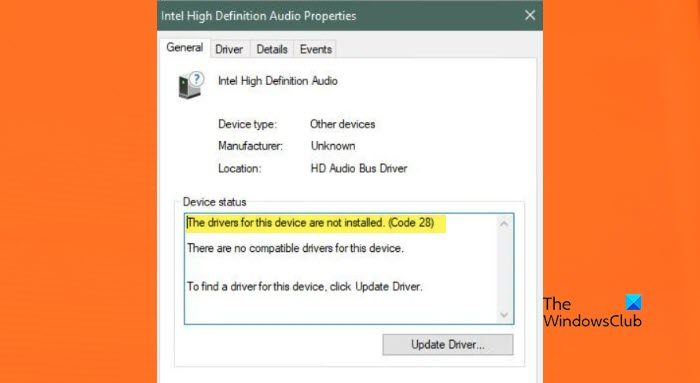
The error message that users see are.
The drivers for this device are not installed. (Code 28).
There are no compatible drivers for this device.
To find a driver for the device, click Update Driver.
What is code 28 for drivers not installed?
Error Code 28 signifies that our computer cannot connect to a piece of hardware as its driver is not installed on the system. This doesn’t mean that the driver was always absent on the computer; it’s just that Windows is unable to detect the driver right now, due to which it is showing the error code 28.
The common cause of the Device Manager error code Intel High Definition DSP audio is incompatible or missing audio drivers in Windows 11/10 due to which audio is not working properly, therefore, to resolve this error, follow the solutions prescribed below.
- Roll Back The Driver
- Update the Driver
- Run Audio and Hardware Troubleshooter
- Reinstall Intel High Definition Audio DSP
Let’s get started.
1] Roll back the drivers
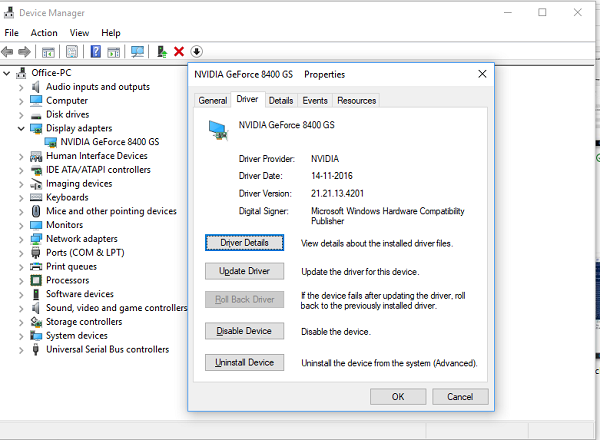
A lot of users reported that the error could occur when they updated their driver or after running Windows Optional updates as that automatically update your driver. This is actually true as the update adds some bug to your driver, which makes it incompatible with your hardware. So if this is applicable, rolling back the driver is one of the best solutions; therefore, we will do the same, and the steps are mentioned below.
- Open the Device Manager and go to the System Devices option.
- Right-click on Intel High Definition Audio DSP and navigate to the Driver tab.
- Now, select the Roll back driver option.
After the completion, reboot your device and see if the issue persists.
If the Roll back driver button is greyed out, our driver is not updated, so, we should move to the next solution.
2] Update the Driver
The driver allows your computer to run properly and serves as a bridge between the computer’s operating system and hardware components. Windows Update automatically downloads and installs the latest version for audio drivers, network adapters, displays, printers, graphics cards, and so on. It is possible that the error is caused by an outdated version of the driver and can be solved by updating them. To update the drivers manually, follow the prescribed steps:
- Open the Windows Start menu, and click Win+ X to open Settings.
- Select the Device Manager from the search results and expand Sound, video, and game controllers.
- Right-click on your audio device and click on the Update Driver from the drop-down menu.
- Select the Search automatically for updated software and follow the instructions on the prompt and wait till the update is complete.
Although this is a common method to update your driver, there are other ways to accomplish this task. If you like to keep things organized, just download and install a free driver update software and download the driver from the manufacturer’s website.
Reboot your system and check if the problem is reserved. Hopefully, this will do the job.
3] Run Audio and Hardware Troubleshooter
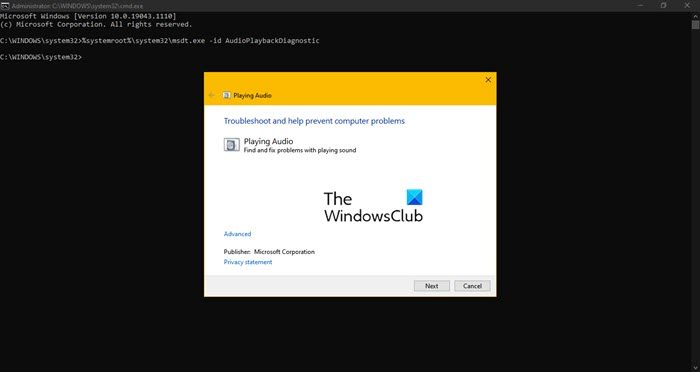
If updating the drivers was off no help then there’s a high possibility that the error in question happened due to some error in the audio driver; in such scenarios, you can run Audio and Hardware troubleshooter to find out the cause and clear it out. To do the same, click Win + R to open the Run dialog box, and then type the following command and click the Enter button to run Audio Playback Troubleshooter:
msdt.exe /id AudioPlaybackDiagnostic
You can also use the Hardware Troubleshooter to be on the safer side; once the process is completed, reboot your system, go to the driver’s properties and see if the issue persists or not. If it continues, move on to the next solution.
4] Reinstall Intel High Definition Audio DSP
Last but not least, delete the Intel High Definition Audio DSP and reinstall it as sometimes the issue occurs due to no driver present from the hardware, and in such cases, only fresh installation of the hardware can help in overcoming the issue. Therefore, in this solution, we are going to do the same.
- Click on the Start menu and type Device Manager.
- Now expand the Sound, video and game controllers option, and right-click on the Intel High Definition Audio DSP.
- At last, click on the Uninstall device option.
- Now go back to the top of the Device Manager, and right-click to initiate the Scan for hardware changes to reinstall the driver.
- The computer will prompt you to provide the path of the driver. Navigate to the OEM file you downloaded in step 2 above.
Restart your computer; hopefully, this will install the correct driver. If it is not installed, download Intel High Definition Audio DSP from its official website.
Read: Error 38, Windows cannot load the Device Driver for this hardware.
Некоторые пользователи жалуются, что Intel High Definition Audio не работает, и вместо этого они получают код Intel High Definition DSP 28. Ошибка отображается в свойствах аудиоустройства Intel High Definition DSP и помечается желтым восклицательным знаком. Если на экране появляется код ошибки Intel high Definition DSP 28, вы попали по адресу. В этом руководстве мы объясним некоторые ценные решения, чтобы пользователи могли без проблем устранить указанную ошибку в Windows 11.
Сообщение об ошибке, которое видят пользователи.
Драйвера для этого устройства не установлены. (Код 28).
Для этого устройства нет совместимых драйверов.
Чтобы найти драйвер для устройства, нажмите «Обновить драйвер».
Что такое код 28 для не установленных драйверов?
Код ошибки 28 означает, что наш компьютер не может подключиться к аппаратному обеспечению, поскольку его драйвер не установлен в системе. Это не означает, что драйвер всегда отсутствовал на компьютере; просто Windows не может определить драйвер прямо сейчас, из-за чего показывает код ошибки 28.
Распространенная причина кода ошибки диспетчера устройств Звук Intel High Definition DSP несовместим или отсутствуют аудиодрайверы в Windows 11/10 из-за чего звук работает некорректно, поэтому для устранения этой ошибки следуйте решениям, прописанным ниже.
- Откатить драйвер
- Обновите драйвер
- Запустите средство устранения неполадок со звуком и оборудованием
- Переустановите Intel High Definition Audio DSP
Давайте начнем.
1]Откатить драйвера
Многие пользователи сообщали, что ошибка может возникнуть, когда они обновили свой драйвер или после запуска дополнительных обновлений Windows, поскольку они автоматически обновляют ваш драйвер. На самом деле это так, поскольку обновление добавляет в ваш драйвер некоторую ошибку, которая делает его несовместимым с вашим оборудованием. Так что, если это применимо, откат драйвера — одно из лучших решений; поэтому мы будем делать то же самое, и шаги упомянуты ниже.
- Откройте диспетчер устройств и перейдите к опции «Системные устройства».
- Щелкните правой кнопкой мыши Intel High Definition Audio DSP и перейдите на вкладку «Драйвер».
- Теперь выберите опцию «Откатить драйвер».
После завершения перезагрузите устройство и посмотрите, сохраняется ли проблема.
Если кнопка «Откатить драйвер» неактивна, наш драйвер не обновлен, поэтому нам следует перейти к следующему решению.
2]Обновите драйвер
Драйвер обеспечивает правильную работу компьютера и служит связующим звеном между операционной системой компьютера и аппаратными компонентами. Центр обновления Windows автоматически загружает и устанавливает последние версии аудиодрайверов, сетевых адаптеров, дисплеев, принтеров, видеокарт и т. д. Возможно, ошибка вызвана устаревшей версией драйверов и решается их обновлением. Чтобы обновить драйверы вручную, выполните указанные шаги:
- Откройте меню «Пуск» Windows и щелкните Выиграть+ Х чтобы открыть Настройки.
- Выберите «Диспетчер устройств» в результатах поиска и разверните «Звуковые, видео и игровые контроллеры».
- Щелкните правой кнопкой мыши аудиоустройство и выберите «Обновить драйвер» в раскрывающемся меню.
- Выберите Автоматический поиск обновленного программного обеспечения и следуйте инструкциям в подсказке и дождитесь завершения обновления.
Хотя это распространенный способ обновления драйвера, существуют и другие способы выполнить эту задачу. Если вы хотите, чтобы все было организовано, просто загрузите и установите бесплатное программное обеспечение для обновления драйверов и загрузите драйвер с веб-сайта производителя.
Перезагрузите систему и проверьте, не зарезервирована ли проблема. Надеюсь, это сделает работу.
3]Запустите средство устранения неполадок со звуком и оборудованием
Если обновление драйверов не помогло, существует высокая вероятность того, что рассматриваемая ошибка произошла из-за какой-то ошибки в аудиодрайвере; в таких случаях вы можете запустить средство устранения неполадок со звуком и оборудованием, чтобы выяснить причину и устранить ее. Чтобы сделать то же самое, нажмите Win + R, чтобы открыть диалоговое окно «Выполнить», а затем введите следующую команду и нажмите кнопку «Ввод», чтобы запустить средство устранения неполадок воспроизведения аудио:
msdt.exe /id AudioPlaybackDiagnostic
Вы также можете использовать средство устранения неполадок оборудования, чтобы обезопасить себя; после завершения процесса перезагрузите систему, перейдите в свойства драйвера и посмотрите, сохраняется ли проблема или нет. Если это продолжается, перейдите к следующему решению.
4]Переустановите Intel High Definition Audio DSP.
И последнее, но не менее важное: удалите Intel High Definition Audio DSP и переустановите его, поскольку иногда проблема возникает из-за отсутствия драйвера на оборудовании, и в таких случаях только новая установка оборудования может помочь решить проблему. Поэтому в этом решении мы собираемся сделать то же самое.
- Щелкните меню «Пуск» и введите «Диспетчер устройств».
- Теперь разверните параметр «Звуковые, видео и игровые контроллеры» и щелкните правой кнопкой мыши Intel High Definition Audio DSP.
- Наконец, нажмите на опцию «Удалить устройство».
- Теперь вернитесь в верхнюю часть диспетчера устройств и щелкните правой кнопкой мыши, чтобы начать сканирование на предмет изменений оборудования для переустановки драйвера.
- Компьютер предложит вам указать путь к драйверу. Перейдите к файлу OEM, который вы загрузили на шаге 2 выше.
Перезагрузите компьютер; надеюсь, это установит правильный драйвер. Если он не установлен, загрузите Intel High Definition Audio DSP с официального сайта.
Чтение: ошибка 38, Windows не может загрузить драйвер устройства для этого оборудования.
Some users have complained that the Intel High Definition Audio is not working, and instead, they get Intel high definition DSP code 28. The error is displayed in the Intel High Definition DSP audio device’s properties and is marked by a yellow exclamation mark. If the error Intel high definition DSP code 28 appears on the screen, you are in the right place. In this tutorial, we will explain some valuable solutions so, that users can resolve the said error without any confusion in Windows 11.

The error message that users see are.
The drivers for this device are not installed. (Code 28).
There are no compatible drivers for this device.
To find a driver for the device, click Update Driver.
What is code 28 for drivers not installed?
Error Code 28 signifies that our computer cannot connect to a piece of hardware as its driver is not installed on the system. This doesn’t mean that the driver was always absent on the computer; it’s just that Windows is unable to detect the driver right now, due to which it is showing the error code 28.
The common cause of the Device Manager error code Intel High Definition DSP audio is incompatible or missing audio drivers in Windows 11/10 due to which audio is not working properly, therefore, to resolve this error, follow the solutions prescribed below.
- Roll Back The Driver
- Update the Driver
- Run Audio and Hardware Troubleshooter
- Reinstall Intel High Definition Audio DSP
Let’s get started.
1] Roll back the drivers
A lot of users reported that the error could occur when they updated their driver or after running Windows Optional updates as that automatically update your driver. This is actually true as the update adds some bug to your driver, which makes it incompatible with your hardware. So if this is applicable, rolling back the driver is one of the best solutions; therefore, we will do the same, and the steps are mentioned below.
- Open the Device Manager and go to the System Devices option.
- Right-click on Intel High Definition Audio DSP and navigate to the Driver tab.
- Now, select the Roll back driver option.
After the completion, reboot your device and see if the issue persists.
If the Roll back driver button is greyed out, our driver is not updated, so, we should move to the next solution.
2] Update the Driver
The driver allows your computer to run properly and serves as a bridge between the computer’s operating system and hardware components. Windows Update automatically downloads and installs the latest version for audio drivers, network adapters, displays, printers, graphics cards, and so on. It is possible that the error is caused by an outdated version of the driver and can be solved by updating them. To update the drivers manually, follow the prescribed steps:
- Open the Windows Start menu, and click Win+ X to open Settings.
- Select the Device Manager from the search results and expand Sound, video, and game controllers.
- Right-click on your audio device and click on the Update Driver from the drop-down menu.
- Select the Search automatically for updated software and follow the instructions on the prompt and wait till the update is complete.
Although this is a common method to update your driver, there are other ways to accomplish this task. If you like to keep things organized, just download and install a free driver update software and download the driver from the manufacturer’s website.
Reboot your system and check if the problem is reserved. Hopefully, this will do the job.
3] Run Audio and Hardware Troubleshooter
If updating the drivers was off no help then there’s a high possibility that the error in question happened due to some error in the audio driver; in such scenarios, you can run Audio and Hardware troubleshooter to find out the cause and clear it out. To do the same, click Win + R to open the Run dialog box, and then type the following command and click the Enter button to run Audio Playback Troubleshooter:
msdt.exe /id AudioPlaybackDiagnostic
You can also use the Hardware Troubleshooter to be on the safer side; once the process is completed, reboot your system, go to the driver’s properties and see if the issue persists or not. If it continues, move on to the next solution.
4] Reinstall Intel High Definition Audio DSP
Last but not least, delete the Intel High Definition Audio DSP and reinstall it as sometimes the issue occurs due to no driver present from the hardware, and in such cases, only fresh installation of the hardware can help in overcoming the issue. Therefore, in this solution, we are going to do the same.
- Click on the Start menu and type Device Manager.
- Now expand the Sound, video and game controllers option, and right-click on the Intel High Definition Audio DSP.
- At last, click on the Uninstall device option.
- Now go back to the top of the Device Manager, and right-click to initiate the Scan for hardware changes to reinstall the driver.
- The computer will prompt you to provide the path of the driver. Navigate to the OEM file you downloaded in step 2 above.
Restart your computer; hopefully, this will install the correct driver. If it is not installed, download Intel High Definition Audio DSP from its official website.
Read: Error 38, Windows cannot load the Device Driver for this hardware.
This tutorial contains instructions to solve the error Code 28 on Intel High Definition DSP in device manager «The drivers for this device are not installed (Code 28)».
Problem in details: The Intel High Definition DSP audio device appears with a yellow exclamation mark and the following error appears in its properties «The drivers for this device are not installed. (Code 28). There are no compatible drivers for this device».
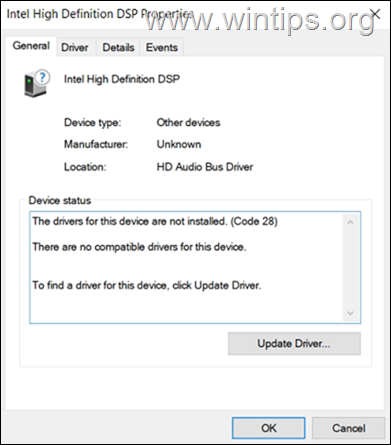
How to FIX: Intel High Definition DSP Audio Drivers Are Not Installed (Code 28) in Windows 10/11.
Step 1. Remove and Reinstall Intel High Definition Audio DSP.
1. Navigate in Device Manager. To do that, right-click on the Start menu and select Device Manager.
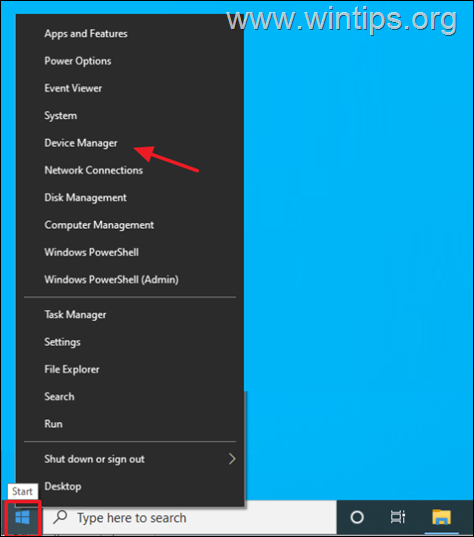
2. Expand Other Devices* and then right-click on Intel High Definition DSP and select Uninstall Device.
* Important: If the ‘Intel High Definition DSP’ device is not listed here (under the ‘Other devices’ section), skip to step-2 below.
3. Select Attempt to remove the driver for the device and click Uninstall.
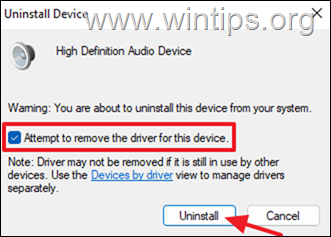
4. When the driver removal is completed, from the Action menu click Scan for hardware changes.

5. Normally, after Windows scanning for new hardware, the Intel High Definition DSP will appear under the ‘Sound, video and game controllers» now.
6. At this point, check if the Code 28 on the Intel HD DSP device is fixed and if not, proceed to step-2 below.
Step 2. Install Realtek’s High Definition Audio Controller.
1. Under the Sound, Video and game controllers, right-click on Intel High Definition DSP and choose Update Driver.
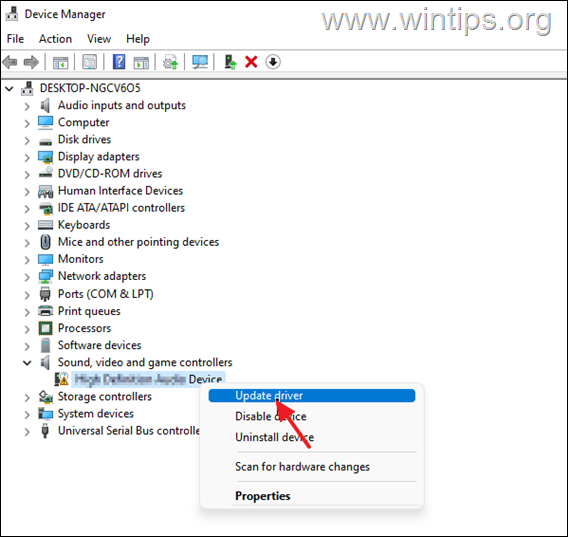
2. Now click Browse my computer for drivers…
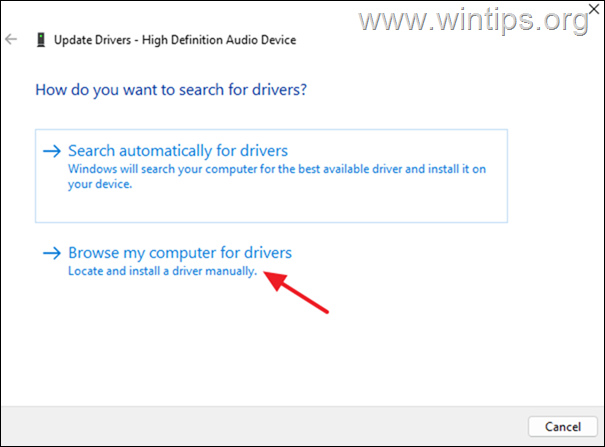
3. …and then Let me pick from a list of available drivers on my computer.
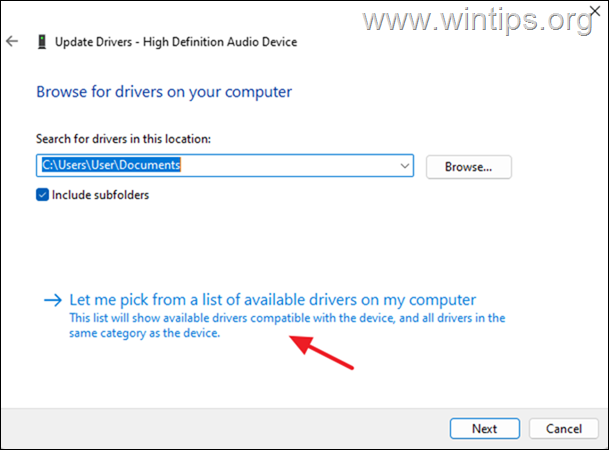
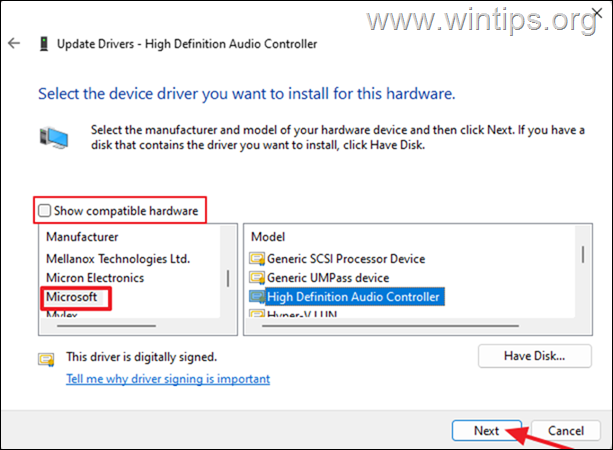
4. Now uncheck the Show compatible hardware checkbox, select under the Manufacturer Microsoft, choose the High Definition Audio Controller driver and click Next.
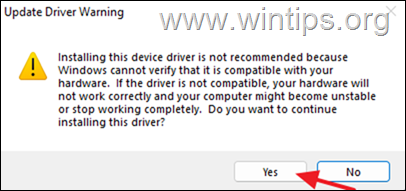
6. Click Yes at ‘Update Driver Warning’ message and let Windows to install the new driver. Normally, after the driver installation, the code 28 should be gone! *
* Note: If you still face the error 28, after installing the High Definition Audio driver, proceed as follows:
1. Check and install all available Windows updates and check if the problems exists. If yes…
2. Check on you device’s manufacturer support site, to see if there is available to download and install an updated driver for the audio device.
3. Install and run the Intel® Driver & Support Assistant (Intel® DSA) to install/update the drivers for all the Intel devices on your system.
That’s it! Which method worked for you?
Let me know if this guide has helped you by leaving your comment about your experience. Please like and share this guide to help others.
If this article was useful for you, please consider supporting us by making a donation. Even $1 can a make a huge difference for us in our effort to continue to help others while keeping this site free:

If you want to stay constantly protected from malware threats, existing and future ones, we recommend that you install Malwarebytes Anti-Malware PRO by clicking below (we
do earn a commision from sales generated from this link, but at no additional cost to you. We have experience with this software and we recommend it because it is helpful and useful):
Full household PC Protection — Protect up to 3 PCs with NEW Malwarebytes Anti-Malware Premium!
Some users have complained that Intel High Definition Audio is not working and instead get Intel High Definition DSP code 28. The error is displayed in the Intel High Definition DSP audio device properties and is marked with a yellow exclamation point. If the Intel HD DSP code 28 error appears on the screen, you are in the right place. In this tutorial, we will explain some valuable solutions for users to resolve such error without confusion in Windows 11.
The error message that users see is.
Drivers for this device are not installed. (Code 28).
There are no supported drivers for this device.
To find a driver for the device, click Update Driver.
What is code 28 for drivers not installed?
Error code 28 means that our computer cannot connect to a piece of hardware because its driver is not installed on the system. This does not mean that the driver was always absent from the computer; it’s just that windows can’t detect the driver right now, so it shows error code 28.
How to Repair Intel High Definition DSP Code 28
The common cause of Intel High Definition DSP audio Device Manager error code is incompatible or missing audio drivers in Windows 11/10 due to audio not working properly, so to resolve this error, follow the solutions below. They described below.
- back the driver
- update driver
- Run the Audio and Hardware Troubleshooter
- Reinstall Intel High Definition Audio DSP
Let us begin.
1] Roll Back Drivers
Many users reported that the error could occur when updating their driver or after running optional Windows Updates as they automatically update their driver. This is actually true as the update adds some bugs to your driver which makes it incompatible with your hardware. So if this is applicable, rolling back the driver is one of the best solutions; therefore, we will do the same, and the steps are mentioned below.
- Open Device Manager and go to System Devices option.
- Right-click on the Intel High Definition Audio DSP and navigate to the Driver tab.
- Now, select the Roll Back Driver option.
After completing, reboot your device and see if the issue still occurs.
If the Roll Back Driver button is greyed out, our driver is out of date so we need to move on to the next solution.
2]Update the driver
The driver allows your computer to function properly and serves as a bridge between the computer’s operating system and the hardware components. Windows Update automatically downloads and installs the latest version for audio drivers, network adapters, displays, printers, graphics cards, etc. It is possible that the error is caused by an outdated version of the driver and it can be fixed by updating them. To update the drivers manually, follow the prescribed steps:
- Open the Windows Start menu and click Win+ X to open Settings.
- Select theDevice administratorfrom the search results and expandSound, video and game controllers.
- Right click on your audio device and click on RefreshConductorfrom the drop down menu.
- Select Search automatically for updated software and follow the instructions on the prompt and wait until the update is complete.
Although this is a common method of updating your driver, there are other ways to accomplish this task. If you want to keep things organized, simply download and install a free driver updater software and download the driver from the manufacturer’s website.
Reboot your system and check if the issue is reserved. Hopefully this will do the job.
3] Run the Audio and Hardware Troubleshooter
If the driver update did not work, then there is a high chance that the error in question has occurred due to some bug in the audio driver; In such scenarios, you can run the Audio and Hardware troubleshooter to find out the cause and fix it. To do the same, click Win + R to open the Run dialog box and then type the following command and click the Enter button to run Audio Playback Troubleshooter:
msdt.exe /id AudioPlaybackDiagnostic
You can also use the Hardware Troubleshooter to be on the safe side; once the process is complete, reboot your system, go to the driver properties and see if the problem still occurs or not. If it continues, move on to the next solution.
4] Reinstall Intel High Definition Audio DSP
Last but not least, please remove Intel High Definition Audio DSP and reinstall it as sometimes the issue occurs due to no driver present in the hardware and in such cases only one reinstalling the hardware may help fix the problem. Therefore, in this solution we are going to do the same.
- Click on the Start menu and type Device Manager.
- Now expand theSound, video and game controllersand right-click on Intel High Definition Audio DSP.
- At last, click on the Uninstall device option.
- Now go back to the top of Device Manager and right click to start theFind hardware changesto reinstall the driver.
- The computer will ask you to provide the driver path. Navigate to the OEM file you downloaded in step 2 above.
Restart your computer; Hopefully this will install the correct driver. If it is not installed, please download Intel High Definition Audio DSP from its official website.
File:Error 38, Windows cannot load the device driver for this hardware.
Некоторые пользователи жалуются, что Intel High Definition Audio не работает, и вместо этого они получают код Intel High Definition DSP 28. Ошибка отображается в свойствах аудиоустройства Intel High Definition DSP и помечается желтым восклицательным знаком. Если на экране появляется код ошибки Intel high Definition DSP 28, вы попали по адресу. В этом руководстве мы объясним некоторые ценные решения, чтобы пользователи могли без проблем устранить указанную ошибку в Windows 11.
Сообщение об ошибке, которое видят пользователи.
Драйвера для этого устройства не установлены. (Код 28).
Для этого устройства нет совместимых драйверов.
Чтобы найти драйвер для устройства, нажмите «Обновить драйвер».
Что такое код 28 для не установленных драйверов?
Код ошибки 28 означает, что наш компьютер не может подключиться к аппаратному обеспечению, поскольку его драйвер не установлен в системе. Это не означает, что драйвер всегда отсутствовал на компьютере; просто Windows не может определить драйвер прямо сейчас, из-за чего показывает код ошибки 28.
Распространенная причина кода ошибки диспетчера устройств Звук Intel High Definition DSP несовместим или отсутствуют аудиодрайверы в Windows 11/10 из-за чего звук работает некорректно, поэтому для устранения этой ошибки следуйте решениям, прописанным ниже.
- Откатить драйвер
- Обновите драйвер
- Запустите средство устранения неполадок со звуком и оборудованием
- Переустановите Intel High Definition Audio DSP
Давайте начнем.
1]Откатить драйвера
Многие пользователи сообщали, что ошибка может возникнуть, когда они обновили свой драйвер или после запуска дополнительных обновлений Windows, поскольку они автоматически обновляют ваш драйвер. На самом деле это так, поскольку обновление добавляет в ваш драйвер некоторую ошибку, которая делает его несовместимым с вашим оборудованием. Так что, если это применимо, откат драйвера — одно из лучших решений; поэтому мы будем делать то же самое, и шаги упомянуты ниже.
- Откройте диспетчер устройств и перейдите к опции «Системные устройства».
- Щелкните правой кнопкой мыши Intel High Definition Audio DSP и перейдите на вкладку «Драйвер».
- Теперь выберите опцию «Откатить драйвер».
После завершения перезагрузите устройство и посмотрите, сохраняется ли проблема.
Если кнопка «Откатить драйвер» неактивна, наш драйвер не обновлен, поэтому нам следует перейти к следующему решению.
2]Обновите драйвер
Драйвер обеспечивает правильную работу компьютера и служит связующим звеном между операционной системой компьютера и аппаратными компонентами. Центр обновления Windows автоматически загружает и устанавливает последние версии аудиодрайверов, сетевых адаптеров, дисплеев, принтеров, видеокарт и т. д. Возможно, ошибка вызвана устаревшей версией драйверов и решается их обновлением. Чтобы обновить драйверы вручную, выполните указанные шаги:
- Откройте меню «Пуск» Windows и щелкните Выиграть+ Х чтобы открыть Настройки.
- Выберите «Диспетчер устройств» в результатах поиска и разверните «Звуковые, видео и игровые контроллеры».
- Щелкните правой кнопкой мыши аудиоустройство и выберите «Обновить драйвер» в раскрывающемся меню.
- Выберите Автоматический поиск обновленного программного обеспечения и следуйте инструкциям в подсказке и дождитесь завершения обновления.
Хотя это распространенный способ обновления драйвера, существуют и другие способы выполнить эту задачу. Если вы хотите, чтобы все было организовано, просто загрузите и установите бесплатное программное обеспечение для обновления драйверов и загрузите драйвер с веб-сайта производителя.
Перезагрузите систему и проверьте, не зарезервирована ли проблема. Надеюсь, это сделает работу.
3]Запустите средство устранения неполадок со звуком и оборудованием
Если обновление драйверов не помогло, существует высокая вероятность того, что рассматриваемая ошибка произошла из-за какой-то ошибки в аудиодрайвере; в таких случаях вы можете запустить средство устранения неполадок со звуком и оборудованием, чтобы выяснить причину и устранить ее. Чтобы сделать то же самое, нажмите Win + R, чтобы открыть диалоговое окно «Выполнить», а затем введите следующую команду и нажмите кнопку «Ввод», чтобы запустить средство устранения неполадок воспроизведения аудио:
msdt.exe /id AudioPlaybackDiagnostic
Вы также можете использовать средство устранения неполадок оборудования, чтобы обезопасить себя; после завершения процесса перезагрузите систему, перейдите в свойства драйвера и посмотрите, сохраняется ли проблема или нет. Если это продолжается, перейдите к следующему решению.
4]Переустановите Intel High Definition Audio DSP.
И последнее, но не менее важное: удалите Intel High Definition Audio DSP и переустановите его, поскольку иногда проблема возникает из-за отсутствия драйвера на оборудовании, и в таких случаях только новая установка оборудования может помочь решить проблему. Поэтому в этом решении мы собираемся сделать то же самое.
- Щелкните меню «Пуск» и введите «Диспетчер устройств».
- Теперь разверните параметр «Звуковые, видео и игровые контроллеры» и щелкните правой кнопкой мыши Intel High Definition Audio DSP.
- Наконец, нажмите на опцию «Удалить устройство».
- Теперь вернитесь в верхнюю часть диспетчера устройств и щелкните правой кнопкой мыши, чтобы начать сканирование на предмет изменений оборудования для переустановки драйвера.
- Компьютер предложит вам указать путь к драйверу. Перейдите к файлу OEM, который вы загрузили на шаге 2 выше.
Перезагрузите компьютер; надеюсь, это установит правильный драйвер. Если он не установлен, загрузите Intel High Definition Audio DSP с официального сайта.
Чтение: ошибка 38, Windows не может загрузить драйвер устройства для этого оборудования.
This tutorial contains instructions to solve the Device Manager error «Intel High Definition Audio Drivers are not installed. (Code 28)» in Windows 10, 8 or 7 OS.
Problem in details: Suddenly and for no apparent reason, after restarting Windows, the sound does not work and the message «No audio output device installed» appears. At the same time, in device management, the Intel High Definition Audio device is displayed with a yellow exclamation mark and the following error appears in its properties «The drivers for this device are not installed. (Code 28). There are no compatible drivers for this device»
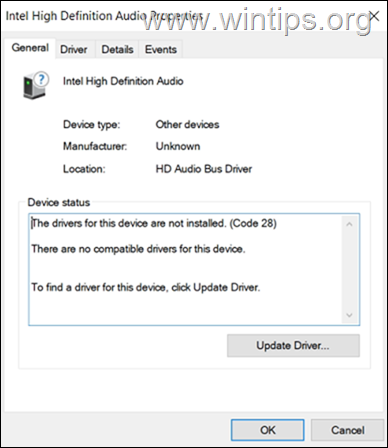
How to FIX: Intel High Definition Audio Drivers Not Installed – Code 28, on Windows 10/11.
Method 1. Install Realtek’s High Definition Audio Drivers.
1. Right-click on the Start menu and select Device Manager.
2. Right-click on Intel High Definition Audio and choose Update Driver.
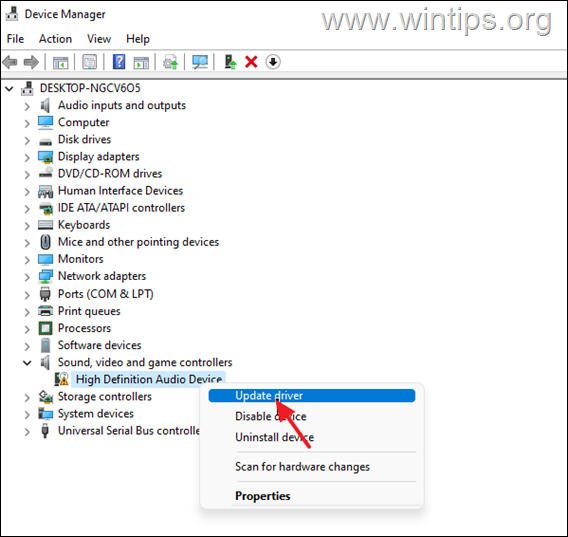
3. Now click Browse my computer for drivers…
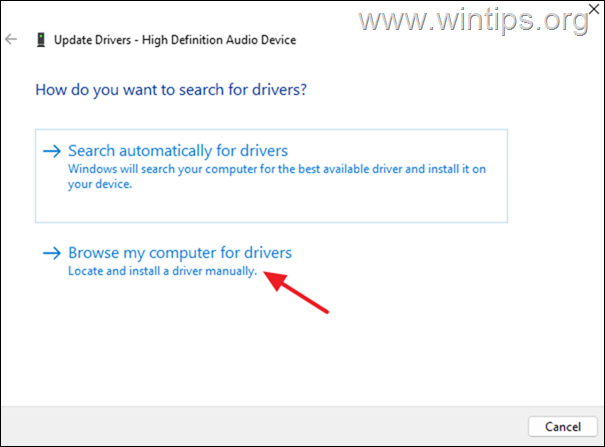
4. …and then Let me pick from a list of available drivers on my computer.
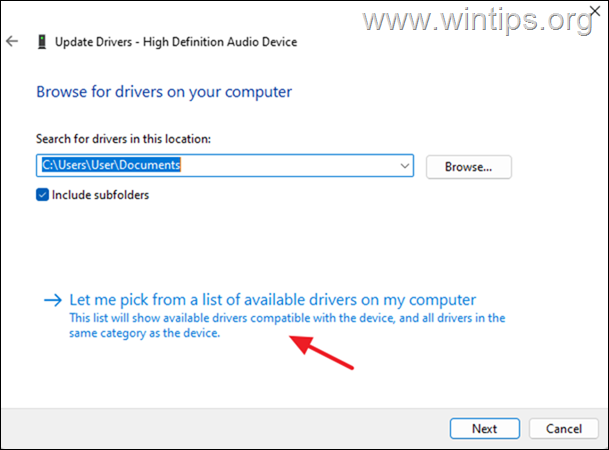
5. Now uncheck the Show compatible hardware checkbox, select under the Manufacturer Realtek, choose the Realtek High Definition Audio driver and click Next.
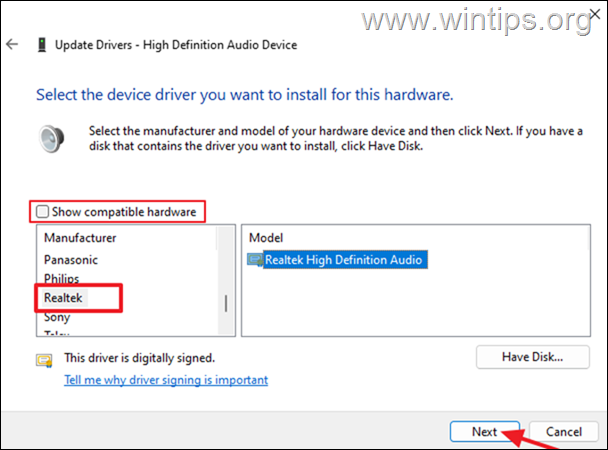
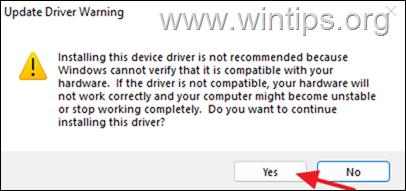
6. Click Yes at ‘Update Driver Warning’ message and let Windows to install the drivers. Normally, after the driver installation, the audio problems should be fixed and the sound will come back! If not, continue to method 2 below.
Method 2. Remove and re-install Intel High Definition Audio Drivers.
1. Navigate in Device Manager.
2. Right-click on Intel High Definition Audio and select Uninstall Device.

3. Select Attempt to remove the driver for the device and click Uninstall.
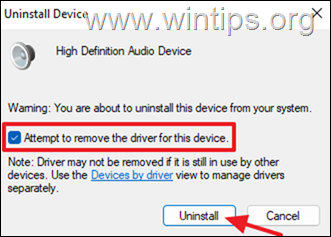
4. When the driver removal is completed restart your PC and let Windows to install automatically the new driver.
* Note: To make sure the driver installation is complete, go to Device Manager and check that the removed device is listed there. If not, apply the following steps in order:
1. Check and install all available Windows updates and check if the problems exists. If yes…
2. Check on you device’s manufacturer support site, to see if there is available to download and install an updated driver for the audio device.
3. Install and run the Intel® Driver & Support Assistant (Intel® DSA) to install/update the drivers for all the Intel devices on your system.
That’s it! Which method worked for you?
Let me know if this guide has helped you by leaving your comment about your experience. Please like and share this guide to help others.
Windows 10: Fix Intel High Definition DSP Code 28 on Windows 11/10
Discus and support Fix Intel High Definition DSP Code 28 on Windows 11/10 in Windows 10 News to solve the problem; [IMG]Some users have complained that the Intel High Definition Audio is not working, and instead, they get Intel high definition DSP code 28. The error…
Discussion in ‘Windows 10 News’ started by WinClub, Feb 4, 2023.
-
Fix Intel High Definition DSP Code 28 on Windows 11/10
![Fix Intel High Definition DSP Code 28 on Windows 11/10 [IMG]](data:image/svg+xml,%3Csvg%20xmlns='http://www.w3.org/2000/svg'%20viewBox='0%200%200%200'%3E%3C/svg%3E "Fix Intel High Definition DSP Code 28 on Windows 11/10")
Some users have complained that the Intel High Definition Audio is not working, and instead, they get Intel high definition DSP code 28. The error is displayed in the Intel High Definition DSP audio device’s properties and is marked by a yellow exclamation mark. If the error Intel high definition DSP code 28 appears on […]
This article Fix Intel High Definition DSP Code 28 on Windows 11/10 first appeared on TheWindowsClub.com.
read more…
-
Missing Intel High Definition DSP
Recently, I opened my laptop, and was getting some type of error saying, «No Audio Output Device is Installed.» After about two hours, I finally got an audio device working by downloading it off of a website. I restarted my laptop, and the audio wasn’t working.
There’s sound input, but it’s not playing through the speakers on my device.There is still one device missing, and when looking at it through properties it says it’s part of the audio bus. After going through the driver for about an hour, I found a couple of device Id’s, but Windows didn’t have the driver download link, nor did
any other website.>Intel High Definition DSP is giving a code 28 error. The only fix for this that I am aware of is to download the driver online, and install it. (When trying to simply update the driver, it isn’t able to be found online, «Windows could not find drivers for
your device.»)I own an Omen laptop running Windows 10 (64bit)
Realtek High Definition Audio(SST) Intel(R) Display Audio < currently installed audio drivers
INTELAUDIO\DSP_CTLR_DEV_A171&VEN_8086&DEV_0222&REV_0001 (compatible ID)
INTELAUDIO\DSP_CTLR_DEV_A171&VEN_8086&DEV_0222&SUBSYS_00000022&REV_0001 (Hardware ID)
-
Intel High Definition DSP — No Audio Device installed after updating to latest Windows 11
Hello guys.
I need urgent help. I recently updated my windows 11 pro and since then, I have been getting the error Intel High Definition DSP — No Audio Device installed.
This happened today 14th, November, 2022
Kindly assist me.
Regards
-
Fix Intel High Definition DSP Code 28 on Windows 11/10
How to Install intel High Definition DSP and my pc is slowly how to boost the speed?
Afternoon
how to Install intel High Definition DSP and my pc is slowly how to boost the speed.
Moved rom Insider
Original title: HELP!
![Fix Intel High Definition DSP Code 28 on Windows 11/10 [IMG]](https://www.windowsphoneinfo.com/threads/fix-intel-high-definition-dsp-code-28-on-windows-11-10.907640/proxy.php?image=https%3A%2F%2Fwww.thewindowsclub.com%2Fwp-content%2Fuploads%2F2023%2F01%2Ferror-code-28.jpg&hash=72cfcad7c324d29211e9a339d3dab2b5 "Fix Intel High Definition DSP Code 28 on Windows 11/10")
Fix Intel High Definition DSP Code 28 on Windows 11/10
-
Fix Intel High Definition DSP Code 28 on Windows 11/10 — Similar Threads — Fix Intel High
-
error Intel High Definition DSP — No Audio Device installed.
in Windows 10 Gaming
error Intel High Definition DSP — No Audio Device installed.: Hi Folks I did my windows updates windows 11 and since then, I have been getting the error Intel High Definition DSP — No Audio Device installed. Checked in the Device ManagerUnder other devices is says Intel High Definition DSP There is a Little Yellow triangle with an… -
error Intel High Definition DSP — No Audio Device installed.
in Windows 10 Software and Apps
error Intel High Definition DSP — No Audio Device installed.: Hi Folks I did my windows updates windows 11 and since then, I have been getting the error Intel High Definition DSP — No Audio Device installed. Checked in the Device ManagerUnder other devices is says Intel High Definition DSP There is a Little Yellow triangle with an… -
Intel High Definition DSP issue WIndows 11 HP Pavilion Gaming
in Windows 10 Gaming
Intel High Definition DSP issue WIndows 11 HP Pavilion Gaming: Hello, Since couple of weeks I don’t have sound on my Windows 11 laptop.I noticed Intel High Definition DSP drivers are missing code 28. The other drivers like Realtek HD audio are in place.please Could you help me?… -
Intel High Definition DSP issue WIndows 11 HP Pavilion Gaming
in Windows 10 Software and Apps
Intel High Definition DSP issue WIndows 11 HP Pavilion Gaming: Hello, Since couple of weeks I don’t have sound on my Windows 11 laptop.I noticed Intel High Definition DSP drivers are missing code 28. The other drivers like Realtek HD audio are in place.please Could you help me?… -
Intel High Definition DSP — No Audio Device installed after updating to latest Windows 11
in Windows 10 Software and Apps
Intel High Definition DSP — No Audio Device installed after updating to latest Windows 11: Hello guys.I need urgent help. I recently updated my windows 11 pro and since then, I have been getting the error Intel High Definition DSP — No Audio Device installed.This happened today 14th, November, 2022Kindly assist me.Regards… -
Intel High Definition DSP — No Audio Device installed after updating to latest Windows 11
in Windows 10 Gaming
Intel High Definition DSP — No Audio Device installed after updating to latest Windows 11: Hello guys.I need urgent help. I recently updated my windows 11 pro and since then, I have been getting the error Intel High Definition DSP — No Audio Device installed.This happened today 14th, November, 2022Kindly assist me.Regards… -
High Definition Audio and DSP missing, no audio device
in Windows 10 Drivers and Hardware
High Definition Audio and DSP missing, no audio device: Hello,so, after an update, the audio suddenly stopped working. I then uninstalled the devices High definition Audio and DSP Audio and this did not solve my problem. The problem finder cant fix this problem too. Now I dont know what to do. My lapptop is an ASUS TUF Gaming…
-
intel high definition DSP code 28
in Windows 10 Drivers and Hardware
intel high definition DSP code 28: bonjour;j’ai un probleme avec le son de mon pc ,drfois il marche normalement et defois non , j’ai trouvé dans les parametre une alerte jaune a coté de intel high definition DSP ,que je dois faire pour resoudre ce probleme svp!…
-
Missing Intel High Definition DSP
in Windows 10 Drivers and Hardware
Missing Intel High Definition DSP: Recently, I opened my laptop, and was getting some type of error saying, «No Audio Output Device is Installed.» After about two hours, I finally got an audio device working by downloading it off of a website. I restarted my laptop, and the audio wasn’t working. There’s sound…
