
When opening certain programs on a Windows client or server computer, the Call was canceled by the message filter with error code 0x80010002 may be triggered. In other cases, the same issue is encountered when a legacy application is called. This post provides the most applicable fixes to this issue.
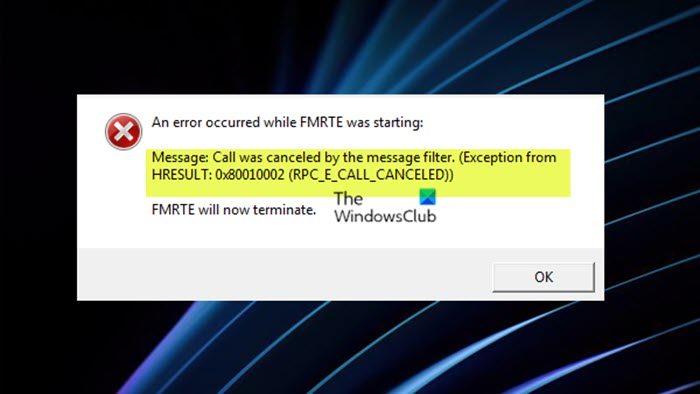
Unexpected error occurred.
Call was canceled by the message filter. (Exception from HRESULT: 0x80010002 (RPC_E_CALL_CANCELED))
If you get an error prompt stating Call was canceled by the message filter, 0x80010002 when you try to open an application or when the application is called on your Windows 11/10 computer, then the following suggested fixes we have presented below in no particular order should help you fix the error on your system.
- Check the Remote Procedure Call (RPC) service
- Restart the Windows Management Instrumentation (WMI) service
- Run WBEMTEST
- Re-register DLLs, Recompile the .mofs in the wbem folder, and Re-register WMI Service and Provider
- Repair/Rebuild Windows Management Instrumentation
- Temporarily disable or uninstall antivirus
- Run WBEMTEST
- Troubleshoot RPC errors using PortQry
- Convert Windows service component monitors from WMI to RPC
Let’s see the suggested fixes in detail. If your system hasn’t been updated in a while, before you proceed any further, we suggest you check for updates and install any available bits (including Optional Updates) on your system then see if the issue is resolved or not. Reinstalling the application throwing the error may also help.
1] Check the Remote Procedure Call (RPC) service
The RPCSS service is the Service Control Manager for COM and DCOM servers. It performs object activations requests, object exporter resolutions, and distributed garbage collection for COM and DCOM servers. If this service is stopped or disabled, programs using COM or DCOM will not function properly. Additionally, the RpcSs service uses the rpcss.dll file that is located in the C:\Windows\system32 directory. If the file is removed or corrupted, you may encounter this Call was canceled by the message filter, 0x80010002 error.
This solution requires you to check and make sure the Remote Procedure Call (RPC) (RpcSs) Service is started and set to Automatic startup which is the default configuration. To restore the default startup configuration of the service, run the Command Prompt as an administrator, then copy and paste the command below and hit Enter.
sc config RpcSs start= auto
sc start RpcSs
Once the command executes, close the command window and restart the computer.
2] Restart the Windows Management Instrumentation (WMI) service
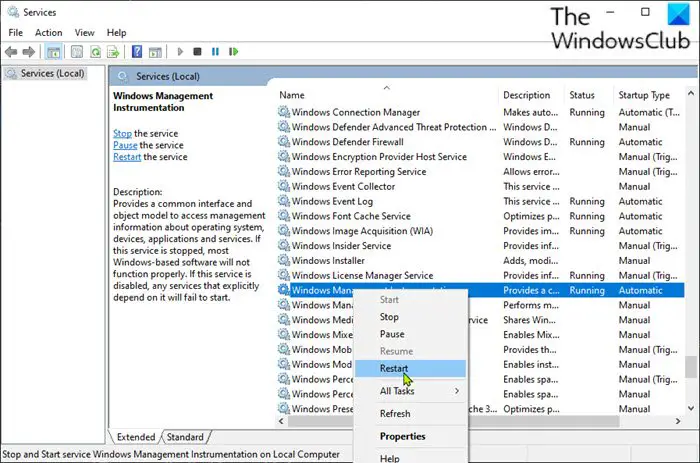
Windows Management Instrumentation (winmgmt) Service provides a common interface and object model to access management information about the operating systems, devices, applications, and services. If this service is stopped, most Windows-based software will not function properly. If this service is disabled, any services that explicitly depend on it will fail to start. Also, the winmgmt service is using the WMIsvc.dll file that is located in the C:\Windows\system32\wbem directory – if the file is removed or corrupted, you are likely to encounter issues with dependent services.
This solution requires you to ensure the winmgmt service is set to its default startup configuration on your target server by running the command below in an elevated CMD prompt. Restart the service if it’s already running.
sc config winmgmt start= auto
sc start winmgmt
Read: WMI Provider Host (WmiPrvSE.exe) High CPU Usage
3] Run WBEMTEST
If you are unable to restart WMI as described above, you can run WBEMTEST locally to test WMI connectivity on the node. For this, refer to this Microsoft documentation.
4] Re-register DLLs, Recompile the .mofs in the wbem folder, and Re-register WMI Service and Provider
For this solution, you need to re-register all of the DLLs and recompile the .mofs in the wbem folder, and re-register WMI Service and Provider. To perform this task, you need to create and run a batch file by following these steps:
- Press Windows key + R to invoke the Run dialog.
- In the Run dialog box, type notepad and hit Enter to open Notepad.
- Copy and paste the syntax below into the text editor.
@echo off
sc config winmgmt start= disabled
net stop winmgmt /y
%systemdrive%
cd %windir%\system32\wbem
for /f %%s in ('dir /b *.dll') do regsvr32 /s %%s
wmiprvse /regserver
winmgmt /regserver
sc config winmgmt start= auto
net start winmgmt
for /f %%s in ('dir /s /b *.mof *.mfl') do mofcomp %%s
- Save the file with a name and append the .bat file extension – eg; Re-registerWMI.bat; on the Save as type box, select All Files.
- Now, run the batch file with admin privilege (right-click the saved file and select Run as Administrator from the context menu) or simply double-click the .bat file to run it.
- Once the batch file runs, you can delete it.
- Reboot the machine and test WMI.
5] Repair/Rebuild Windows Management Instrumentation
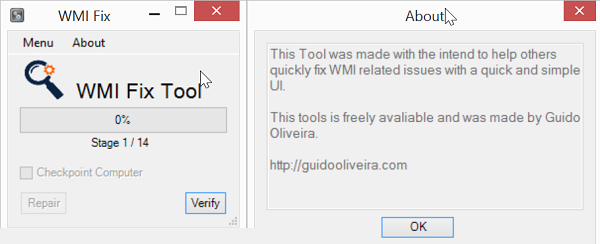
You can quickly repair or rebuild WMI on a local machine or server (as the case may be) by creating a batch file as shown above with the source code below or you can follow the step-by-step instructions provided in the linked guide.
Echo Rebuilding WMI.....Please wait. > c:\wmirebuild.log
net stop sharedaccess >> c:\wmirebuild.log
net stop winmgmt /y >> c:\wmirebuild.log
cd C:\WINDOWS\system32\wbem >> c:\wmirebuild.log
del /Q Repository >> c:\wmirebuild.log
c:
cd c:\windows\system32\wbem >> c:\wmirebuild.log
rd /S /Q repository >> c:\wmirebuild.log
regsvr32 /s %systemroot%\system32\scecli.dll >> c:\wmirebuild.log
regsvr32 /s %systemroot%\system32\userenv.dll >> c:\wmirebuild.log
mofcomp cimwin32.mof >> c:\wmirebuild.log
mofcomp cimwin32.mfl >> c:\wmirebuild.log
mofcomp rsop.mof >> c:\wmirebuild.log
mofcomp rsop.mfl >> c:\wmirebuild.log
for /f %%s in ('dir /b /s *.dll') do regsvr32 /s %%s >> c:\wmirebuild.log
for /f %%s in ('dir /b *.mof') do mofcomp %%s >> c:\wmirebuild.log
for /f %%s in ('dir /b *.mfl') do mofcomp %%s >> c:\wmirebuild.log
mofcomp exwmi.mof >> c:\wmirebuild.log
mofcomp -n:root\cimv2\applications\exchange wbemcons.mof >> c:\wmirebuild.log
mofcomp -n:root\cimv2\applications\exchange smtpcons.mof >> c:\wmirebuild.log
mofcomp exmgmt.mof >> c:\wmirebuild.log
net stop winmgmt >> c:\wmirebuild.log
net start winmgmt >> c:\wmirebuild.log
gpupdate /force >> c:\wmirebuild.log
Read: WMI Repository reset failed, Error 0x80070005, 0x8007041B, 0x80041003
6] Temporarily disable or uninstall antivirus
There is probably either security/antivirus software causing problems on the server, the WMI/DCOM configuration is bad, or the WMI repo is damaged. So, if the issue persists after you have applied the solutions 1, 2, 4, and 5 mentioned above, you can try uninstalling any antivirus software, disabling the Windows firewall, or any third-party dedicated firewall, and see if that helps.
7] Troubleshoot RPC errors using PortQry
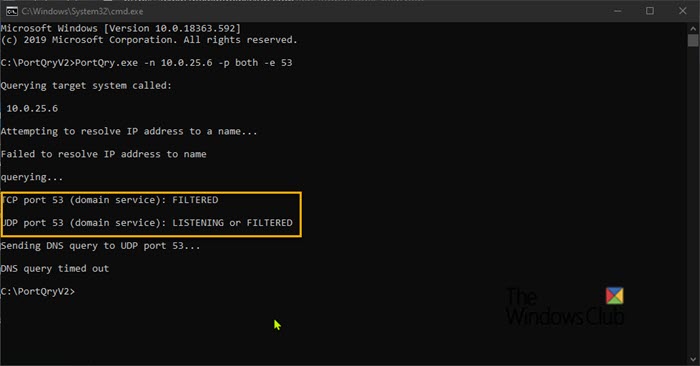
PortQry provides quick insight into how RPC is functioning before you delve into network trace data. As the exception being thrown references RPC, you can troubleshoot RPC errors using PortQry.exe commands to quickly determine whether you can make a connection on the client or server computer as the case may be.
8] Convert Windows service component monitors from WMI to RPC
This fix applies to SolarWinds users that encountered the issue and received the error message in the web console. This potential workaround can help resolve the issue without drastic steps such as rebuilding performance counters or rebuilding the WMI repository — instead convert Windows service component monitors from WMI to RPC by following these steps:
- Browse to the SAM Summary page in the Orion web console.
- Edit the application template that has the windows service component.
- Expand the Windows Service component.
- Change from WMI to RPC method.
- Save.
To change all possible Windows Service Monitors to the RPC method across all your applications, you can use the SQL Script available at support.solarwinds.com to convert all existing Windows service component monitors fetching methods from WMI to RPC.
I hope this post helps!
How do I fix error code 0xc8000402?
Reportedly, the error code 0xc8000402 will most likely be encountered by Windows Insiders running Windows 10 who join the Dev or Beta Channels while trying to download the latest build on their device. If you’re affected by this, as a workaround, you can join the Release Preview Channel first, and then install Windows 11 from there.
What is Unsuccessful 0x80070002?
The error 0x80070002 in SCCM deployment means The system cannot find the file specified. In another instance, the error 0x80070002 is a Windows update error that can result from corrupt or missing system files. Also, if the system doesn’t have enough space to download the update, you may encounter this error. The problem can also appear due to conflict between hardware devices attached to the system.
The error code 0x80010002 is an update-related issue and it occurs primarily when you are downloading and installing cumulative updates on Windows 11/10. Since you are here, you must be facing this error code as well. In this post, we will discuss what possibly could trigger this error code and five working ways to address this issue on Windows PC.
What causes Error 0x80010002 on Windows 11/10?
Corrupt system files, the presence of a faulty antivirus program, and corruption inside the Windows Cache folders are the main reasons invoking an error 0x80010002 on Windows.
Try troubleshooting Windows Update, running SFC & DISM scans, and resetting update components might address this problem. If you have already tried these methods, you better manually download and install pending updates on your computer.
Ways to Solve Update Error 0x80010002
If you are encountering an error code 0x80010002, go through the below list of solutions, and check if any addresses this bug for you. The probable fixes are as follows –
- Troubleshoot Windows Update
- Disable Third-party Antivirus
- SFC and DISM Scans
- Reset Windows Update Components
- Manually download and install pending updates
1] Troubleshoot Windows Update
The update troubleshooter is the built-in tool on Windows 11/10 that can look for the underlying causes on your system and have them resolved in no time. Since you are not able to install available Windows updates, we suggest following these steps –
Windows 11:
- Open Settings using the Win & I shortcut.
- Navigate to System > Troubleshoot, and click to expand Other troubleshooters.
- Locate Windows Update under Most frequent, and hit the Run button available beside it. See the Snapshot below –

- Wait for this tool to detect and resolve the underlying causes.
- After this is over, restart your PC.
- When Windows 11 reloads, check if you can download and install pending updates now.
Windows 10:
- Press Win and I key to launch Settings.
- Click Update & Security and then Troubleshoot on the left pane.
- Move to the right pane and click Additional troubleshooters.
- Look for Windows Update under Most frequent, and when it expands, click Run the troubleshooter.
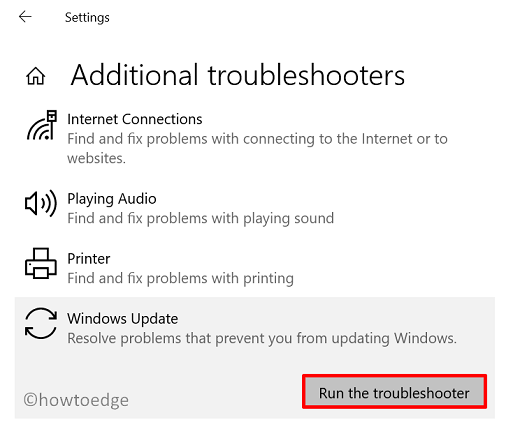
- Follow the on-screen instructions to let this tool find and address the persisting problems.
After this tool finishes the troubleshooting part, restart your PC and check if the error 0x80010002 resolves this way.
2] Disable Third-party Antivirus
Many a time, update-related errors occur just because of some third-party applications running on your Windows PC. This holds true for an external antivirus program as well. If you are using such software, we suggest disabling them first and checking if you can Windows 11/10 next. For that, you need to reach out to the below path and hit the Check for updates button.
Note: If you don’t want to uninstall your antivirus program, you better disable the security app and check how this goes. When the updates start installing next, you need to let go of the external antivirus program.
Windows Security is a perfect built-in security app on Windows 11/10. In addition to protecting your device against viruses and malware, this tool also lets you use its parental control tool. You better try this software as this presents way more options than a freely available antimalware application.
3] SFC and DISM Scans
The presence of a buggy application on Windows 11/10 often corrupts some system files or drivers. For example, certain antivirus programs are known to modify the system services and as a result of this, Windows update simply fails on some error code 0x80010002.
In such a scenario, the SFC and DISM present the perfect way to automatically detect missing or damaged files on your system and have them repaired. Follow the below instructions on how to use both these tools on an elevated console.
- Click on the Search box and type CMD in the text area.
- Right-click on Command Prompt and select the first option i.e. Run as administrator.
- If the UAC prompts for authentication, click Yes.
- On the elevated prompt, type
sfc /scannowand hit Enter to begin the scanning/repairing process.

- This takes around 10-15 minutes to complete repairing missing as well as corrupt system files or folders.
- When the SFC scan reaches 100%, you may run the DISM code next. The DISM command will ensure no corruption lies within the System image. Here’s what you need to run on the elevated console –
DISM /Online /Cleanup-Image /RestoreHealth

- This command will also take 10-15 minutes to automatically detect corruption inside the System image and have them resolved.
- When the DISM command completes 100%, you may close CMD, and reboot your Windows PC.
When Windows 11/10 reloads, check if you can update Windows normally without getting into an error 0x80010002.
4] Reset Windows Update Components
The one prime reason that might cause Windows updates to fail on some error codes is corruption within the Update components. This includes unnecessarily stored cookies and caches inside Windows Cache folders and disabling any essential service.
Try resetting all components on your Windows 11/10 PC, and check if this update issue resolves afterward. If not, you can always manually download and install the pending updates on your computer.
5] Manually download and install pending updates
If none of the above solutions work to address the error code 0x80010002, it comes down to manually downloading the updates and installing them. The steps are more or less the same for Windows 11 or Windows 10. For your convenience, we have written down separate topics on how to download and install standalone packages on your specific version of Windows.
Note: While choosing to download the standalone package, make sure to download the update matching your system architecture. Otherwise, all your data would be wasted, and you need to re-download the Windows setup file.
- Manually Download and Install Windows 11 Updates
- Manually download and install Windows 10 Updates
I sincerely hope the error code 0x80010002 resolves after trying out the above-enlisted solutions. In case you do have queries or suggestions related to this post, let’s know in the comment section.
How do I Solve Windows Update Error 0x80070002?
Just like error 0x80010002, 0x80070002 is another update-related issue and you may fix it by going through the above solutions. In case you have already tried some of these methods and failed, you better skip to the last solution, i.e. manually downloading and reinstalling pending updates.
Here’s a complete guide on how to fix Windows Update Error 0x80070002.
How to Solve Update Error 0x80004002
If you are struggling with an error code 0x80004002 while downloading or installing available Windows updates, we suggest going through this post and checking if the problem resolves this way.
How to fix the issue reported by «error code 0x80010002»
Special Offer
Instructions
The following steps should fix the 0x80010002 issue:
- Step 1.Download Outbyte PC Repair application See more information about Outbyte uninstall instructions EULA Privacy Policy
- Step 2.Install and launch the application
- Step 3.Click the Scan Now button to detect issues and abnormalities
- Step 4.Click the Repair All button to fix the issues
| Compatibility | Win 11, 10, 8, 7 |
| Download Size | 21.2 MB |
| Requirements | 300 MHz Processor, 256 MB RAM, 50 MB HDD |
Limitations: trial version offers an unlimited number of scans, backups and restores of your Windows system elements for free. Registration for the full version starts from USD 29.95.
A malfunction reported by «error code 0x80010002» may happen due to a number of different factors. Common causes include incorrectly configured system settings or irregular entries in the system elements, to name a few. Such issues may be resolved with special software that repairs system elements and tunes system settings to restore stability.
The article provides details on what the issue means, potential causes, and ways to resolve the issue.
- 1Meaning of the «error code 0x80010002»
- 2Causes of the «error code 0x80010002»
- 3Ways to repair the «error code 0x80010002»
Meaning of the «error code 0x80010002»
«Error code 0x80010002» is an issue name that usually contains details of the malfunction, including why it occurred, which system component or application malfunctioned, along with some other information. The numerical code in the issue name usually contains data that can be deciphered by the manufacturer of the component or application that malfunctioned. The issue with using this code may occur in many different locations within the system, so even though it carries some details in its name, it is still difficult for a user to pinpoint and fix the issue cause without specific technical knowledge or appropriate software.
Causes of the «error code 0x80010002»
If you have received this warning on your PC, it means that there was a malfunction in your system operation. «Error code 0x80010002» is one of the issues that users get as a result of the incorrect or failed installation or uninstallation of software that may have left invalid entries in your system elements, improper system shutdown due to a power failure or another factor, someone with little technical knowledge accidentally deleting a necessary system file or system element entry, as well as a number of other causes.
Ways to repair the «error code 0x80010002»
For an immediate fix of such issues, advanced PC users may be able to repair it by manually editing system elements, and others may want to hire a technician to do it for them. However, since any manipulations with Windows system elements carry a risk of rendering the operating system unbootable, whenever a user is in any doubt of their technical skills or knowledge, they should use a special type of software that is meant to repair Windows system elements without requiring any special skills from the user.
The following steps should help fix the issue:
- Download Outbyte PC Repair application Special offer. See more information about Outbyte uninstall instructions EULA Privacy Policy
- Install and launch the application
- Click the Scan Now button to detect potential issue causes
- Click the Repair All button to fix found abnormalities
The same application can be used to run preventative measures to reduce the chance of this or other system issues appearing in the future.
* 80010002 – Ошибка карты памяти, стоит попробовать сменить её. Либо PSP не может найти или запустить исполняемый файл.
o Если это PS1 игра, то вероятно что лежит она не в папке GAME.
* 80000004 — Стандартная ошибка при сбоях в PSP.
* 0x80410702 — «Ошибка подключения» — возникает, если в ID storage ключе 0x0044 информация не соответствует mac-адресу wifi платы.
* UKN9000001 – Невозможно начать обновление, данные повреждены.
* FFFFFFFF – Ошибка обновления PSP на официальной прошивке, либо ошибка сохранения.
* DRNFFFFFFCD — Запуск апдейта прошивки 3.30+ на PSP с официальной прошивкой, но с патченым 5ым ключом ID Storage.
* DADADADA – Появляется при попытке обновится на официальную прошивку с модифицированной.
* CA000005 — KEYS.BIN не найдены во время запуска PS1 игры
* 98765432 — Выбран язык, шрифт которого, был удален.
* 80431063 – Соединение с сервером прервано или не удается сохраниться или загрузиться.
* 80410D09 – Произошла ошибка соединения.
* 80410A0B – Внутренняя ошибка. У меня, например вылезает, если WiFi платка перегревается и перестаёт работать.
* 80220180 – Невозможно отформатировать карту памяти.
* 80110482 – Невозможно подключиться к Access Point.
* 80110404 — Ошибка сети, сбросьте настройки.
* 80110305 – Ошибка загрузки с карты памяти. Нет доступа к Memory Stick.
* 80108D50 — Камера не подключена к USB.
* 80108351 — Не удалось установить *.PTF тему.
* 80100D00 – Канал RSS не может быть добавлен.
* 800244C – Ошибка ядра либо запуск исполняемого файла невозможен .
* 80020321 – Отсутствует UMD в приводе, либо игра не поддерживает NO-UMD (если включен).
* 8002014C – Запуск homebrew приложений на официальной прошивке.
* 80020148 – Файл PSAR потерян или тип PRX не поддерживается, или имеем дело с проблемной картой памяти.
o Возникает при попытке установить модифицированную прошивку на официальную с несоблюдением схемы (последовательности) установки
* 80020130 — Невозможно прочитать файл или исполняемый файл имеет нулевую длину.
* 800200D9 – Невозможно запустить Memory Block (Блок памяти).
* 800200D1 – Запуск homebrew приложений на официальной прошивке.
* 80020001 – Ошибка ядра либо запуск исполняемого файла невозможен.
* 80010087 – Ошибка чтения UMD или UMD отсутствует в приводе.
* 8001006F – Ошибка соединения для удаленной (по Wi-Fi) игры. (PS3 не посылает сигнал).
* 80010068 – Соединение с сервером прервано.
* 80010013 – Устройство не найдено.
* 00000001 — Не найдена точка доступа при сканировании сети (только на 3.71).
* (без номера) — «Сбой чтения диска» + отсутствие значка UMD в меню «Игра» при вставленном диске — несоответствие ID storage 0x0102 ключа его заводскому значению.
o Отключаем плагин IR Shell (если он есть)
o Вынимаем диск из UMD-дисковода (если он там есть)
o Восстанавливаем стандартную конфигурацию PSP
o В Recovery выбираем Advanced -> Format flash1 and reset settings
Список кодов ошибок консоли PSP

00000001. Внутренняя ошибка
К сожалению, это ошибка официальных прошивок, поэтому в модифицированных их убрать нельзя. Ошибка появляется, только если в зоне сканирования сети нет Wi-Fi покрытия (не обнаруживается точка доступа).
80000001.
Ошибка возникает, когда Вы пытаетесь запустить файловый менеджер версии 3.60 на 3.40.
80000004. Стандартная ошибка при незначительных сбоях в системе
80010002; 80010013; 80010087; 80020321. Запуск игры невозможен
Находясь в главном меню, нажмите Select. В строке UMD ISO MODE поставьте значение M33 driver или Sony NP9660. Если ошибка продолжает возникать, нужно включить режим NO-UMD (для этого нужна прошивка 3.02 OE-A или выше): зайдите в Recovery Menu » Configuration. Пункт Use NO-UMD должен быть включен (Enabled). Если он выключен (Disabled), выделите его и нажмите «крест».
80110305; 80010011. Ошибка загрузки/сохранения
Карта памяти повреждена. Для начала отформатируйте её. Зайдите в Настройки » Система » Форматирование карты Memory Stick и два раза подряд нажмите «Да». Если сохранение/загрузка и после этого происходит с ошибкой, используйте пункт Восстановление стандартной конфигурации в том же разделе. Не помогло? Значит, карта памяти вышла из строя, либо она просто неоригинальная.
80110307. Ошибка загрузки
Нет доступных файлов для загрузки
80010068; 80431063; 80432060. Соединение с сервером прервано
8002019A. Внутренняя ошибка
Отформатируйте сначала карту памяти, а затем, если не поможет, flash1, чтобы восстановить стандартные настройки (Recovery Menu » Advanced » Format flash1 and reset settings).
80410416. Доступ к ресурсу закрыт
Как вариант — поменять в Recovery Menu регион (Configuration » Fake region).
80431075. Неправильно введен пароль в дистанционной игре
8001006F. Ошибка соединения
Вероятно, PS3 не посылает сигналы над вашей сетью.
80020001; 800200D1; 80020148; 800244C. Запуск игры невозможен
Ошибка ядра. Два варианта:
1 вариант. Игры и программы с карты памяти запускаются только на модифицированных прошивках и версии 1.50. Некоторые игры и программы требуют более новой прошивки, чем Ваша.
2 вариант. Вставьте UMD-диск в привод, либо зайдите в Recovery Menu » Advanced » Advanced configuration и поставьте на всех строчках значение Disabled.
800200D9. Игра не может быть запущена
Отключите все плагины в Recovery Menu (пункт Plugins). Отформатируйте карту памяти через PSP. При повторном возникновении ошибки используйте пункт Восстановление стандартной конфигурации (Настройки » Система). Если и это не помогло, поставьте более новую прошивку, либо используйте комплект Pandora.
80020130. Игра не может быть запущена / Исполняемый файл имеет 0 длину
Ошибка чтения блоков на модифицированных прошивках. Она может возникать по самым разным причинам. Чаще всего необходимо просто поменять драйвер на M33 driver, перепрошиться или отформатировать карту памяти.
80020148; 8002014C. Игра не может быть запущена
Ошибка возникает на PSP Slim при запуске homebrew. Slim не поддерживает программы, написанные под ядро 1,5. Используйте Time Machine или LEDA.
80410702. Ошибка соединения
MAC-адрес на материнской плате не совпадает с MAC-адресом на карте WLAN. Используйте программу PSP MAC Address Changer.
80410A0B. Внутренняя ошибка
Восстановите стандартные настройки. Если не получится, скорее всего, что-то с платой Wi-Fi (а именно — потерян к ней доступ).
80100D00. RSS-канал не может быть добавлен
Возможно, слабый сигнал Wi-Fi.
80110482; 80410D07; 80410D09. Ошибка соединения
Отключите энергосбережение WLAN и сбросьте настройки роутера.
80220180. Форматирование невозможно
Настройки » Система » Восстановление стандартной конфигурации
98765432.
Шрифт языка, который Вы выбрали, удалён.
CA000005. Игра не может быть запущена
Файл keys.bin лежит не в папке с игрой.
DADADADA. Запуск игры невозможен
Вы пытаетесь запустить официальное обновление на модифицированной прошивке.
FFFFFFFF. Ошибка обновления PSP, либо ошибка сохранения
У Вас палёная карта. См. соотв. статью.
UKN9000001. Невозможно начать обновление, данные повреждены
Возможны два решения. Первое: попробуйте перезаписать данные на карту. Второе: смотрите ошибки 80110305 и 80010011.
C каждой минутой все больше становиться проблемы с ошибками PSP, будь то прошивка не прошла успешно или просто сама поломка игровой приставки. Кто все таки решил прошить свою psp (пиха), читайте внимательно статью и тогда не каких ошибок у вас не будет. Если даже не знаете свою прошивку в пихе, то все подробно увидите на картинках и описаниях.
Список кодов ошибок консоли PSP
- Ниже приведен список кодов ошибок. Если Вы сталкивались с какой-то из них, но не знаете что она означает, читайте расшифровку.
DADADADA – Запуск обновления прошивки, на кастом прошивке
80010087 – Ошибка чтения UMD или UMD не вставлен
80020321 – UMD отсутствует когда отключен режим No-umd
80110305 — Ошибка загрузки. Нет доступа к Memory Stick
FFFFFFFF – Ошибка обновления PSP либо ошибка сохранения
UKN9000001 – Невозможно начать обновление, данные повреждены
80020148 – Не поддерживаемый тип PRX
98765432 – Выбран язык, для которого удален шрифт
8001006F – Ошибка соединения для удаленной игры
800200D1 — Запуск homebrew без включенной Homebrew прошивки
8002014C – Запуск kxploited без включенной Homebrew прошивки
80020321 – Запуск игры невозможен, не поддерживает NO-UMD (Если включен)
80020130 – Исполняемый файл имеет 0 длину
80020001 – Запуск исполняемого файла невозможен
80020148 – Потерян файл PSAR
80010068 – Соединение с сервером прервано
80431063 — Соединение с сервером прервано
80431063 – Не удается сохраниться
CA000005 — Ошибка keys.bin
80220180 – Невозможно отформатировать
80100D00 — Канал не может быть добавлен
80410D09 – Произошла ошибка соединения
80010013 — Устройство не найдено
80020001 или 800244C – Ошибка ядра
800200D9 – Невозможно запустить memory block
80020130 — Невозможно прочесть файл
80110482 – Происходит во время теста wlan при подключении к
инфраструктуре (не может подключиться)
80410A0B – Внутренняя ошибка
80010087 – Игра не может запуститься
80010002 — Скорее всего ошибка флеш-карты, не может найти или запустить исполняемый файл, или если это psx (Playstation one) игра, то находится она не в папке «Game» на PSP.
0108351 при установке тем PTF
— отключаем плагин IR Shell (если он есть)
— вынимаем диск из UMD-дисковода (если он там есть)
— в Recovery выбираем Advanced -> Format flash2 and reset settings
— восстанавливаем стандартную конфигурацию PSP
На картинке представлено список моделей материнский плат для SONY PSP.
Здесь даны самые частые ошибки в игровых приставках psp, если же у вас обнаружиться не понятная ошибка напишите об этом в комментариях мы обязательно рассмотрим и напишем об этих ошибках.
Понравилась полезная статья? Подпишитесь на RSS и получайте больше нужной информации!
| Код ошибки | Расшифровка ошибки |
| DADADADA | Неудачный запуск обновления прошивки на кастом прошивке. |
| 80010087 | Ошибка чтения UMD или UMD не вставлен. |
| 80020321 | Игра не запускается потому, что UMD отсутствует при отключенном режиме No-UMD. |
| 80110305 | Ошибка загрузки с карты памяти. Нет доступа к Memory Stick. |
| FFFFFFFF | Ошибка обновления PSP на официальной прошивке, либо ошибка сохранения. |
| UKN9000001 | Невозможно начать обновление, данные повреждены. |
| 80020148 | Неподдерживаемый тип PRX. |
| 98765432 | Выбран язык, для которого не найлен шрифт. |
| 8001006F | Ошибка соединения для удаленной (по Wi-Fi) игры. |
| 800200D1 | Запуск Homebrew на прошивке, на которой не идут Homebrew. |
| 8002014C | Запуск kxploited ( эксплойта) на прошивке, на которой не идут Homebrew . |
| 80020321 | Запуск игры невозможен, данная игра не поддерживает No-UMD |
| 80020130 | Исполняемый файл имеет длину 0 секунд. |
| 80020001 | Запуск исполняемого файла невозможен. |
| 80020148 | Потерян файл PSAR. |
| 80010068 | Соединение с сервером прервано. |
| 80431063 | Соединение с сервером прервано. |
| 80431063 | Не удается сохраниться или загрузиться. |
| CA000005 | Ошибка файла keys.bin. |
| 80220180 | Невозможно отформатировать карту памяти. |
| 80100D00 | Канал RSS не может быть добавлен. |
| 80410D09 | Произошла ошибка соединения. |
| 80010013 | Устройство не найдено. |
| 80020001 | Ошибка ядра процессора. |
| 800244C | Ошибка ядра процессора. |
| 800200D9 | Невозможно запустить Memory Block ( Блок памяти). |
| 80020130 | Невозможно прочесть файл. |
| 80110482 | Ошибка, которая происходит во время теста W-Lan при подключении к инфраструктуре ( ошибка подключения). |
| 80410A0B | Внутренняя ошибка. |
| 80010087 | Игра не может запуститься. |
| 80010002 | Скорее всего, ошибка карты памяти. |
Уважаемые покупатели! Наш магазин временно не работает.
When opening certain programs on a Windows client or server computer, the Call was canceled by the message filter with error code 0x80010002 may be triggered. In other cases, the same issue is encountered when a legacy application is called. This post provides the most applicable fixes to this issue.
Unexpected error occurred.
Call was canceled by the message filter. (Exception from HRESULT: 0x80010002 (RPC_E_CALL_CANCELED))
Call was canceled by the message filter, 0x80010002
If you get an error prompt stating Call was canceled by the message filter, 0x80010002 when you try to open an application or when the application is called on your Windows 11/10 computer, then the following suggested fixes we have presented below in no particular order should help you fix the error on your system.
- Check the Remote Procedure Call (RPC) service
- Restart the Windows Management Instrumentation (WMI) service
- Run WBEMTEST
- Re-register DLLs, Recompile the .mofs in the wbem folder, and Re-register WMI Service and Provider
- Repair/Rebuild Windows Management Instrumentation
- Temporarily disable or uninstall antivirus
- Run WBEMTEST
- Troubleshoot RPC errors using PortQry
- Convert Windows service component monitors from WMI to RPC
Let’s see the suggested fixes in detail. If your system hasn’t been updated in a while, before you proceed any further, we suggest you check for updates and install any available bits (including Optional Updates) on your system then see if the issue is resolved or not. Reinstalling the application throwing the error may also help.
1] Check the Remote Procedure Call (RPC) service
The RPCSS service is the Service Control Manager for COM and DCOM servers. It performs object activations requests, object exporter resolutions, and distributed garbage collection for COM and DCOM servers. If this service is stopped or disabled, programs using COM or DCOM will not function properly. Additionally, the RpcSs service uses the rpcss.dll file that is located in the C:\Windows\system32 directory. If the file is removed or corrupted, you may encounter this Call was canceled by the message filter, 0x80010002 error.
This solution requires you to check and make sure the Remote Procedure Call (RPC) (RpcSs) Service is started and set to Automatic startup which is the default configuration. To restore the default startup configuration of the service, run the Command Prompt as an administrator, then copy and paste the command below and hit Enter.
sc config RpcSs start= auto
sc start RpcSs
Once the command executes, close the command window and restart the computer.
2] Restart the Windows Management Instrumentation (WMI) service
Windows Management Instrumentation (winmgmt) Service provides a common interface and object model to access management information about the operating systems, devices, applications, and services. If this service is stopped, most Windows-based software will not function properly. If this service is disabled, any services that explicitly depend on it will fail to start. Also, the winmgmt service is using the WMIsvc.dll file that is located in the C:\Windows\system32\wbem directory – if the file is removed or corrupted, you are likely to encounter issues with dependent services.
This solution requires you to ensure the winmgmt service is set to its default startup configuration on your target server by running the command below in an elevated CMD prompt. Restart the service if it’s already running.
sc config winmgmt start= auto
sc start winmgmt
Read: WMI Provider Host (WmiPrvSE.exe) High CPU Usage
3] Run WBEMTEST
If you are unable to restart WMI as described above, you can run WBEMTEST locally to test WMI connectivity on the node. For this, refer to this Microsoft documentation.
4] Re-register DLLs, Recompile the .mofs in the wbem folder, and Re-register WMI Service and Provider
For this solution, you need to re-register all of the DLLs and recompile the .mofs in the wbem folder, and re-register WMI Service and Provider. To perform this task, you need to create and run a batch file by following these steps:
- Press Windows key + R to invoke the Run dialog.
- In the Run dialog box, type notepad and hit Enter to open Notepad.
- Copy and paste the syntax below into the text editor.
@echo off
sc config winmgmt start= disabled
net stop winmgmt /y
%systemdrive%
cd %windir%\system32\wbem
for /f %%s in ('dir /b *.dll') do regsvr32 /s %%s
wmiprvse /regserver
winmgmt /regserver
sc config winmgmt start= auto
net start winmgmt
for /f %%s in ('dir /s /b *.mof *.mfl') do mofcomp %%s
- Save the file with a name and append the .bat file extension – eg; Re-registerWMI.bat; on the Save as type box, select All Files.
- Now, run the batch file with admin privilege (right-click the saved file and select Run as Administrator from the context menu) or simply double-click the .bat file to run it.
- Once the batch file runs, you can delete it.
- Reboot the machine and test WMI.
5] Repair/Rebuild Windows Management Instrumentation
You can quickly repair or rebuild WMI on a local machine or server (as the case may be) by creating a batch file as shown above with the source code below or you can follow the step-by-step instructions provided in the linked guide.
Echo Rebuilding WMI.....Please wait. > c:\wmirebuild.log
net stop sharedaccess >> c:\wmirebuild.log
net stop winmgmt /y >> c:\wmirebuild.log
cd C:\WINDOWS\system32\wbem >> c:\wmirebuild.log
del /Q Repository >> c:\wmirebuild.log
c:
cd c:\windows\system32\wbem >> c:\wmirebuild.log
rd /S /Q repository >> c:\wmirebuild.log
regsvr32 /s %systemroot%\system32\scecli.dll >> c:\wmirebuild.log
regsvr32 /s %systemroot%\system32\userenv.dll >> c:\wmirebuild.log
mofcomp cimwin32.mof >> c:\wmirebuild.log
mofcomp cimwin32.mfl >> c:\wmirebuild.log
mofcomp rsop.mof >> c:\wmirebuild.log
mofcomp rsop.mfl >> c:\wmirebuild.log
for /f %%s in ('dir /b /s *.dll') do regsvr32 /s %%s >> c:\wmirebuild.log
for /f %%s in ('dir /b *.mof') do mofcomp %%s >> c:\wmirebuild.log
for /f %%s in ('dir /b *.mfl') do mofcomp %%s >> c:\wmirebuild.log
mofcomp exwmi.mof >> c:\wmirebuild.log
mofcomp -n:root\cimv2\applications\exchange wbemcons.mof >> c:\wmirebuild.log
mofcomp -n:root\cimv2\applications\exchange smtpcons.mof >> c:\wmirebuild.log
mofcomp exmgmt.mof >> c:\wmirebuild.log
net stop winmgmt >> c:\wmirebuild.log
net start winmgmt >> c:\wmirebuild.log
gpupdate /force >> c:\wmirebuild.log
Read: WMI Repository reset failed, Error 0x80070005, 0x8007041B, 0x80041003
6] Temporarily disable or uninstall antivirus
There is probably either security/antivirus software causing problems on the server, the WMI/DCOM configuration is bad, or the WMI repo is damaged. So, if the issue persists after you have applied the solutions 1, 2, 4, and 5 mentioned above, you can try uninstalling any antivirus software, disabling the Windows firewall, or any third-party dedicated firewall, and see if that helps.
7] Troubleshoot RPC errors using PortQry
PortQry provides quick insight into how RPC is functioning before you delve into network trace data. As the exception being thrown references RPC, you can troubleshoot RPC errors using PortQry.exe commands to quickly determine whether you can make a connection on the client or server computer as the case may be.
8] Convert Windows service component monitors from WMI to RPC
This fix applies to SolarWinds users that encountered the issue and received the error message in the web console. This potential workaround can help resolve the issue without drastic steps such as rebuilding performance counters or rebuilding the WMI repository — instead convert Windows service component monitors from WMI to RPC by following these steps:
- Browse to the SAM Summary page in the Orion web console.
- Edit the application template that has the windows service component.
- Expand the Windows Service component.
- Change from WMI to RPC method.
- Save.
To change all possible Windows Service Monitors to the RPC method across all your applications, you can use the SQL Script available at support.solarwinds.com to convert all existing Windows service component monitors fetching methods from WMI to RPC.
I hope this post helps!
How do I fix error code 0xc8000402?
Reportedly, the error code 0xc8000402 will most likely be encountered by Windows Insiders running Windows 10 who join the Dev or Beta Channels while trying to download the latest build on their device. If you’re affected by this, as a workaround, you can join the Release Preview Channel first, and then install Windows 11 from there.
What is Unsuccessful 0x80070002?
The error 0x80070002 in SCCM deployment means The system cannot find the file specified. In another instance, the error 0x80070002 is a Windows update error that can result from corrupt or missing system files. Also, if the system doesn’t have enough space to download the update, you may encounter this error. The problem can also appear due to conflict between hardware devices attached to the system.