
Содержание
- Способ 1: Встроенное средство устранения неполадок
- Способ 2: Отключение брандмауэра / антивирусной программы
- Способ 3: Очистка папки с кешем обновлений
- Способ 4: Восстановление файла Spupdsvc.exe
- Способ 5: Проверка системных файлов на целостность
- Способ 6: Сброс компонентов «Центра обновления»
- Способ 7: Ручное обновление ОС
- Способ 8: Восстановление Windows
- Вопросы и ответы
Способ 1: Встроенное средство устранения неполадок
Рассматриваемая ошибка с кодом 0x80070003 связана с «Центром обновления Windows», поэтому первым делом следует проверить его на наличие программных неисправностей:
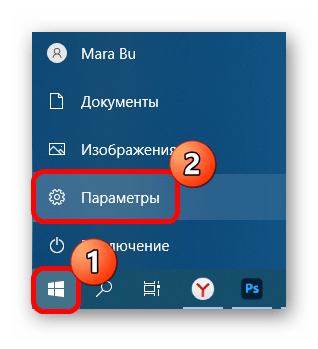
- Нажмите на кнопку «Пуск» и перейдите в системные «Параметры».
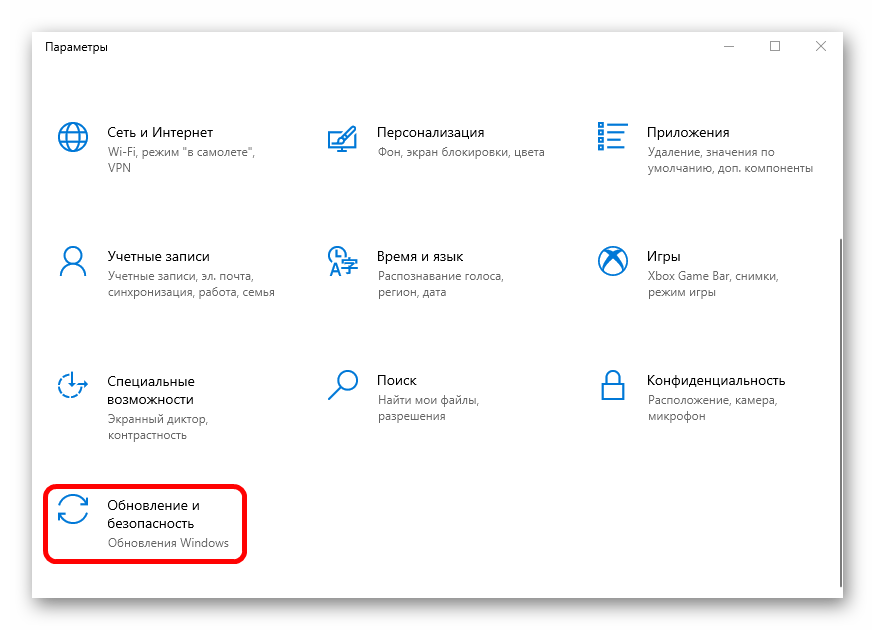
- В открывшемся окне выберите раздел «Обновление и безопасность».
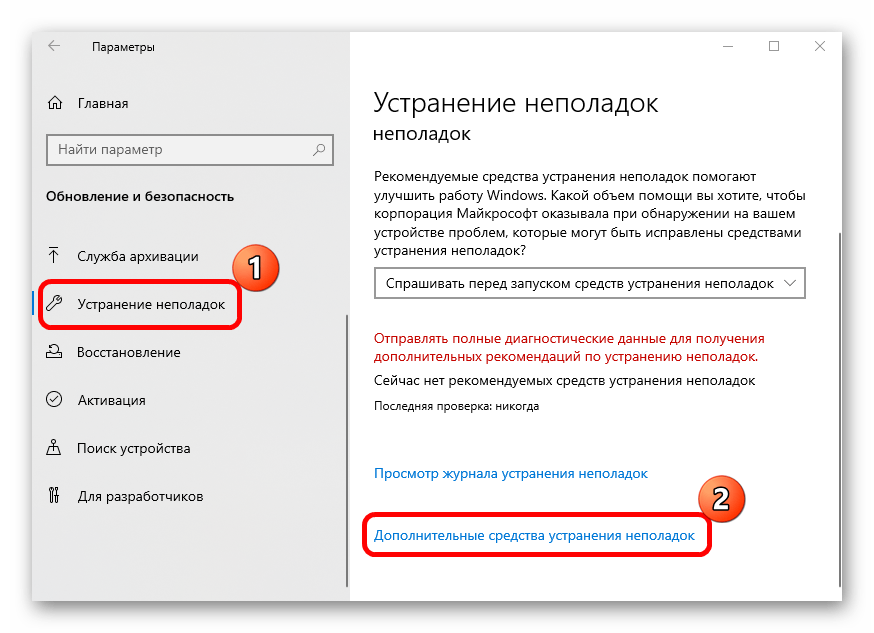
- Затем перейдите на вкладку «Устранение неполадок», а в центральной части окна нажмите на ссылку для перехода к дополнительным средствам.
- В списке отыщите проверку «Центра обновления» и нажмите на строку левой кнопкой мыши. Станет активна дополнительная кнопка для запуска средства. Кликните по ней, чтобы начать сканирование.
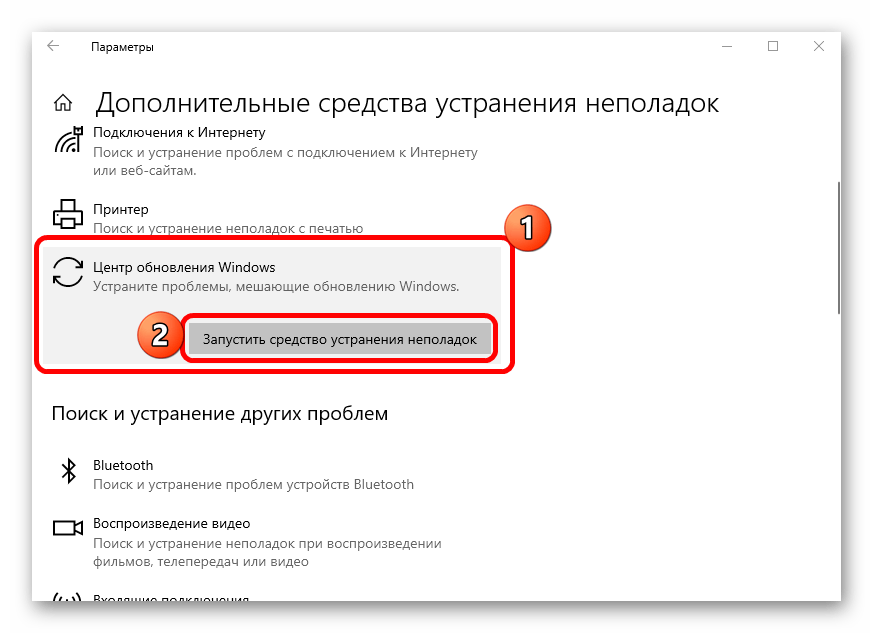
Средство проверит «Центр обновления» на наличие различных сбоев, и, если они будут выявлены, предложит варианты действий, которые могут помочь решить проблему.
Способ 2: Отключение брандмауэра / антивирусной программы
Нередко процесс обновления блокируется антивирусной программой или брандмауэром от сторонних разработчиков. Этот метод не касается встроенной защиты Windows 10. В другом случае можно попробовать приостановить работу антивируса, и тогда он перестанет ограничивать попытки установки апдейтов.
Подробнее: Отключение антивируса

Если после деактивации антивируса удалось установить обновления, но в дальнейшем такая проблема начнет появляться вновь, лучше поменяйте программу на другую. У нас на сайте есть раздел с наиболее популярными и проверенными продуктами.
Подробнее: Антивирусы для Windows
Способ 3: Очистка папки с кешем обновлений
Бывает и так, что ошибка обновления 0x800700003 в Windows 10 появляется из-за кеша «Центра обновлений», который хранится в специальной папке на системном локальном диске. Прежде чем стирать данные, нужно приостановить работу службы, отвечающей за апдейты, только потом перейти к каталогу и вручную очистить его. Более подробная инструкция в нашем отдельном материале.
Подробнее: Удаление кеша обновлений в Windows 10
Способ 4: Восстановление файла Spupdsvc.exe
Файл Spupdsvc.exe входит в состав службы, отвечающей за обновление Windows 10. Он получает уведомление о том, что нужно устанавливать апдейты, когда они приходят для системы, после чего в реестр добавляется новый ключ для этого файла. Если в этой цепочки действий появляется сбой, то нередки ошибки при попытке обновить ОС, в том числе и 0x80070003. В этом случае может помочь обновление конфигурации этого файла. Проще всего сделать это, использовав специальную команду:
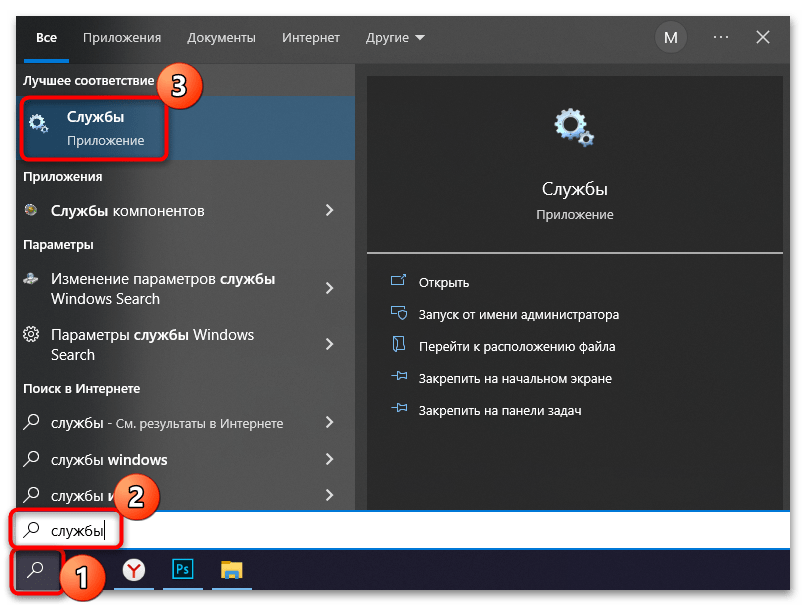
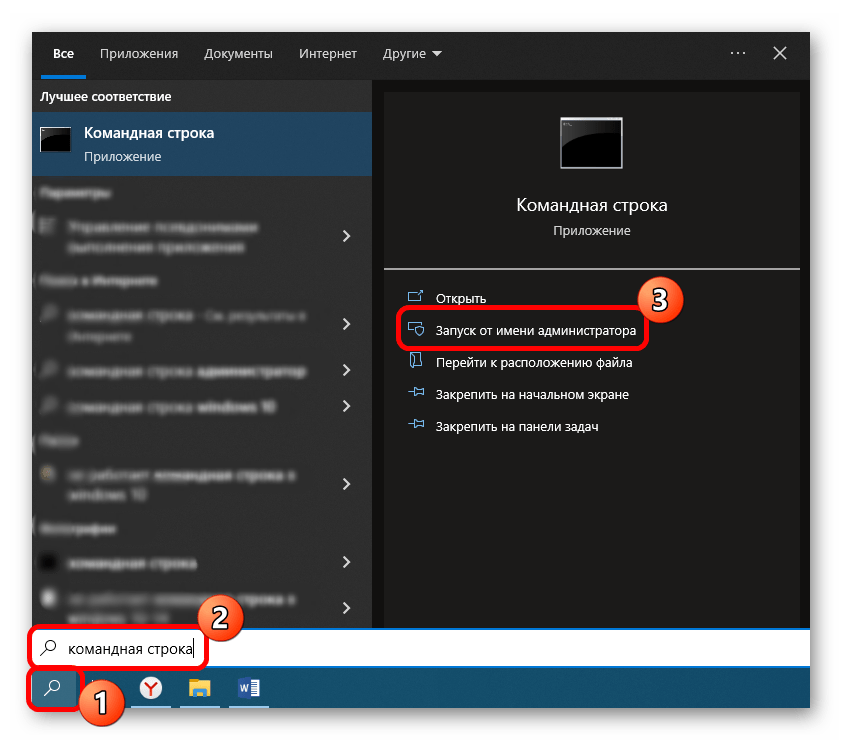
- Запустите «Командную строку» от имени администратора, отыскав средство через строку системного поиска.
- В окне консоли введите команду
cmd /c ren %systemroot%\System32\Spupdsvc.exe Spupdsvc.oldи нажмите на клавишу «Enter», чтобы выполнить ее.
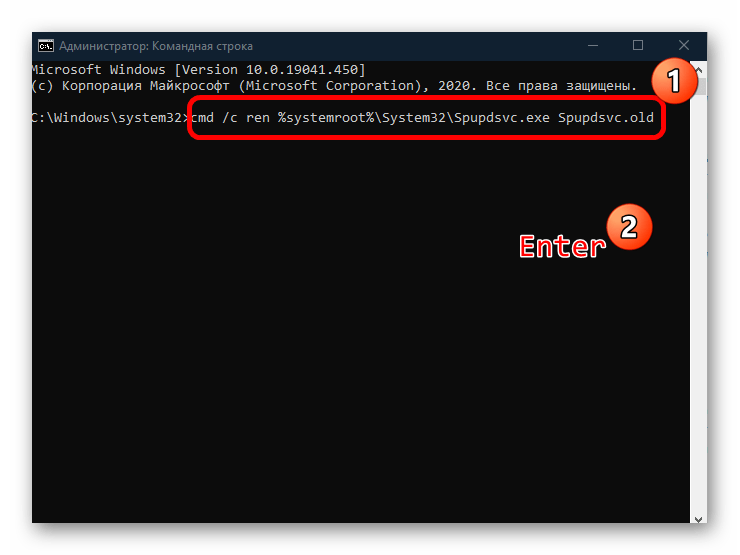
Когда работа файла конфигурации будет восстановлена, попробуйте снова обновить Windows 10.
Способ 5: Проверка системных файлов на целостность
Повреждены могут быть и другие важные системные файлы. Это происходит по различным причинам, например из-за деятельности вирусов или критического сбоя в ОС. В таком случае корректное функционирование системы может быть нарушено. Но в Windows предусмотрены специальные инструменты, которые способны проверить компьютер на наличие таких файлов и восстановить их, причем в автоматическом режиме. Эта возможность упрощает проверку на целостность, ведь пользователю не нужно самостоятельно искать причину такого поведения и устранять неполадку. Достаточно использовать команды в консоли «Командная строка», чтобы запустить эти утилиты.
Подробнее: Использование и восстановление проверки целостности системных файлов в Windows 10

Способ 6: Сброс компонентов «Центра обновления»
Поскольку рассматриваемая ошибка может быть связана с «Центром обновления Windows», есть смысл сбросить его компоненты. Для этого нужно выполнить несколько команд, но зачастую этот метод решает проблемы, возникающие во время инсталляции апдейтов. Обычно сбрасываются компоненты в автоматическом режиме, но само по себе это происходит довольно редко, поэтому придется провести внеплановый сброс.
В «Командной строке», запущенной от имени администратора, нужно ввести восемь команд, где первые четыре приостанавливают работу «Центра обновления», а последние, соответственно, запускают ее:
net stop bits

net stop wuauserv

net stop appidsvc

net stop cryptsvc

ren %systemroot%\SoftwareDistribution SoftwareDistribution.old

ren %systemroot%\system32\catroot2 catroot2.old

net start bits

net start wuauserv

net start appidsvc

net start cryptsvc
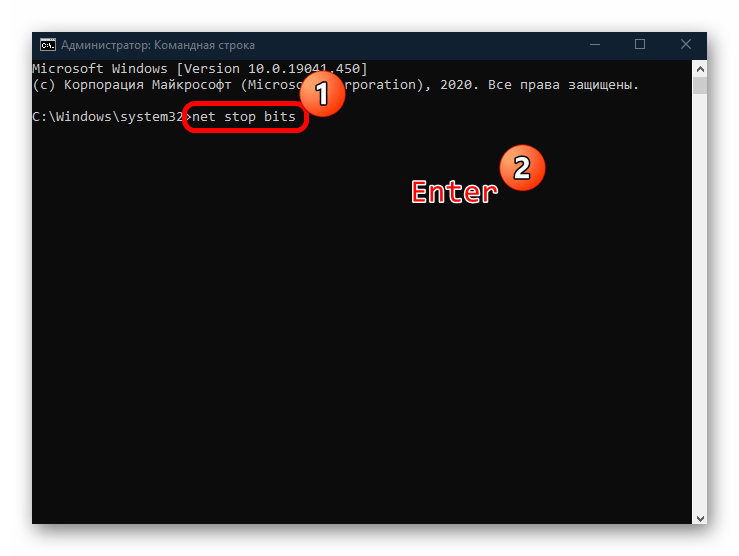
Не забывайте, что после ввода каждой команды нужно нажимать клавишу «Enter», чтобы выполнить ее. Когда все будет готово, снова начните обновление Windows 10.
Если способ помог решить проблему, через «Проводник» перейдите к папке
C:\Windows\System32и удалите папки «SoftwareDistribution.old» и «catroot2.old».
Способ 7: Ручное обновление ОС
При появлении проблемы во время автоматического обновления осуществите установку апдейты самостоятельно. Это может помочь исправить системную ошибку, которая вызывает сбой. Выполняется процедура как с помощью вспомогательных программ, так и вручную – достаточно скачать с официального сайта необходимые обновления и установить их. Все варианты мы разбирали в наших отдельных руководствах.
Подробнее:
Устанавливаем обновления для Windows 10 вручную
Программы для обновления Windows 10
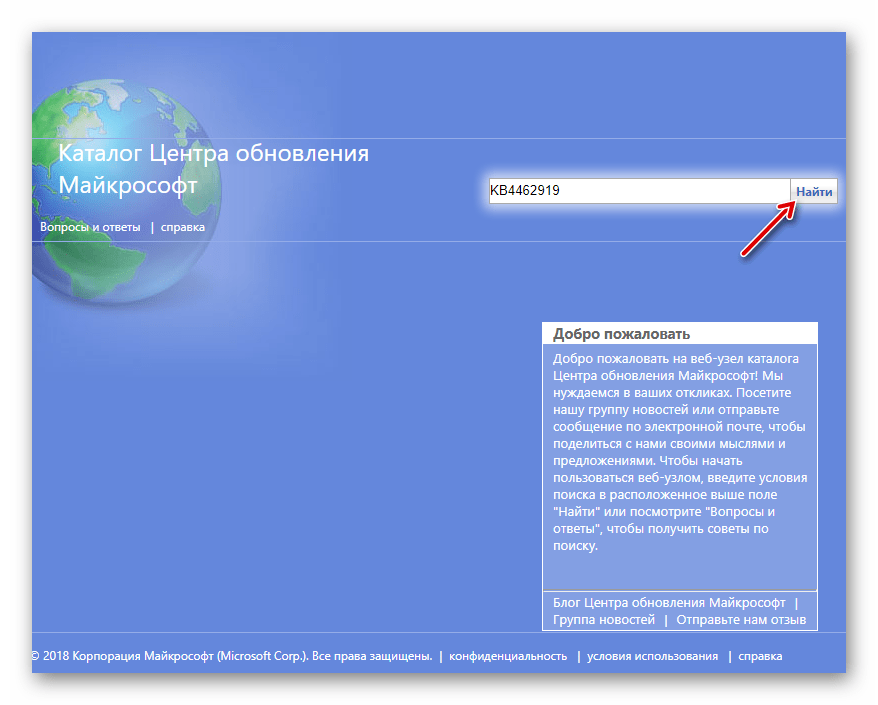
Если ни один способ не помог убрать ошибку обновления 0x80070003 в Windows 10, откатитесь до предыдущего ее состояния. Ведь может быть и так, что недавно установленные приложения стали причиной неисправности, или вы самостоятельно изменяли настройки системы, которые могли повлиять на обновления.
Подробнее: Откат к точке восстановления в Windows 10
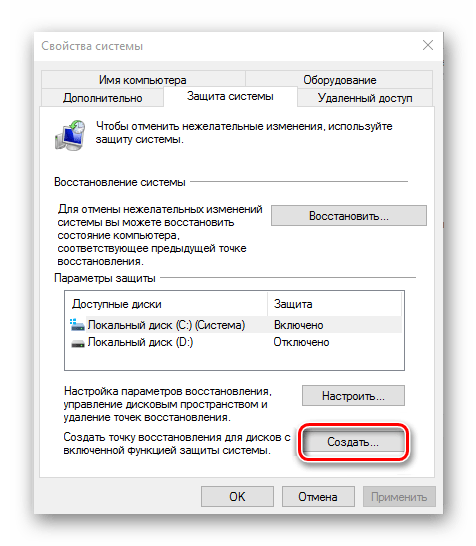
В крайнем случае можете вернуть Windows к исходному состоянию, сохранив все файлы и данные, которые есть на компьютере. Для этого в ОС предусмотрены встроенные возможности, и они могут помочь даже тогда, когда «десятка» вовсе не загружается.
Подробнее: Восстанавливаем ОС Windows 10 к исходному состоянию
Fix Windows Update errors with our tested solutions
by Ivan Jenic
Passionate about all elements related to Windows and combined with his innate curiosity, Ivan has delved deep into understanding this operating system, with a specialization in drivers and… read more
Updated on
- The 0x80070003 update error usually arises due to issues with OS itself and can be fixed in no time.
- Restarting associated services, for instance, Windows Update, can help here.
- Other fixes include modifying the Registry and manually downloading the update, as described below.
XINSTALL BY CLICKING THE DOWNLOAD FILE
Repair all Windows Updates Errors with Fortect:
SPONSORED
Windows update failures can be annoying! With Fortect, you will get rid of errors caused by missing or corrupted files after an update. The utility maintains a repository of the original Windows system file versions, and it uses a reverse algorithm to swap out the damaged ones for good ones.
- Download Fortect and install it on your PC
- Start the tool’s scanning process to look for corrupt files that are the source of the issues
- Right-click on Start Repair to resolve security and performance issues with your computer
- Fortect has been downloaded by 0 readers this month, rated 4.4 on TrustPilot
Have you tried updating your device only to get an error message on each attempt? You might have noticed that in some cases, the Windows Update process stops at around 50% and gives you the error code 0x80070003.
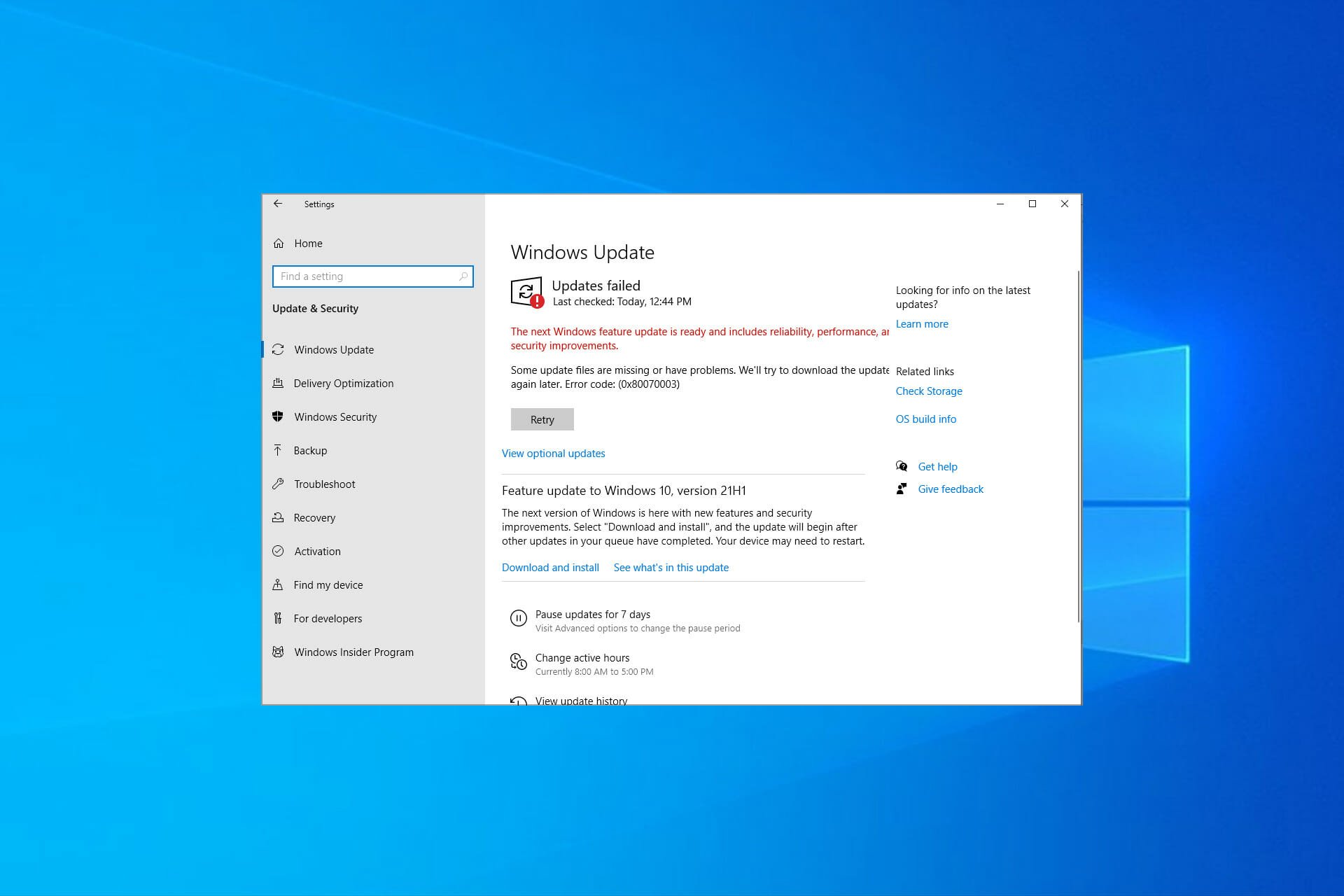
You are not the only one. The complete error message reads Some update files are missing or have problems. We’ll try to download the update again later. Error code: (0x80070003) with a Retry button underneath, which, too, doesn’t work in most cases.
What is error code 0x8007003?
Like any other Windows Update error, 0x80070003 prevents you from downloading the latest version of the OS. Here are some of the reasons why you might encounter the error:
- Issues with the related services – There are several critical services that need to be running for the update process to go through, in the absence of which, you are likely to get the error.
- Corrupt system files – In some cases, the error arises due to corrupt system files, which can easily be fixed by running the DISM tool and SFC scan.
- Misconfigured Registry – Oftentimes, all it takes is making some minor changes to the Registry to get the update process up and running.
- Problems with the Windows Update components – WU components play a critical role in the update process, and any issues here can trigger errors.
Here are other variations of the error:
- We couldn’t install this update but you can try again (0x80070003) – Here, you can try restarting the computer and verifying that the critical services are all up and running.
- Windows failed to install the following update with error 0x80070003 – A variation of the update error, and the solutions here should help fix things.
- Error code 0x80070003 Visual Studio / IIS (Cannot read configuration file) – Check whether the folder name matches the path for the virtual directory.
- Error 0x80070003 the system cannot find the path specified – In this case, users get the 0x80070003 Backup error.
- 0x80070003 error code Windows install in Windows 7/10/11 – Error encountered while installing Windows.
- 0x80070003 SCCM – Seen in Configuration Manager during the SCCM content transfer.
- Failure error code 0x80070003 – Modify the registry as we have shown below in order to fix this failure error.
- Status_wait_3 0x8007003 – Manually download each Windows update that you want to install in order to avoid this issue.
Without further ado, let’s just jump right in!
How do I fix error code 0x80070003?
- What is error code 0x8007003?
- How do I fix error code 0x80070003?
- 1. Modify the Registry
- 2. Run the Windows Update troubleshooter
- 3. Run the DISM and SFC scan
- 4. Restart or stop the Windows Update Service
- 5. Reset the Windows Update Components
- 6. Manually download each update
- 7. Perform an in-place upgrade
- How to fix update error 0x80070003 on Windows 11?
- 1. Run a quick SFC scan
Before we head to the full-fledged solutions, here are a few things you can try:
- Restart the computer.
- Disable any third-party antivirus or firewall installed on the computer since these could be blocking the update.
In case the two don’t work, try the solutions listed next.
1. Modify the Registry
Windows updates can run into trouble due to corrupted registry files, so you may need to change your Registry settings. Apply the provided steps below without changing other files.
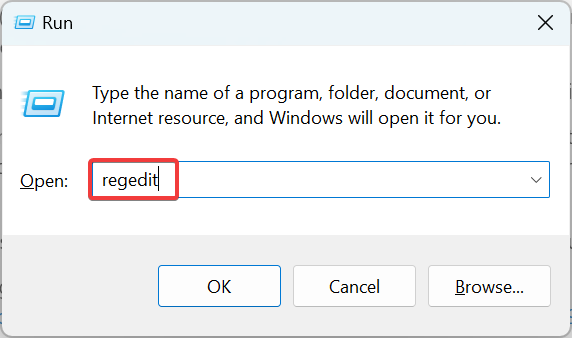
1. Press Windows + R to open Run, type regedit in the text field, and hit Enter.
2. Click Yes in the UAC prompt.
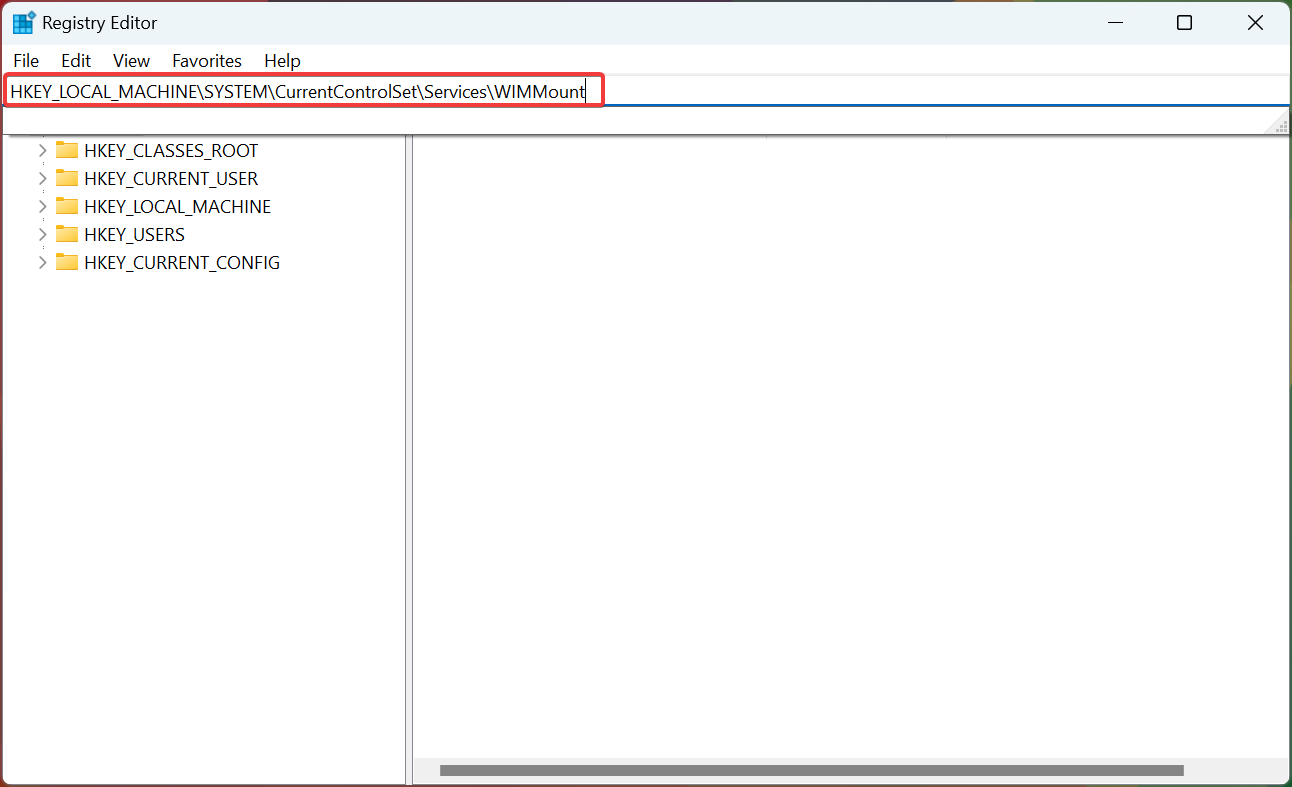
3. Paste the following path in the address bar and hit Enter:HKEY_LOCAL_MACHINE\SYSTEM\CurrentControlSet\Services\WIMMount
4. Now, double-click on the ImagePath entry on the right.
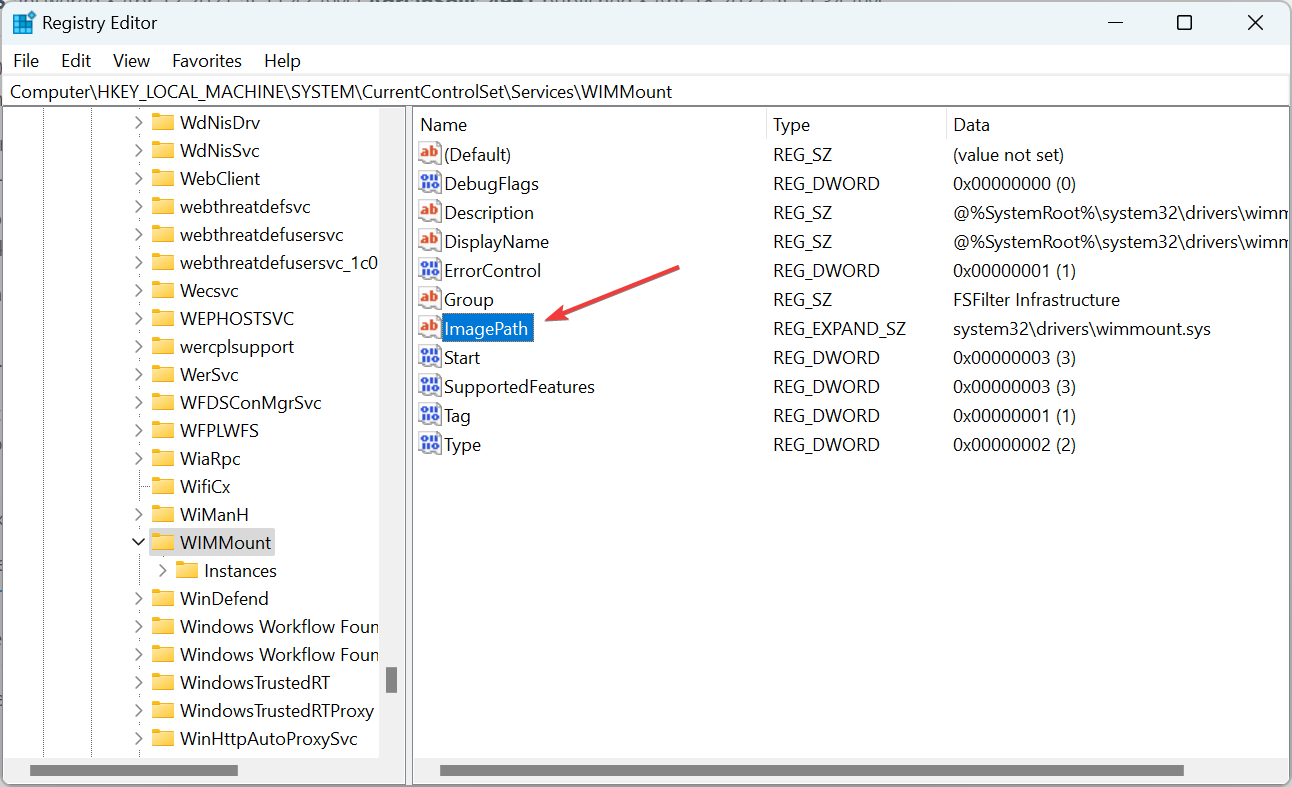
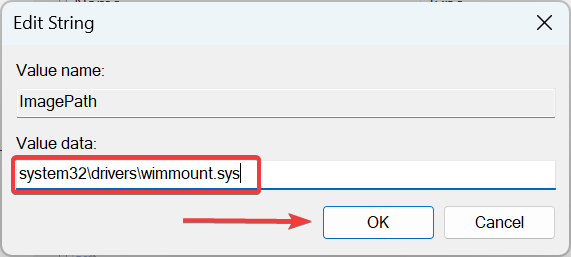
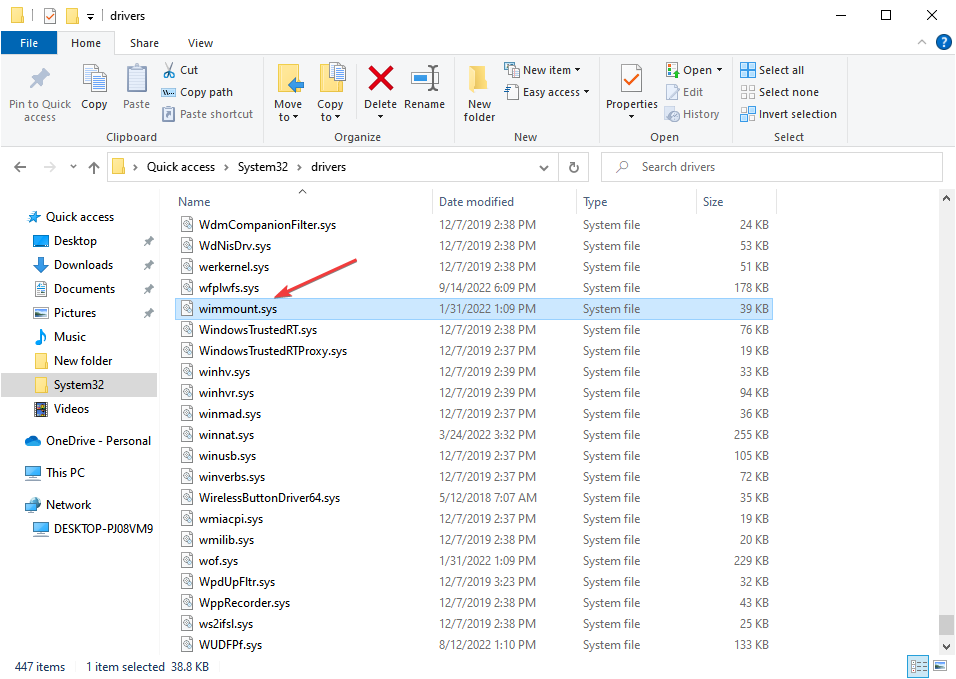
5. Make sure the Value data here has system32\drivers\wimmount.sys listed under it. If it doesn’t, make the changes and click on OK.
6. Now, press Windows + E to open File Explorer, paste the following path in the address bar, and hit Enter:C:\Windows\System32\drivers\
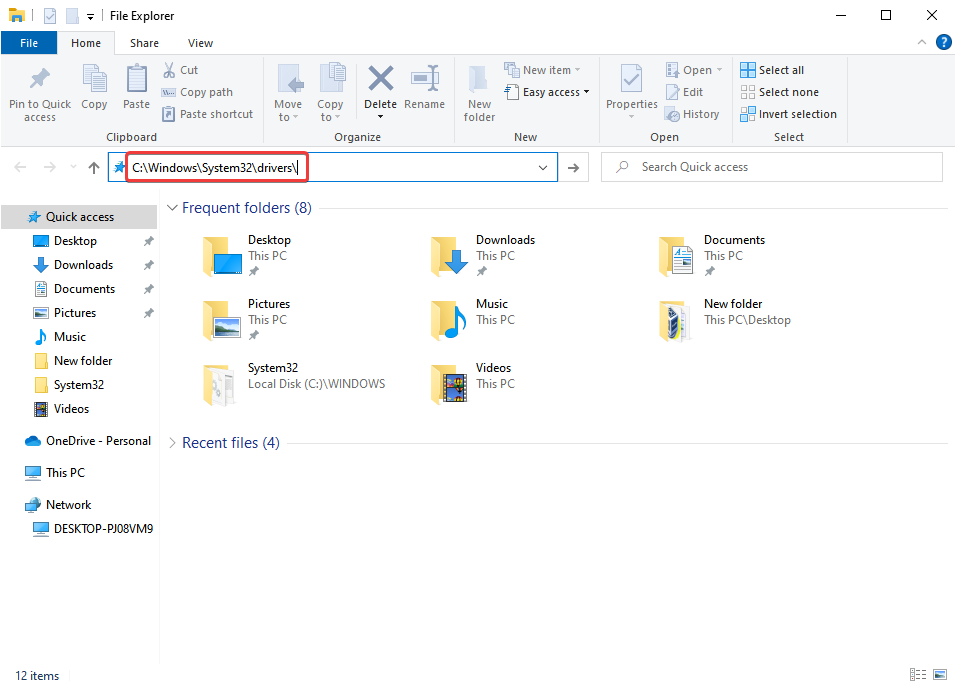
7. Verify you have the wimmount.sys file here.
8. Finally, restart the computer.
Once done, check if you can now download Windows Updates without encountering the 0x80070003 error.
2. Run the Windows Update troubleshooter
- Download Windows Update Troubleshooter.
- Once the file is downloaded, run it.
- Select one of the available options and click on Next.

- Wait for the process to finish.
- If the issue is still there, repeat the process, but select a different troubleshooter.

If you want to fix update errors and other issues with ease, Fortect is a great tool that you might want to consider.
⇒ Get Fortect
3. Run the DISM and SFC scan
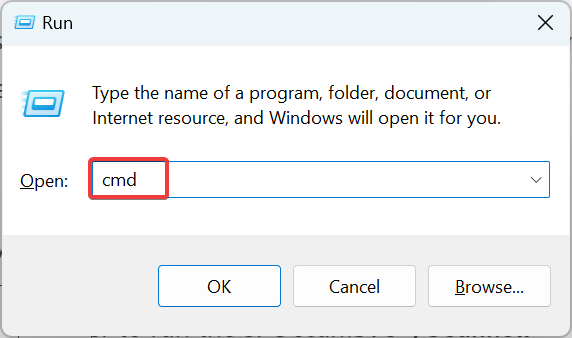
- Press Windows + R to open Run, type cmd, and hit Ctrl + Shift + Enter.

- Click Yes in the UAC prompt.
- Now, paste the following three commands one at a time and hit Enter after each:
DISM /Online /Cleanup-Image /CheckHealthDISM /Online /Cleanup-Image /ScanHealthDISM /Online /Cleanup-Image /RestoreHealth
- Next, execute the following command to run the SFC scan:
sfc /scannow - Once done, check if you are now able to install the updates.
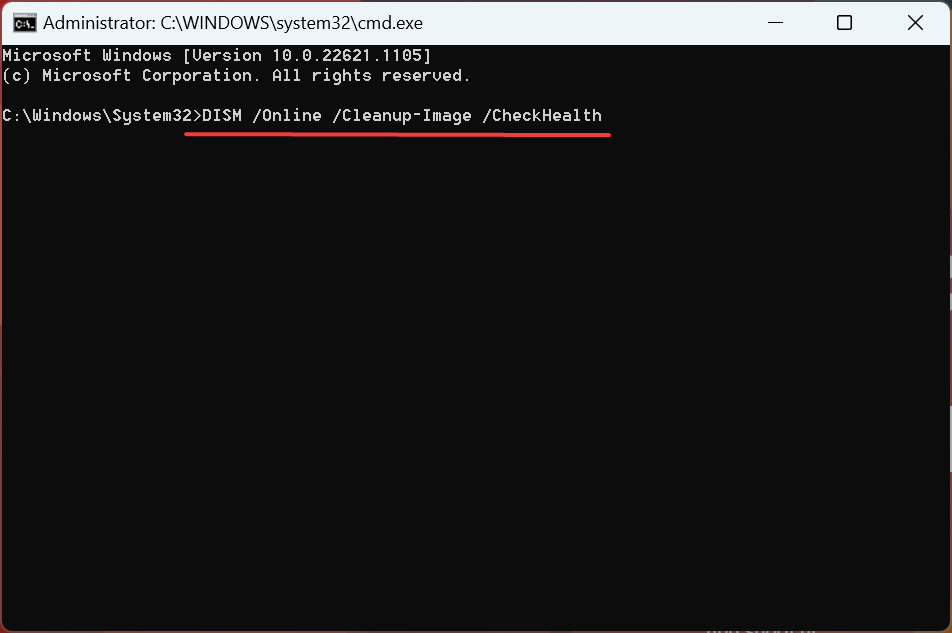
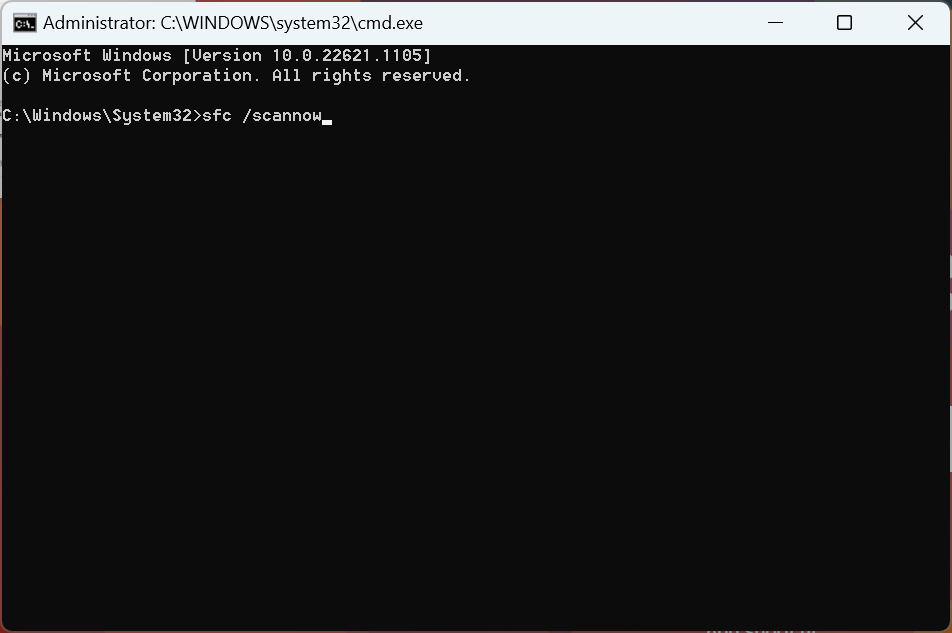
Corrupt system files are a likely reason you are getting the 0x80070003 update error in Windows, and the SFC (System File Checker) scan and DISM (Deployment Image Servicing and Management) tool should do the trick in this case.
4. Restart or stop the Windows Update Service
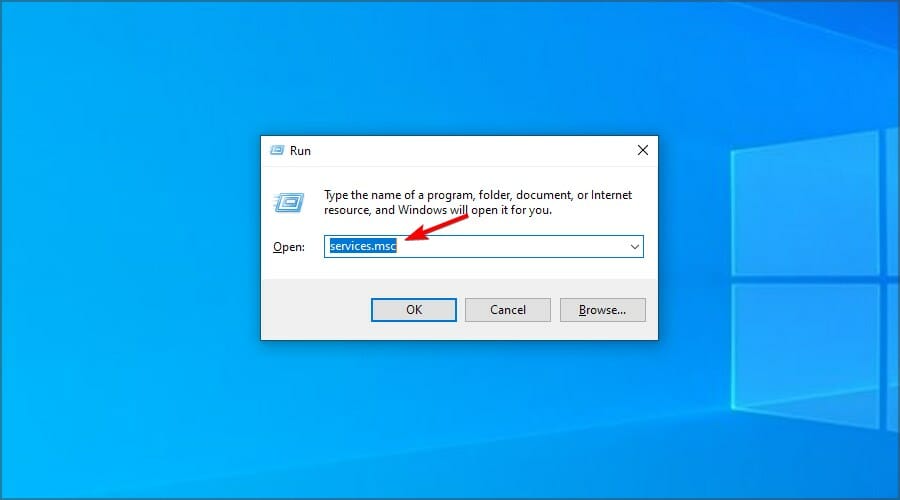
- Press Windows + R to open Run, type services.msc, and then hit Enter.
- Now, right-click on the Windows Update service, and select the Stop button.
- Reboot your PC.
- Return to the Windows Update service, right-click on it, and select Start.
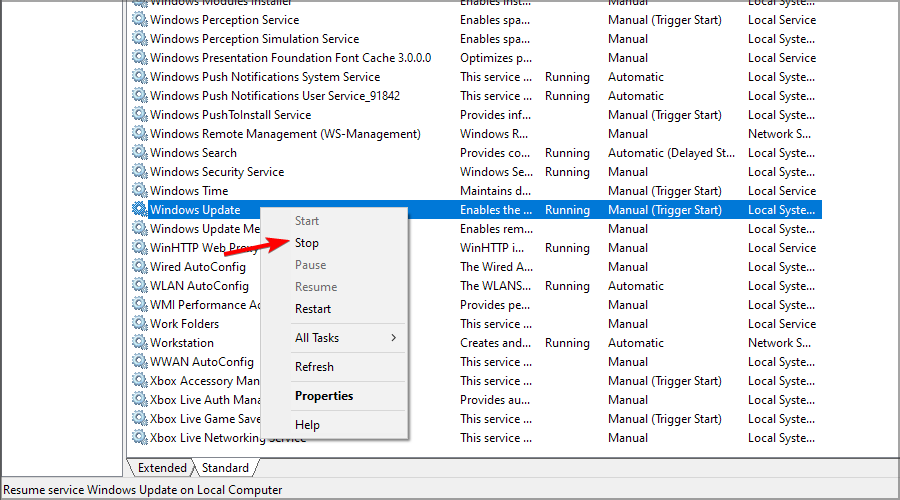

This solution usually works, but if you’re having issues with services, check out what to do when the Windows Update service isn’t running.
- Windows Update is not working in Windows 10/11
- We couldn’t complete the Updates/Undoing changes
- 5+ best Windows update repair tools for Windows 10/11
- How to use the Windows Update troubleshooter in Windows 10 & 11
- Update error 0x800f0922 on Windows 10/11 [Install Failed]
5. Reset the Windows Update Components
In case the previous methods didn’t work, it could be corrupt Windows Update components to blame. Here, the simplest solution is to reset the Windows Update Components.
You can do that by running a batch file or manually executing the commands. The process is usually quick and highly effective at eliminating the 0x80070003 error with the KB5007186 update.
6. Manually download each update
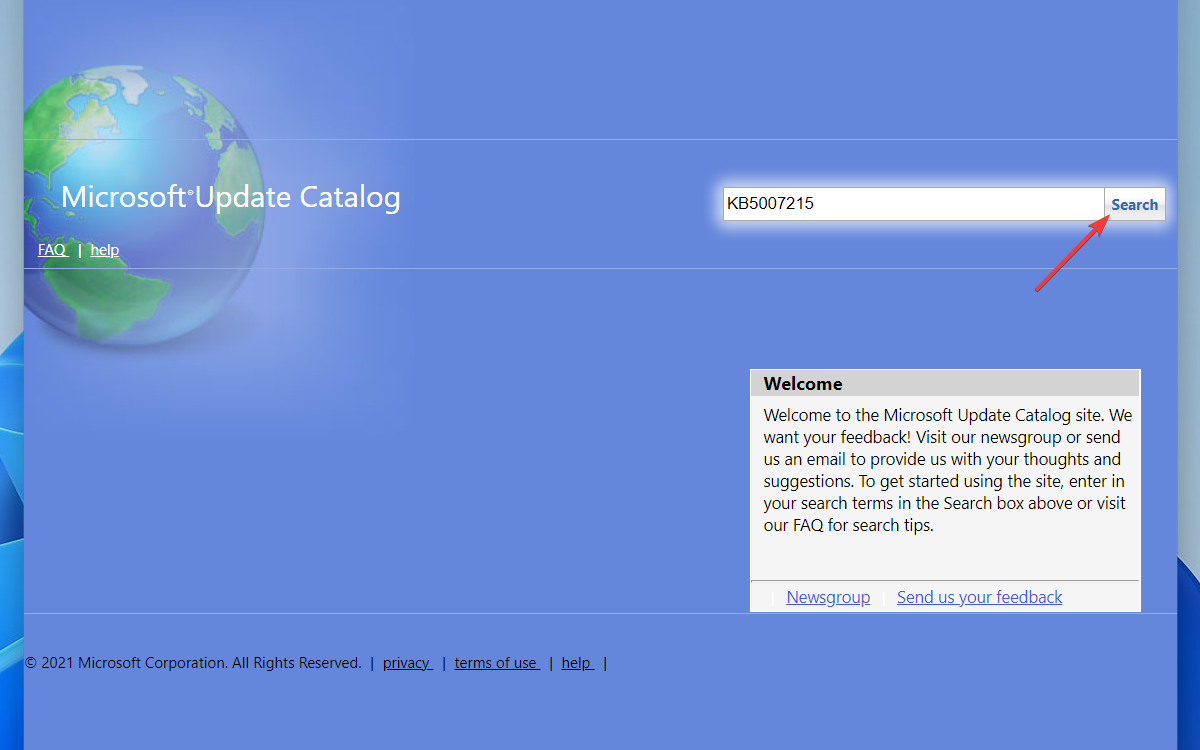
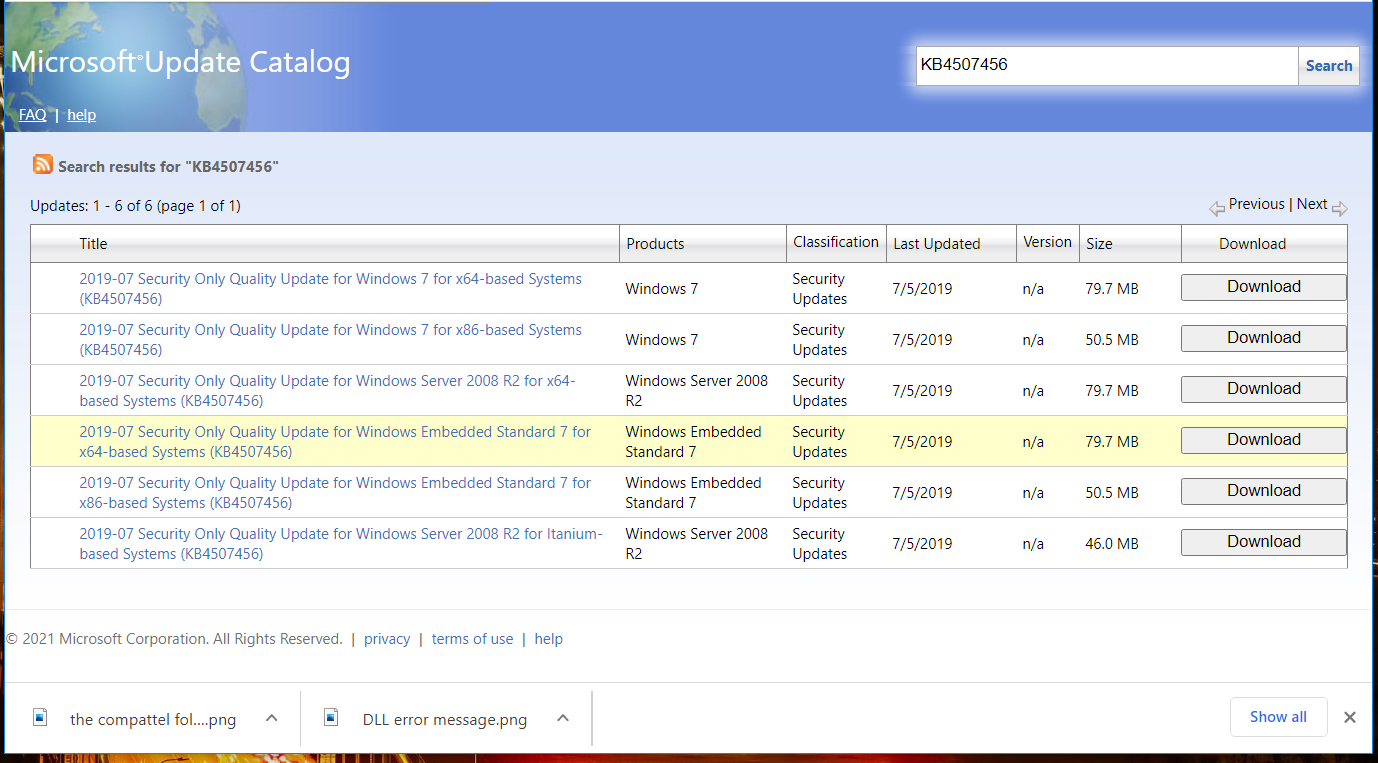
- Visit the Microsoft Update Catalog website.
- Enter the KB number of the update you want to download.

- Now locate the update that matches your PC architecture and download it.

- Once the update is downloaded, run it and follow the instructions on the screen to install it.
7. Perform an in-place upgrade
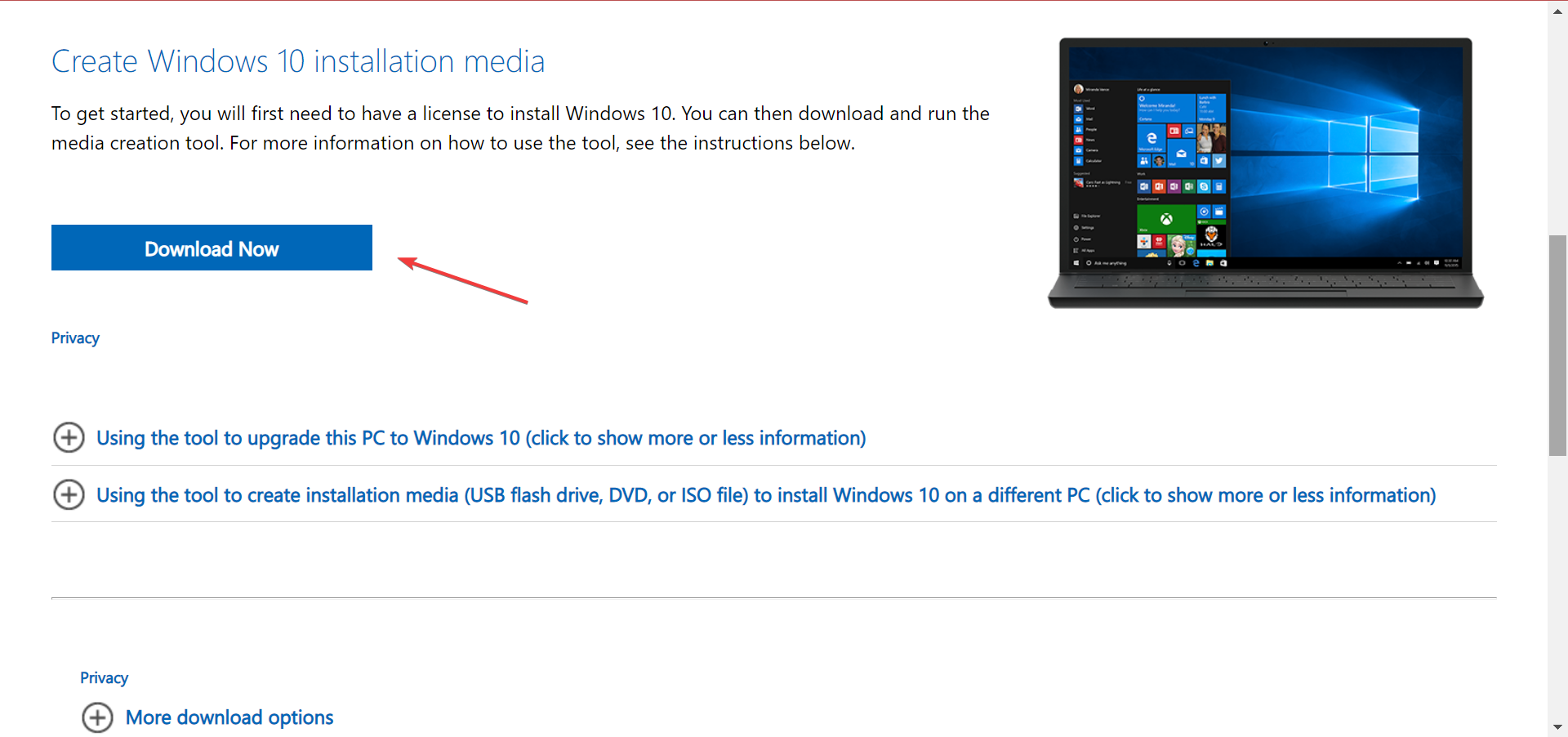
- Visit the official Windows 10 download page and click on the Download Now button.

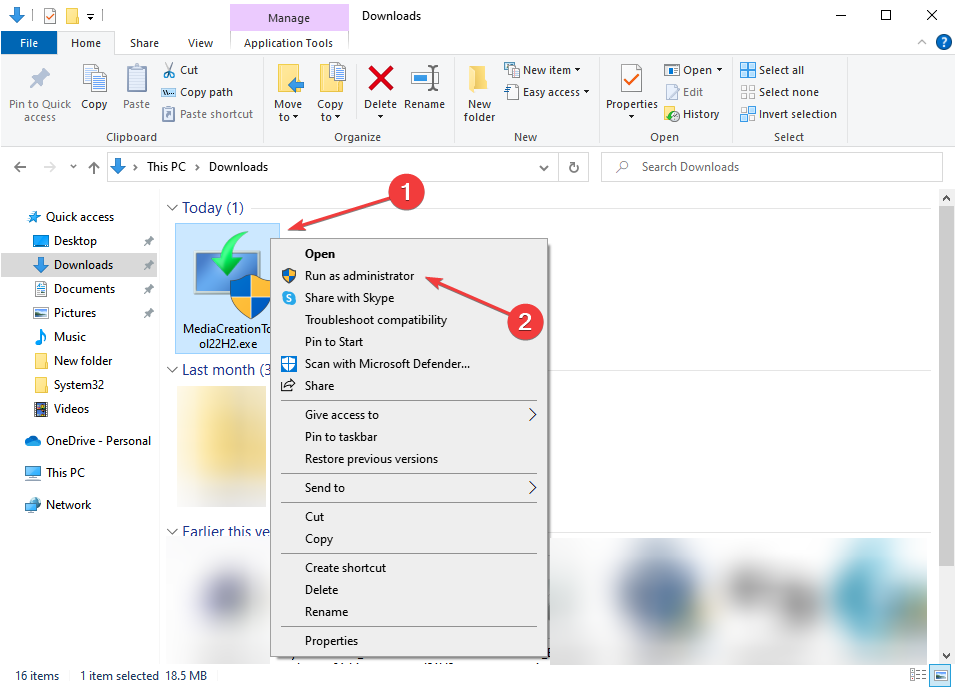
- After the tool is downloaded, right-click on it and select Run as administrator.

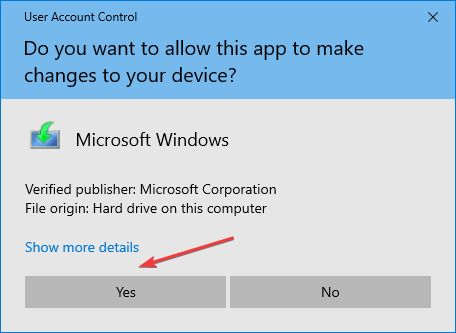
- Click Yes in the UAC prompt.

- Wait for the tool to get things ready.

- Click on Accept to agree to the Microsoft Software License Terms.
- Choose Upgrade this PC now and click Next.
- Wait for the update to download. This can take a while.
- When you reach the Choose what to keep screen, select Keep everything and then proceed with the in-place upgrade.
- Now follow the instructions to complete the process.
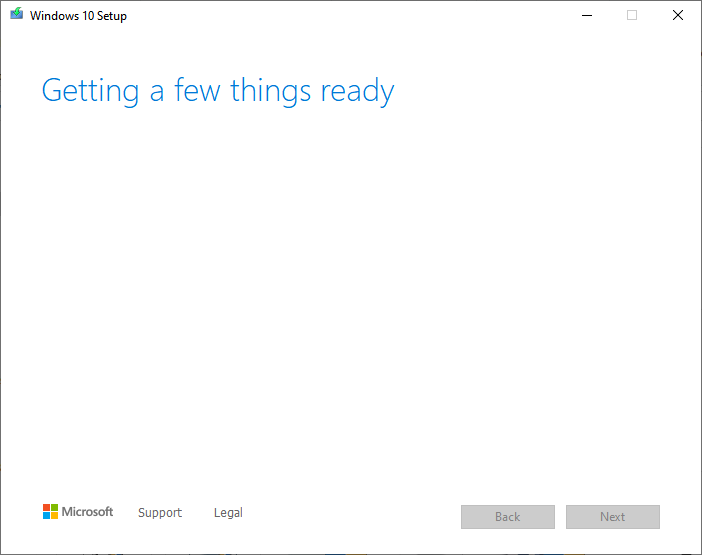
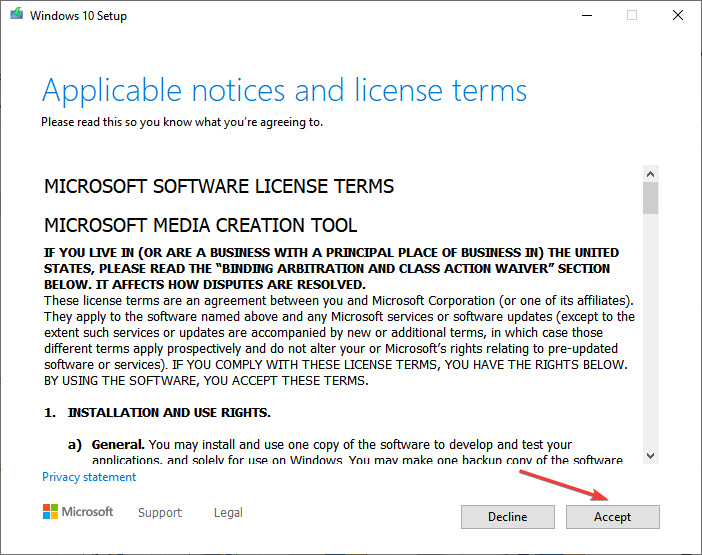
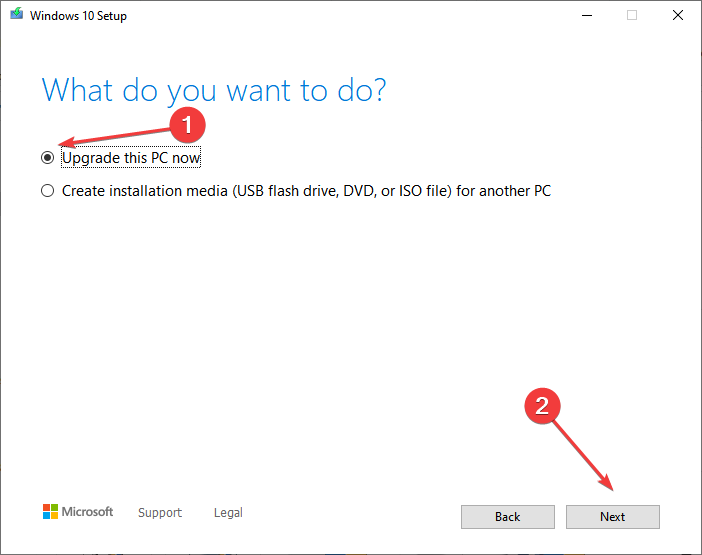
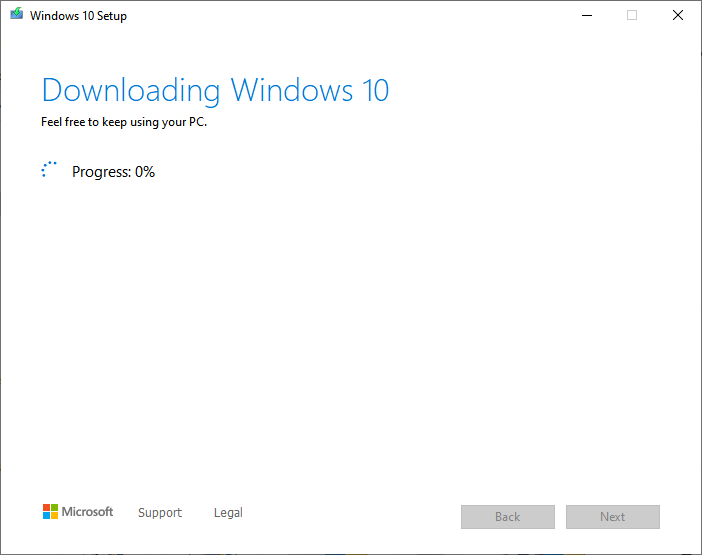
This is by far the most effective method to fix the 0x80070003 error. And remember, the installed applications and stored files won’t be affected during the process.
How to fix update error 0x80070003 on Windows 11?
1. Run a quick SFC scan
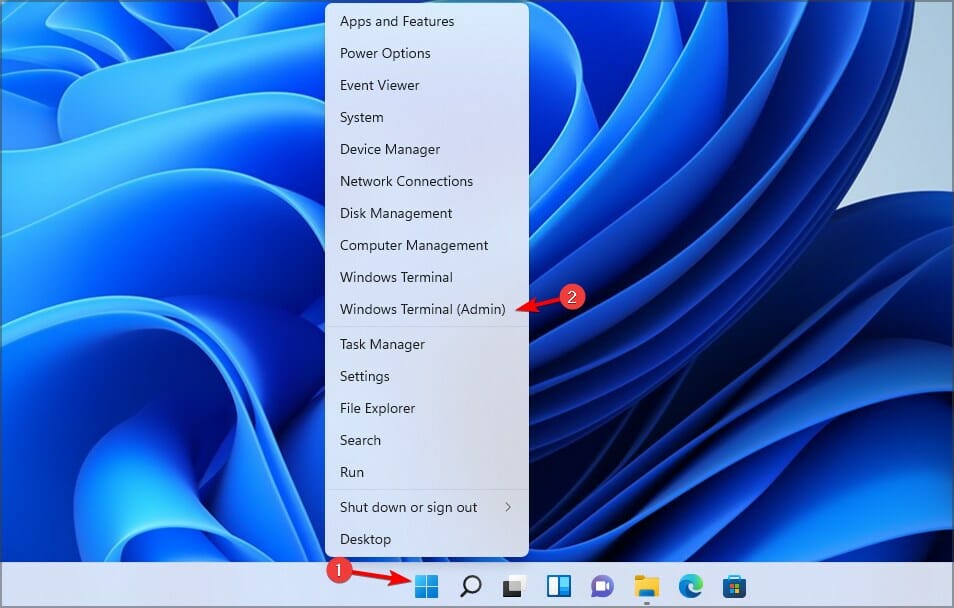
- Right-click the Start button and select Windows Terminal (Admin).

- Now run the following command:
sfc /scannow - Wait for it to finish. The process can take 10 minutes or more.
- After it’s finished, check if the problem is still there.

If you have followed the steps above carefully, the error code 0x80070003 should be fixed by the time you reach this part.
In case the problem persists, you have no option but to reinstall Windows 10, and remember, you will lose the applications and files stored on the computer.
Also, you may use a reliable Windows Update repair tool and fix all such errors automatically and in no time.
Should you run into any issues along the way, let us know in the comments below.

Windows update is pretty significant for the OS as it comes with security patches that keep you safe online and offline as well. Such updates not only ensure safety but also let you experience additional feature enhancements moreover improve PC performance. The process of getting an update in Windows 11 and 10 is independent if you haven’t changed the related default settings earlier. But oftentimes, the procedure gets stuck in the middle due to some error codes.
Error 0x80070003 generally occurs when the Windows update fails to install. Though the exact reason behind this Windows issue is yet to be known, there are some potential causes that are often found to be culprit. In most cases, the incorrect status of update related services causes such an error. Additionally, missing update files, malware infection, corrupted system components, old Spupdsvc.exe file, and incorrect time zone can prompt the same issue.
Here is how to fix Windows 11 or 10 update Error 0x80070003 –
1] Download Servicing Stack Update manually
For any update to install successfully Windows 10 and 11 requires having SSU already installed. So before proceeding ahead to the next methods install the Servicing stack update and check if the error is fixed.
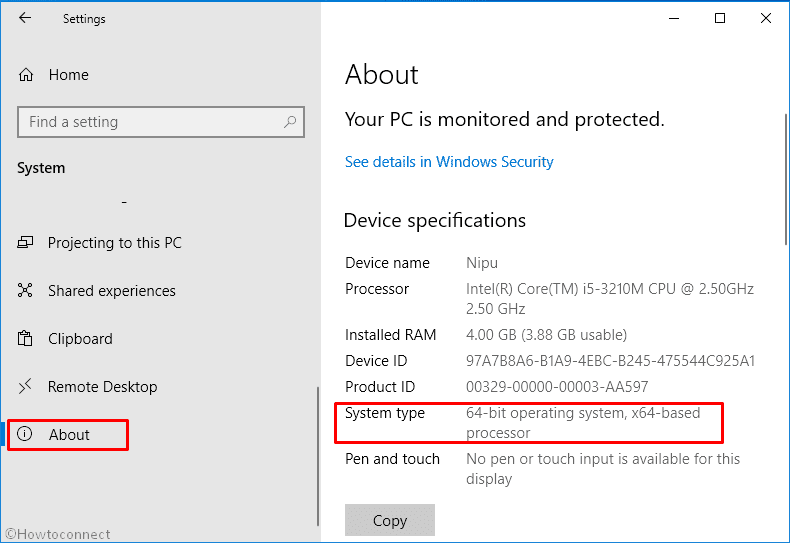
- Press – Windows + I.
- Click – System.
- From the left, select – About.
- Note down the System type present on the right-hand side.
Windows 11 users, open Settings=> Choose About from left to check System type.
- After that, visit the official webpage of update catalog.
- Click the search bar and type in the KB number of the Servicing Stack update.
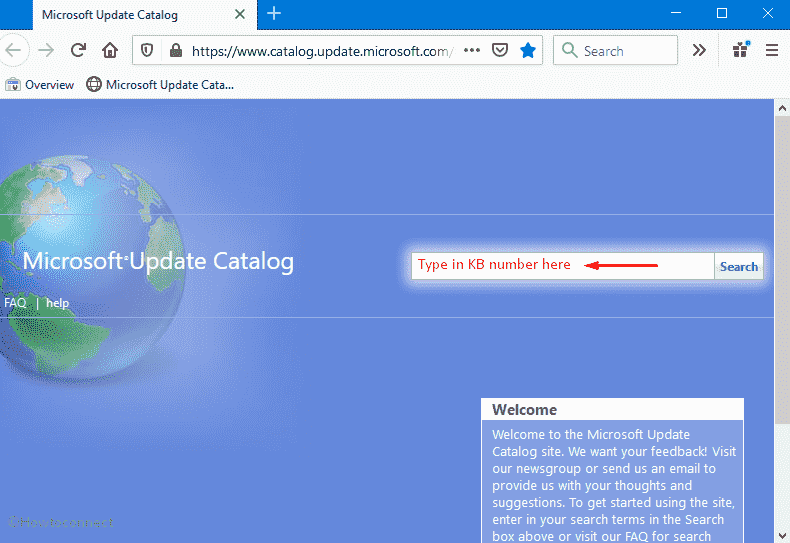
- Hit – Enter.
- Look for the Servicing Stack Update that matches the system type you noted.
- Click Download present next to the desired KB number.
- Double-click the downloaded item and install it following on-screen instructions.
- Restart Windows and check if the error still exists.
2] Run Windows Update troubleshooter to fix 0x80070003
To fix any kind of update error, Microsoft offers a troubleshooter that scans the full system to diagnose the real cause. Furthermore, it put forward automatic fix to resolve the error that you are getting while downloading or installing the new patch. Before running the troubleshooter, make sure you are connected with an active internet connection and then go through the below steps –
For Windows 10
- Press – Windows + S.
- Type in – troubleshoot.
- Hit – Enter.
- From the right-pane, click – Additional troubleshooters.
- Select – Windows update.
- Click – Run the troubleshooter.
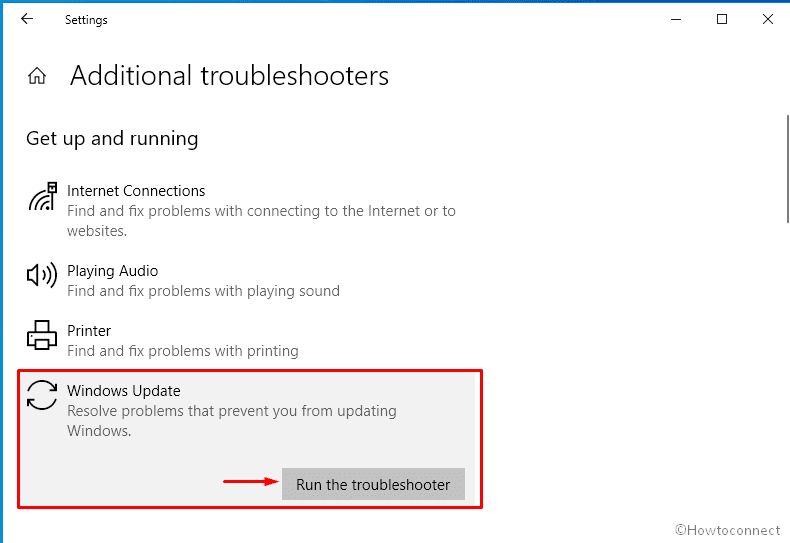
- Follow on-screen guidelines if any.
- When the utility suggests a resolution, click – Apply this fix.
- Close the troubleshooter and check for update error 0x80070003.
For Windows 11
- Press – Windows + I.
- Move to the right of appearing Settings page.
- Scroll down to find – Troubleshoot.
- Once you get it, select the same.
- From next page, click – Other troubleshooters.
- Hit – Run set beside Windows update.
3] Check the Windows update related services
Windows update service runs in the background and allows the system to download and install new patches automatically. Some other services like BITS, RPC helps in this procedure too. To get any update error-free, these services must run properly. Here are the steps to check the same –
- Press – Windows key.
- Type – services.
- Hit – Enter.
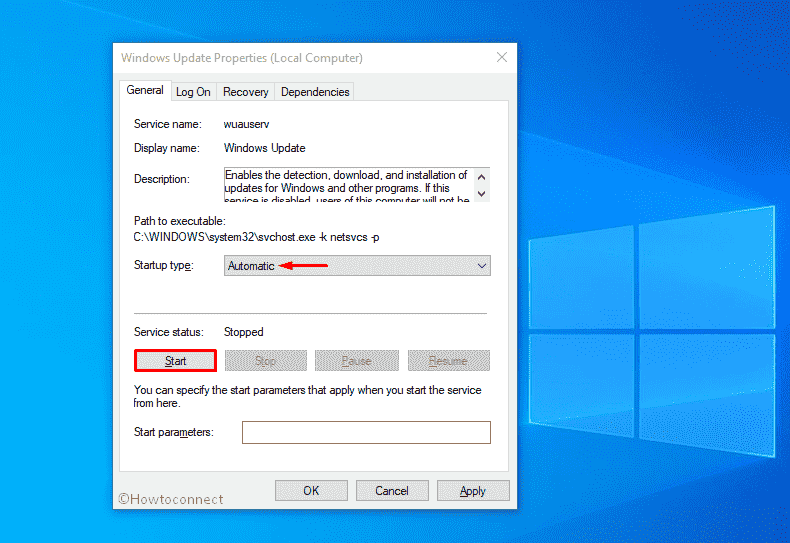
- From Services window, double-click – Windows Update.
- Set the Startup type to Automatic.
- If the service is not running, click – Start.
- Shift to – Log on tab.
- Click the radio button set before Local System account.
- Make sure the checkbox of Allow service to interact with desktop is unchecked.
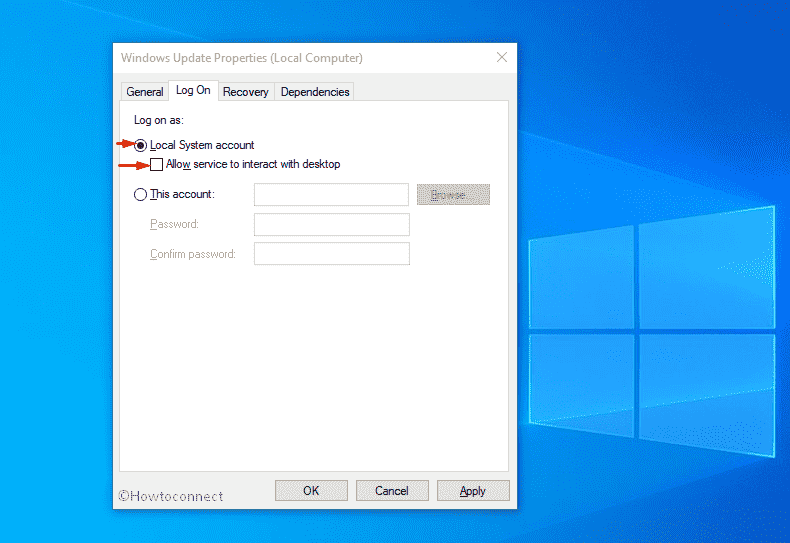
- Click Apply and then OK.
- Do the exact same for Background Intelligent Transfer Service, Event Log, and Remote Procedure Call (RPC) services too.
4] Reset Spupdsvc.exe folder
Spupdsvc.exe is a genuine executable file from Microsoft and a part of RunOnce service. When a new patch becomes available, another process gets a notification and the system adds a RunOnce entry to the registry for spupdsvc.exe. This happens to perform necessary updates to Windows PC. The process is executed when the device restarts and the user logs on. If the system finds anything unusual with Spupdsvc.exe folder, update error 0x80070003 may appear. To fix it out –
- Click – Start icon.
- Type – cmd.
- Press – Ctrl + Shift + Enter.
- When a User Account Control shows up, click – Yes.
- In the elevated Command Prompt, insert the following –
cmd /c ren %systemroot%\System32\Spupdsvc.exe Spupdsvc.old
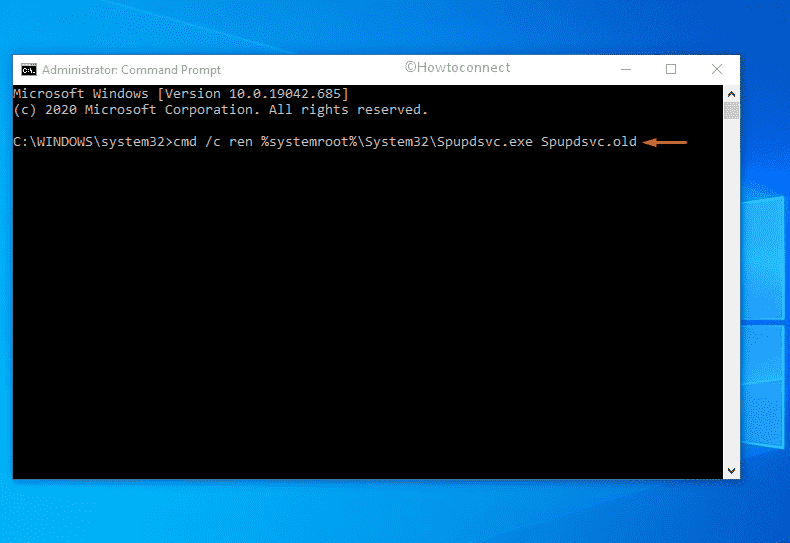
- Hit – Enter.
- Restart the device.
5] Restart Windows update services to fix error 0x80070003
As we said earlier, Windows update service is pretty crucial as it ensures the smooth functioning of the update process. After downloading an update, those files are being saved in the Software distribution folder for the time being. Sometimes if something wrong happens during the installation of update files, many of us try to download the same file again and again. As a result, they conflict with the existing one and end up causing update error 0x80070003. In order to fix the issue, you will have to restart Windows update service moreover replace the current Software Distribution folder with a fresh one. Here is how to proceed –
- Open Command Prompt as admin.
- In the prompt, insert the bellow command one after another and hit Enter after each one –
net stop wuauserv
ren c:\windows\SoftwareDistribution softwaredistribution.old
net start wuauserv
exit
- Reboot the system and check for update error 0x80070003.
6] Resolve existing system corruption
System File checker resolves the existing corruption as well as recover missing components. On the other hand, DISM is used to repair and make Windows image including Windows RE, Windows Setup, and Windows PE ready. Many people reported that, after running this utility, error 0x80070003 didn’t occur anymore and they were able to install the update without a hitch.
- Press – Windows + S.
- Type in – cmd.exe.
- Opt for – Run as administrator.
- To grant access, click – Yes.
- Type in – sfc /scannow.
- Hit – Enter.
- Once the procedure hits 100%, check the report thoroughly.
- If the corruption is fixed, restart the PC.
- Else, run DISM /Online /Cleanup-Image /RestoreHealth command in the same console.
- After completion of the scanning process, close Command Prompt.
- Reboot Windows PC.
7] Ensure correct Time and Date settings to resolve 0x80070003
Incorrect time zone many times gives rise to error 0x80070003 while installing a new patch. Therefore, it’s necessary to check if your current settings reflect the correct time zone. For that –
- Open Control Panel.
- Set the View by option to Category.
- Click – Clock and Region.
- From the right pane, hit – Date and Time.
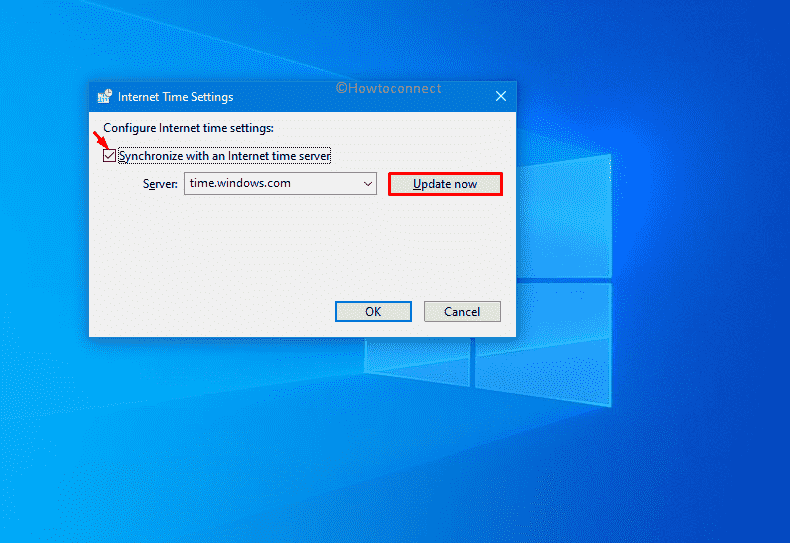
- Shift to Internet Time tab.
- Click – Change settings.
- Check the box present before Synchronize with an Internet time server.
- Click – Update now.
- Hit – OK to save the changes.
8] Disable the running antivirus program
On many occasions, the antimalware program you are using get a wrong idea about the update files and consider them as a threat. For that reason, the utility blocks the updates from being downloaded. To settle down the issue, you can put the antivirus program out of action. However, don’t forget to turn it on after installing the updates successfully.
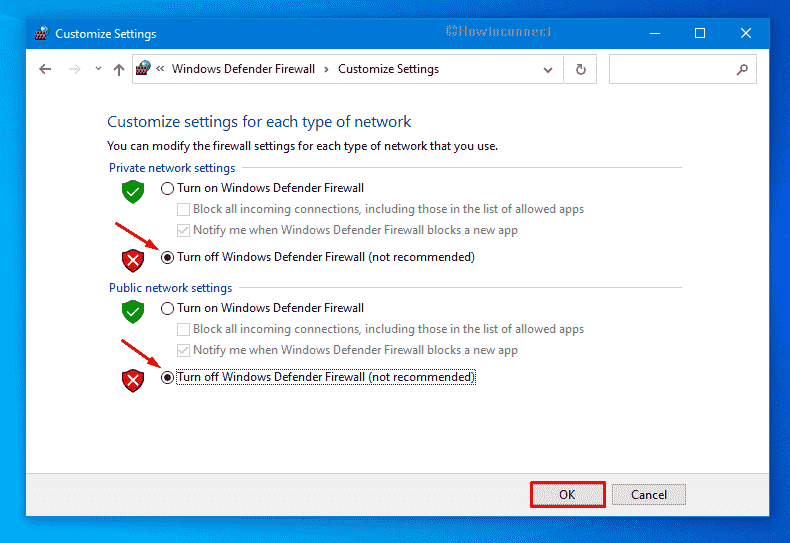
Turn Windows Defender Firewall off
- Press – Windows + S.
- Type in – firewall.cpl.
- Hit – Enter.
- From the left column, click – Turn Windows Defender Firewall on or off.
- Select – Turn off Windows Defender Firewall (not recommended) for both Private network settings and Public network settings.
- Click – OK.
Disable third-party antimalware program
- Click the up arrow icon from the notification bar.
- Right-click on the icon of your antivirus software.
- Choose – Disable.
- Set a period of time that decides how long the tool will remain disabled.
9] Clean boot Windows to install updates without 0x80070003
All third-party software and services are not trustworthy and often create problems on Windows 11 and 10. When we end up installing too many similar programs, they conflict with each other which gives rise to several fatal codes. Update error 0x80070003 can be a result of the same. Clean boot lets the system start with basic programs and services, as a result, you will get to know if any third-party component really causing the issue. To clean boot –
- Click – Start icon.
- Type in – MSConfig.
- Hit – Enter.
- Select the radio button set for Selective startup.
- Uncheck – Load startup items.
- Shift to – Services tab
- Check the box present next to Hide all Microsoft services.
- Select – Disable all.
- Go to the Startup tab.
- Click – Open Task Manager.
- Right-click on each program that exists there and choose – Disable.
- Close Task Manager and go back to the System Configuration window.
- Click Apply first and then OK.
- Restart the PC.
Methods list
1] Download Servicing Stack Update manually
2] Run Windows Update troubleshooter
3] Check the Windows update related services
4] Reset Spupdsvc.exe folder
5] Restart Windows update services
6] Resolve existing system corruption
7] Ensure correct Time and Date settings
8] Disable the running antivirus program
9] Clean boot Windows
That’s all!!
Repair any Windows problems such as Blue/Black Screen, DLL, Exe, application, Regisrty error and quickly recover system from issues using Reimage.
Некоторые пользователи при обновлении операционной системы Windows 10 сталкиваются с такой неприятностью, как ошибка с кодом 0x80070003. Она может быть вызвана разными причинами. В данной статье рассмотрим несколько наиболее простых и действенных способов ее устранения.
В Windows 10 имеются встроенные инструменты для устранения различных неполадок, в том числе и ошибок в работе «Центра обновления». Чтобы воспользоваться таким средством, нам потребует открыть «Параметры».
- Кликнем правой клавишей мыши на кнопку «Пуск» в панели задач и выберем в списке команд в ее контекстном меню пункт «Параметры».
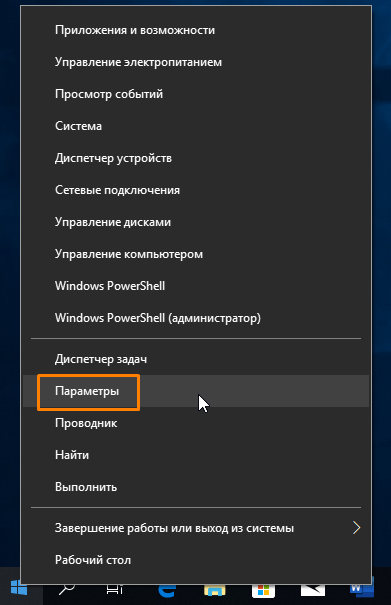
Запускаем «Параметры»
- В открывшемся окне находим раздел «Обновление и безопасность».
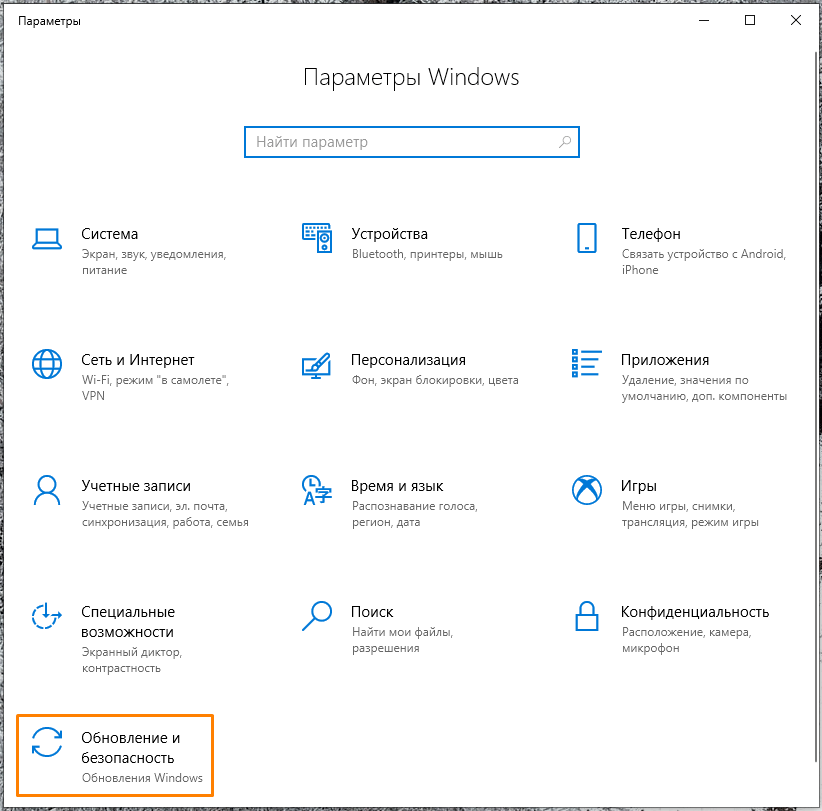
Открываем раздел «Обновление и безопасность»
- Далее в левой части окна выбираем категорию настроек «Устранение неполадок», а затем справа в секции «Запустить диагностику и устранить неполадку» кликаем на пункт «Центр обновления» и нажимаем кнопку «Запустить средство устранения неполадок».
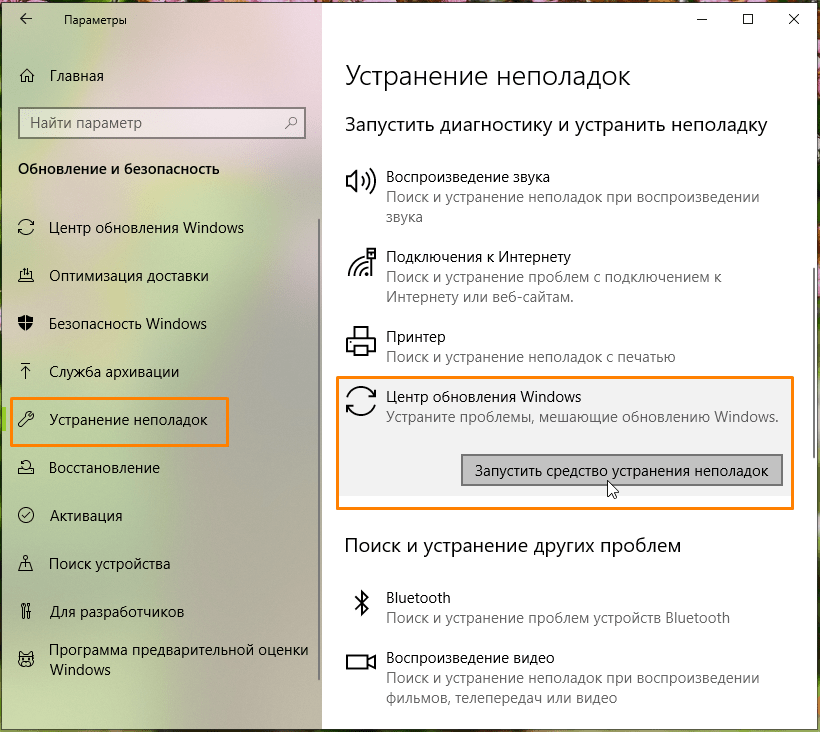
Запускаем «Средство устранения неполадок Центра обновления»
- Начнется проверка. При обнаружении проблем приложение предложит исправить их автоматически. Если модуль устранения неполадок не выявил проблему, перейдите к следующему разделу нашей инструкции.
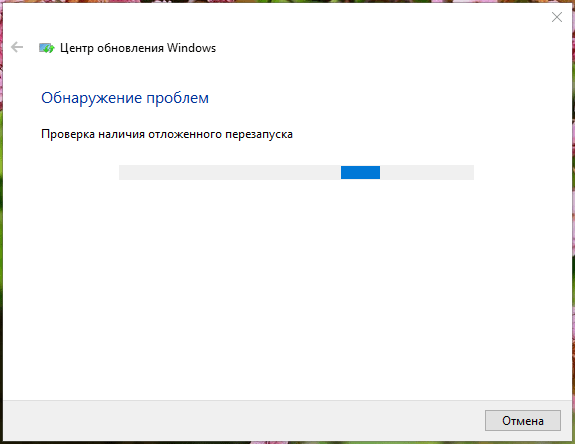
Процесс обнаружения проблем
Проверяем службы, связанные с «Центром обновления Windows»
Если какая-либо из служб, связанных с работой «Центра обновления» не запущена, это также может вызвать рассматриваемую нами ошибку 0x80070003. Следует убедиться, что тип запуска этих служб настроен верно. Сделать это можно в «Диспетчере служб».
- Нажмите на кнопку «Пуск» правой кнопкой мыши и выберите команду «Выполнить».
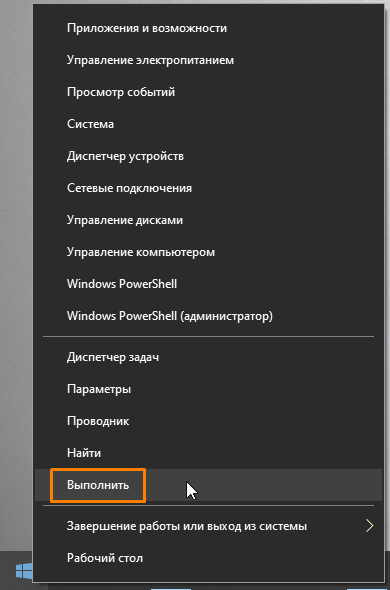
Выбираем команду «Выполнить»
- Затем в открывшемся окне введите команду services.msc и нажмите кнопку «ОК».
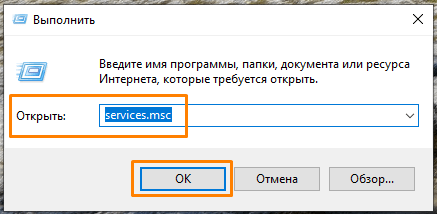
Запускаем «Диспетчер служб»
- В открывшемся окне «Службы» нам необходимо найти и проверить настройки запуска следующих четырех служб:
- для службы «Центр обновления» выбираем тип запуска «Вручную»;
- для службы «Фоновая интеллектуальная служба передачи (BITS)» указываем типа запуска «Вручную»;
- для таких служб, как «Службы криптографии» и «Рабочая станция», задаем вариант запуска «Автоматически».
- Для изменения типа запуска дважды кликаем на службу, чтобы открыть окно ее свойств и на вкладке «Общие» выбираем нужный тип запуска в раскрывающемся списке. Если служба не запущена в данный момент, нажимаем кнопку «Запустить», а затем «ОК» для подтверждения сделанных настроек и закрытия окна.
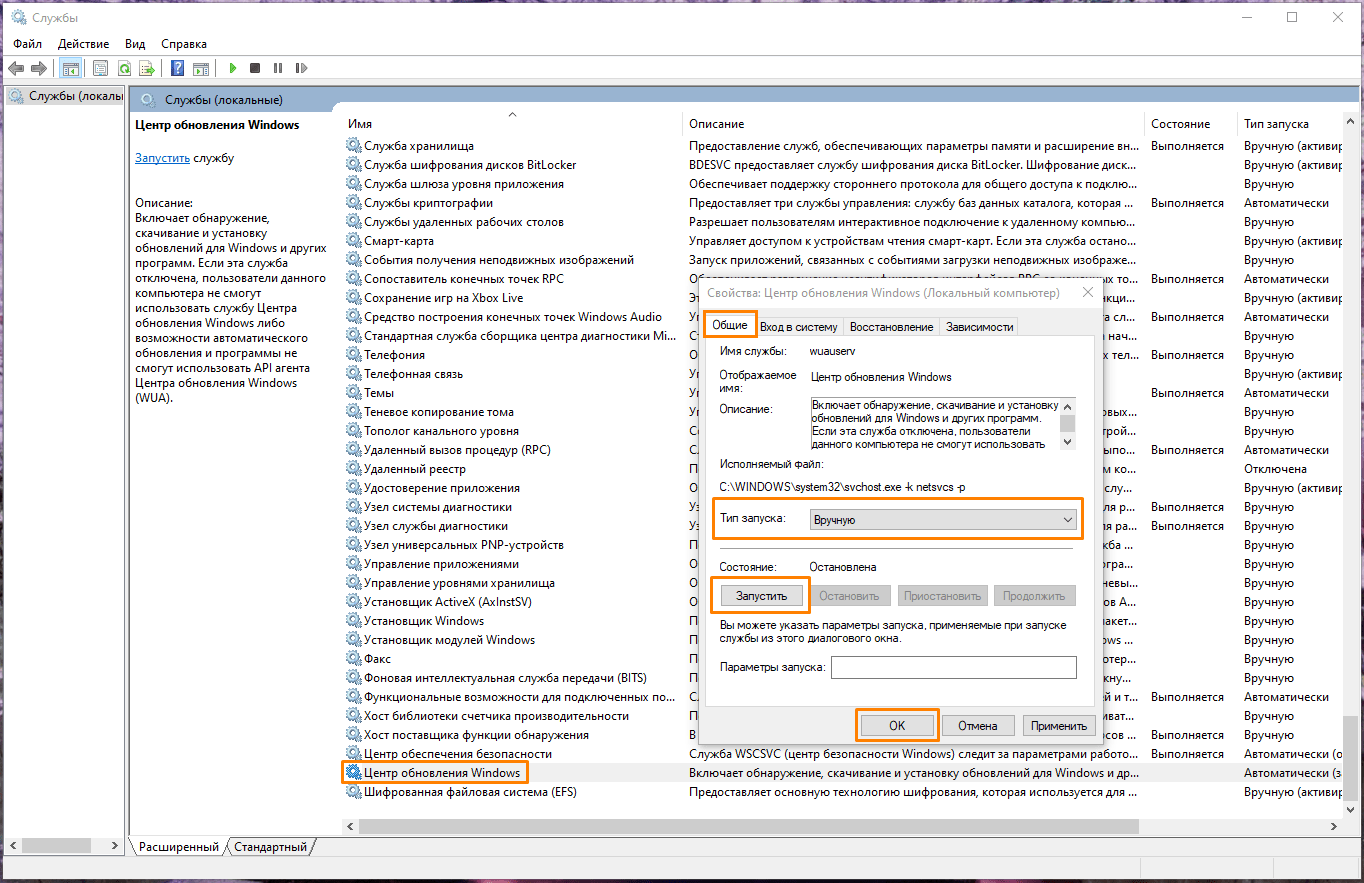
Выбираем нужный тип запуска
Проверяем системные файлы на ошибки
Причиной ошибки с кодом 0x80070003 может стать повреждение системных файлов ОС. К счастью, в Виндовс 10 имеется встроенное средство для их проверки и восстановления — утилита «System File Checker» (SFC). Для ее выполнения воспользуемся «Командной строкой», запущенной с правами администратора.
- Кликнем на значок лупы или установим курсор в строку системного поиска в панели задач и напечатаем cmd. Когда приложение «Командная строка» будет найдено, выберем в списке действий «Запуск от имени администратора».
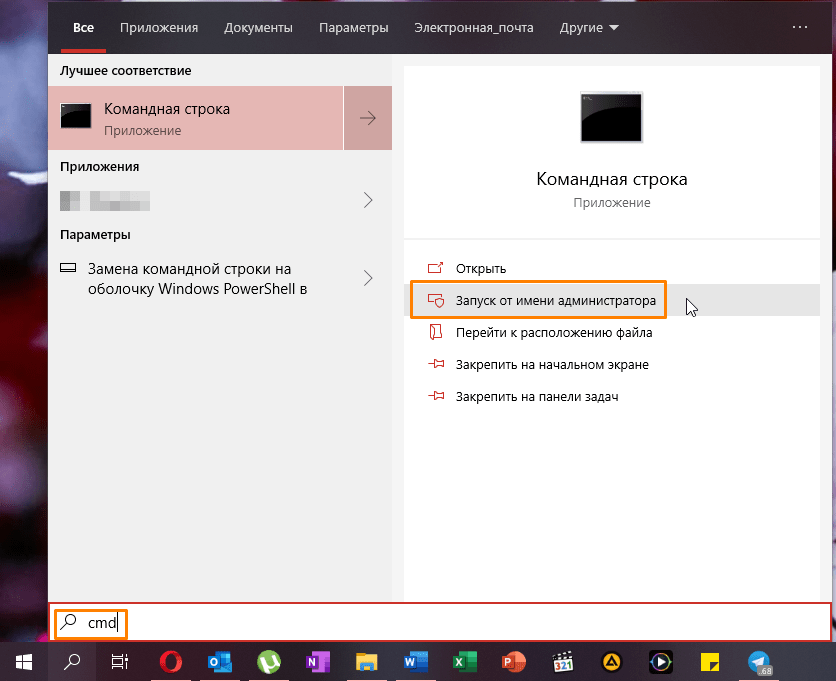
Запускаем «Командую строку» с помощью системного поиска
- Вводим команду sfc /scannow и нажимаем клавишу «Enter» для начала проверки. Если будут найдены поврежденные файлы, утилита «SFC» исправит их автоматически.
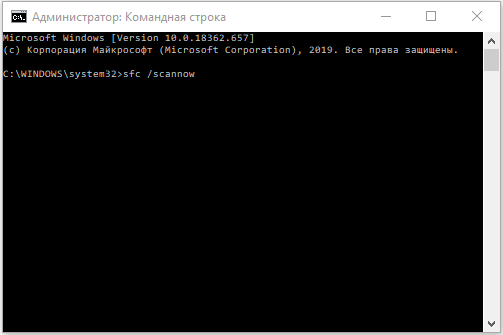
Осталось нажать «Enter» для запуска проверки
Факторов, способных вызвать ошибку с кодом 0x80070003 при обновлении Windows 10, и, соответственно, способов ее устранения, гораздо больше, чем можно рассмотреть в рамках одной статьи. Однако надеемся, что наши советы помогут вам справиться с этой неполадкой.
 Загрузка …
Post Views: 6 456
Код ошибки 0x80070003 / 0x80070002 – это проблема, связанная с обновлением, которая может возникнуть при установке ожидающих обновлений Windows 10 или обновлении до Windows 11. Эта проблема указывает на то, что на вашем компьютере есть поврежденные системные файлы или возникла проблема с Spupdsvc. .exe приложение. Помимо этих двух, излишне накопленный кеш или недавнее обновление патча также могут вызвать эту ошибку.
Чтобы устранить этот код ошибки, то есть ошибку 0x80070002 или 0x80070003, мы предлагаем запустить средство устранения неполадок обновления, восстановив поврежденные / отсутствующие файлы с помощью SFC. Если ошибка не исчезнет даже после этого, попробуйте удалить сохраненный кэш и выполнить сброс служб Windows Update. По мнению некоторых пользователей, замена старого файла конфигурации Spupdsvc.exe также оказывается полезной. Если вы застряли с этой ошибкой, вы можете использовать ранее созданные точки восстановления или сбросить этот компьютер.
Что означает ошибка 0x80070003?
Ошибка 0x80070003 просто означает, что обновление Windows не работает, и это может быть связано с разными причинами. Некоторые из них включают –
- Отключенные службы обновления – BITS, WUAUSERV и т. Д.
- Отсутствующие / поврежденные системные файлы
- Поврежденные компоненты обновления
Чтобы решить код ошибки обновления 0x80070003 или 0x80070002 на ПК с Windows 10, попробуйте следующие предложения:
1]Запустите средство устранения неполадок Центра обновления Windows.
Запуск средства устранения неполадок по умолчанию для обновлений Windows может решить любые проблемы, связанные с обновлениями на компьютере. Все, что вам нужно, это иметь правильное сетевое подключение и выполнять следующие шаги:
Windows 11
- Перейдите по пути ниже и нажмите кнопку «Выполнить» –
Настройки (Win + I)> Система> Устранение неполадок> Другие средства устранения неполадок> Центр обновления Windows
Windows 10
- Совместно нажмите WinKey + I, чтобы запустить приложение «Настройки».
- Выбирать Обновление и безопасность после этого устраните неисправность на следующем экране.
- Перейдите на правую панель и нажмите «Дополнительные средства устранения неполадок».
- Затем нажмите, чтобы развернуть Центр обновления Windows раздел и нажмите «Запустить средство устранения неполадок».
- Это автоматически проверит любые возможные ошибки и исправит их (если таковые обнаружены).
2]Восстановить поврежденные системные файлы с помощью SFC
Наличие поврежденных или отсутствующих системных файлов также может вызвать ошибку 0x80070003. Чтобы избавиться от этой ошибки, вы должны использовать программу System File Checker Utility и восстановить поврежденные файлы и папки. Вот основные шаги, над которыми нужно работать –
- Прежде всего, запустите командную строку от имени администратора.
- На консоли с повышенными привилегиями введите «sfc / scannow» и нажмите клавишу Enter.
- На сканирование и восстановление поврежденных файлов обычно уходит 15-20 минут, поэтому подождите соответственно.
- После этого перезапустите Windows, чтобы применить последние изменения.
Снова войдите в свой компьютер и проверьте, по-прежнему ли вы сталкиваетесь с ошибкой 0x80070003 при обновлении Windows. Если да, попробуйте следующий набор решений.
3]Сброс служб Windows с помощью командного файла
Вышеупомянутых двух решений в целом достаточно, чтобы решить любые проблемы, связанные с обновлением. Они не работают, только если на компьютере есть ненужный хранимый кеш или повреждение, связанное с обслуживанием. В этом методе вам необходимо остановить некоторые из основных служб Windows, очистить кеш и перезапустить остановленные службы. Чтобы упростить задачу, мы предлагаем создать пакетный файл с необходимыми командными строками, а затем запустить его с правами администратора. Давайте рассмотрим, как выполнить это решение –
- Сначала сверните все запущенные окна и щелкните правой кнопкой мыши в любом месте рабочего стола.
- Выберите «Создать»> «Текстовый документ».
- Теперь скопируйте все серые коды ниже и вставьте их в блокнот.
@ECHO OFF echo Простой скрипт для сброса / удаления эха Центра обновления Windows. ПАУЗА эхо. attrib -h -r -s% windir% system32 catroot2 attrib -h -r -s% windir% system32 catroot2 *. * net stop wuauserv net stop CryptSvc net stop BITS ren% windir% system32 catroot2 catroot2 .old ren% windir% SoftwareDistribution sold.old ren “% ALLUSERSPROFILE% application data Microsoft Network downloader” downloader.old net Start BITS net start CryptSvc net start wuauserv echo. echo Задача успешно завершена … echo. ПАУЗА
- Перейдите в меню «Файл» и выберите «Сохранить как».
- Затем введите «WSReset.bat» под «Имя файла»И выберите« Все файлы »под«Сохранить как тип«.
- Затем щелкните правой кнопкой мыши только что созданный командный файл и нажмите «Запуск от имени администратора».
- Если появится какое-либо окно подтверждения, нажмите Да, чтобы продолжить.
- Затем консоль предложит «нажать любую клавишу», нажмите любую клавишу, чтобы запустить сценарий.
- После этого перезагрузите компьютер, чтобы изменения вступили в силу при следующем входе в систему.
4]Замените старый файл конфигурации Spupdsvc.exe.
Иногда простое присутствие старого файла конфигурации с названием «Spupdsvc.exe» в службе Microsoft Update RunOnce может вызвать ошибку 0x80070003. Каждый раз, когда пользователи обновляют свою существующую ОС сборки, в реестр добавляется запись RunOnce для spupdsvc.exe. В случае, если он не будет продлен после выполнения обновления, это может привести к проблемам, связанным с обновлением. Чтобы исправить это, вам нужно всего лишь запустить один код в командной строке. Вот как действовать –
- Откройте командную строку от имени администратора: нажмите Win + R, чтобы запустить «Выполнить», введите «cmd» и нажмите Ctrl + Shift + Enter ключи вместе.
- В командной строке с повышенными привилегиями скопируйте / вставьте приведенную ниже командную строку и нажмите Enter –
cmd / c ren% systemroot% System32 Spupdsvc.exe Spupdsvc.old
Примечание. Выполнение приведенного выше кода заменит старую конфигурацию Spupdsvc.exe на новую.
- Перезагрузите Windows, чтобы изменения вступили в силу.
5]Установка обновлений Windows 10 вручную
Если вы начнете получать ошибку 0x80070003 после установки недавнего исправления безопасности, возможно, возникла проблема с самим накопительным обновлением. В таких сценариях мы предлагаем откатить ОС до предыдущего состояния.
Или вы можете вручную загрузить и установить на компьютер последний автономный пакет. Для этого вам необходимо сначала узнать последний номер CU, соответствующий архитектуре вашей системы. Вы можете посетить каталог накопительных обновлений, чтобы узнать, есть ли новый патч или нет. Получив необходимый номер «КБ», выполните следующие действия, чтобы загрузить и установить файл .msu.
Установите доступные обновления вручную
- Посетить Каталог Центра обновления Майкрософт веб-сайт и введите указанный выше номер «KB».
- Будет представлен список хорошо совпадающих результатов, выберите один в соответствии с архитектурой системы.
- Нажмите Загрузить рядом со ссылкой на обновление, а затем нажмите на верхнюю ссылку в открывшемся окне.
- Когда загрузка завершится, дважды щелкните установочный файл, чтобы обновить операционную систему.
6]Используйте точку восстановления системы или компьютер с нуля.
Если ошибка сохраняется даже после этого, мы рекомендуем использовать точки восстановления, чтобы вернуть ОС в более раннее состояние, когда все работало нормально. Если вы не создавали никаких резервных копий системы в прошлом, вам останется либо «Сбросить этот компьютер», либо «Чистая установка Windows».