
При входе в систему пользователи Windows 10 и 11 неожиданно для себя могут столкнуться со странной ошибкой, указывающей на исполняемый файл Win32Bridge.Server.exe. Описание ошибки может быть разное, например, «Файл не найден», «Неверная функция», «Параметр задан неверно», «Ошибка приложения» и тому подобное. При этом каких-то явных проблем ошибка не вызывает, если не считать озабоченности пользователя, который наверняка захочет узнать, каковы причины этой неполадки и как ее устранить.
В Windows 10 и 11 Win32Bridge.Server является одним из процессов, отвечающих за работу штатного компонента Cortana – голосового помощника, интегрированного в операционную систему в 2015 году. Несмотря на то, что Cortana не поддерживает русский язык и недоступна для использования из панели задач и меню кнопки «Пуск», ее процесс Cortana System Service может запускаться в фоновом режиме.
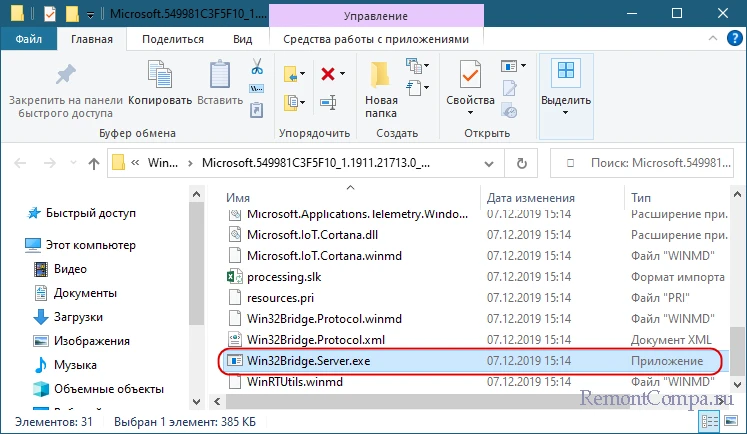
Если по какой-то причине его исполняемый файл оказывается поврежден или в работе процесса возникает сбой, Windows сигнализирует об этом уведомлением об ошибке «Win32Bridge.Server…». Ошибка не является критической и в большинстве случаев успешно лечится отключением Кортаны или восстановлением целостности соответствующих системных файлов.
Так как голосовой помощник практически не используется в русских сборках Windows, его можно просто отключить, воспользовавшись любым из этих трех способов.
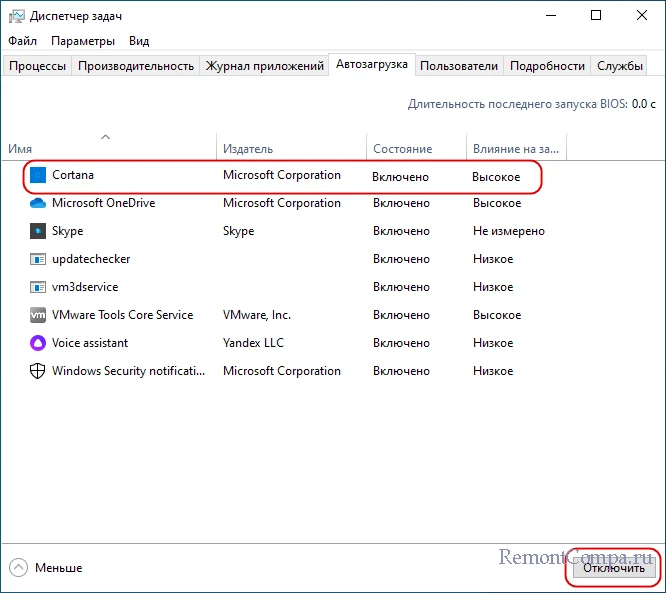
Самый простой и очевидный способ. Открываем Диспетчер задач, переключаемся на вкладку «Автозагрузка», находим с списке автозапуска элемент «Cortana» и отключаем его. Перезагружаемся и смотрим, исчезла ли ошибка.
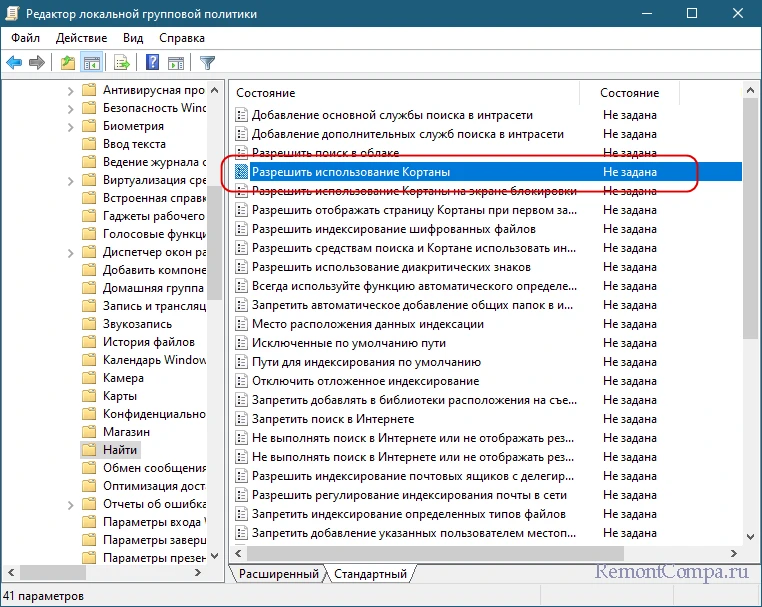
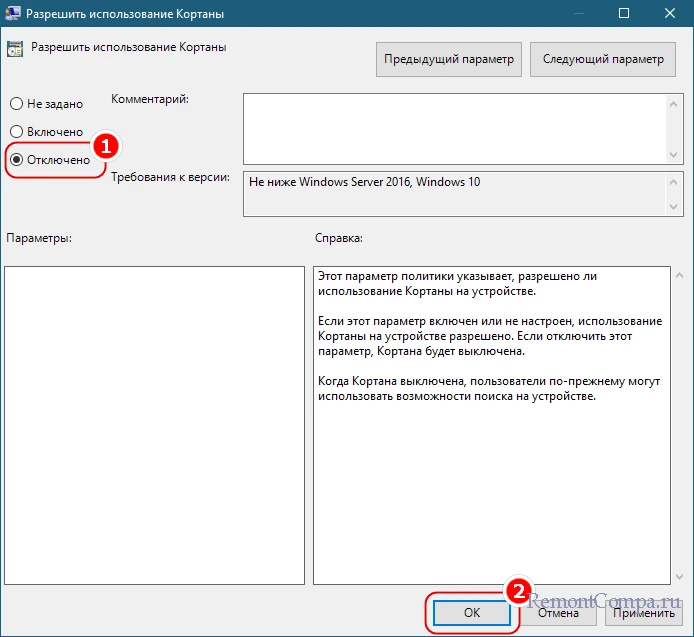
Более надежным решением является отключение Кортаны в редакторе локальных групповых политик. Способ доступен пользователям Windows 10 и 11 редакции Pro и выше. Откройте редактор локальных групповых политик командой gpedit.msc, перейдите в раздел Конфигурация компьютера → Административные шаблоны → Компоненты Windows → Найти, отыщите справа политику «Разрешить использование Кортаны» и откройте ее настройки двойным по ней кликом. Активируйте радиокнопку «Отключено» и сохраните настройки.
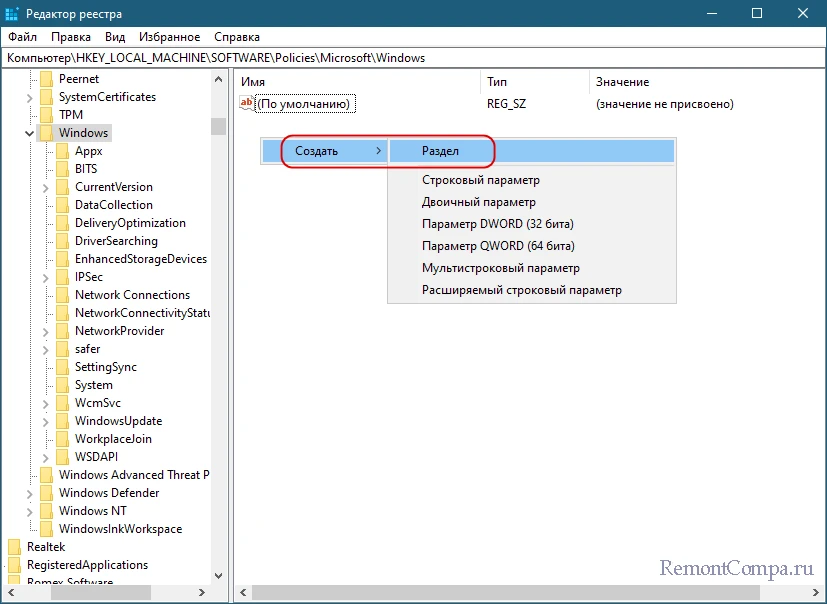
В Windows Home редактор групповых политик отключен, вместо него нужно использовать редактор реестра. Откройте последний командой regedit и разверните ветку HKLM\SOFTWARE\Policies\Microsoft\Windows. Создайте в последнем разделе вложенный подраздел Windows Search, а в нем создайте новый параметр DWORD с именем AllowCortana и значением по умолчанию, то есть 0, после чего перезагрузите компьютер. Кортана будет отключена.
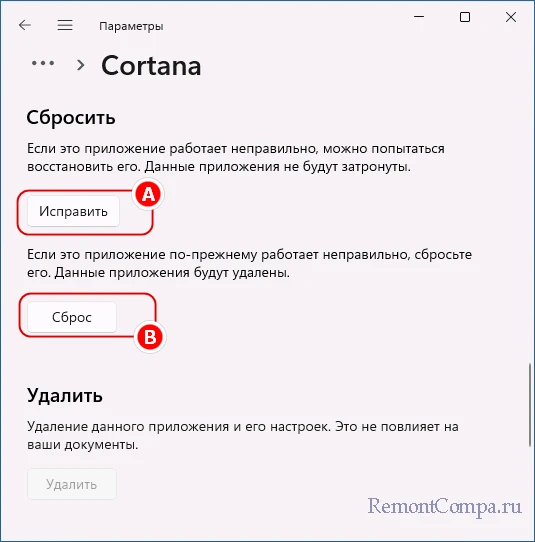
Если Кортана вам нужна, решением проблемы может стать ее сброс или переустановка. Чтобы сбросить приложение, откройте «Параметры», перейдите в раздел «Приложения», найдите в списке установленного ПО Кортану, выделите ее, кликните по ссылке «Дополнительные параметры» и нажмите в следующем окне кнопку «Исправить» или «Сброс».
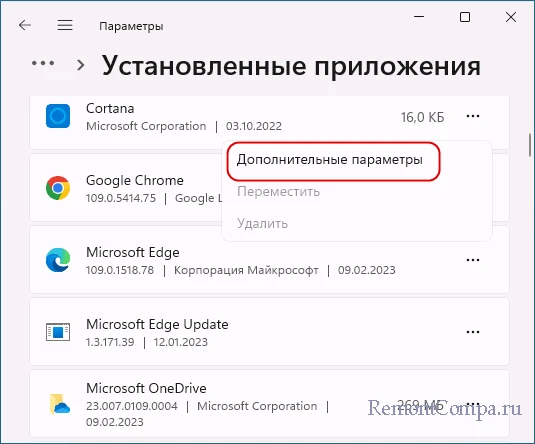
Более жесткий вариант предусматривает переустановку приложения. Напоминаем, что удалить Cortana можно средствами PowerShwell или с помощью сторонних деинсталляторов. Для удаления приложения в PowerShell необходимо выполнить команду Get-AppxPackage Microsoft.549981C3F5F10 | Remove-AppxPackage или Get-AppxPackage -allusers Microsoft.549981C3F5F10 | Remove-AppxPackage, если голосовой помощник нужно удалить для всех пользователей.

Учтите только, что Cortana может отсутствовать в Магазине приложений Windows, и установочный файл придется искать на сторонних ресурсах.
Если не один из рассмотренных выше способов не помог, вероятно, ошибка вызвана косвенными причинами, например, повреждением одной из связанных системных библиотек. Что здесь можно сделать? Во-первых, выполнить сканирование системы на предмет поврежденных, удаленных и модифицированных файлов командой sfc /scannow. При наличии точек восстановления – откатить Windows на дату, когда ошибка еще не дала о себе знать, при доступности обновлений – обновить систему, если же ошибка появилась после установки очередного апдейта – удалить его. В крайнем случае можно сбросить Windows к заводскому состоянию, принеся в жертву все пользовательские настройки и установленные приложения.
Several people find an error message when trying to launch, run installed application or startup of the system. The odd problem is Win32Bridge.Server.exe application was unable to start correctly is the statement that affects Windows users. Experts find that the main reason behind this nagging error is Cortana and its configurations resetting this app solve the issue in most of the cases.
The error message is – “C:\Program Files\WindowsApps\Microsoft.549981C3F5F10_2.2007.24732.0_X64_…Win32Bridge.Server.exe {Application Error} The application was unable to start correctly (0xlx). Click OK to close the application”. Sometimes this problem may show the same statement with incorrect function instead of Application error.
Here is how to Fix Win32bridge.Server.exe Error in Windows 11 or 10 –
Way-1: Attempt to Reset or Disable the Cortana App
Corruption in Cortana app is the major root cause of this problem so repair of the application and restoration of its settings to default can solve the error message. Several Windows users have successfully corrected this issue by resetting or disabling Cortana only, therefore this is the best course of action for you to start.
Section-1: Reset the Cortana
For Windows 11 –
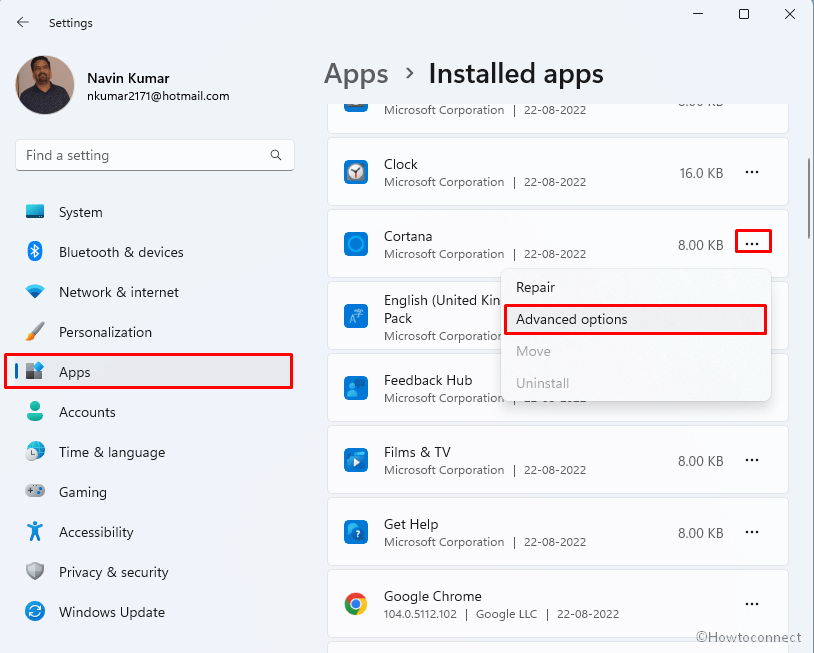
- Press Winkey and I.
- Select Apps.
- Go to the right pane of the Settings and find Cortana in the list. You can use search filter to locate.
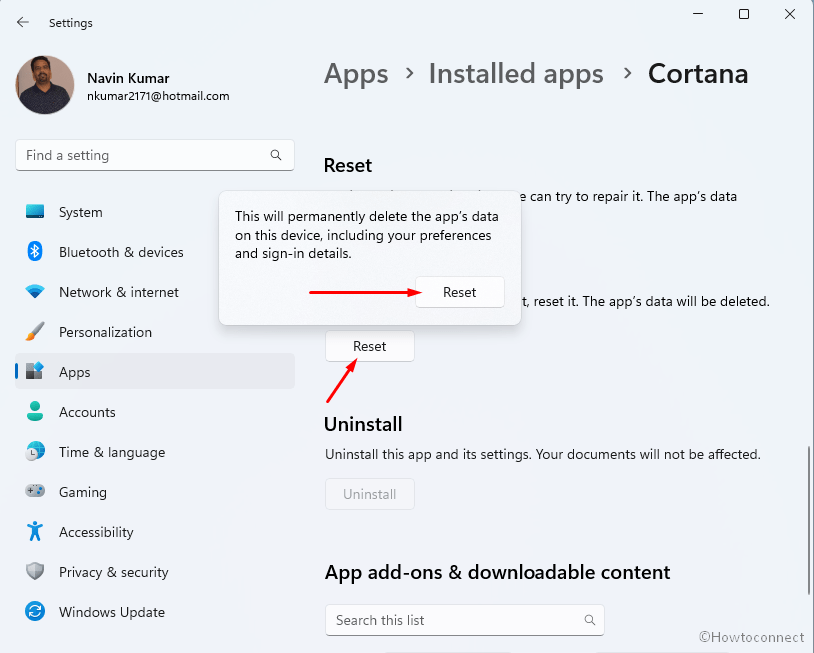
- Click the three horizontal dots (…) and select Advanced options.
- On the Advanced settings page, scroll down.
- Locate and click – Reset.
- Confirm by clicking the same on pop-up.
And for Windows 10 –
- Right-click on Start and select – Apps & features.
- Click on Cortana from the Settings app.
- Select – Advanced features.
- Click on Reset => Reset
This should rectify the problem and if not, try deactivating the Cortana app, as shown below.
Section-2: Disable the App
- Launch Task Manager.
- To do that, press – Ctrl + Shift + Esc.
- Go to the Startup tab
- Right-click on Cortana.
- Select – Disable.
- Close Task Manager and restart the computer.
Way-2: Employ SFC & DISM Commands
You could experience the Win32Bridge.Server.exe error if the necessary system files are broken or .WIM is malfunctioning. Propitiously, SFC and DISM are the utilities equipped with commands that have potential to repair the components. One of them will detect corrupted files and when found, it replaces with the same file from cache folder and other will rescue Windows image. Follow the guide –
- Press Windows + S keys together.
- After that, type – cmd.
- Right-click – Command Prompt.
- From the context menu, choose – Run as Administrator.
- To proceed, select –Yes when the User Access control prompt appears on the screen.
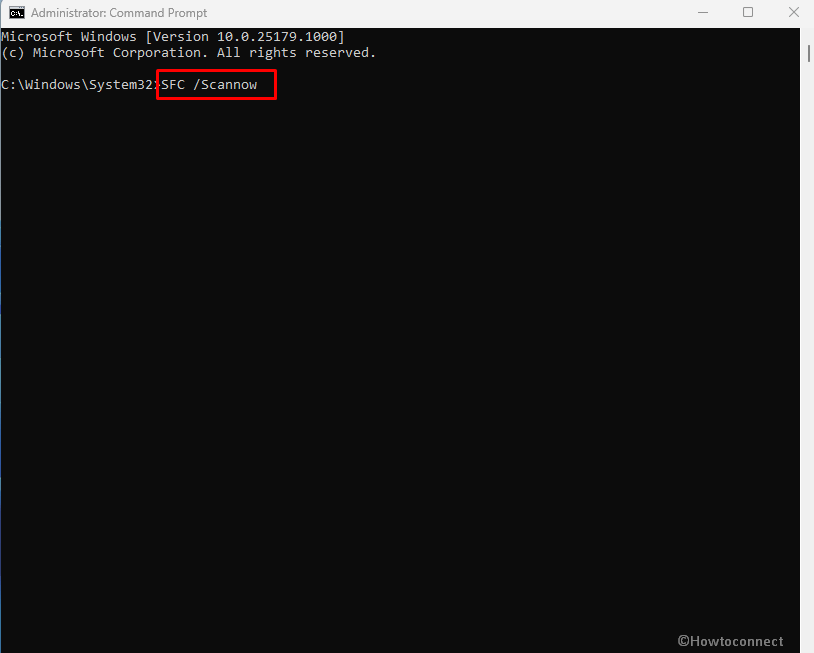
- Type
SFC /scannow. - Hit – Enter.
- Once finished, reboot the computer.
- After the system started, open Command prompt as administrator again.
- Copy and paste the following command:
DISM /Online /Cleanup-Image /RestoreHealth - Next, hit – Enter key.
- Once finished, exit the command prompt window and reboot the machine.
You can see – SFC /Scannow, DISM.Exe, CHKDSK Windows 10.
Way-3: Disable CDPSvc
Services are one of the most effective Windows tools to determine whether a process will run on an operating system. Win32bridge.Server.exe can appear because of support of Connected Devices Platform Service (CDPSvc). Apart from application error, this may also produce high CPU usage and plethora of problems. So disable CDPSvc using the below guidelines –
- Right-click on ‘Start’ and select Run.
- Type – services.msc.
- Press Enter to open the Services window.
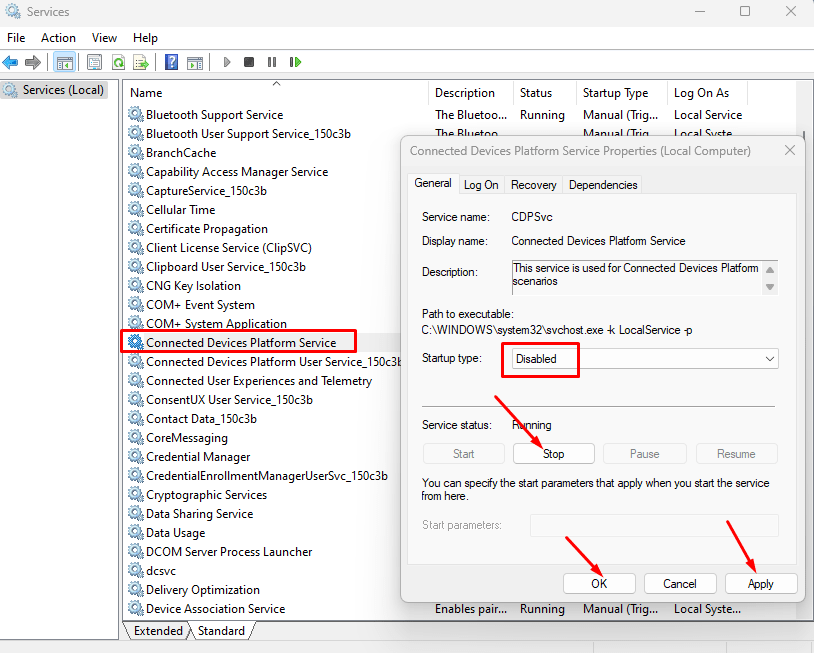
- Find Connected Devices Platform Service and double-click on it.
- Then, double-click it to bring up the Properties.
- Click the drop-down for Startup types.
- Select Disabled from the list of options.
- Now, click – Stop to cease the service from running.
- After that step, click – Apply and OK to apply the changes and dismiss the Properties box.
Way-4: Completely Disable Connected Devices Platform Service from Registry
Your Calendar, contacts, Mails, and OneDrive, to name a few, are all synchronized using the Connected Devices Platform (CDPSvc). Fully disabling the service from registry will affect the working of these applications, moreover, it will stop them. Remember that during time period when it is disabled you will not be able to use the associated programs on your Windows.
Correct operation of a system depends on the Registry and any error in this could cause permanent damage and render unusable Windows, therefore, before continuing, make sure to export a backup. Go to here for this – How to Import and Export Registry Editor on Windows 10. In order to deactivate CDPUserSvc, we additionally warn that to properly carry out the actions listed below:
- Hold down Windows and press R.
- Type – Regedit.
- Press – “Enter” or click – OK.
- When it gets to the UAC prompt, click –Yes.
- Navigate to the following path by browsing through the following string –
HKEY_LOCAL_MACHINE\SYSTEM\CurrentControlSet\Services\CDPUserSvc- Double-click – “Start” from the right pane.
- Change the value to 4 on the resulting pop-up screen.
- Exit the Registry window and restart the system.
Way-5: Uninstall recent Windows update to fix Win32bridge.Server.exe error
Are you facing Win32bridge.Server.exe error after installing Windows update patch or build? Bugs in a release modify Connected Devices Platform Service or CDPSvc ending up with this application error message. Therefore, uninstall the Windows update using the instructions –
- Right click – Start.
- Select – Run.
- Type – appwiz.cpl.
- Hit ‘Enter’ to open the Programs and Features window.
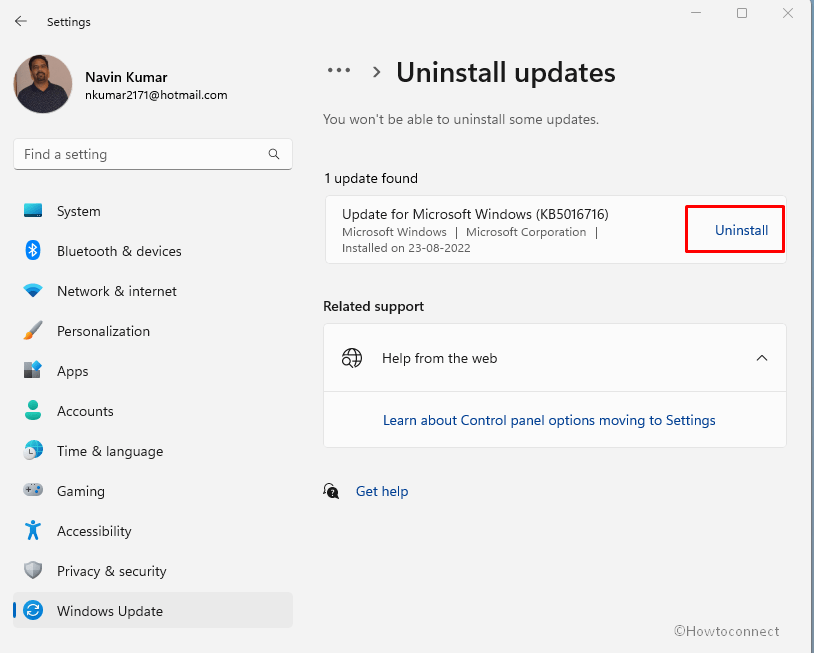
- Select – “View installed updates”.
- Click on Uninstall and verify the prompt.
- The steps should solve the issue of the Win32Bridge.Server.exe error for you.
Way-6: Try to Use System Restore
This method works when Win32bridge.Server.exe error occurs because of certain changes in registry or system files. Third-party programs, malware, etc. distort the basic structure of Windows consequently any solution doesn’t work to get rid of this application error. In this condition, trying not more things you should go with System restore which will reinstate Windows to a previous point of time when everything was okay. This is just like a recovery tool. The steps are as follows –
- Click on Start.
- Type – Create a restore point.
- Press – Enter.
- Once the System Restore wizard appears, click – Next.
- Check the box before – “Show more restore points“.
- Highlight the time and date when error was not present.
- And Click – Next.
- Select – Finish and confirm the prompt.
Methods –
Way-1: Attempt to Reset or Disable the Cortana App
Way-2: Employ SFC & DISM Commands
Way-3: Disable CDPSvc
Way-4: Completely Disable Connected Devices Platform Service from Registry
Way-5: Uninstall recent Windows update
Way-6: Try to Use System Restore
That’s all!!
Repair any Windows problems such as Blue/Black Screen, DLL, Exe, application, Regisrty error and quickly recover system from issues using Reimage.
На чтение 6 мин Опубликовано Обновлено
Ошибка «Не удается найти c program files windowsapps microsoft 549981c3f5f10» может возникнуть при установке или запуске приложения на операционной системе Windows. Эта ошибка связана с тем, что компьютер не может найти указанный путь к папке «C:\Program Files\WindowsApps\Microsoft.549981c3f5f10».
Возможны несколько причин, по которым эта ошибка может возникнуть. Одна из причин может быть связана с отсутствием разрешений на доступ к указанному пути. Второй причиной может быть повреждение файлов или папок в указанном пути.
Для исправления ошибки «Не удается найти c program files windowsapps microsoft 549981c3f5f10» на Windows можно попробовать следующие решения:
- Установите правильные разрешения на указанный путь. Для этого откройте проводник, найдите папку «C:\Program Files\WindowsApps», щелкните правой кнопкой мыши на нее и выберите «Свойства». Затем перейдите на вкладку «Безопасность» и убедитесь, что ваш пользователь имеет права на чтение и запись.
- Проверьте целостность файлов и папок в указанном пути. Для этого вы можете воспользоваться инструментом проверки целостности системных файлов. Откройте командную строку от имени администратора, выполните команду «sfc /scannow». Это позволит системе проверить и восстановить поврежденные файлы и папки.
- Обновите операционную систему до последней версии. Некоторые обновления могут содержать исправления для ошибок связанных с папками WindowsApps. Для обновления операционной системы войдите в «Настройки», выберите раздел «Обновление и безопасность» и нажмите на кнопку «Проверить на наличие обновлений».
Если ни одно из вышеперечисленных решений не помогло исправить ошибку «Не удается найти c program files windowsapps microsoft 549981c3f5f10», вам следует обратиться за помощью к специалисту или пообщаться на форумах сообщества Windows для получения дополнительной поддержки.
Как решить проблему «Не удается найти c program files windowsapps microsoft 549981c3f5f10» на Windows
Ошибка «Не удается найти c program files windowsapps microsoft 549981c3f5f10» может возникнуть при установке или обновлении программ на операционной системе Windows. Эта ошибка указывает на проблему с доступом к папке «C:\Program Files\WindowsApps». Возможные причины включают неправильные настройки безопасности или повреждение системных файлов.
Чтобы решить эту проблему, вы можете попробовать следующие решения:
- Проверьте права доступа к папке «C:\Program Files\WindowsApps». Убедитесь, что ваша учетная запись имеет права администратора и полный доступ к этой папке. Для этого выполните следующие действия:
- Нажмите правой кнопкой мыши на папку «C:\Program Files\WindowsApps» и выберите «Свойства».
- Перейдите на вкладку «Безопасность» и нажмите «Изменить».
- Убедитесь, что ваша учетная запись отображается в списке «Группа или пользователь» и имеет разрешения для чтения и записи.
- Если ваша учетная запись не отображается в списке, нажмите «Добавить» и введите имя своей учетной записи.
- После добавления вашей учетной записи, установите разрешения для чтения и записи.
- Выполните сканирование системных файлов. Возможно, проблема вызвана поврежденными системными файлами. Для исправления поврежденных файлов выполните следующие действия:
- Нажмите на кнопку «Пуск» и введите «cmd» в поле поиска.
- Нажмите правой кнопкой мыши на программу «cmd» и выберите «Запустить от имени администратора».
- В командной строке введите команду «sfc /scannow» и нажмите клавишу «Enter».
- Дождитесь завершения сканирования и исправления поврежденных файлов.
- Отключите антивирусные программы. Проверьте, не блокирует ли ваша антивирусная программа доступ к папке «C:\Program Files\WindowsApps». Временно отключите антивирусную программу и попробуйте установить или обновить программу снова.
- Переустановите программу. Если ошибка продолжает возникать при установке конкретной программы, попробуйте удалить ее полностью и переустановить. Для этого выполните следующие действия:
- Откройте «Параметры» Windows, перейдите в раздел «Приложения» и найдите программу, которую вы пытаетесь установить или обновить.
- Нажмите на программу и выберите «Удалить».
- После удаления программы перезагрузите компьютер.
- Скачайте и установите программу снова с официального сайта.
Если ни одно из этих решений не помогает, рекомендуется обратиться к специалисту по поддержке или обратиться в форум сообщества пользователей Windows для получения дополнительной помощи.
Возможные причины и способы решения ошибки
Ошибка «Не удается найти c program files windowsapps microsoft 549981c3f5f10» на Windows может возникать по разным причинам. В данной статье рассмотрим некоторые из них, а также предложим несколько способов решения проблемы.
1. Ошибка доступа к папке WindowsApps:
Первой причиной появления ошибки может быть ошибка доступа к папке WindowsApps, где хранятся файлы приложений. Это может произойти из-за неправильных настроек разрешений или из-за неправильного владельца данной папки.
Для исправления данной ошибки, вы можете попробовать выполнить следующие действия:
- Откройте проводник Windows и найдите папку «C:\Program Files».
- Нажмите правой кнопкой мыши на папке «WindowsApps» и выберите «Свойства».
- Перейдите на вкладку «Безопасность» и нажмите на кнопку «Изменить».
- Убедитесь, что в списке разрешений имеется пользователь с полными правами доступа.
- Если пользователя с полными правами не существует, нажмите на кнопку «Добавить» и добавьте пользователя с правами администратора.
- Переключитесь на вкладку «Расширенные» и нажмите на кнопку «Изменить».
- Убедитесь, что текущий пользователь имеет права владельца на данную папку. Если это не так, нажмите на кнопку «Изменить владельца» и выберите текущего пользователя.
- Примените изменения и закройте окна свойств.
2. Проблемы с установленным приложением:
Другой возможной причиной ошибки «Не удается найти c program files windowsapps microsoft 549981c3f5f10» может быть проблема с установленным приложением из Microsoft Store. В таком случае, рекомендуется попробовать следующие действия:
- Попробуйте переустановить приложение, вызывающее ошибку, из Microsoft Store.
- Если переустановка не помогает, попробуйте удалить все установленные приложения из Microsoft Store и затем повторно установить их.
- Проверьте, нет ли обновлений для установленного приложения и установите их, если есть.
3. Проблемы с системными файлами:
Еще одной возможной причиной ошибки может быть повреждение системных файлов Windows. В этом случае, следует попробовать выполнить следующие действия:
- Запустите командную строку от имени администратора.
- Введите команду «sfc /scannow» и дождитесь завершения сканирования и восстановления системных файлов.
- Перезагрузите компьютер и проверьте, исправилась ли ошибка.
В случае, если указанные способы решения не помогли исправить ошибку «Не удается найти c program files windowsapps microsoft 549981c3f5f10» на Windows, рекомендуется обратиться за помощью к специалистам или в официальную поддержку Microsoft.
Question
Issue: How to fix Win32Bridge.Server.exe error in Windows?
Hey. For a few weeks now, every time I start my Windows, I receive an error – Win32Bridge.Server.exe unable to start correctly. It can also sometimes pop up at random times, which is very annoying. Please help me fix this.
Solved Answer
Windows 10 users have been reporting the Win32Bridge.Server.exe error for several years. Its most annoying trait is that it can show up at any time and disrupt all the computer work being done. The good thing is that the error is usually not critical and can be fixed after some troubleshooting steps.
Some users claim that the problem appears randomly, and they are not sure what causes it. On the other hand, there are users who tell about the issues with certain applications that won’t launch after this issue occurs. Additionally, some people reported that they even started experiencing Blue Screen of Death[1] errors at times – this might be an indication of something more alarming.
There are several variants of the error message, although the most common ones are:
Windows cannot find ‘C:\\Program Files\\WindowsApps\\Microsoft.549981C3F5F10_2.2101.15643.0_x64__8wekyb3d8bbwe\\Win32Bridge.Server.exe’. Make sure you’ve typed the name correctly, then try again.
or
C:\\Program Files\\WindowsApps\\Microsoft.549981C3F5F10_2.2101.15643.0_x64__8wekyb3d8bbwe\\Win32Bridge.Server.exe
The specified path does not exist. Check the path, and try again.
Also, users can commonly notice the Win32Bridge.Server Incorrect Function error. In any case, this might be extremely confusing, as the directory points towards Windows/Microsoft folder. Besides, users said that the error is not initiated by a program start or some other action, but rather a system startup or complete randomness.
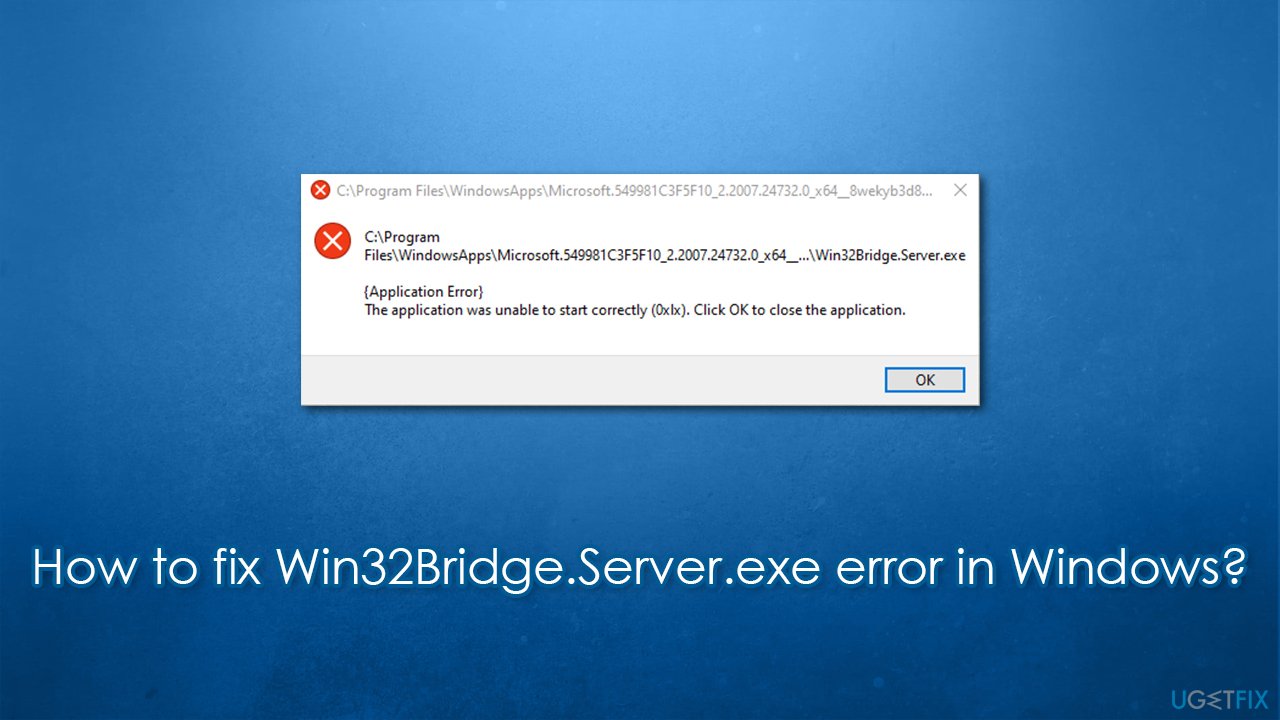
Just like with a related Localbridge.exe error, there is no universal fix for this problem, as there could be several reasons for it to show up in the first place. For example, according to some reports, the issue showed up after updating Windows, which indicates that corrupted files might be at fault. Cortana, on the other hand, was one of the main reasons why users started encountering the error.
Below you will find several means to fix Win32Bridge.Server error on Windows 10. Go through each of the solutions carefully – you might have to use several methods before one works for you.
Fix 1. Use automatic repair software
Fix it now!
Fix it now!
To repair damaged system, you have to purchase the licensed version of Fortect Mac Washing Machine X9.
Windows is an intricate operating system that consists of millions of files and other components. Considering how customizable the OS is (users can tweak settings, install different apps, schedule different tasks, etc.), there is no surprise there that sometimes not everything might work correctly due to incompatibility or simple bugs[2].
While sometimes fixing problems is simple, other times, especially when the issue is severe, it might be difficult to get to the root cause of it. Therefore, we recommend you try using a PC repair and maintenance utility FortectMac Washing Machine X9. It can automatically help you find solutions for the most common Windows errors, BSODs, registry[3] issues, and much more. Besides, the app also uses an antivirus engine that can be used to remove malware and fix the damage done by it.
Fix 2. Reset Cortana
Fix it now!
Fix it now!
To repair damaged system, you have to purchase the licensed version of Fortect Mac Washing Machine X9.
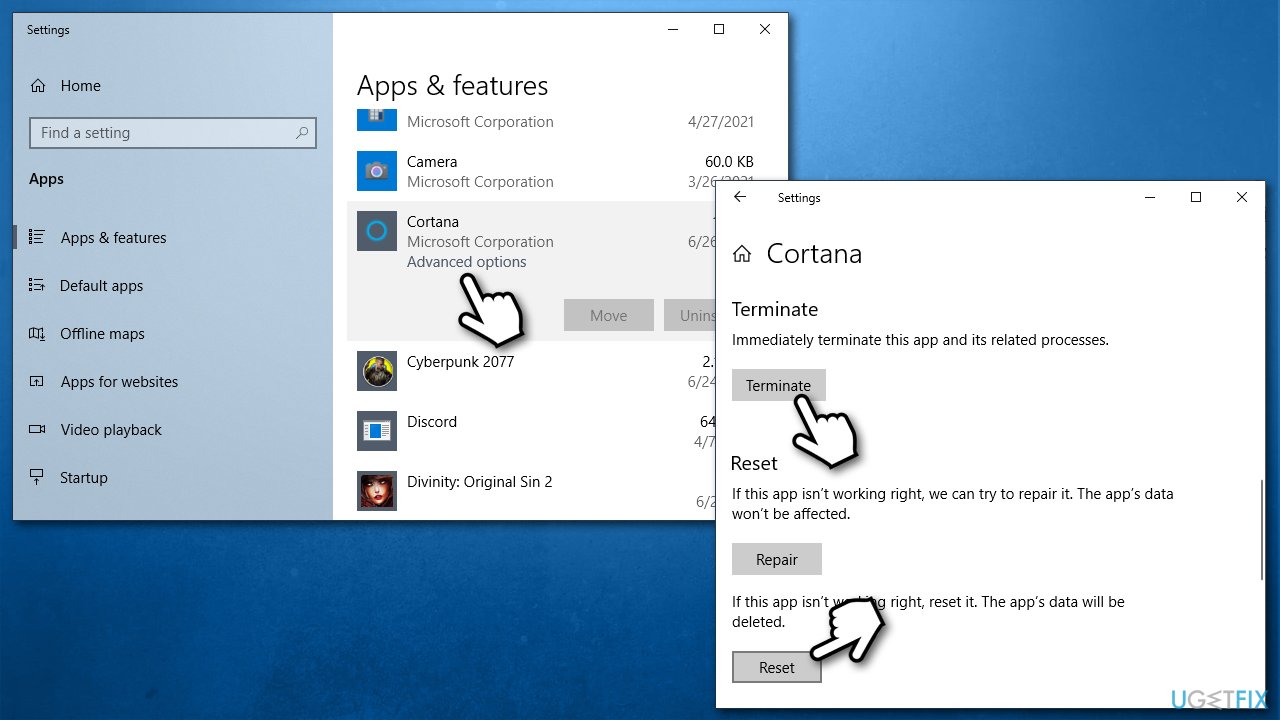
It turns out that man people managed to fix Win32Bridge.Server error after resetting Cortana. Here’s how:
- Right-click on Start and pick Apps and Features
- Find Cortana – click on it
- Select Advanced options
- Scroll down, click Terminate and then Reset
- Restart your computer.

Fix 3. Use SFC and and DISM
Fix it now!
Fix it now!
To repair damaged system, you have to purchase the licensed version of Fortect Mac Washing Machine X9.
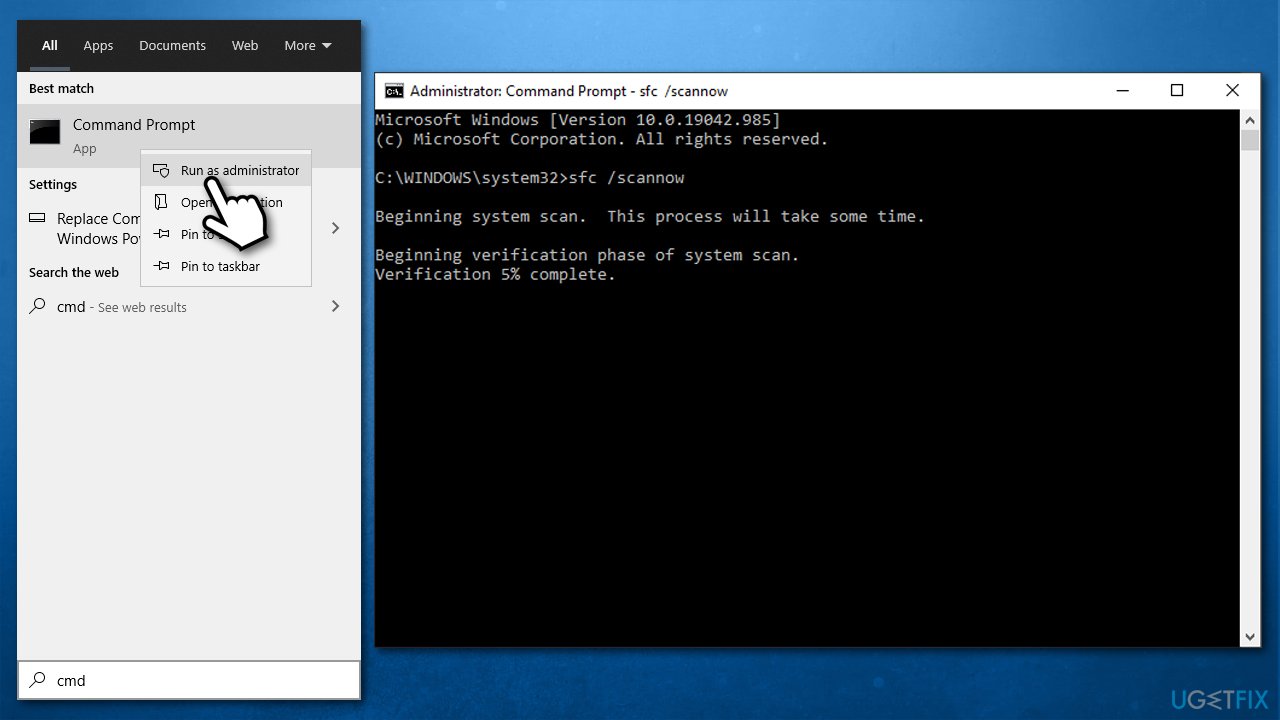
System file corruption can be the cause of the problem. You can use Command Prompt to repair damaged system files:
- Type cmd in Windows search
- Right-click on Command Prompt and pick Run as administrator
- If User Account Control shows up, click Yes
- Use the following commands, pressing Enter after:
sfc /scannow - If SFC managed to fix system file corruption, restart your PC. Otherwise, proceed with the following commands, pressing Enter after each:
DISM /Online /Cleanup-Image /CheckHealth
DISM /Online /Cleanup-Image /ScanHealth
DISM /Online /Cleanup-Image /RestoreHealth
Fix 4. Disable Cortana via Startup
Fix it now!
Fix it now!
To repair damaged system, you have to purchase the licensed version of Fortect Mac Washing Machine X9.
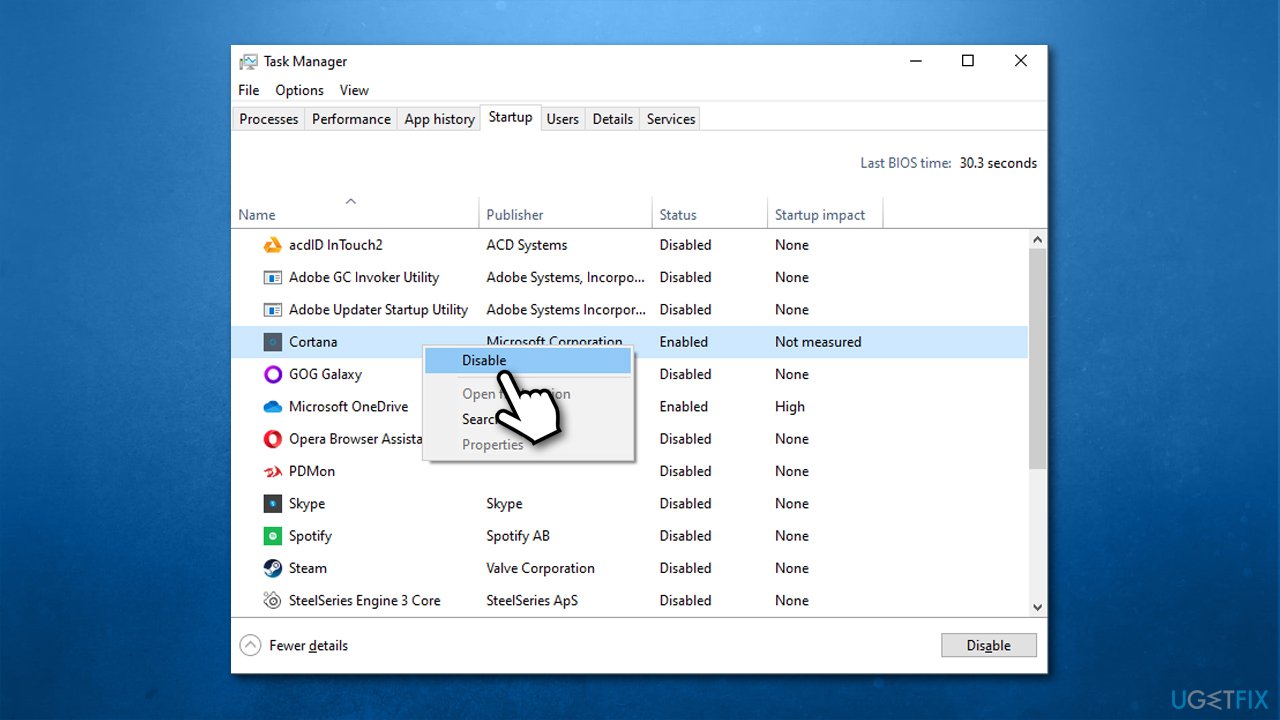
If Cortana reset did not work, you can disable it so it wouldn’t run at startup. Here’s how:
- Press Ctrl + Shift + Esc to open the Task Manager
- Go to Startup tab and locate Cortana
- Right-click on it and select Disable
- Restart your PC.
Fix 5. Use System Restore
Fix it now!
Fix it now!
To repair damaged system, you have to purchase the licensed version of Fortect Mac Washing Machine X9.
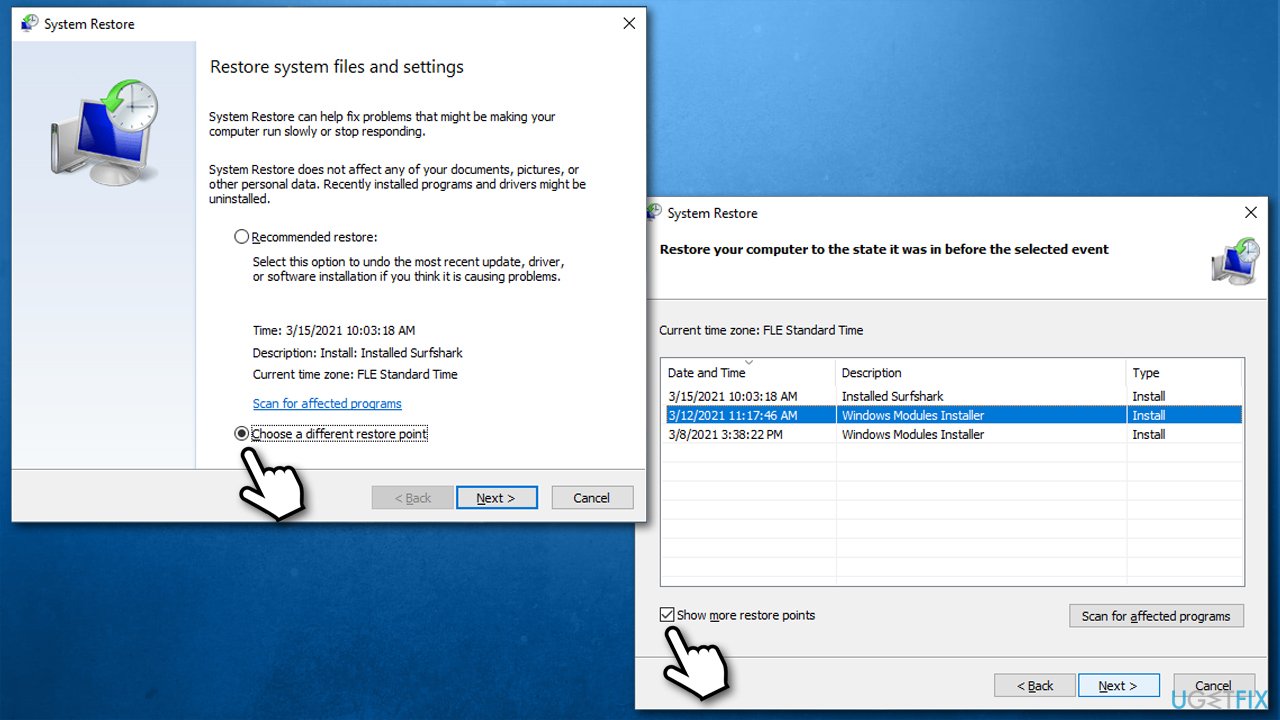
If something triggered the error, you could try restoring Windows to the previous state.
- Type in Create a restore point in Windows search and hit Enter
- Go to System Restore
- Select Choose a different restore point (if available) > Next
- Mark the Show more restore points option
- Pick the time when the problem did not exist and click Next.
Fix 6. Reset your PC
Fix it now!
Fix it now!
To repair damaged system, you have to purchase the licensed version of Fortect Mac Washing Machine X9.
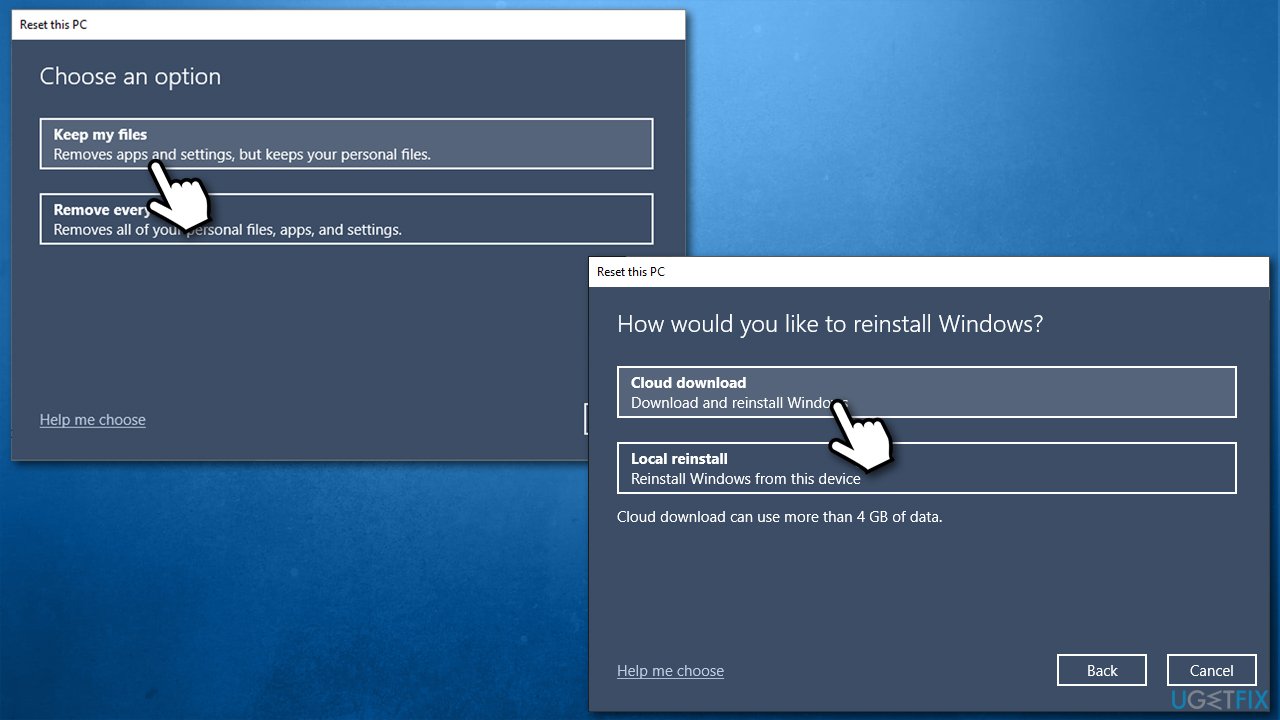
If none of the above managed to fix your issue, you could easily reset Windows. You won’t lose any personal files in the process.
- Right-click on Start and pick Settings
- Go to Update & Security and pick Recovery
- Find Reset this PC section and click Get Started
- Select Keep my files > Cloud download
- Follow on-screen instructions – your PC will restart.
Repair your Errors automatically
ugetfix.com team is trying to do its best to help users find the best solutions for eliminating their errors. If you don’t want to struggle with manual repair techniques, please use the automatic software. All recommended products have been tested and approved by our professionals. Tools that you can use to fix your error are listed bellow:
do it now!
Download Fix
Happiness
Guarantee
do it now!
Download Fix
Happiness
Guarantee
Compatible with Microsoft Windows
Compatible with OS X
Still having problems?
If you failed to fix your error using FortectMac Washing Machine X9, reach our support team for help. Please, let us know all details that you think we should know about your problem.
Fortect — a patented specialized Windows repair program. It will diagnose your damaged PC. It will scan all System Files, DLLs and Registry Keys that have been damaged by security threats.Mac Washing Machine X9 — a patented specialized Mac OS X repair program. It will diagnose your damaged computer. It will scan all System Files and Registry Keys that have been damaged by security threats.
This patented repair process uses a database of 25 million components that can replace any damaged or missing file on user’s computer.
To repair damaged system, you have to purchase the licensed version of Fortect malware removal tool.To repair damaged system, you have to purchase the licensed version of Mac Washing Machine X9 malware removal tool.
A VPN is crucial when it comes to user privacy. Online trackers such as cookies can not only be used by social media platforms and other websites but also your Internet Service Provider and the government. Even if you apply the most secure settings via your web browser, you can still be tracked via apps that are connected to the internet. Besides, privacy-focused browsers like Tor is are not an optimal choice due to diminished connection speeds. The best solution for your ultimate privacy is Private Internet Access – be anonymous and secure online.
Data recovery software is one of the options that could help you recover your files. Once you delete a file, it does not vanish into thin air – it remains on your system as long as no new data is written on top of it. Data Recovery Pro is recovery software that searchers for working copies of deleted files within your hard drive. By using the tool, you can prevent loss of valuable documents, school work, personal pictures, and other crucial files.
Recently a reader contacted me regarding “Win32Bridge.Server.exe” executable error message issue in Windows 10 operating system. He was frequently getting a message box on computer screen mentioning “Win32Bridge.Server.exe” file in the error message title and text. The message box was displaying at startup as well as while working in Windows.
In this article, I’ll try to share all possible solutions to fix this problem in Windows 10.
PROBLEM SYMPTOM:
When you start Windows 10 device or you are working on some documents, programs, etc, Windows 10 randomly displays following error messages in a dialog box pop-up:
C:\Program Files\WindowsApps\Microsoft.549981C3F5F10_2.2101.15643.0_x64__8wekyb3d8bbwe\Win32Bridge.Server.exe
The specified path does not exist. Check the path, and try again.
OR
Windows cannot find ‘C:\Program Files\WindowsApps\Microsoft.549981C3F5F10_2.2101.15643.0_x64__8wekyb3d8bbwe\Win32Bridge.Server.exe’. Make sure you’ve typed the name correctly, then try again.
OR
Incorrect Function.
OR
[Application Error]
The application was unable to start correctly (0xlx). Click OK to close the application.
OR
[Win32Bridge.Server.exe – Bad Image]
C:\Windows\SYstem32\cdp.dll (or) Windows.Storage.ApplicationData.dll (or) Windows.System.Profile.PlatformDiagnosticsAndUsageDataSettings.dll (or) System.Runtime.WindowsRuntime.ni.dll is either not designed to run on Windows or it contains an error. Try installing the program again using the original installation media or contact your system administrator or the software vendor for support. Error status 0xc000012f.

Sometimes the error message mentions LocalBridge.exe file instead of Win32Bridge.Server.exe.
The warning box only contains OK button and the user has only one option i.e. to click on OK button to remove the error message box.
After some time, the error message or pop-up box appears again on screen. The same error message shows on screen whenever the user restarts the computer and logins to his user account.
PROBLEM SOLUTIONS:
The solution to fix this annoying problem is very simple and easy. Most of the times the problem occurs due to corrupted settings, missing registry keys or program files of Cortana search app.
Sometimes if Cortana app crashes or gets corrupted due to uninstallation or forced removal by the user by running PowerShell scripts (more info) or 3rd party tweaking software, this error message starts displaying on screen.
To fix this issue, you just need to repair or reset Cortana app in Windows 10 and the error message will disappear forever.
Following are some solutions that will help you in resolving this irritating issue and remove the error message from your Windows 10 device:
SOLUTION 1:
1. Open Settings app from Start Menu or by pressing WIN+I keys together.
2. Now go to “Apps -> Apps & features” section.
PS: Alternatively, You can directly launch this page using “ms-settings:appsfeatures” command in RUN dialog box as mentioned here.
3. In right-side pane, under “Apps & features” section, look for “Cortana” app.

4. Click on Cortana app and Windows will show “Advanced options” link under its name. Click on the link.
5. Now you’ll get buttons to terminate, repair and reset the app.

Click on Reset button. Windows will show a warning message to confirm your action. Click on Reset button again.
That’s it. It’ll reinstall Cortana app and will restore it to default settings. Now you’ll get a fresh Cortana app without any issues.
Once Cortana app is restored, restart your computer and the “Win32Bridge.Server.exe” message pop-up will no longer show in your computer system.
SOLUTION 2:
If the above solution doesn’t help, you can try to disable Cortana app and it should help.
Windows 10 allows users to disable Cortana app so that it doesn’t start automatically at startup and doesn’t run in background.
Following tutorial will help you in disabling Cortana app in Windows 10:

[Tip] Easy Way to Disable and Remove Cortana from Starting in Windows 10
SOLUTION 3:
You can also try to permanently disable and deactivate Cortana app in Windows 10 using Group Policy or Registry tweak. It should also help you in getting rid of “Win32Bridge.Server.exe” message pop-up.
Check out METHOD 4 and 5 in following tutorial:
[Tip] Disable Cortana and Bing Search Results in Windows 10
SOLUTION 4:
If you still get the error message, you can try to disable a system service “Connected Devices Platform Service” with the help of following steps:
1. Press WIN+R keys together to launch RUN dialog box, type services.msc and press Enter. It’ll open Service Manager.
2. Now scroll down and look for Connected Devices Platform Service.
Double-click on the service and it’ll open properties window. Click on Stop button to immediately stop the service.

Now set “Startup type” to “Disabled” from the drop-down box and apply changes.
It should remove the error message from your machine.
SOLUTION 5:
This is the final solution to fix the error message. If everything fails, you can try sfc /scannow command to repair and restore all corrupted or missing system files in your Windows 10 device. It should fix the error message.
To learn how to use the command, check out METHOD 4 mentioned in following tutorial:
How to Remove or Uninstall 3rd Party Transformation Packs (or Skin Packs) in Windows