
Some users are encountering the Could Not Create The Java Virtual Machine error when trying to launch an application that is using Java. This particular issue is reported to occur with Minecraft and several other applications that are built around Java.
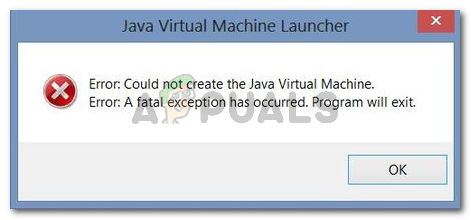
Error: A fatal exception has occurred. The program will exit.
What is causing the Could Not Create The Java Virtual Machine error?
We investigated this particular issue by looking at various user reports and the troubleshooting strategies that they used to resolve the same error message. Based on their conclusions, there are a couple of scenarios that will trigger this particular issue:
- Java is invoked by the wrong arguments or options – This can occur if you’re running a home-brewed application or you’re trying to open an open-source application that is known to cause system instability.
- Java global maximum heap memory is not high enough – One of the most common causes of why you can encounter this particular error is if you try to start a Java application with a maximum heap memory size larger than the one set as the System Variable.
- Java executable and/or application require administrative privileges – This might happen with applications that need admin access in order to function properly.
If you’re currently looking for a way to resolve the, Could Not Create The Java Virtual Machine error, this article will provide you with several verified troubleshooting strategies. Below you have a collection of methods that other users in a similar situation have used to get the issue resolved.
To ensure the best results, follow the methods below in the order that they are presented until you discover a method that is effective in resolving the error for your particular scenario.
Method 1: Adding the _JAVA_OPTIONS to System Variables
Most affected users have managed to get the issue resolved by creating a System Variable for Java called _JAVA_OPTIONS and setting it’s value to Xmx512M. What this essentially does is it sets the global maximum heap memory size for Java.
This will resolve any error message that occurs because the started Java application’s maximum heap memory size is larger than the one set as the System Variable. Several users encountering the same issue have reported that the issue was resolved entirely after they performed the steps below.
Here’s what you need to do to add a _JAVA_OPTIONS entry in System Variables to enlarge the global maximum heap memory size:
- Press Windows key + R to open up a Run dialog box. Then, type “sysdm.cpl” and press Enter to open up the System Properties screen.
- Inside the System Properties screen, go to the Advanced tab and click on Environment Variables.
- In the Environment Variables window, click on New (under System Variables).
- Inside the New System Variable window, set the Variable name to _JAVA_OPTIONS and the Variable value to –Xmx512M and click Ok to save the changes.
- Close the previously opened windows and restart your machine to enforce the changes.
- At the next startup, open the application that was previously showing you the Could Not Create the Java Virtual Machine error and see if is now functioning properly.
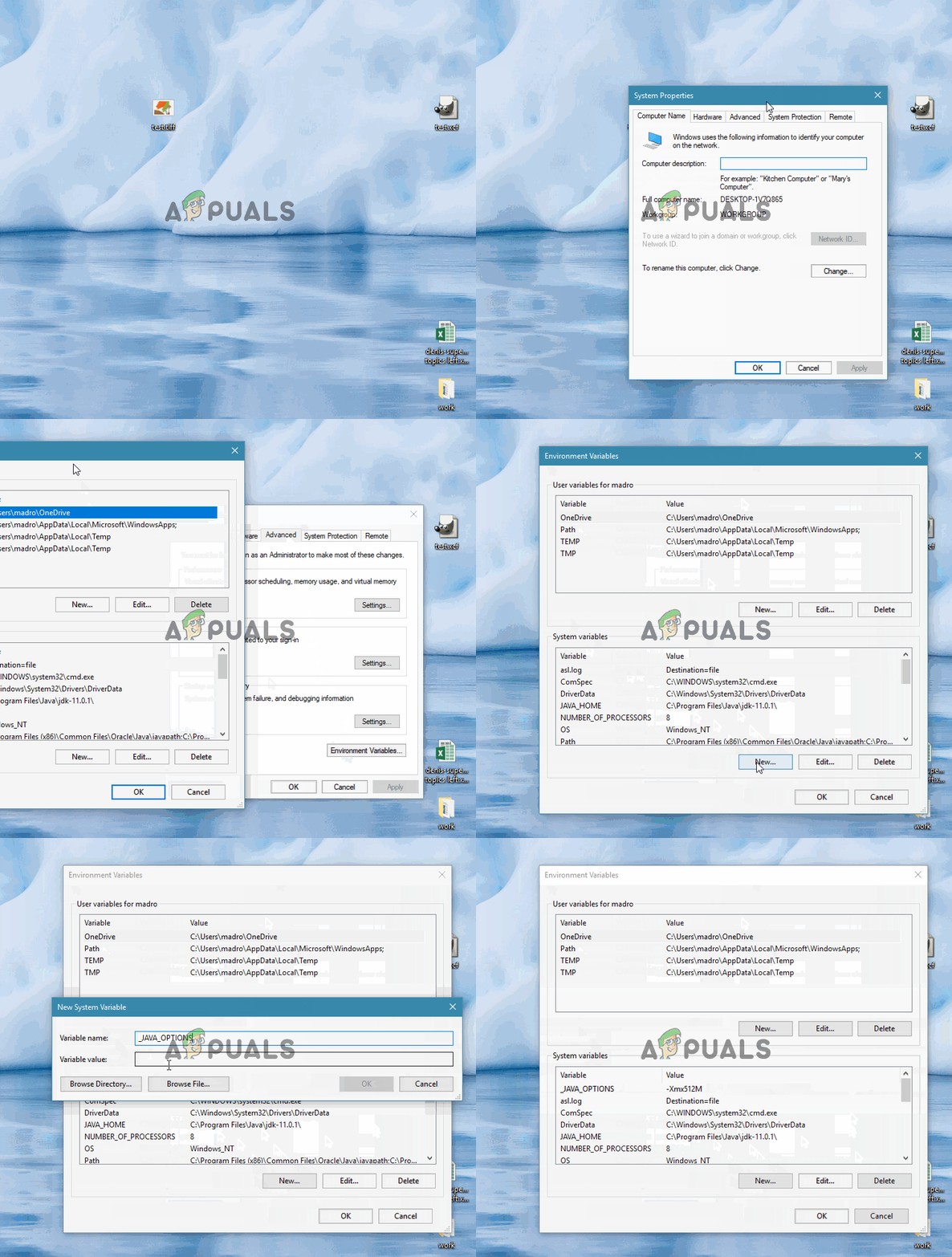
If you’re still seeing the same error message at the start of the application, try adding the Java Bin path which might be similar to “%\USER PATH\Java\jdk1.6.0_39\bin” to the environment variable as indicated in the above method and see if that works.
Method 2: Opening java.exe with admin rights
Several users struggling to resolve the same issue have managed to get the issue resolved after forcing the main Java executable (java.exe) to open with administrative privileges.
Some users reported that they were able to resolve the issue after applying this fix on both the main java executable and the executable of the application that is showing the error message.
Here’s a quick guide through the whole thing:
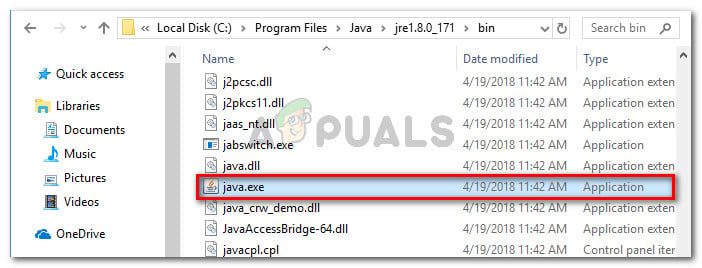
- Open File Explorer and navigate to the location of your java installation. We’ll need to arrive at the location of the main Java executable (java.exe). By default, you should find it in Program Files/Java/*JRE build version*/bin. The exact location will differ depending on which Java Runtime Environment you’re using.

Navigate to the location of java.exe Note: If you installed Java in a custom location, navigate the custom location instead.
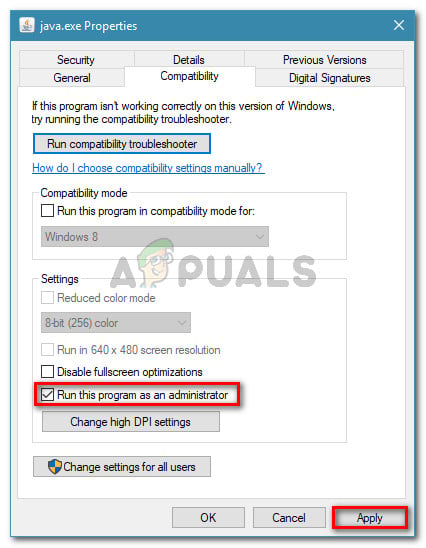
- Right-click on java.exe and choose Properties. Then, go to the Compatibility tab and check the box associated with Run this program as an administrator (under Settings). Click Apply to save the changes.

go to the Compatibility tab and enable Run this program as an administrator - Right-click on the application executable (the one that is triggering the error) and repeat the same procedure: Compatibility > Run this program as an administrator > Apply.
- Run the application and see if the error message is resolved.
Method 3: Reinstalling Java
In some cases, the error is triggered because Java might not be installed properly or its installation might have been corrupted over time. Therefore, in this step, we will be reinstalling Java after uninstalling it completely. For that:
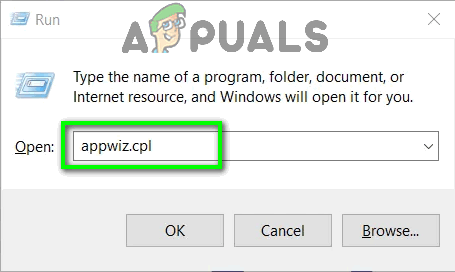
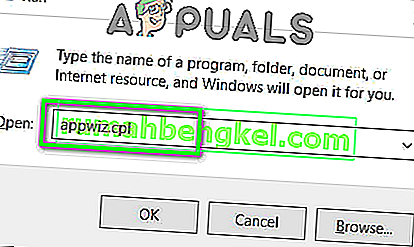
- Press Windows key + R to open up the Run prompt and type in “Appwiz.cpl”.

Type “appwiz.cpl” into the Run dialog and press Enter - Press “Enter” and the Programs and Features screen will open up.
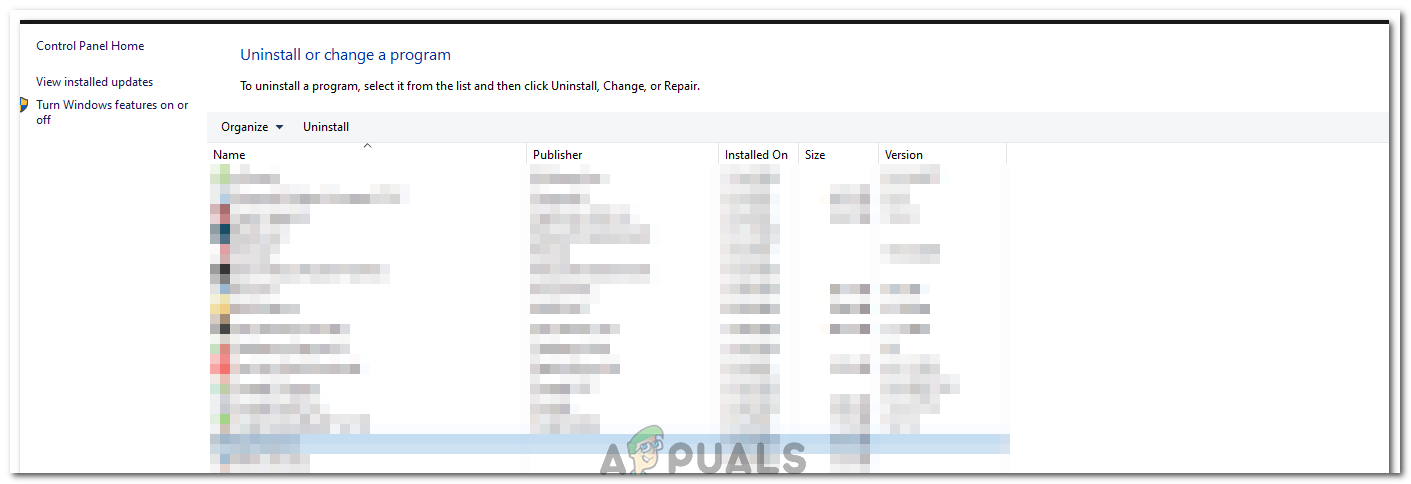
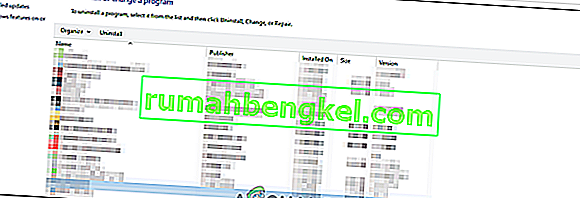
- At the Programs and Features screen, scroll through the installed application list until you find Java.

Checking the Programs and features screen - Right-click on it and select “Uninstall” to remove it completely from the system
- First, delete the primary Java installation and later you should also remove all other Java installations such as updates and other versions.
- After uninstalling all installation, restart your computer.
- After booting up, visit this link and download the latest version of JRE.
- Check to see if the issue persists.
- If the error still persists, download and install the latest version of JDK from here.
Note: If you are already using JDK, try changing its versions or uninstalling the JRE that has been installed along with it. - Verify if the issue still exists.
Method 4: Fixing Errors With Code
There are different reasons behind this error and some of them include if you have some particular errors with your code. We will highlight some below.
- Remove Hyphen: Some users noted that the error was fixed by changing the double hyphen “–” to a single one “-” in their code. For example:
Change the code
“sony@sony-VPCEH25EN:~$ java –version
Picked up JAVA_TOOL_OPTIONS: -javaagent:/usr/share/java/jayatanaag.jar
Unrecognized option: –version
Error: Could not create the Java Virtual Machine.
Error: A fatal exception has occurred. Program will exit.”
To
“sony@sony-VPCEH25EN:~$ java -version
Picked up JAVA_TOOL_OPTIONS: -javaagent:/usr/share/java/jayatanaag.jar
Unrecognized option: –version
Error: Could not create the Java Virtual Machine.
Error: A fatal exception has occurred. Program will exit.” - Also, Try removing the following line from your argument
-Djava.endorsed.dirs=”C:\Program Files\Apache Software Foundation\Tomcat 8.5\endorsed” - Open your eclipse.ini file and make sure that you add the “-vm” entry above the vm args otherwise, JVM V6 will be selected in env vars.
- If on Ubuntu, you should know that Java 8 is the only version that is supported. Therefore, using the third method. Uninstall Java, and install the previous version.
Method 5: Editing Eclipse.ini File
We can also tweak things inside the Eclipes.ini File to get rid of this issue. There might be a couple of issues with its configuration that need to be addressed therefore, we have divided it into separate issues. Follow the one which suits your scenario the best.
Lowering Memory Use
- Open the Eclipse.ini file inside the Eclipse folder with notepad.
- Find the line similar to “-Xmx256m” (It might be -Xmx1024m or -Xmx 512m).
- Now change the default value to a more reasonable figure depending upon the RAM installed on your computer and add the version number to it as well. For Example:
-Xmx512m
-Dosgi.requiredJavaVersion=1.6
OR
-Xmx512m
-Dosgi.requiredJavaVersion=1.7
OR
-Xmx512m
-Dosgi.requiredJavaVersion=1.8
- Also, try removing the “256m” value from the “-launcher.XXMaxPermSize” line.
- Check to see if the issue persists.
Tinkering Around
- Try to remove the following lines from your file.
-vm P:\Programs\jdk1.6\bin
- Also, change the following lines.
set -Dosgi.requiredJavaVersion=1.5
TO
set -Dosgi.requiredJavaVersion=1.6
- Also, try adding the following line above “-vmargs!” line.
-vm C:\Program Files (x86)\Java\jre6\bin\javaw.exe
- Also, point to JVM.dll using the following line.
-vm
C:\Program Files\Java\jre7\bin\client\jvm.dll
- Open the Eclipse file and replace “-vmargs” with the path of javaw.exe. For Example:
-startup
plugins/org.eclipse.equinox.launcher_1.3.0.v20120522-1813.jar
--launcher.library
plugins/org.eclipse.equinox.launcher.win32.win32.x86_1.1.200.v20120522-1813
-product
com.android.ide.eclipse.adt.package.product
--launcher.XXMaxPermSize
256M
-showsplash
com.android.ide.eclipse.adt.package.product
--launcher.XXMaxPermSize
256m
--launcher.defaultAction
openFile
**-vm “c:\Program Files\Java\jdk1.7.0_07\bin\javaw.exe”**
-Dosgi.requiredJavaVersion=1.6
-Xms40m
-Xmx768m
-Declipse.buildId=v21.1.0-569685
- Also, you can place the following line at the end and check if that works.
-vmargs
-Xms40m
-Xmx512m
-XX:MaxPermSize=256m
- Furthermore, try removing the following lines from the eclipse.ini and check if that works.
-XX:+UseStringDeduplication
-XX:+UseG1GC
- You can also try removing the eclipse.ini file if the issue still persists as that has reportedly fixed the issue for some but remember to back it up first just in case you need it. Also, try closing all the power-hungry applications before starting Java to make sure proper resources are available.
Checking for JDK Corruption
- Press “Windows” + “R” to open the Run prompt and type in “cmd”.
- Type in the following command and check if that gives an error.
c:\> java -version
- If it does give an error, reinstall the JDK completely.

Kevin Arrows
Kevin Arrows is a highly experienced and knowledgeable technology specialist with over a decade of industry experience. He holds a Microsoft Certified Technology Specialist (MCTS) certification and has a deep passion for staying up-to-date on the latest tech developments. Kevin has written extensively on a wide range of tech-related topics, showcasing his expertise and knowledge in areas such as software development, cybersecurity, and cloud computing. His contributions to the tech field have been widely recognized and respected by his peers, and he is highly regarded for his ability to explain complex technical concepts in a clear and concise manner.
Java is one of the best development tools for creating games and applications and server-side programs. Games or apps written in Java need the Java Virtual Machine environment to run.
Games or applications developed with Java may crash unexpectedly or fail to open for various reasons, displaying the error «Could Not Create the Java Virtual Machine. Error: A fatal exception has occurred. Program will exit».
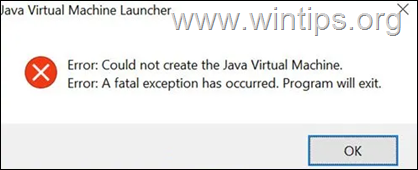
Below you will find several methods to resolve the Java Virtual Machine Launcher error «Could Not Create the Java Virtual Machine», in Windows 10/11 OS.
How to FIX: Could Not Create the Java Virtual Machine in Windows 10/11.*
* Suggestion: Before continuing with the following methods, try the following and see if the problem persists
-
- Install all Windows Updates.
- Press CTRL + SHIFT + ESC to open Task Manager and at Processes tab close all instances of Java Virtual Machine (right-click > End Task)
- 1. Install the Correct version of JAVA version for Java IDE app.
- 2. Increase Allocated Memory for JAVA Apps.
- 3. Launch JAVA with Admin rights.
- 4. Completely Remove and Reinstall JAVA.
Method 1. Install the Correct version of JAVA version for Java IDE app*
* Note: This method only applies to users using a JAVA IDE application for coding.
If you receive the mentioned error on a JAVA IDE application, you must ensure that the installed version of Java is compatible with the Java version (JRE or JDK) is running on JAVA IDE (Java Integrated Development Environment) application. So, proceed as follows:
Step 1. Check the JRE/JDK running version of JAVA IDE.
e.g. In the Eclipse IDE, check which version of the JRE or JDK it is running on by following the steps below:
1. From main menu, click Help > About Eclipse.
2. Click on Installation Details and choose the Configuration tab.
3. In the ‘Eclipse IDE Installation Details’ window, look at the line starting with -vm
4. The value at the line below will show you which JDK or JRE version on which Eclipse is running.
- e.g.: If the path contains “jre6”, that means that Eclipse is running JRE version 6
- e.g.:If the path contains «jdk1.8.0_05» means that Eclipse is running JDK version 8.
Step 2. Check which version of JRE or JDK is installed on Windows.
1. In the Search box type: cmd (or command prompt). Then select Run as administrator.
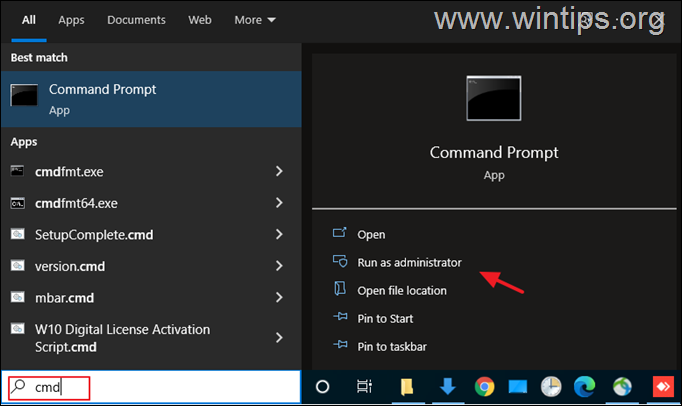
2. To find out the installed JAVA version give the following command and hit Enter:
- java –version
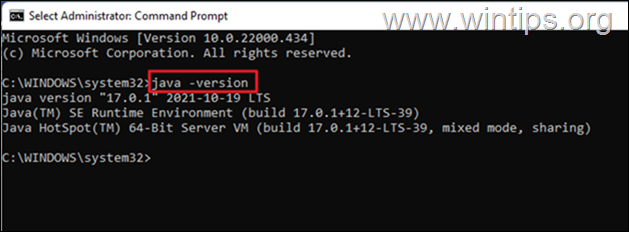
3. If the IDE does not support the Java version on your device, proceed to install the correct version of Java. *
* Note: In some cases the installed JRE & JDK versions may be different. So, if you JAVA IDE application running on JDK, proceed and check also if the installed JDK matches the running JDK of the JAVA IDE app. To find out the installed JDK version on Windows, give the following command:
- javac -version
Method 2. Increase Allocated Memory for JAVA Apps.
Launching an application that exceeds the maximum memory size of the Java virtual machine could result in the error «Could Not Create the Java Virtual Machine». To work around this problem, go ahead and increase the allocated system memory that JAVA can use as follows:
1. Click on the Start menu and type in search bar: view advanced system settings. Then click Open.
![image_thumb[8]](https://www.wintips.org/wp-content/uploads/2022/02/image_thumb8_thumb.png "image_thumb[8]")
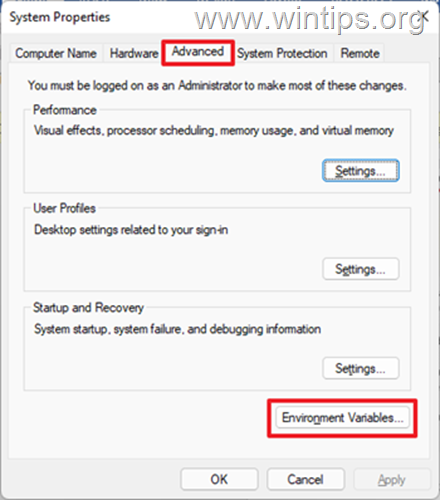
2. In the ‘System Properties’ window, select the Advanced tab and click Environment Variables.
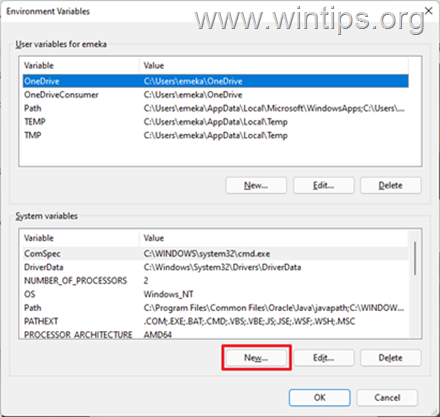
3. Below the System variables pane, select New.
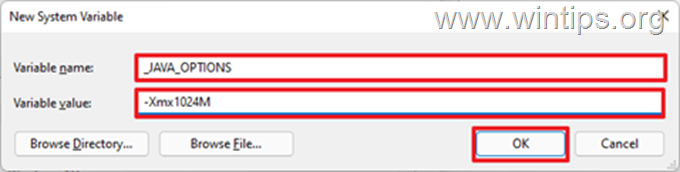
4. Set the Variable name as _JAVA_OPTIONS and the Variable value as -Xmx1024M. Then, click OK twice to save the change and close all open windows. *
* Info: This will adjust the allocated memory for Java to 1GB (1024MB).
5. Restart your machine to apply the change.
6. Finally try to open your game or app on Java Virtual Machine. The problem should be gone.
Method 3. Launch java.exe with Admin rights.
The Java error also appears when the user does not have the admin rights or permissions to launch certain executables. Configuring Java to always run as an Administrator could fix the problem.
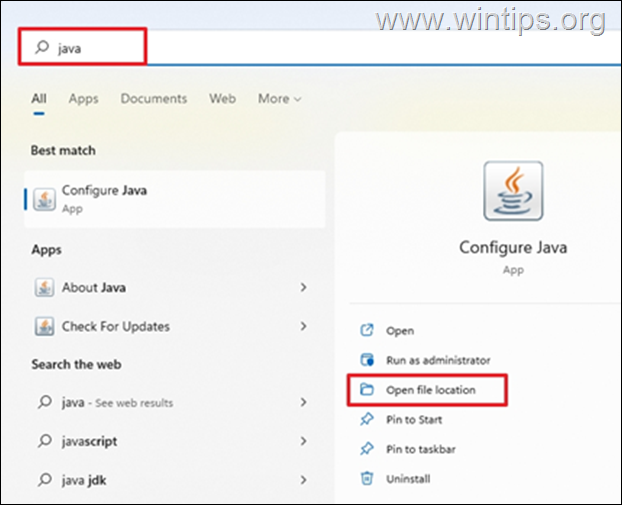
1. Press the Start menu and type Java in the search box.
2. Click Open file location.
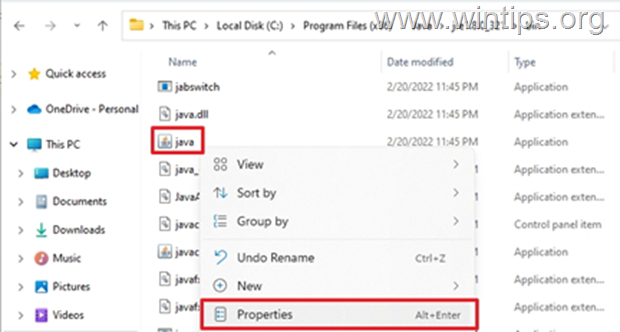
3. In the File Explorer window, right-click the Java executable file and select Properties.
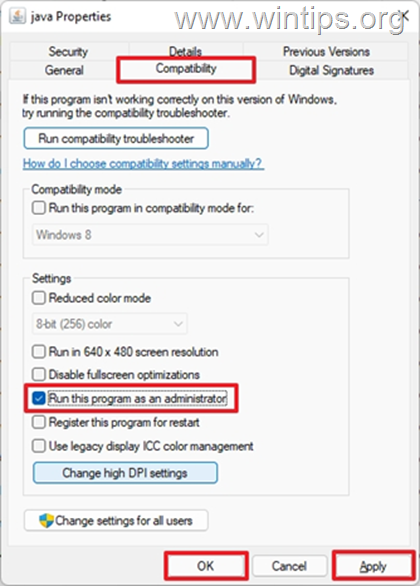
4. At ‘java Properties» window select the Compatibility tab and below the Settings pane, check the box Run this program as an administrator. Then click Apply and OK.
5. Finally, start the program that cannot run because of the «Could Not Create the Java Virtual Machine» error and see if the problem persists.
Method 4. Completely Remove and Reinstall JAVA.
In some cases, Java may be corrupted or missing components, causing games or applications you are trying to run to close. In this case, follow the instructions below to remove all versions of JAVA versions from your computer and reinstall it.
1. Download Java Uninstall tool.
2. Run the tool and select to remove all Java versions.
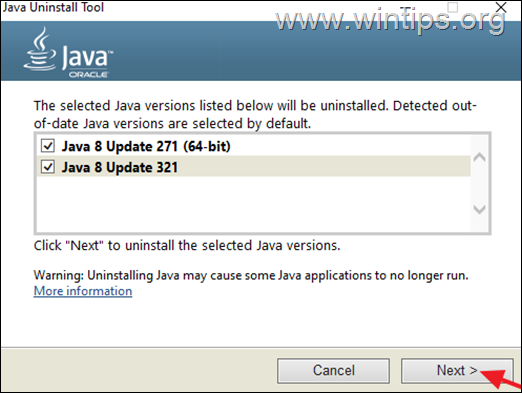
3. After removal, proceed and delete the Java folder(s) from the following locations on disk (if exist):
- C:\Program Files\
- C:\Program Files (x86)\
4. Restart your computer.
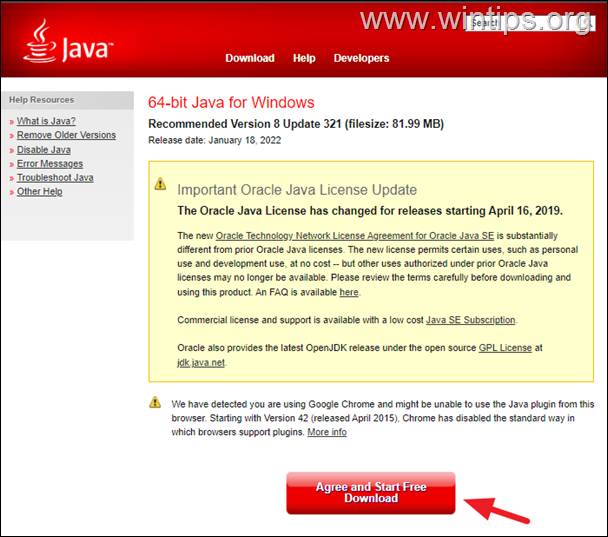
5. After reboot, visit Java official download page to download and install the latest version of Java.
That’s it! Which method worked for you?
Let me know if this guide has helped you by leaving your comment about your experience. Please like and share this guide to help others.
Некоторые пользователи сталкиваются с ошибкой «Не удалось создать виртуальную машину Java» при попытке запустить приложение, использующее Java. Сообщается, что эта конкретная проблема возникает с Minecraft и несколькими другими приложениями, построенными на Java.
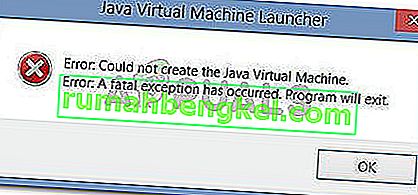
Что вызывает ошибку «Не удалось создать виртуальную машину Java»?
Мы исследовали эту конкретную проблему, изучив различные отчеты пользователей и стратегии устранения неполадок, которые они использовали для устранения одного и того же сообщения об ошибке. Основываясь на их выводах, существует несколько сценариев, которые могут вызвать данную проблему:
- Java вызывается из-за неправильных аргументов или опций. Это может произойти, если вы запускаете самодельное приложение или пытаетесь открыть приложение с открытым исходным кодом, которое, как известно, вызывает нестабильность системы.
- Глобальный максимальный размер кучи Java недостаточно высок. Одна из наиболее частых причин, по которой вы можете столкнуться с этой конкретной ошибкой, — это попытка запустить приложение Java с максимальным размером памяти кучи, превышающим тот, который задан как системная переменная .
- Исполняемый файл Java и / или приложение требуют прав администратора — это может происходить с приложениями, которым для правильной работы требуется доступ администратора.
Если вы в настоящее время ищете способ устранить ошибку « Не удалось создать виртуальную машину Java» , эта статья предоставит вам несколько проверенных стратегий устранения неполадок. Ниже приведен набор методов, которые другие пользователи в аналогичной ситуации использовали для решения проблемы.
Чтобы обеспечить наилучшие результаты, следуйте приведенным ниже методам в том порядке, в котором они представлены, пока не найдете метод, эффективный для устранения ошибки для вашего конкретного сценария.
Метод 1: добавление _JAVA_OPTIONS в системные переменные
Наиболее затронутым пользователям удалось решить проблему, создав системную переменную для Java с именем _JAVA_OPTIONS и установив для нее значение Xmx512M . По сути, это устанавливает глобальный максимальный размер кучи для Java.
Это устранит любое сообщение об ошибке, возникающее из-за того, что максимальный размер кучи запущенного приложения Java больше, чем тот, который задан как системная переменная. Несколько пользователей, столкнувшихся с той же проблемой, сообщили, что проблема была полностью решена после того, как они выполнили указанные ниже действия.
Вот что вам нужно сделать, чтобы добавить запись _JAVA_OPTION S в системные переменные для увеличения глобального максимального размера кучи:
- Нажмите клавишу Windows + R, чтобы открыть диалоговое окно « Выполнить ». Затем введите « sysdm.cpl » и нажмите Enter, чтобы открыть экран « Свойства системы» .
- На экране « Свойства системы» перейдите на вкладку « Дополнительно » и нажмите « Переменные среды».
- В окне « Переменные среды» нажмите « Создать» (в разделе « Системные переменные» ).
- В окне « Новая системная переменная» установите для имени переменной значение _JAVA_OPTIONS и значение переменной — Xmx512M и нажмите « ОК», чтобы сохранить изменения.
- Закройте ранее открытые окна и перезагрузите компьютер, чтобы изменения вступили в силу.
- При следующем запуске откройте приложение, которое ранее показывало ошибку « Не удалось создать виртуальную машину Java», и посмотрите, правильно ли работает.

Если вы все еще видите то же сообщение об ошибке в начале приложения, попробуйте добавить путь Java Bin, который может быть похож на «% \ USER PATH \ Java \ jdk1.6.0_39 \ bin», к переменной среды, как указано в описанный выше метод и посмотрите, работает ли он.
Метод 2: открытие java.exe с правами администратора
Нескольким пользователям, пытающимся решить одну и ту же проблему, удалось решить проблему после принудительного открытия основного исполняемого файла Java (java.exe) с правами администратора.
Некоторые пользователи сообщили, что им удалось решить проблему после применения этого исправления как к основному исполняемому файлу Java, так и к исполняемому файлу приложения, в котором отображается сообщение об ошибке.
Вот краткое руководство по всему этому:
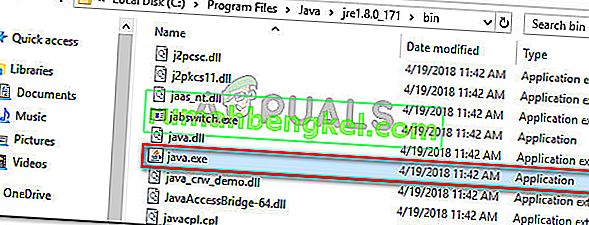
- Откройте проводник и перейдите к месту установки Java. Нам нужно будет добраться до места расположения основного исполняемого файла Java ( java.exe ). По умолчанию вы должны найти его в Program Files / Java / * JRE build version * / bin. Точное расположение будет отличаться в зависимости от того, какую среду выполнения Java вы используете.

Примечание. Если вы установили Java в произвольном месте, перейдите в это место.
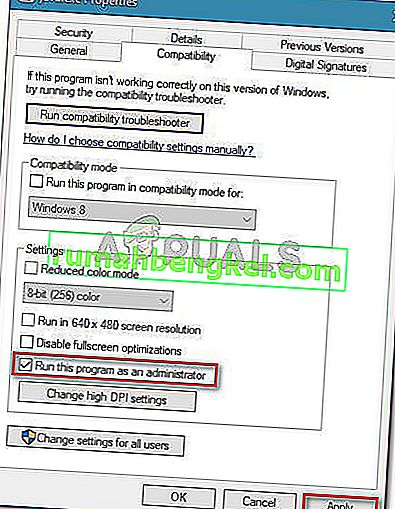
- Щелкните правой кнопкой мыши java.exe и выберите « Свойства» . Затем перейдите на вкладку « Совместимость » и установите флажок « Запускать эту программу от имени администратора» (в разделе «Настройки»). Нажмите Применить, чтобы сохранить изменения.
- Щелкните правой кнопкой мыши исполняемый файл приложения (тот, который вызывает ошибку) и повторите ту же процедуру: Совместимость> Запустить эту программу от имени администратора> Применить .
- Запустите приложение и посмотрите, исчезнет ли сообщение об ошибке.
Метод 3: переустановка Java
В некоторых случаях ошибка возникает из-за того, что Java могла быть установлена неправильно или ее установка могла быть повреждена с течением времени. Следовательно, на этом этапе мы переустановим Java после ее полного удаления. Для этого:
- Нажмите клавишу Windows + R, чтобы открыть окно «Выполнить», и введите «Appwiz.cpl».
- Нажмите «Enter», и откроется экран «Программы и компоненты».
- На экране « Программы и компоненты» прокрутите список установленных приложений, пока не найдете Java.
- Щелкните его правой кнопкой мыши и выберите «Удалить», чтобы полностью удалить его из системы.
- Сначала удалите основную установку Java, а позже вы также должны удалить все другие установки Java, такие как обновления и другие версии.
- После удаления всей установки перезагрузите компьютер.
- После загрузки перейдите по этой ссылке и загрузите последнюю версию JRE.
- Проверьте, сохраняется ли проблема.
- Если ошибка не исчезла, загрузите и установите последнюю версию JDK отсюда.
Примечание. Если вы уже используете JDK, попробуйте изменить его версию или удалить JRE, установленную вместе с ним.
- Убедитесь, что проблема все еще существует.
Метод 4: исправление ошибок с помощью кода
У этой ошибки есть разные причины, и некоторые из них включают в себя определенные ошибки в вашем коде. Мы выделим некоторые из них ниже.
- Удаление дефиса : некоторые пользователи отметили, что ошибка была исправлена путем замены двойного дефиса «-» на одинарный «-» в их коде. Например:
Измените код
«Sony @ sony-VPCEH25EN: ~ $ java –версия
Подобрал JAVA_TOOL_OPTIONS: -javaagent: /usr/share/java/jayatanaag.jar
Нераспознанный вариант: –версия
Ошибка: не удалось создать виртуальную машину Java.
Ошибка: возникла фатальная исключительная ситуация. Программа будет закрыта.»
Чтобы
«Sony @ sony-VPCEH25EN: ~ $ java -version
Подобрал JAVA_TOOL_OPTIONS: -javaagent: /usr/share/java/jayatanaag.jar
Нераспознанный вариант: –версия
Ошибка: не удалось создать виртуальную машину Java.
Ошибка: возникла фатальная исключительная ситуация. Программа будет закрыта.»
- Кроме того, попробуйте удалить следующую строку из своего аргумента
-Djava.endorsed.dirs = «C: \ Program Files \ Apache Software Foundation \ Tomcat 8.5 \ endorsed»
- Откройте файл eclipse.ini и убедитесь, что вы добавили запись «-vm» над аргументами vm, иначе JVM V6 будет выбран в переменных env.
- Если вы используете Ubuntu, вы должны знать, что Java 8 — единственная поддерживаемая версия. Поэтому пользуемся третьим способом. Удалите Java и установите предыдущую версию.
Метод 5: редактирование файла Eclipse.ini
We can also tweak things inside the Eclipes.ini File to get rid of this issue. There might be a couple of issues with its configuration that need to be addressed therefore, we have divided it into separate issues. Follow the one which suits your scenario the best.
Lowering Memory Use
- Open the Eclipse.ini file inside the Eclipse folder with notepad.
- Find the line similar to “-Xmx256m” (It might be -Xmx1024m or -Xmx 512m).
- Now change the default value to a more reasonable figure depending upon the RAM installed on your computer and add the version number to it as well. For Example:
-Xmx512m -Dosgi.requiredJavaVersion=1.6 OR -Xmx512m -Dosgi.requiredJavaVersion=1.7 OR -Xmx512m -Dosgi.requiredJavaVersion=1.8
- Also, try removing the “256m” value from the “-launcher.XXMaxPermSize” line.
- Check to see if the issue persists.
Tinkering Around
- Try to remove the following lines from your file.
-vm P:\Programs\jdk1.6\bin
- Also, change the following lines.
set -Dosgi.requiredJavaVersion=1.5 TO set -Dosgi.requiredJavaVersion=1.6
- Also, try adding the following line above “-vmargs!” line.
-vm C:\Program Files (x86)\Java\jre6\bin\javaw.exe
- Also, point to JVM.dll using the following line.
-vm C:\Program Files\Java\jre7\bin\client\jvm.dll
- Open the Eclipse file and replace “-vmargs” with the path of javaw.exe. For Example:
-startup plugins/org.eclipse.equinox.launcher_1.3.0.v20120522-1813.jar --launcher.library plugins/org.eclipse.equinox.launcher.win32.win32.x86_1.1.200.v20120522-1813 -product com.android.ide.eclipse.adt.package.product --launcher.XXMaxPermSize 256M -showsplash com.android.ide.eclipse.adt.package.product --launcher.XXMaxPermSize 256m --launcher.defaultAction openFile **-vm “c:\Program Files\Java\jdk1.7.0_07\bin\javaw.exe”** -Dosgi.requiredJavaVersion=1.6 -Xms40m -Xmx768m -Declipse.buildId=v21.1.0-569685
- Also, you can place the following line at the end and check if that works.
-vmargs -Xms40m -Xmx512m -XX:MaxPermSize=256m
- Furthermore, try removing the following lines from the eclipse.ini and check if that works.
-XX:+UseStringDeduplication -XX:+UseG1GC
- Вы также можете попробовать удалить файл eclipse.ini, если проблема не устранена, поскольку, как сообщается, проблема была устранена для некоторых, но не забудьте сначала создать резервную копию на случай, если она вам понадобится. Кроме того, попробуйте закрыть все энергоемкие приложения перед запуском Java, чтобы убедиться в доступности необходимых ресурсов.
Проверка на повреждение JDK
- Нажмите «Windows» + «R», чтобы открыть окно «Выполнить», и введите «cmd».
- Введите следующую команду и проверьте, выдает ли она ошибку.
c: \> java -версия
- Если выдает ошибку, полностью переустановите JDK.
Don’t hesitate to take a closer look at our quick solutions
by Matthew Adams
Matthew is a freelancer who has produced a variety of articles on various topics related to technology. His main focus is the Windows OS and all the things… read more
Updated on
- You should run the software as an administrator as the lack of rights can trigger the error.
- If you’re still experiencing this problem, it all comes down to reinstalling Java from scratch.
XINSTALL BY CLICKING THE DOWNLOAD FILE
To fix Windows PC system issues, you will need a dedicated tool
SPONSORED
Fortect is a tool that does not simply clean up your PC, but has a repository with several millions of Windows System files stored in their initial version. When your PC encounters a problem, Fortect will fix it for you, by replacing bad files with fresh versions. To fix your current PC issue, here are the steps you need to take:
- Download Fortect and install it on your PC.
- Start the tool’s scanning process to look for corrupt files that are the source of your problem
- Right-click on Start Repair so the tool could start the fixing algorythm
- Fortect has been downloaded by 0 readers this month, rated 4.4 on TrustPilot
The Java virtual machine fatal exception error pops up for some users when they try to launch software built on Java. Minecraft users are no strangers to this issue.
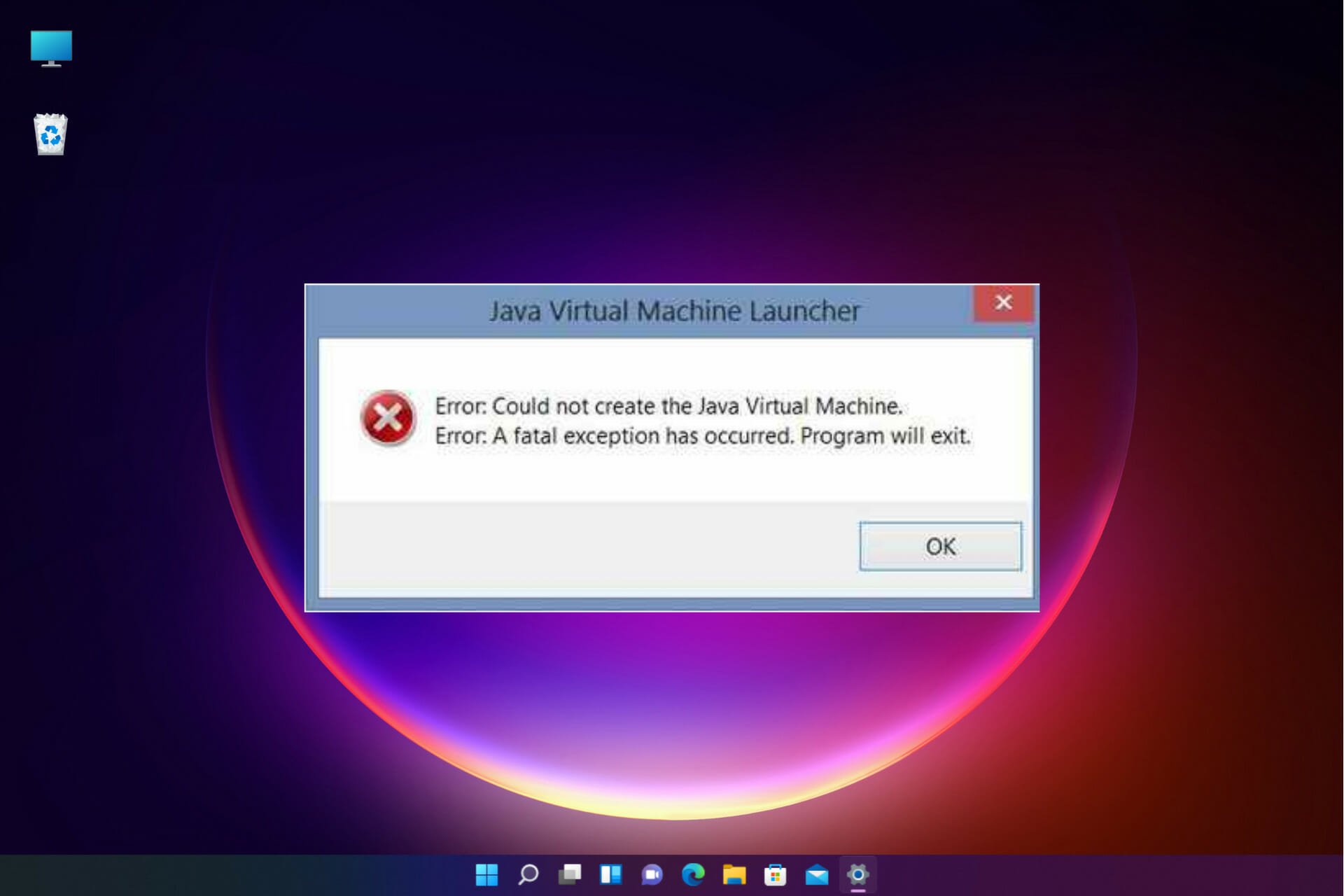
The full error message states: Could not create the Java Virtual Machine. Error: A fatal exception has occurred. Consequently, the Java program doesn’t run, yet we will share some simple fixes.
Why am I getting Could not create Java Virtual Machine?
The following are some of the possible causes that you should pay attention to:
- Memory size issues – The Java Virtual Machine error often arises when Java needs a larger global maximum heap memory size. The problem was resolved by users increasing the maximum RAM allotted to Java.
- Incorrect path settings – In this case, you need to set or modify the path as described below.
- Corrupted files – Such files may contribute to this error, so note that reinstallation of Java should fix this. This applies the Windows error 2 while loading the Java VM error message as well.
Do I need to install JVM?
Any machine on which you want to run Java code must have the Java Runtime Environment (JRE) installed. This is because Java does not run natively on a computer as C++ or C does; instead, someone must translate Java’s instructions into machine code, which the JVM does.
This error may come in different shades, including Could not create the Java Virtual Machine in Android Studio, Docker, Pentaho, Elasticsearch, Sonarqube, Minecraft, Eclipse, React Native, and IntelliJ, yet rest assured that you’ll find our solutions useful.
How do I fix Could not create the Java Virtual Machine error?
- Why am I getting Could not create Java Virtual Machine?
- Do I need to install JVM?
- How do I fix Could not create the Java Virtual Machine error?
- 1. Remove JDK (Java Development Kit)
- 2. Set up a new system variable for Java
- 3. Select the Run as administrator option for Java
- 4. Reinstall Java
1. Remove JDK (Java Development Kit)
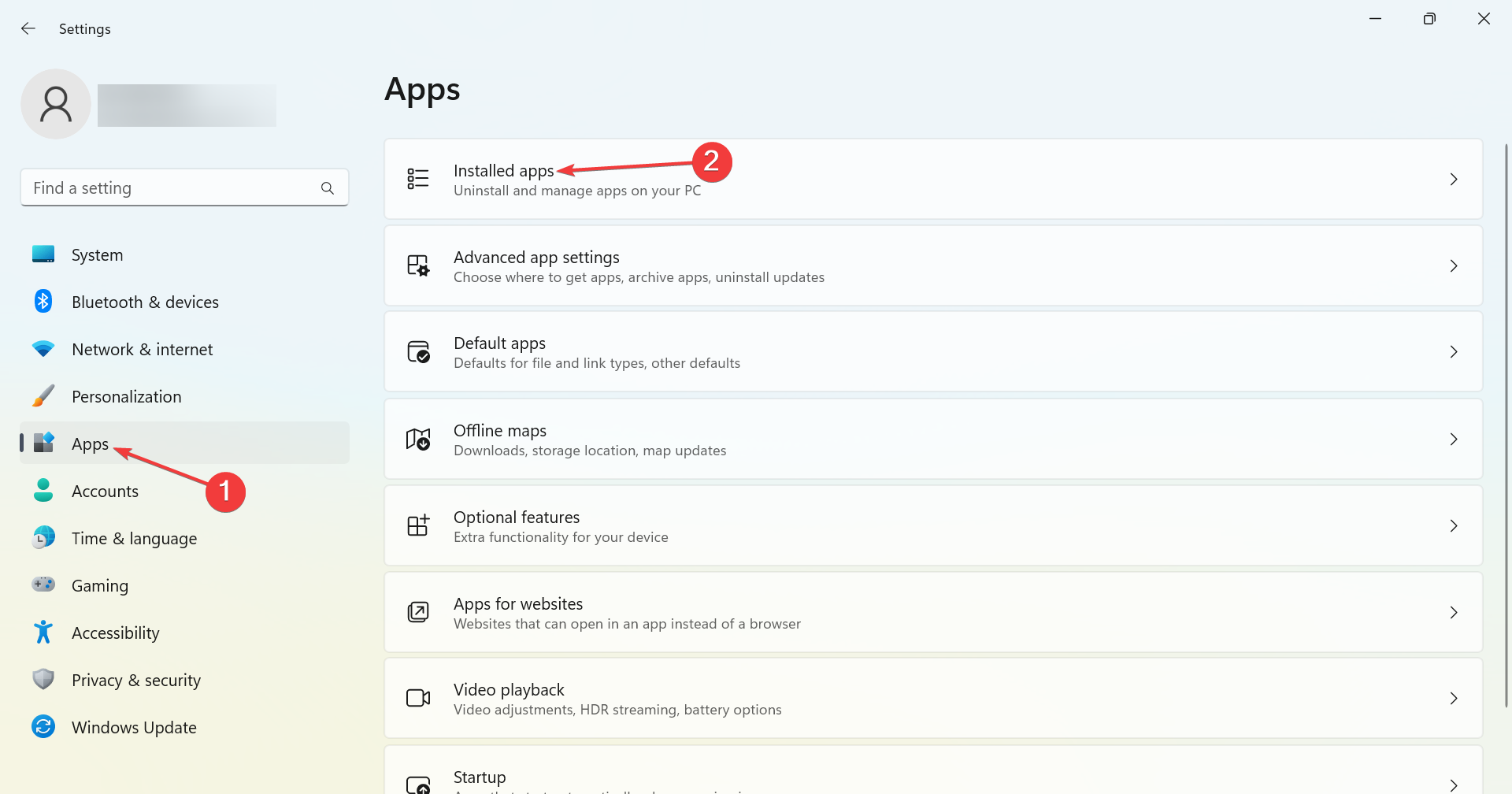
- Press Windows + I to open Settings, head to Apps from the navigation pane, and click on Installed apps.

- Locate the Java Development Kit, click on the ellipsis next to it, and choose Uninstall.
- Follow the on-screen instructions to complete the process.
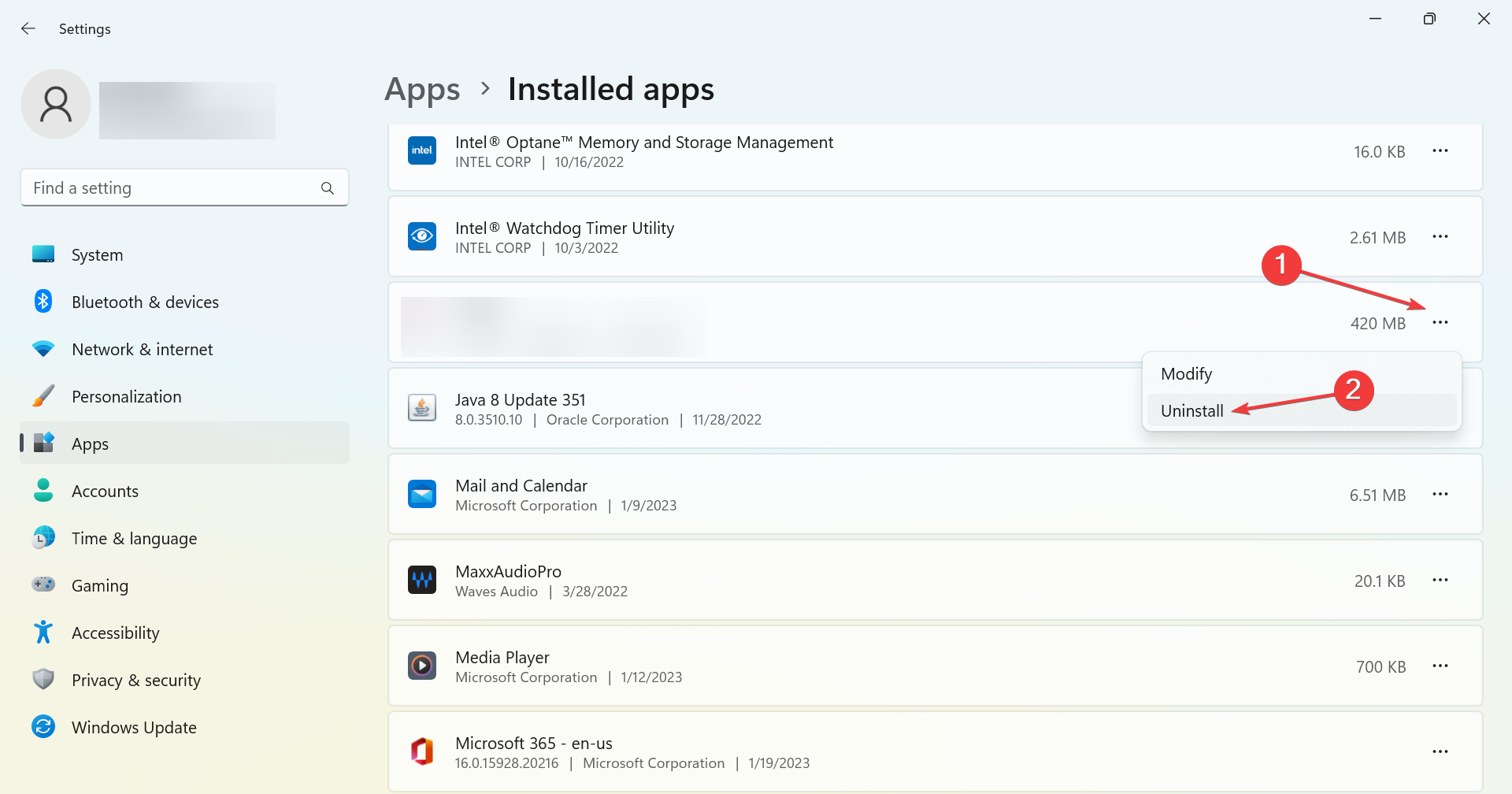
That’s it! Our readers pointed out that it was the development kit that conflicted with the process and led to the Could not create the Java Virtual Machine error, and uninstalling the program did the trick.
2. Set up a new system variable for Java
- Open Run with the Windows key + R keyboard shortcut, then enter sysdm.cpl in Run and click OK.

- Select the Advanced tab on that window, and click the Environment Variables button.

- Click the New button under the System variables box.

- Enter _JAVA_OPTIONS in the Variable name text box.

- Then, enter –Xmx512M in the Variable value text box, which increases RAM allocation to 512 megabytes.
- Click the OK button to close the window, then press the OK button on the Environmental window.
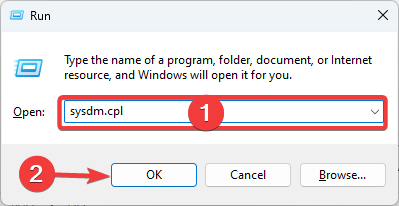
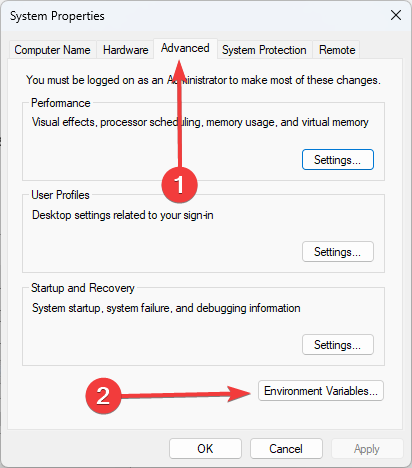
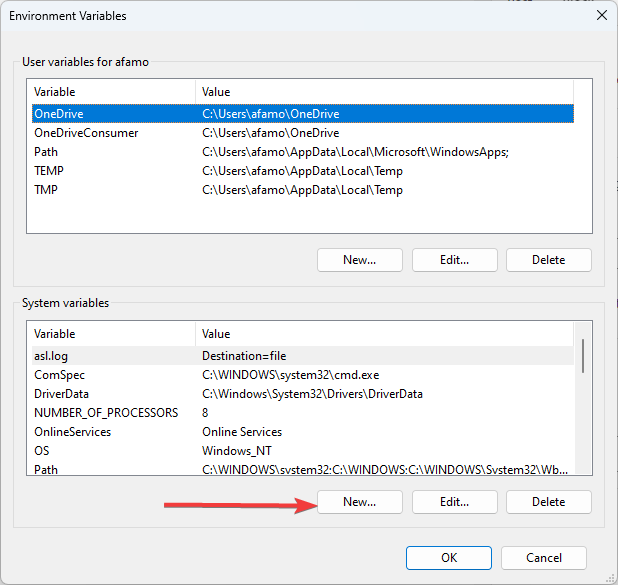
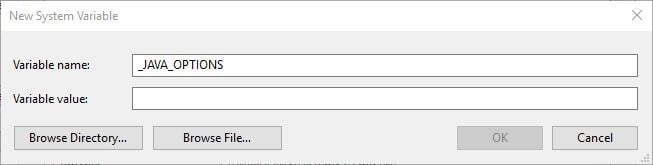

Importantly, note that instead of using a double hyphen in the Variable value as stated above, you can use a single hyphen (-Xmx512M) as this is often more effective, and would not spark up other complications.
- How to fix Windows error 2 while loading the Java VM
- Fit the Runtime error Java in just a few easy steps
- How to download Java 10 on your Windows PC
3. Select the Run as administrator option for Java
The Java Virtual Machine error can also be due to insufficient admin rights. Thus, some users might need to assign admin rights to Java. You can try the steps below to apply this solution.
1. Press the Windows key + S keyboard shortcut, and enter Java. Right-click on Java and select Open file location to open Java’s folder in File Explorer.
2. Right-click java.exe and select Properties.
3. Head to the Compatibility tab and select the Run this program as an administrator option.
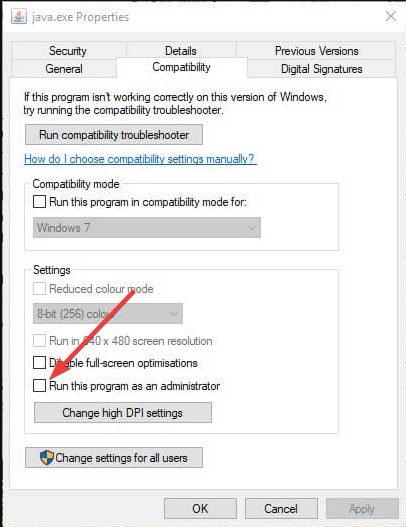
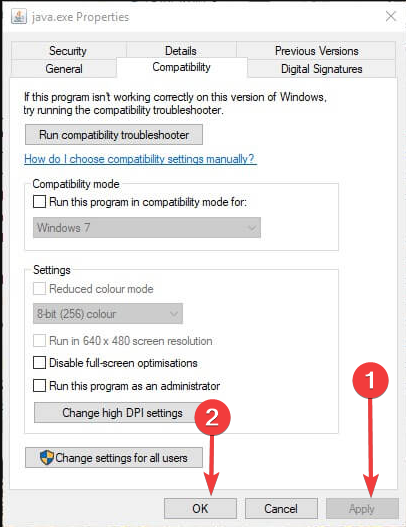
5. Select the Apply option, and click OK to close the window.
4. Reinstall Java
- First, open the Run accessory by pressing the Windows key + R.
- Type the command below and hit Enter.
appwiz.cpl - Select Java from the program list and click Uninstall.

- Click Yes on any confirmation window that opens.
- Restart Windows, open the Java download page in a browser, and download either the 32 or 64-bit offline Windows versions.

- Users need 32-bit Java for 32-bit programs and 64-bit Java for 64-bit software. If in doubt, your best bet is to download and install both Java versions.
- Thereafter, open the Java setup wizard, and click the Install button.
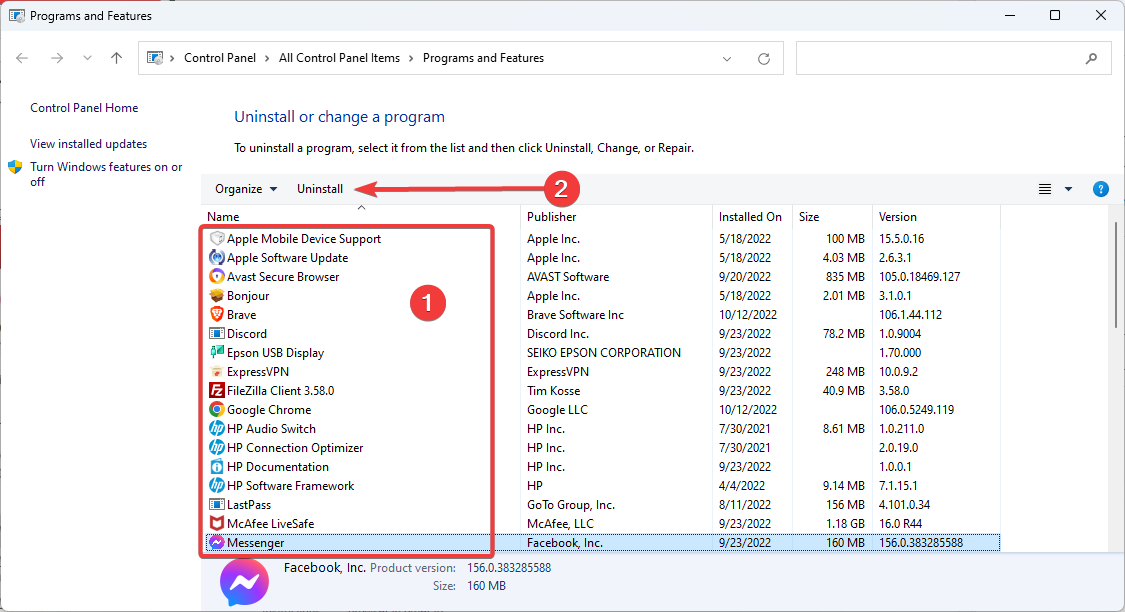
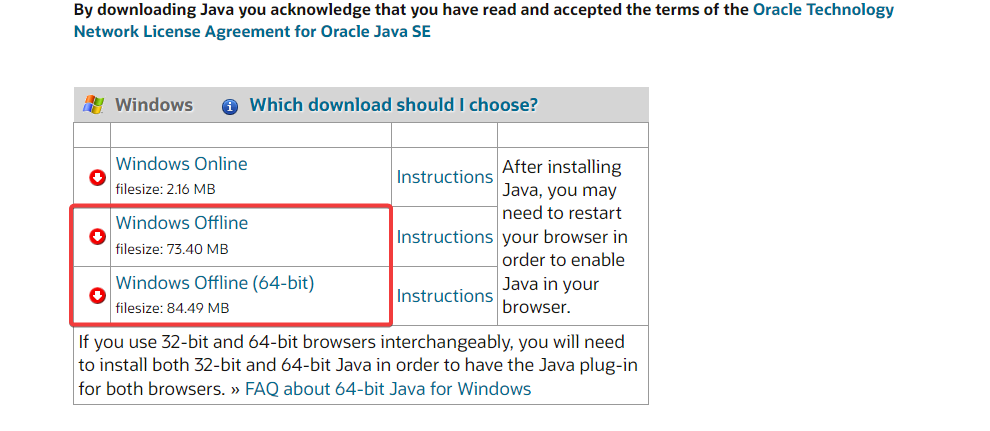
That’s how users can fix this fatal error and get back to running the required Java software.
Any of the previously mentioned solutions may be successfully applied when getting a Java virtual machine launcher error which arises even if nothing has changed on your computer, and it’s most likely related to Java installation.
Things are no different when it comes to the Could not create the Java virtual machine a fatal exception has occurred error. This problem also seems to appear randomly. Make sure you aren’t using a 32-bit VM and a 64-bit Eclipse.
Minecraft could not create the Java virtual machine is an error that shows up when trying to launch Minecraft. The main reason is that it needs admin access in order to function properly. Also, read our detailed guide on how to install Java on Windows 11.
If you have any other questions or advice for other users to try, don’t hesitate to leave a comment below.

If Java is installed correctly on your computer, you should never have any problem running Java-based applications or games.
However, if there’s something wrong with your setup, you may see the error, “Could not create the Java Virtual Machine.” This error means that the Java installation on your computer can’t launch the virtual sandbox (virtual machine) within which it would typically launch the Java app.
In this guide, you’ll learn a few fixes that can eliminate this error, starting with the most common fix to the less likely solution.
Make Sure Java Is Installed Correctly
Before you can troubleshoot any Java errors, you’ll need to ensure that you’ve installed Java correctly.
To do this, open the command prompt by selecting the Start menu, typing cmd, and selecting the Command Prompt app.
In the command prompt window, type java – version and press Enter.
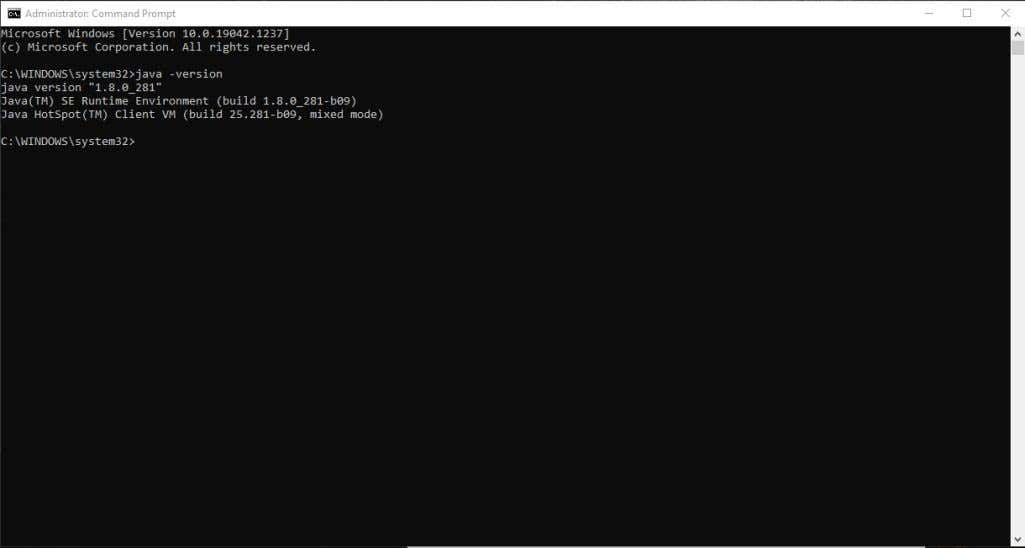
If Java is installed correctly, you should see the version of Java, the SE Runtime Environment, and the Client VM build.
If you don’t have the latest version, you’ll want to make sure to install it. If this looks good, you’re ready to move on to the next troubleshooting step.
Expand Available System Memory for Java
The most common cause for the “Could not create the Java Virtual Machine” error is that Java doesn’t have enough available memory on your system to launch the VM client.
Java is initially set by default to use an initial and maximum “heap size.” So, if you’re running any application that goes beyond the maximum size, it will trigger an error.
You can adjust this by changing the amount of system memory Java can use on your system.
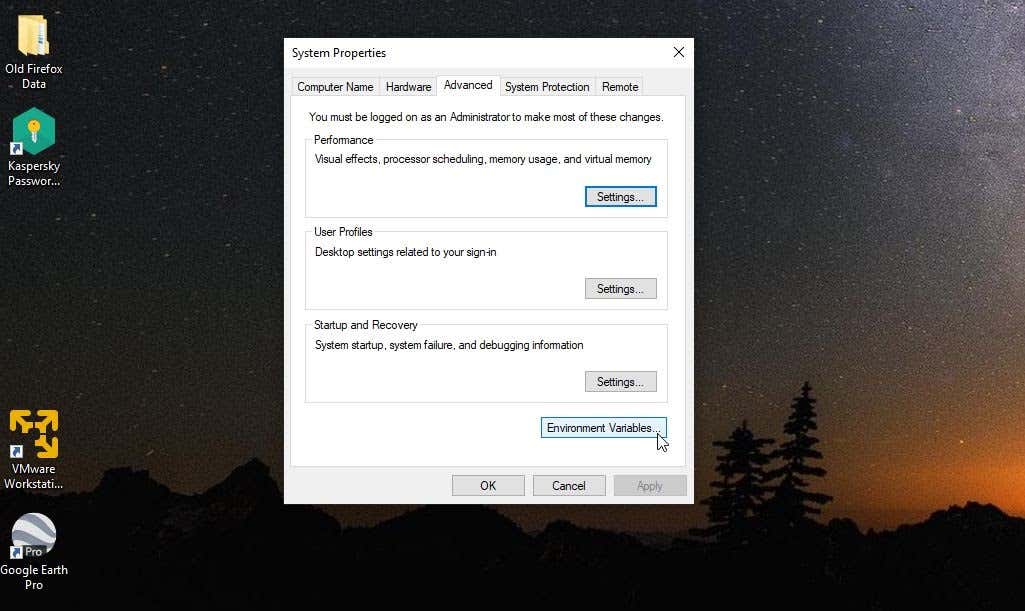
1. Select the Start menu and type environmental variables. Select Edit the System Environment Variables.
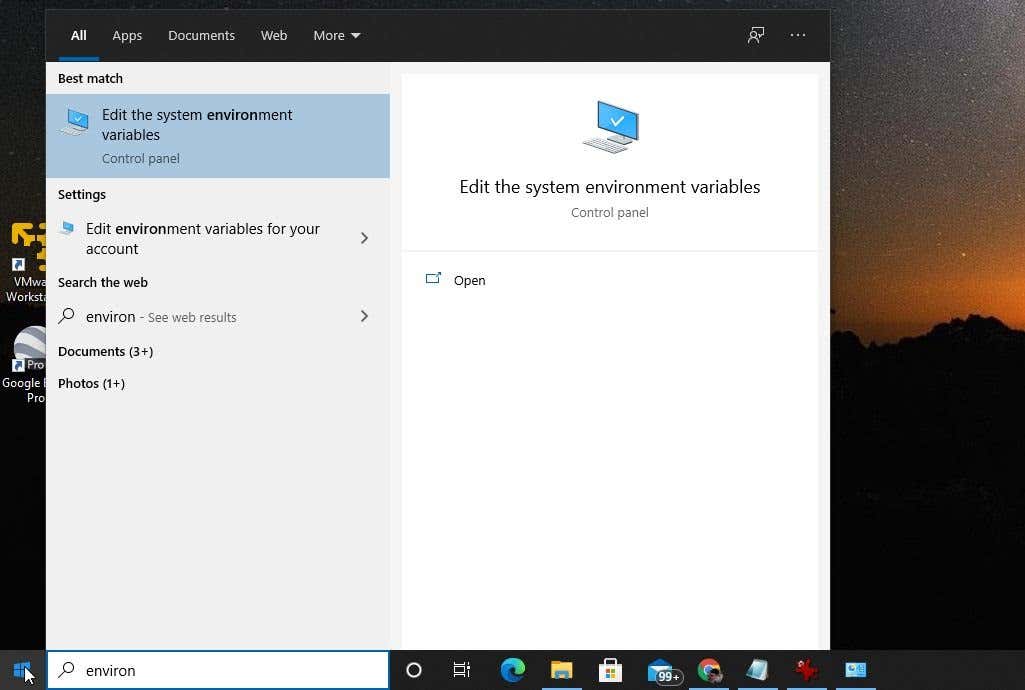
2. In the System Properties window, select Environment Variables.
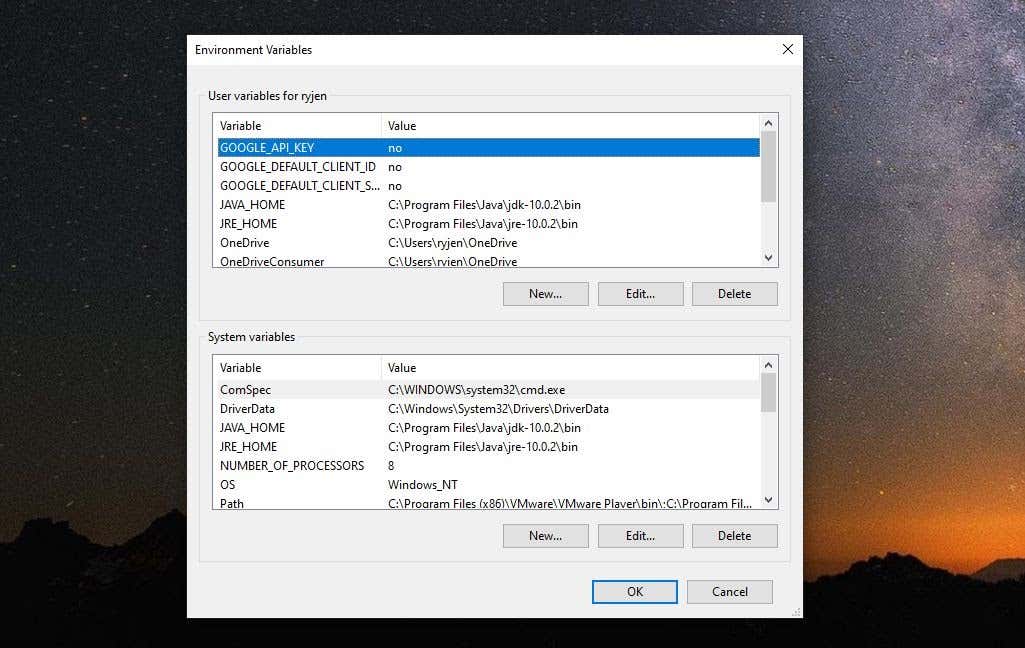
3. Under the System Variables pane, select New.
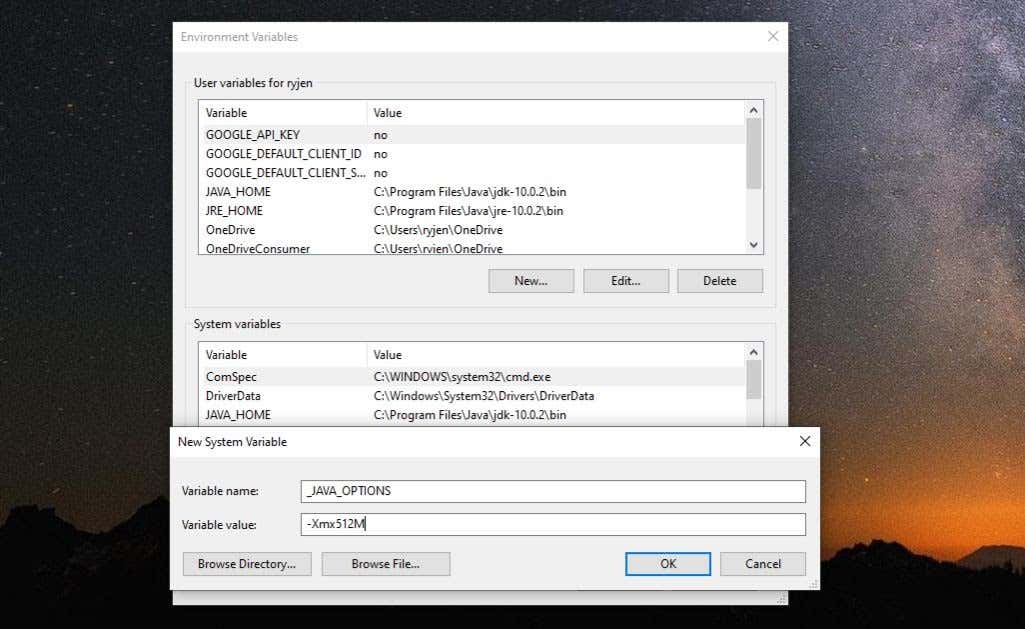
4. Set the Variable name as _JAVA_OPTIONS and set the Variable value as -Xmx512M.
5. Select OK, and then select OK again.
This adjusts the allowable memory for Java to 512 Mb. The setting change takes effect immediately, so relaunch your Java app and see if the error still appears. If it does, repeat the process above but increase the memory to 1024 Mb by setting the value to -Xmx1024M instead.
Run Java As Administrator
Sometimes virtual machine errors can be caused by the lack of appropriate admin rights on your Windows PC. To see if this is the issue, set up the Java app on your PC to run as the system administrator.
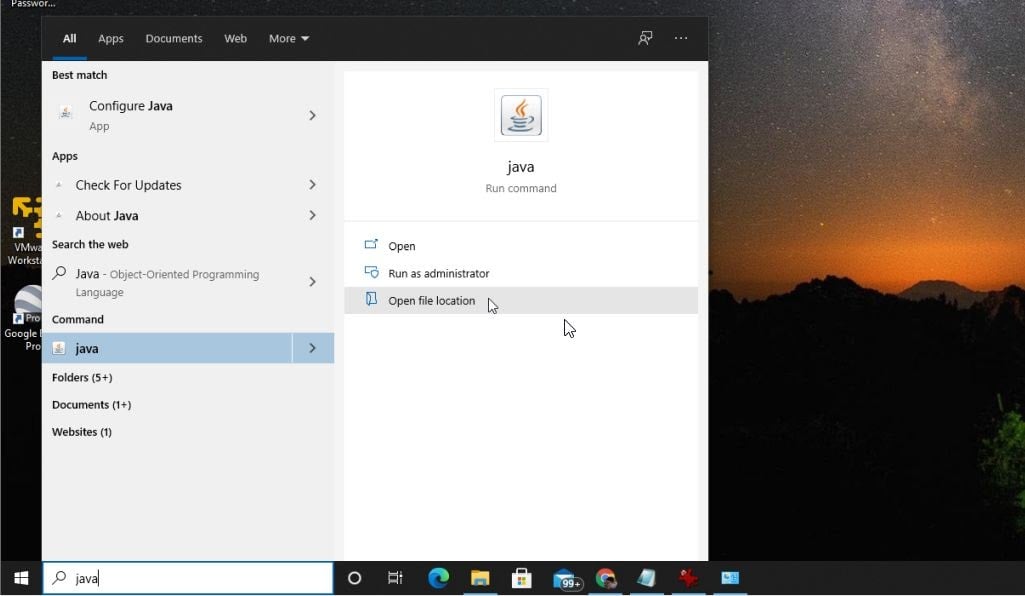
1. Select the Start button and type Java. Select the right arrow next to it and select Open file location.
2. Right-click the Java executable file and select Properties.
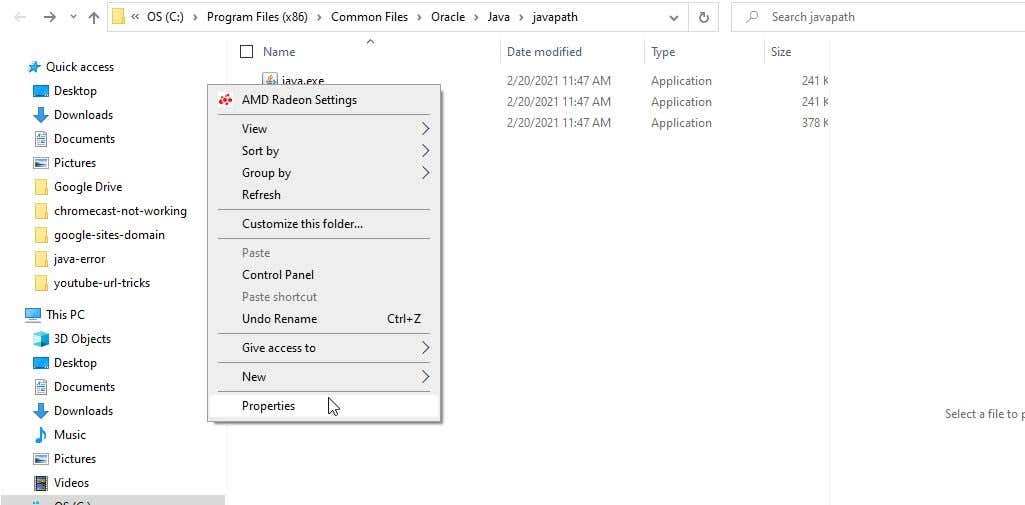
3. Select the Compatibility tab and enable the Run the program as an administrator checkbox.
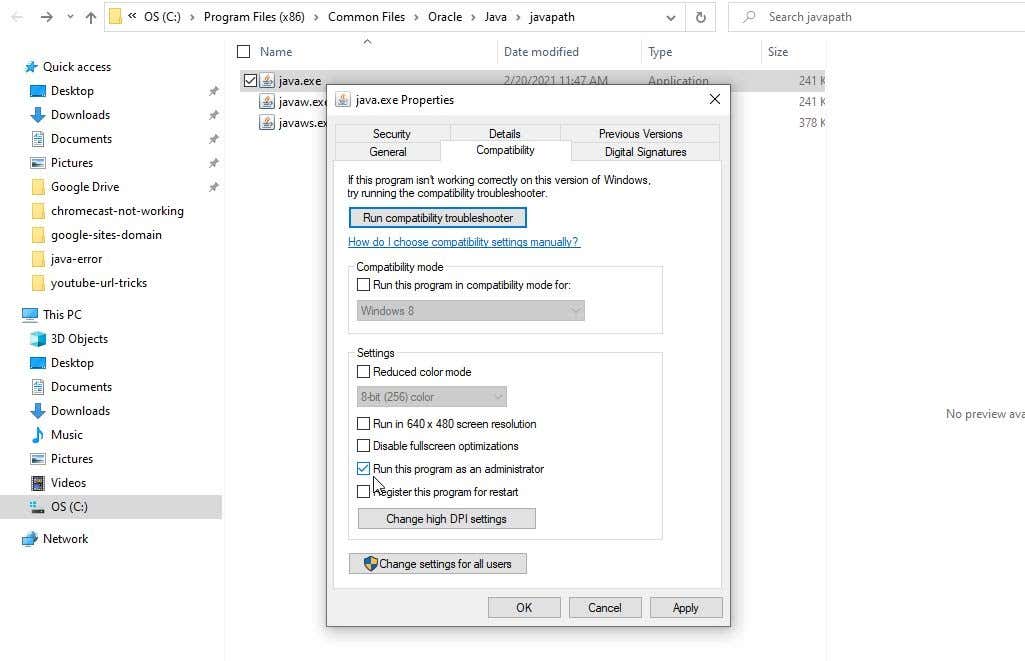
Select OK. Now, the next time Java runs, it will have full administrator rights.
Uninstall and Reinstall Java
Finally, if all else has failed, you may just have a faulty installation of Java.
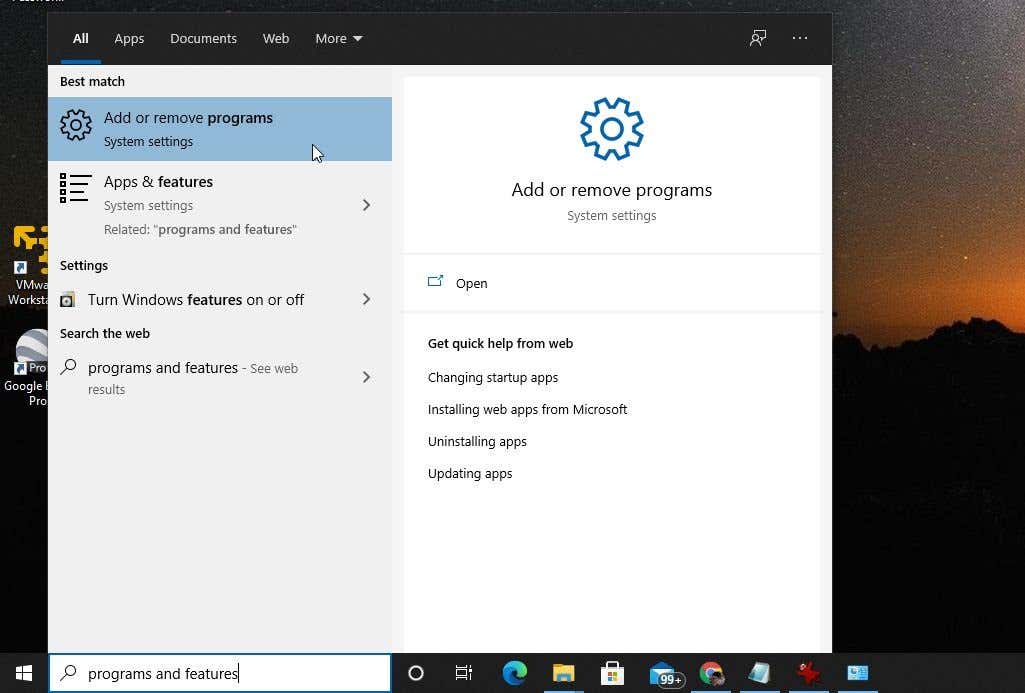
1. Select the Start menu, type add or remove programs, and select Add or remove programs system settings.
2. In Apps & Features, scroll down to Java, select it, and select Uninstall.
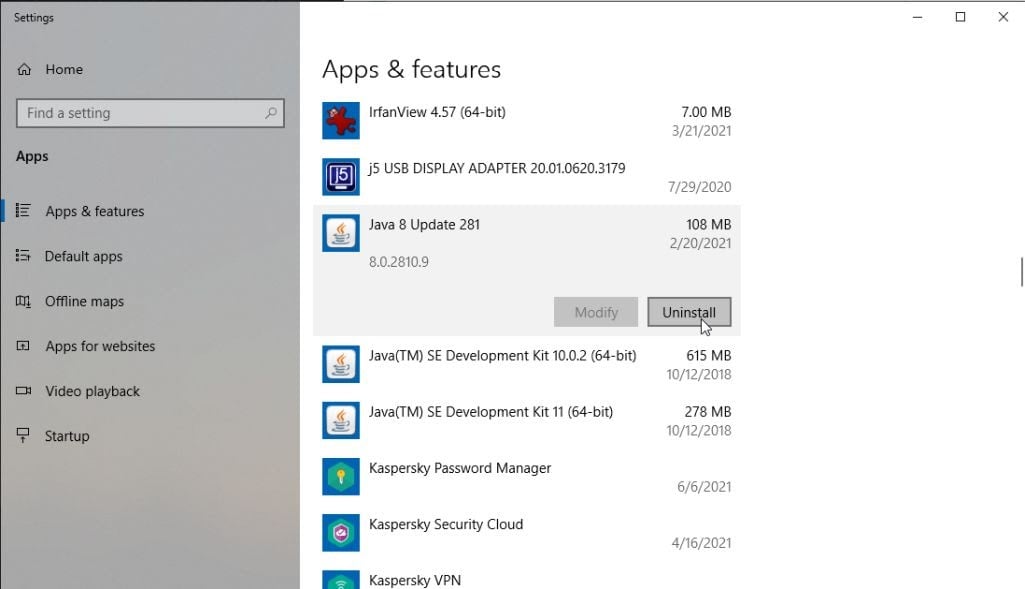
3. Select Yes to confirm, and once Java is fully uninstalled, restart Windows.
4. Download the latest version of Java for your system. Make sure you choose 32 bit if your system is 32 bit or 64 bit if your PC is 64 bit. If you’re not sure which system you have, make sure to check your system type first.
5. Double click the installation file after downloading. Select the Install button to launch the Java installation process.
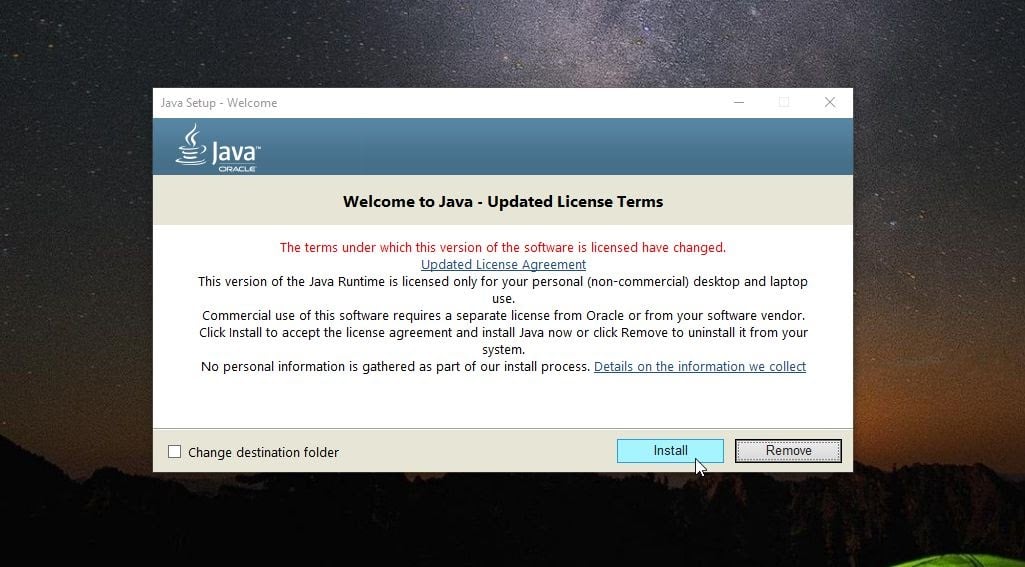
Walk through the rest of the wizard, and once the Java installation is complete, restart your Windows system.
Hopefully, you could clear the error in the first few steps and didn’t have to reinstall Java. However, reinstalling Java is a quick enough process and should get your Java apps running smoothly again.
Were there any other fixes you discovered that also worked with this error? Share them with us in the comments section below!