
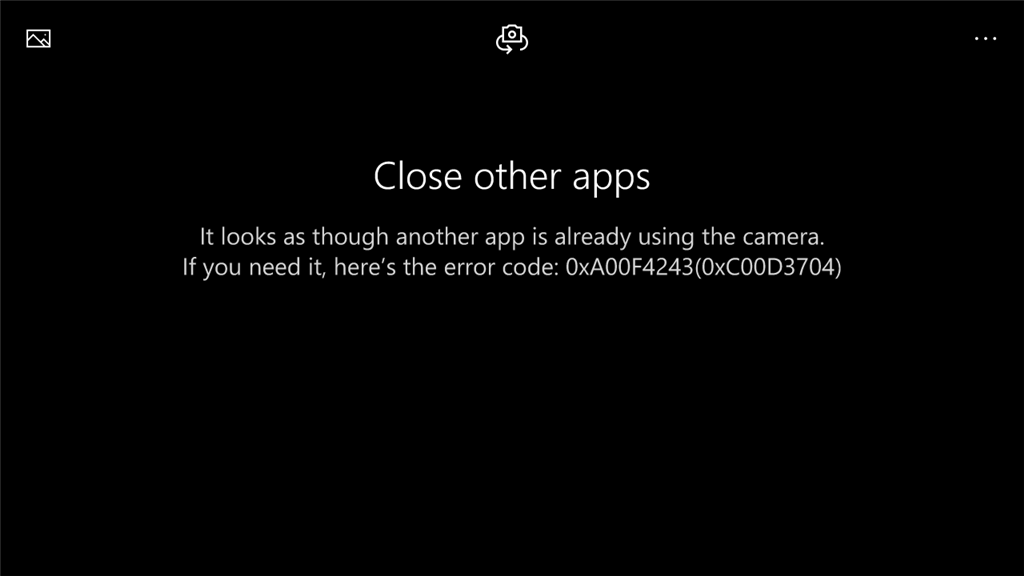
При очередном запуске приложения «Камера» на Windows 10, вы можете столкнуться с довольно неприятной ошибкой 0xA00F4243(0xC00D3704), которая укажет вам на то, что использование камеры невозможно, так как ее, вероятно, уже использует другое приложение. Также в сообщении могут указать возможную причину появления ошибки — устаревшие драйверы.
Итак, в чем же причина этой проблемы? Ну, в сообщении к ошибке выдвигается предположение, что виновниками могли стать устаревшие драйвера для устройства. Возможно, что так и есть. Однако, как уже было установлено некоторыми пользователями в сети, к данной ошибке чаще всего приводит некое изменение записей в Реестре Windows. Мы покроем все эти возможности и рассмотрим методы для них.
Методы решения ошибки 0xA00F4243(0xC00D3704)
Метод №1 Переустановка драйверов для веб-камеры
В сообщении говорится об устаревших драйверах, так почему бы не проверить такую вероятность и попробовать обновить драйвера для вашей веб-камеры. Для обновления драйверов, вам нужно сделать следующее:
- Нажмите правой кнопкой мыши на Пуск и выберите «Диспетчер устройств».
- Найдите пункт «Устройства обработки изображений», раскройте его и найдите свою веб-камеру. Также ваше веб-камера может обозначаться в роли неопознанного устройства.
- Нажмите правой кнопкой мыши на нее и выберите «Обновить драйверы».
Как только система закончит обновление драйверов, снова попробуйте зайти в приложение «Камера» и проверьте наличие ошибки 0xA00F4243(0xC00D3704). Если ее не будет, то сообщение было право — проблема действительно заключалась в устаревших драйверах.
Метод №2 Коррекция записей Реестра Windows
Итак, скорее всего, ваши записи в Реестре Windows были изменены, что и привело к появлению ошибки 0xA00F4243(0xC00D3704). Сейчас мы попробуем исправить это дело. Сделайте следующее:
- Нажмите Win+R для вызова утилиты «Выполнить».
- Напишите в пустую строку regedit.exe и нажмите Enter.
- С помощью левой навигационной панели, перейдите к разделу HKEY_LOCAL_MACHINE→SOFTWARE→Microsoft→Windows Media Foundation.
- Кликните правой кнопкой мыши на Platform и выберите опцию «Создать→Параметр DWORD (32 бита)».
- Назовите параметр именем EnableFrameServerMode.
- Нажмите на EnableFrameServerMode два раза и поставьте 0 в графе «Значение»
- Сохраните созданное и перезагрузите свой ПК.
После выполнения данный действий, ошибка 0xA00F4243(0xC00D3704) должна будет определенно исчезнуть и сможете продолжить использовать веб-камеру так, как вам заблагорассудится.
В Windows 10 иногда не удается получить доступ к приложению Камера из-за ошибки 0xA00F4243 (0xC00D3704). При этом в сообщении указывается, что устройство уже используется другим приложением, и требуется его закрыть.
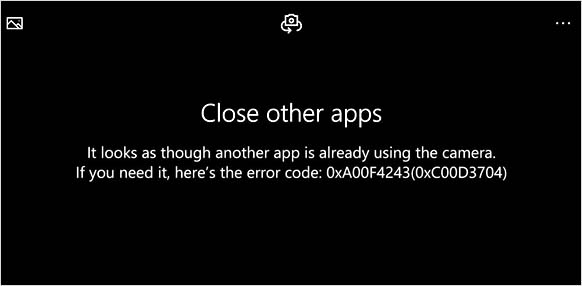
Есть несколько основных причин, из-за которых не удается получить доступ к камере:
- Отсутствуют или повреждены файлы, или неисправен драйвер, который ограничивает функциональность устройства.
- Ошибка возникла после установки обновления Windows. В этом случае нужно внести изменения в системном реестре, чтобы восстановить драйвер в исходную конфигурацию.
- Служба камеры загружена с ошибками или отключена в результате ручного вмешательства пользователя.
- Доступ к приложению заблокирован антивирусом.
Запуск средства устранения неполадок
Во многих случаях сообщение с кодом ошибки 0xA00F4243(0xC00D3704) возникает из-за повреждения файлов программы или неисправного драйвера, который ограничивает функциональность камеры. Попытайтесь их исправить с помощью средства устранения неполадок.
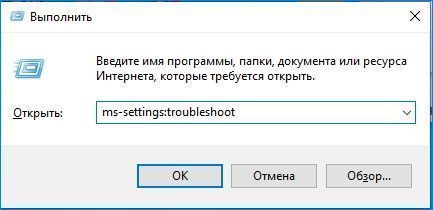
В окне «Выполнить» (Win + R) запустите команду ms-settings:troubleshoot, чтобы открыть вкладку Устранения неполадок.
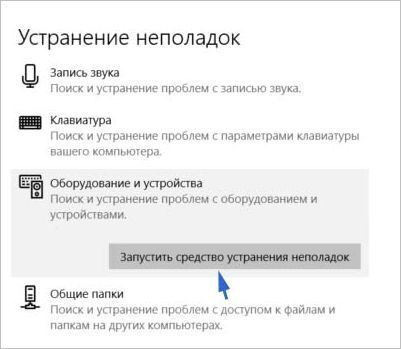
В правой части экрана найдите и кликните на «Оборудование и устройства». Запустите проверку нажатием на соответствующую кнопку.
Дождитесь завершения начального сканирования. Если средство обнаружит известную ему ошибку, запросит подтверждение у пользователя для ее исправления. Подтвердите это действие нажатием на кнопку «Применить это исправление».
После завершения сканирования перезагрузите ПК и попробуйте открыть приложение «Камера», которое не удавалось через ошибку с кодом 0xA00F4243(0xC00D3704).
Переустановка драйвера
Еще одной распространенной причиной является неисправный драйвер устройства обработки изображений. Если он поврежден или установка не была завершена, то это приведет к сбою с отображением сообщения 0xA00F4243(0xC00D3704). Попробуйте его переустановить.
Откройте Диспетчер устройств командой devmgmt.msc из окна Win + R.

Разверните вкладку Устройства обработки изображений, кликните правой кнопкой мыши на драйвер камеры и удалите.
После перезагрузите ПК, чтобы Windows при следующей загрузки смог его переустановить. Проверьте, блокируется ли доступ к приложению «Камера» ошибкой 0xA00F4243(0xC00D3704).
Внесение изменений в реестр Windows
Иногда могут возникнуть несоответствия в работе программного обеспечения камеры после установки обновления Windows или в результате конфликта с драйверами других устройств. Чтобы устранить ошибочное поведение, добавьте параметр в системный реестр выполнением следующих шагов.
Откройте Редактор реестра командой regedit из диалогового окна Win + R.
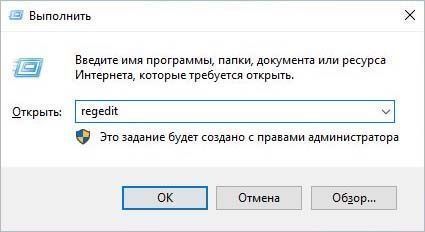
Используйте левую панель для перехода по пути:
HKEY_LOCAL_MACHINE\SOFTWARE\WOW6432Node\Microsoft\Windows Media Foundation\Platform
Правым щелчком мыши на раздел Platform раскройте контекстное меню и выберите Создать – Параметр DWORD (32 бита). Присвойте ему имя EnableFrameServerMode.

Затем двойным щелкой мыши разверните Свойства и в поле Значение введите «0». Сохраните изменения и после закрытия редактора реестра перезагрузите ПК.
Проверка целостности системы
Если продолжаете сталкиваться с ошибкой 0xA00F4243, возможно, повреждены системные файлы или зависимости, которые требуются для правильной работы оборудования. В этом случае проверьте целостность системы утилитами SFC и DISM.
Откройте командную строку от имени администратора с помощью поиска Windows.

В консоли запустите команду sfc /scannow.
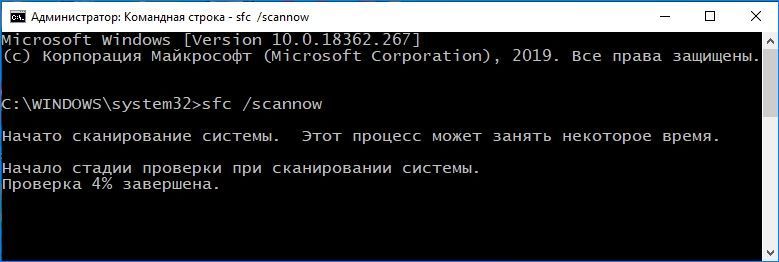
Если системе не удалось исправить все повреждения, выполните следующую команду:
dism /online /cleanup-image /restorehealth
После перезапуска системы посмотрите, не блокируется ли кодом 0xA00F4243(0xC00D3704) повторный запуск приложения камеры.
Некоторые пользователи Windows 10 сообщают, что они получают код ошибки 0xA00F4243 (0xC00D3704) при попытке доступа к приложению Камера . Обычно код ошибки отображается вместе со следующим сообщением об ошибке: «Закройте другие приложения. Похоже, что другое приложение уже использует камеру. 0xA00F4243 (0xC00D3704) ». В большинстве случаев эта проблема возникает постоянно, и сообщение об ошибке указывает на другое приложение, которое уже использует камеру. Сообщается, что проблема возникает в Windows 10 и Windows 8.1. 
Содержание
- Причина ошибки 0xA00F4243 (0xC00D3704 ) error?
- Метод 1. Запуск средства устранения неполадок оборудования и устройств
- Метод 2: включение камеры (если применимо)
- Метод 3: переустановка драйвера камеры
- Метод 4: Создание значения EnableFrameServerMode с помощью редактора реестра rong>
- Метод 5: Запуск системы Сканирование с помощью средства проверки файлов (SFC)
- Метод 6: Включение службы камеры
- Метод 7: Удаление стороннего антивируса
Причина ошибки 0xA00F4243 (0xC00D3704 ) error?
Мы исследовали эту конкретную ошибку, просмотрев различные отчеты пользователей и стратегии исправления, которые обычно используются для устранения этого конкретного сообщения об ошибке. Как оказалось, есть несколько потенциальных виновников, которые могут вызвать это сообщение об ошибке:
- Повреждение файла вызывает ошибку . Как оказалось, эта конкретная проблема также может быть вызвана повреждением файла или неполным драйвером, ограничивающим функциональность камеры. . Если этот сценарий применим, вы можете решить проблему, запустив средство устранения неполадок оборудования и устройств или переустановив драйвер камеры с помощью диспетчера устройств.
- Камера отключается нажатием клавиш – Некоторые конфигурации ноутбуков (особенно модели Lenovo) будут включать физический ярлык, который позволяет отключить встроенную камеру с помощью кнопки FN. В этом случае вы можете решить проблему, повторно используя ярлык для повторного включения встроенной камеры.
- Плохое обновление Windows – еще одна возможность, что может в конечном итоге вызвать эту ошибку – это плохой Центр обновления Windows, который в конечном итоге повлиял на работу камеры. В этом случае вы сможете решить проблему, добавив значение реестра, которое гарантирует, что драйвер камеры будет восстановлен до исходной конфигурации.
- Служба камеры отключена – эта конкретная ошибка также может возникнуть, если служба, используемая вашей камерой, намеренно отключена. Если это так, вы можете решить проблему, открыв экран «Службы» и снова запустив службу принудительно.
- Чрезмерная защита антивируса мешает работе приложения «Камера» – Node32, AVG и несколько других сторонних пакетов безопасности могут препятствовать доступу к приложению камеры по соображениям безопасности. Если вы уверены, что угрозы безопасности нет, вы можете удалить сторонний антивирус.
Метод 1. Запуск средства устранения неполадок оборудования и устройств
Если проблема вызвана повреждением файла или неполным драйвером, который ограничивает функциональность камеры, скорее всего, приложение камеры вызовет ошибку 0xA00F4243 (0xC00D3704) .. К счастью, как Windows 8, так и Windows 10 оснащены утилитой, которая может решить эту проблему автоматически.
Несколько затронутых пользователей сообщили, что им удалось решить проблему после запуска оборудования и Средство устранения неполадок устройств. После этого утилита порекомендовала им стратегию восстановления, которая (как только она была применена) смогла исправить ошибку 0xA00F4243 (0xC00D3704) .
Вот краткое руководство о том, как запустить средство устранения неполадок оборудования и устройств:
- Нажмите клавишу Windows + R , чтобы открыть Выполнить диалоговое окно. В текстовом поле введите « ms-settings: Troubleshoot » и нажмите Enter , чтобы открыть вкладку Устранение неполадок в приложение Настройки .

- Внутри На экране “Устранение неполадок ” прокрутите вниз до раздела Найдите и устраните другие проблемы и нажмите Оборудование и устройства . Затем в появившемся меню нажмите Запустить средство устранения неполадок .
- Дождитесь завершения начальной фазы диагностики, затем нажмите Применить это исправление , если найдена подходящая стратегия восстановления.
- После применения стратегии восстановления перезагрузите компьютер и посмотрите, будет ли проблема решена автоматически при следующем запуске.


Если вы по-прежнему сталкиваетесь с тем же сообщением об ошибке, перейдите к следующему способу ниже.
Метод 2: включение камеры (если применимо)
Если вы Вам повезло, исправление ошибки 0xA00F4243 (0xC00D3704) может быть таким же простым, как нажатие нескольких клавиш на клавиатуре. Как оказалось, эта конкретная ошибка также будет отображаться, если камера отключена на вашем ПК. Эта проблема обычно возникает на ноутбуках Lenovo.
Попробуйте нажать FN + F8 и снова откройте камеру, чтобы проверить, решена ли проблема. Это ярлык для включения камеры на ноутбуках Lenovo (но он также может работать для разных производителей).
Если этот метод успешен, это означает, что ошибка возникла из-за вашей встроенной камеры был отключен.
Если этот метод неприменим, перейдите к следующему способу ниже.
Метод 3: переустановка драйвера камеры
Очень распространенной причиной возникновения этой проблемы является драйвер устройства обработки изображений. Если используемый вами драйвер поврежден или его установка не завершена, вы можете столкнуться с ошибкой 0xA00F4243 (0xC00D3704) , потому что ваша операционная система введена в заблуждение, думая, что камера всегда используется.
Некоторые затронутые пользователи сообщили, что им удалось решить эту конкретную проблему, переустановив драйвер устройства обработки изображений с помощью диспетчера устройств.. Вот краткое руководство, как это сделать:
- Нажмите клавишу Windows + R , чтобы открыть диалоговое окно Выполнить . Затем введите «devmgmt.msc» и нажмите Enter , чтобы открыть диспетчер устройств. При появлении запроса от UAC ( Контроль учетных записей ) нажмите Да , чтобы предоставить права администратора.
- Внутри диспетчера устройств разверните раскрывающееся меню, связанное с устройствами обработки изображений (или камерами) .
- Внутри устройств обработки изображений (или Камеры) щелкните правой кнопкой мыши драйвер камеры и выберите Удалить устройство .
- Затем нажмите Удалить , чтобы подтвердить удаление, и дождитесь завершения процесса.
- Перезагрузите компьютер, чтобы операционная система могла переустановить драйвер камеры на при следующем запуске.
- Откройте приложение камеры и посмотрите, решена ли проблема.

Если вы по-прежнему сталкиваетесь с тем же сообщением об ошибке, перейдите к следующему методу ниже.
Метод 4: Создание значения EnableFrameServerMode с помощью редактора реестра rong>
Другая причина, которая может вызвать ошибку 0xA00F4243 , – это поврежденная установка, вызванная плохим обновлением Windows или некоторыми другими драйверами, которые конфликтуют с камерой. Водитель. В этом случае нескольким затронутым пользователям удалось решить проблему, добавив значение реестра для исправления ошибочного поведения.
Вот краткое руководство по использованию редактора реестра для добавления значения EnableFrame ServerMode в реестр :
- Нажмите клавишу Windows + R , чтобы открыть диалоговое окно Выполнить . Затем введите «regedit» и нажмите Enter , чтобы открыть редактор реестра . В ответ на запрос UAC (контроль учетных записей пользователей) нажмите Да , чтобы предоставить права администратора.
- В редакторе реестра, используйте меню слева, чтобы перейти к следующему месту:
Computer HKEY_LOCAL_MACHINE SOFTWARE WOW6432Node Microsoft Windows Media Foundation Platform
Примечание. Вы также можете вставить местоположение прямо в панель навигации и нажать
- Достигнув нужного места, перейдите на правую панель, щелкните правой кнопкой мыши и выберите New> DWORD (32-bit) Value.
- Назовите новое создал DWORD в EnableFrameServerMode и нажмите Enter , чтобы сохранить изменения..
- Откройте только что созданное значение EnableFrameServerMode и установите для Base значение Hexadecimal и Присвойте данным значение 0 . Закончив, нажмите Ok , чтобы сохранить изменения.
- Закройте редактор реестра, перезагрузите компьютер и посмотрите, решена ли проблема при следующем запуске. снова открыв приложение “Камера”.

Если вы все еще видите, что 0xA00F4243 (0xC00D3704) ошибка при попытке открыть приложение камеры, перейдите к следующему методу ниже.
Метод 5: Запуск системы Сканирование с помощью средства проверки файлов (SFC)
Некоторые затронутые пользователи сообщили, что проблема была решена после того, как они использовали служебную программу проверки системных файлов (SFC) для сканирования и исправления повреждений, которые потенциально могли вызвать ошибка 0xA00F4243 (0xC00D3704) . SFC – это встроенная утилита, которая заменяет любые поврежденные системные файлы свежими локально сохраненными копиями.
Вот краткое руководство по выполнению проверки системных файлов (SFC) сканирование:
- Нажмите клавишу Windows + R , чтобы открыть диалоговое окно Выполнить . Затем введите «cmd» и нажмите Ctrl + Shift + Enter , чтобы открыть командную строку с повышенными привилегиями. В ответ на запрос UAC (контроль учетных записей пользователей) нажмите Да , чтобы предоставить административные привилегии командной строке.
- Внутри в командной строке с повышенными привилегиями введите следующую команду и нажмите Enter , чтобы начать сканирование с помощью средства проверки системных файлов:
sfc/scannow
- После завершения процесса перезагрузите компьютер и проверьте, не возникает ли ошибка 0xA00F4243 (0xC00D3704) при повторной попытке запустить приложение «Камера».
Если та же проблема все еще возникает, перейдите к следующему способу ниже.
Метод 6: Включение службы камеры
Некоторые затронутые пользователи сообщили что ошибка 0xA00F4243 (0xC00D3704) перестала возникать после того, как они посетили экран «Службы» и обнаружили, что служба Intel (R) RealSense (TM) Depth была отключена. Но имейте в виду, что ваша камера может использовать другую службу камеры, поэтому имя отключенной службы может быть другим.
Если этот сценарий применим, вы можете решить проблему, обратившись к экран «Службы» и повторное включение службы камеры:
- Нажмите клавишу Windows + R , чтобы открыть диалоговое окно «Выполнить». Затем введите «services.msc» в текстовое поле и нажмите клавишу ВВОД, чтобы открыть экран Services .
- Внутри служебной программы используйте правую панель, чтобы найти драйвер камеры .. В большинстве случаев он будет называться Intel (R) RealSense (TM) Depth.
- Как только вам удастся найти службу, используемую вашей камерой , щелкните ее правой кнопкой мыши и выберите Начать .
- Снова откройте приложение Камера и проверьте, по-прежнему сталкиваются с той же проблемой.


Если вы все еще сталкиваетесь с ошибкой 0xA00F4243 (0xC00D3704) , перейдите к следующему способу ниже.
Метод 7: Удаление стороннего антивируса
Как оказалось, эта проблема также может быть вызвана чрезмерно защищающим антивирусным пакетом. Несколько затронутых пользователей сообщили, что проблема перестала возникать после того, как они удалили сторонний антивирус и позволили встроенному Защитнику Windows взять на себя управление.
На основании нескольких отчетов пользователей, Node32, AVG и некоторых других. Известно, что другие сайты вызывают ошибку 0xA00F4243 (0xC00D3704) в Windows 10. В этом случае вы сможете решить проблему, удалив сторонний пакет безопасности.
Чтобы убедиться, что вы не оставляете никаких остаточных файлов, которые могут в конечном итоге повлиять на ваш компьютер, мы рекомендуем вам прочитать эту статью ( здесь ), чтобы узнать, как удалить программу безопасности. полностью.
Check expert solutions that work for all
by Matthew Adams
Matthew is a freelancer who has produced a variety of articles on various topics related to technology. His main focus is the Windows OS and all the things… read more
Updated on
- The camera app, though extremely simple and user-friendly, can sometimes throw the 0xa00f4243 Camera Reserved By Another App error.
- This problem is usually due to misconfigured settings, issues with the driver, or a faulty connection.
- To fix things, plug the webcam into another port, reinstall the camera driver, or reset the app, amongst other solutions.
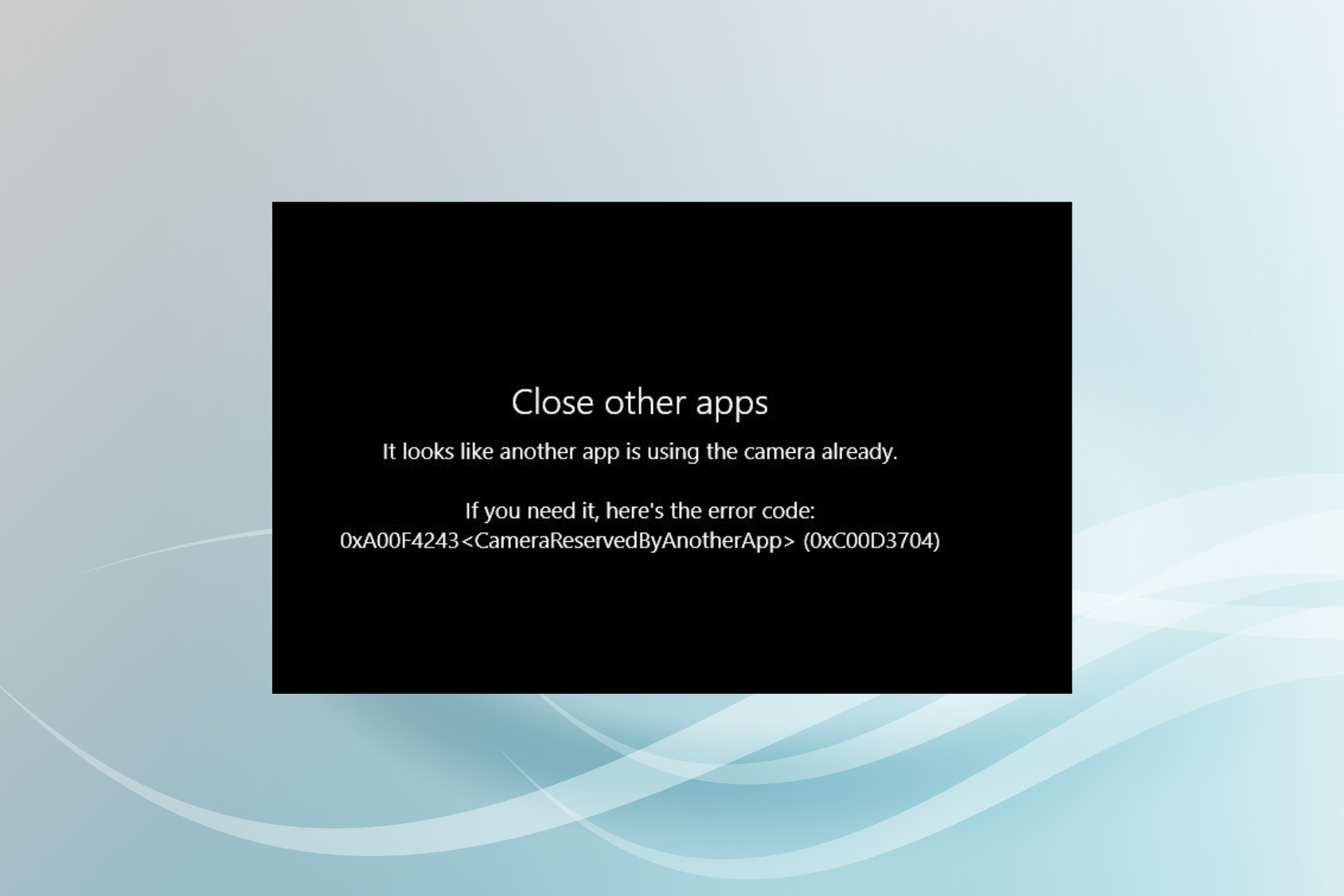
The Camera app helps capture photos and record videos with the built-in or attached webcam, though many use third-party video recorders. But several users who rely on the app reported the 0xa00f4243 Camera reserved by another app error.
The error appears when opening the Camera app, and the message reads Close other apps. It looks like another app is using the camera already. If you need it, here’s the error code: 0xA00F4243<CameraReservedByAnotherApp> (0xC00D3704). So, let’s find out all about it.
Why does it say my camera is being used by another program?
Here are a few reasons you might be getting the error:
- Privacy settings: If the webcam’s privacy settings are misconfigured, you may get the error.
- Corrupt system files: When the system files are corrupt, the camera might not function effectively, and even throw the Your webcam is blocked by another application error.
- Problems with the driver: A corrupt or outdated driver is just as likely to cause this error.
- Issues with the connection: For many users, it was an improper connection or a problem with the port that triggered the error.
- Another app using the camera: The possibility that another app on the PC is using the camera can’t be ignored, and you will have to verify that as well.
How can I fix 0xa00f4243 Camera reserved by another app (0xc00d3704) error?
Before we start making major changes, let’s try a few quick troubleshooting tips and tricks:
- If it’s an external webcam plugged into a USB hub, remove it and directly plug it into a USB port on the computer.
- Terminate any applications that might be using the camera from the Task Manager.
- Check for Windows updates and install any pending ones.
- Disable any antivirus installed on the computer and verify whether the 0xa00f4243 Camera reserved by another app error is fixed. If yes, we recommend you switch to an effective third-party antivirus for enhanced security and a better Windows experience.
If these don’t work, head to the solutions listed next.
1. Run the Hardware and Devices troubleshooter
- Press Windows + R to open Run, paste the following in the text field, and hit Enter:
msdt.exe -id DeviceDiagnostic
- Now, follow the on-screen instructions and make the recommended changes to complete the process.

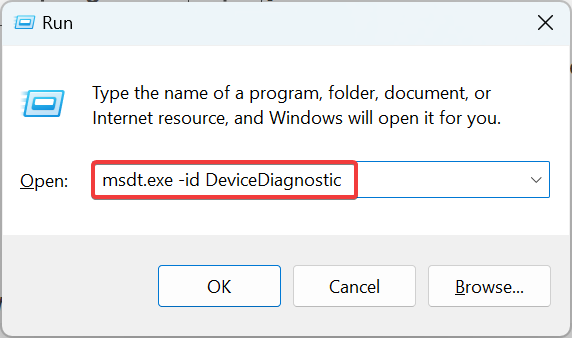
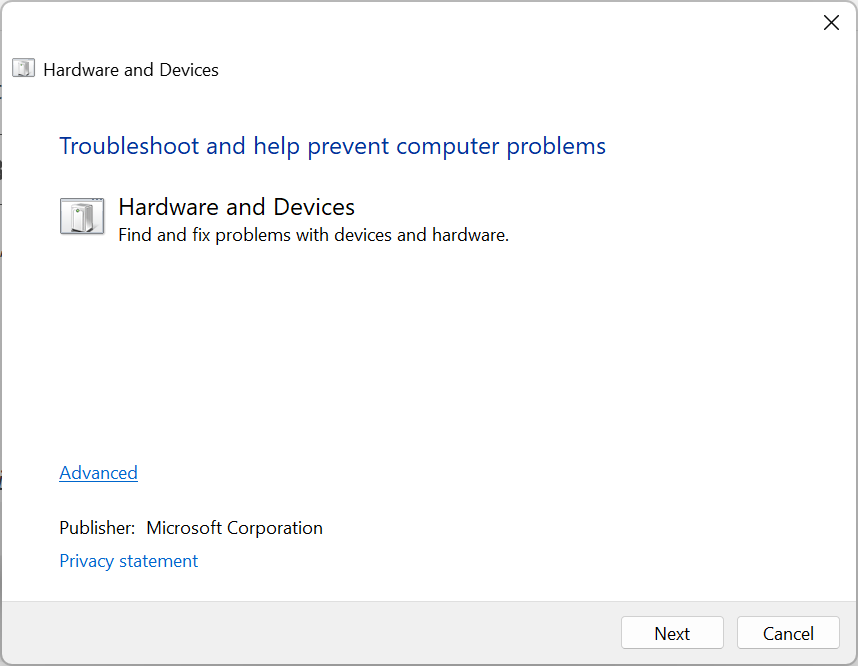
To eliminate the possibility of a hardware problem triggering the 0xa00f4243 Camera reserved by another app error, you can run the Hardware and Devices troubleshooter. It will automatically identify and eliminate the issues if any are found.
2. Check the privacy settings
- Press Windows + I to open Settings, and click on Privacy.

- Head to Camera from the navigation pane, and make sure the toggle for the Camera app is enabled. Also, disable the toggle for all the other apps if you don’t use them.
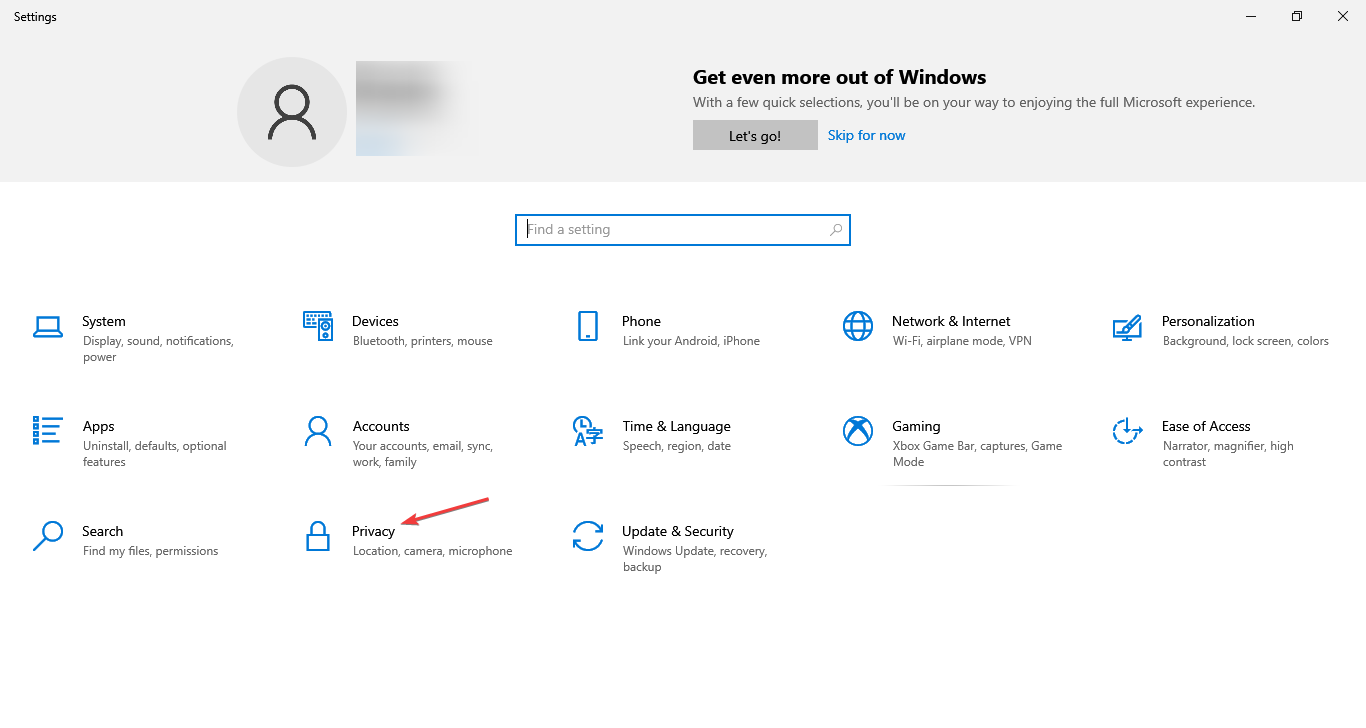
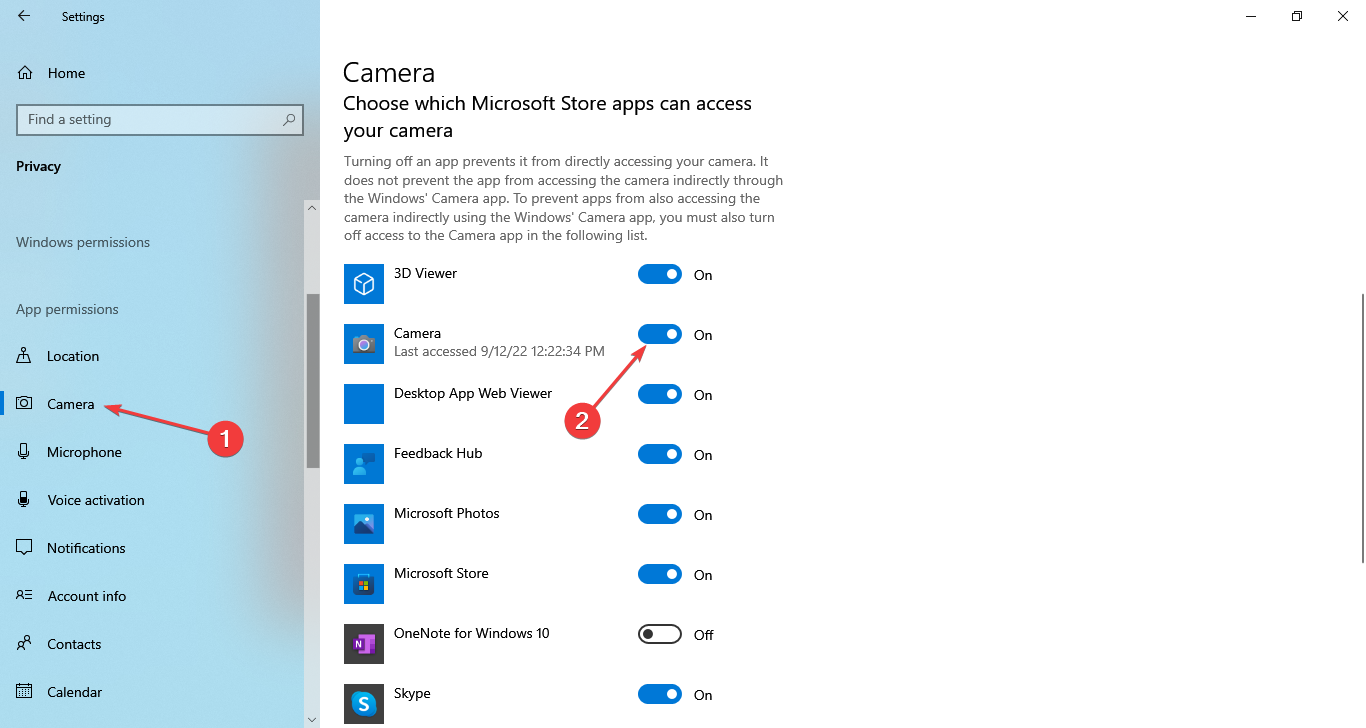
After changing the privacy settings, you should be able to get rid of the 0xA00F4243 camera reserved by another app on Lenovo and other devices.
3. Reinstall the camera driver
- Press Windows + R to open Run, type devmgmt.msc in the text field, and hit Enter.
- Expand the Cameras section, right-click on the connected webcam, and choose Uninstall device.

- Click Uninstall in the confirmation prompt.

- Once done, restart the computer, and Windows will install a fresh copy of the driver.
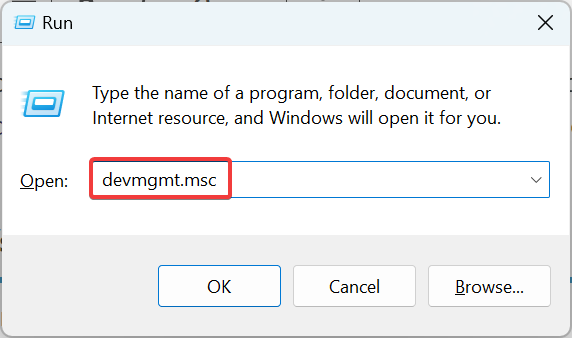
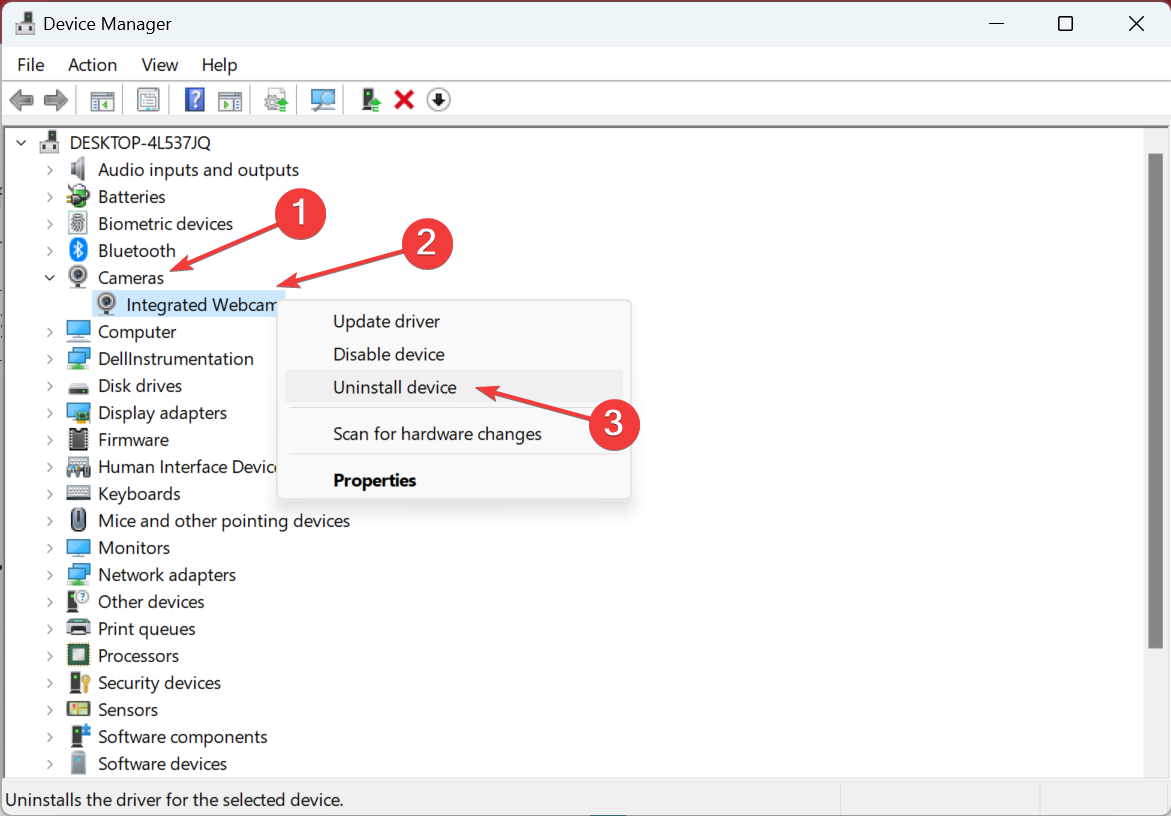
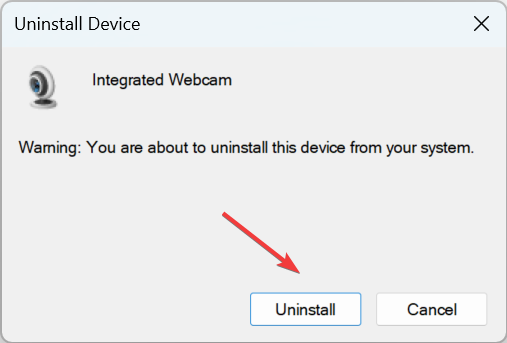
You will encounter issues with the camera when its driver is corrupt. And a quick fix is to simply reinstall the device.
- Step-by-step Guide to Fix Damaged MKV Video
- Security Settings Blocked Self-signed Application [Fix]
- 0xA00F4289 Webcam Error: 5 Ways to Fix It
- Fix: Page Fault in Nonpaged Area on Windows 10
4. Update the camera driver
- Press Windows + X to open the Power User menu, and select Device Manager.

- Locate your webcam under Cameras, right-click on it, and choose Update driver.
- Now, select Search automatically for updated drivers.

- Wait for Windows to install the best available driver for the webcam.
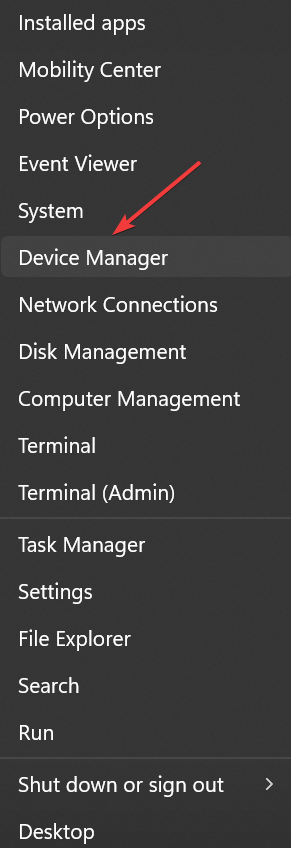
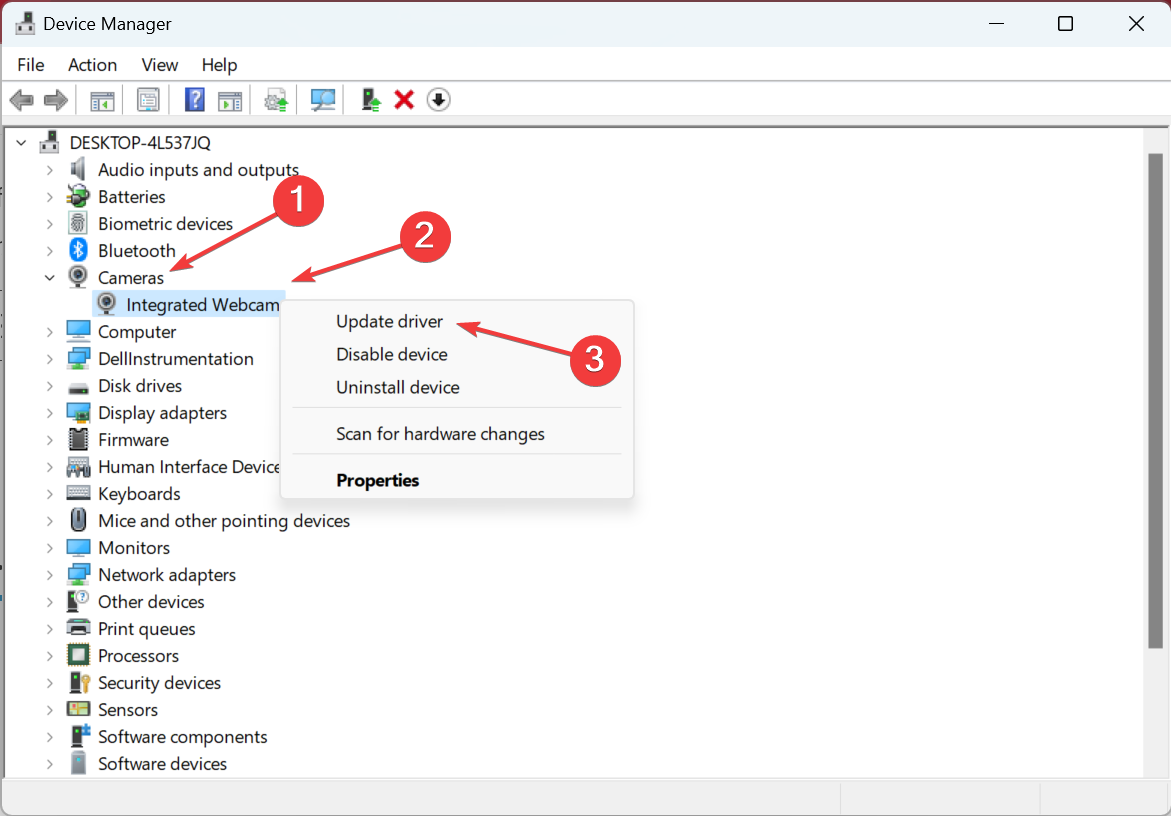
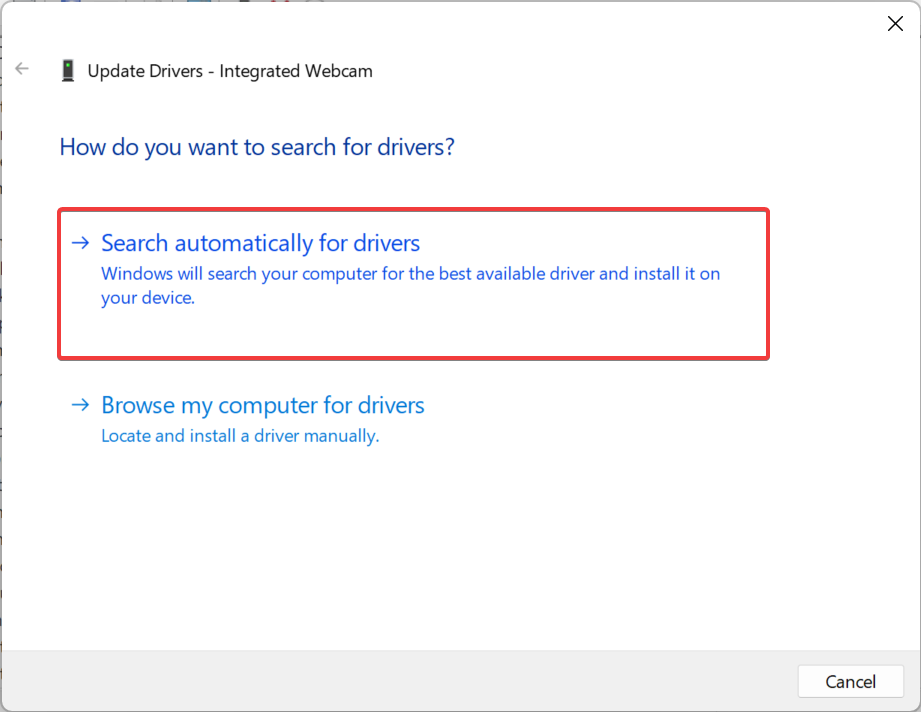
Another solution when getting the 0xa00f4243 Camera reserved by another app error is to update the camera driver. Also, if the automatic options don’t work out, you can manually install the driver, though it’s both time-consuming and risky.
Update drivers automatically
While there is always the alternative of using Windows Update, it doesn’t always find your dedicated drivers and installs generic ones instead.
However, the software will make that operation much simpler, allowing you to identify, download, and install the right drivers with just a click of a button.
Often, your computer system might not be able to update the generic drivers for your hardware and peripherals correctly. There are vital differences between a generic driver and a manufacturer’s driver. Finding the correct driver versions for every hardware component can become tiresome.That’s why a dependable updater can help you find and update your drivers automatically. We strongly suggest the Outbyte Driver Updater, and here’s how to do it:
- Download and install the Outbyte Driver Updater app.
- Launch the software and wait for the app to detect all incompatible drivers.
- Now, it will show you a list of all outdated drivers to select the ones to Update or Ignore.
- Click on Update & Apply Selected to download and install the latest versions.
- Restart your PC to ensure the applied changes.
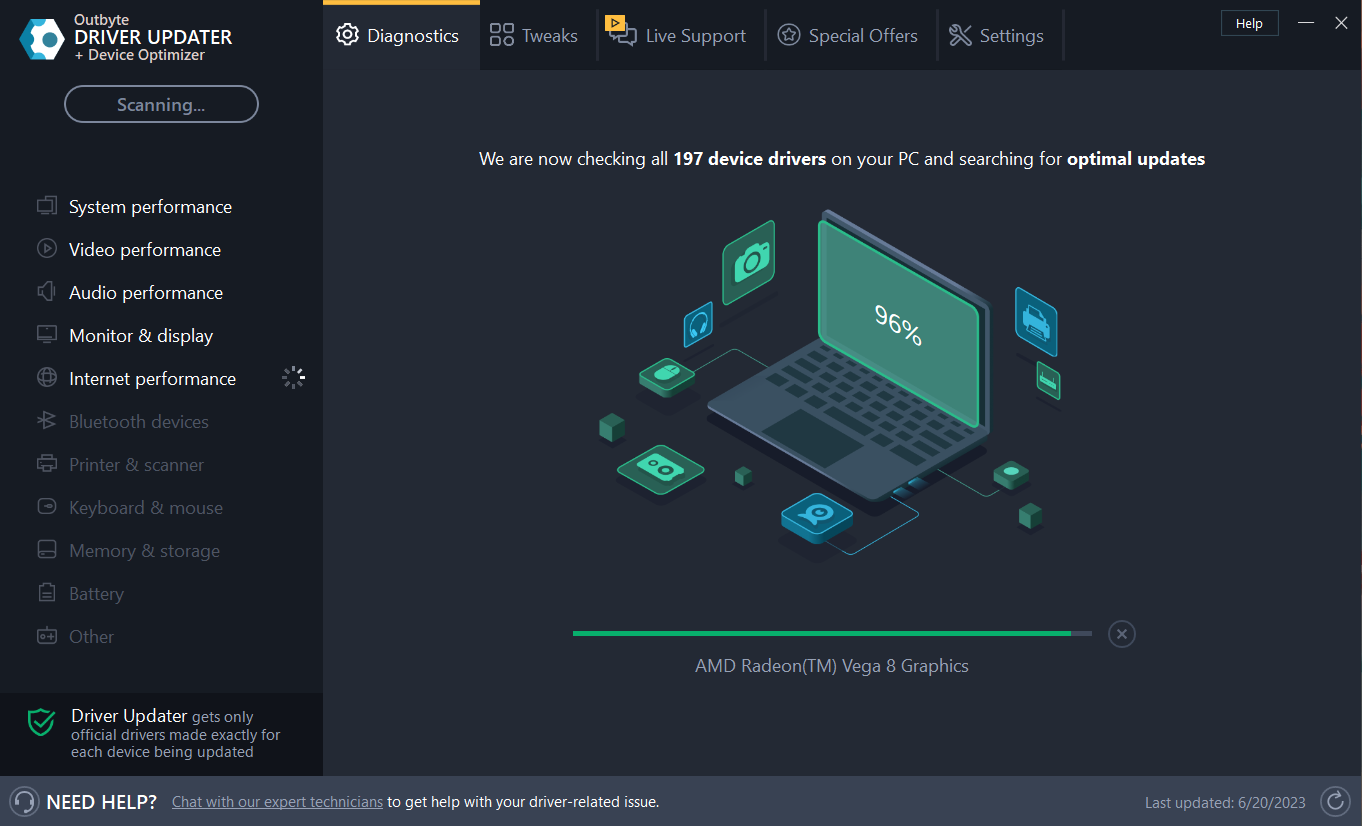

Outbyte Driver Updater
Maintain your device healthy by letting OutByte Driver Updater find the latest driver options.
Disclaimer: You may need to upgrade the app from the free version to perform specific actions.
5. Enable the critical services
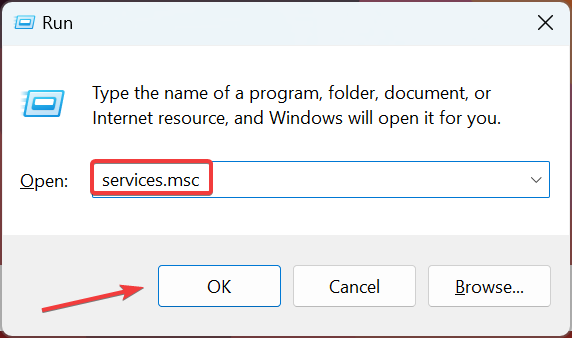
- Press Windows + R to open Run, type services.msc, and click OK.
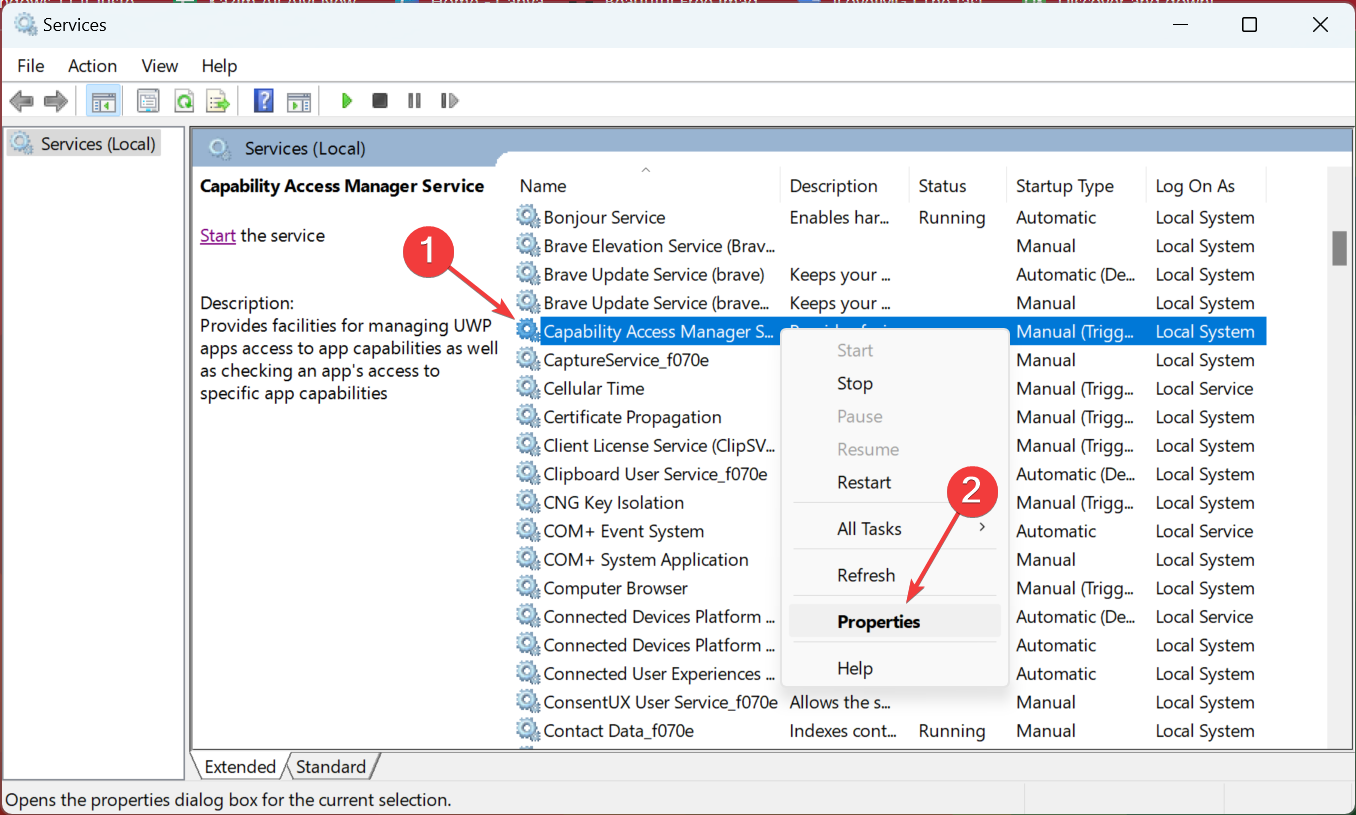
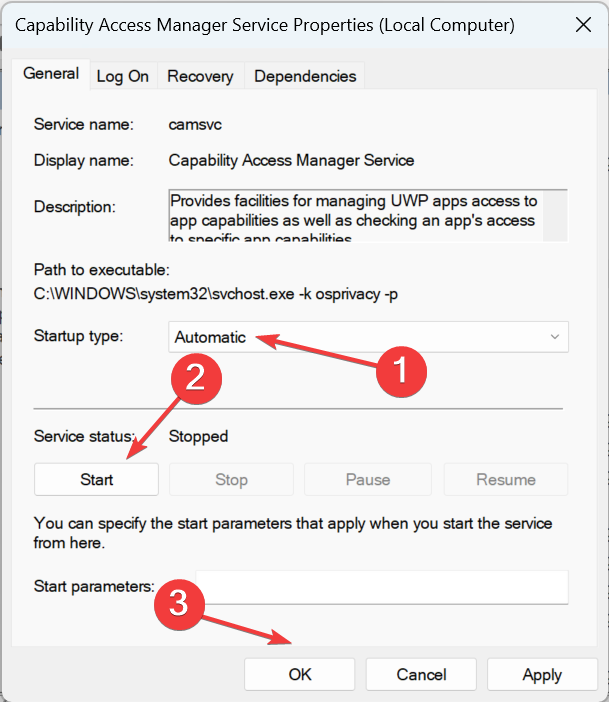
- Locate the Capability Access Manager Service, right-click on it, and choose Properties.

- Select Automatic from the Startup type dropdown menu, click on Start to run the service, and then on OK to save the changes.

- Make similar changes to Intel(R) RealSense(TM) Depth Camera Manager Service as well, if available.
6. Reset the camera app
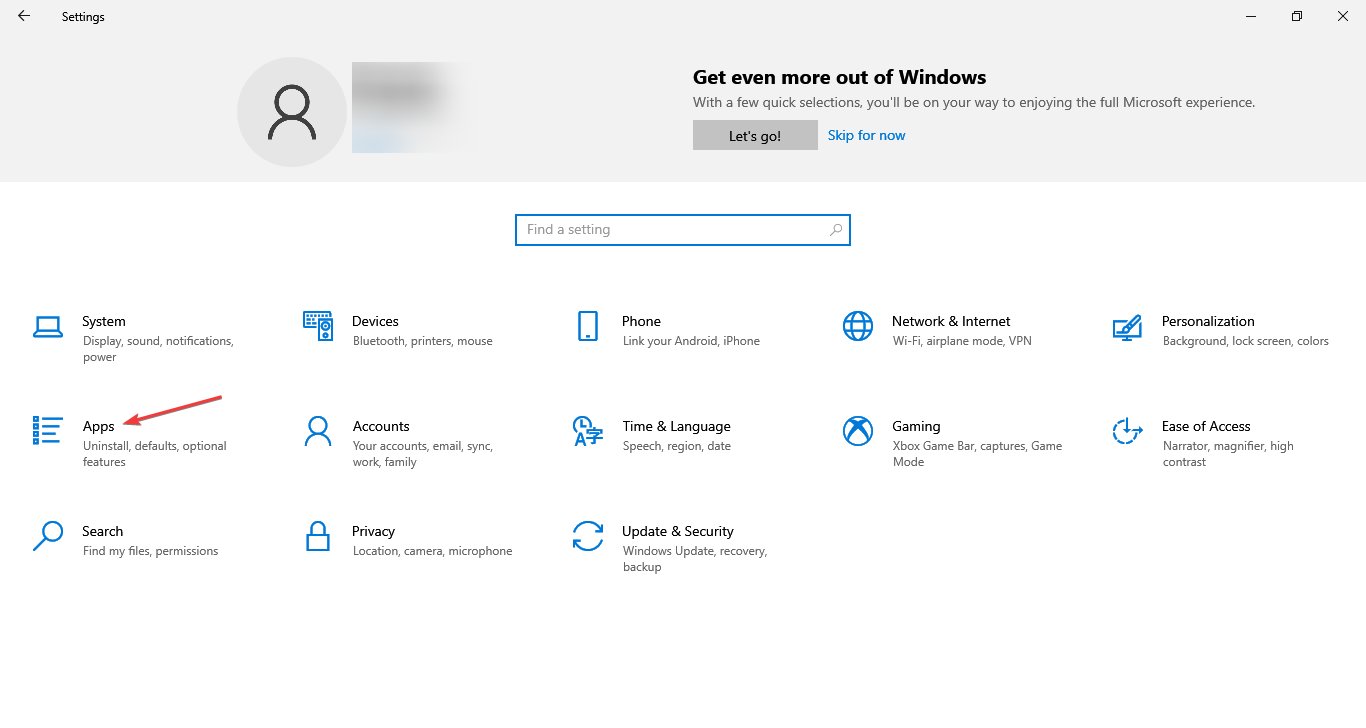
- Press Windows + I to open Settings, and click on Apps.
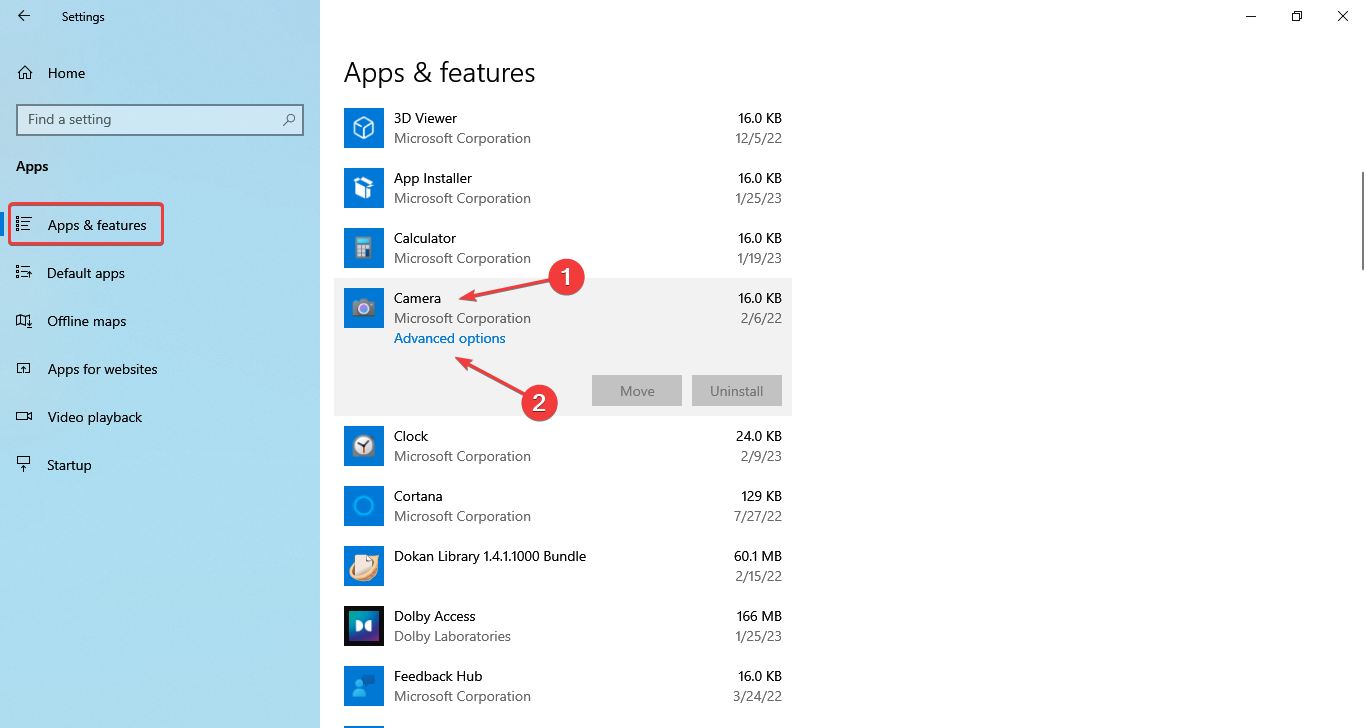
- In the Apps & features tab, click on Camera, and then on Advanced options.
- Click the Reset button.
- Again, click Reset in the confirmation prompt that appears.

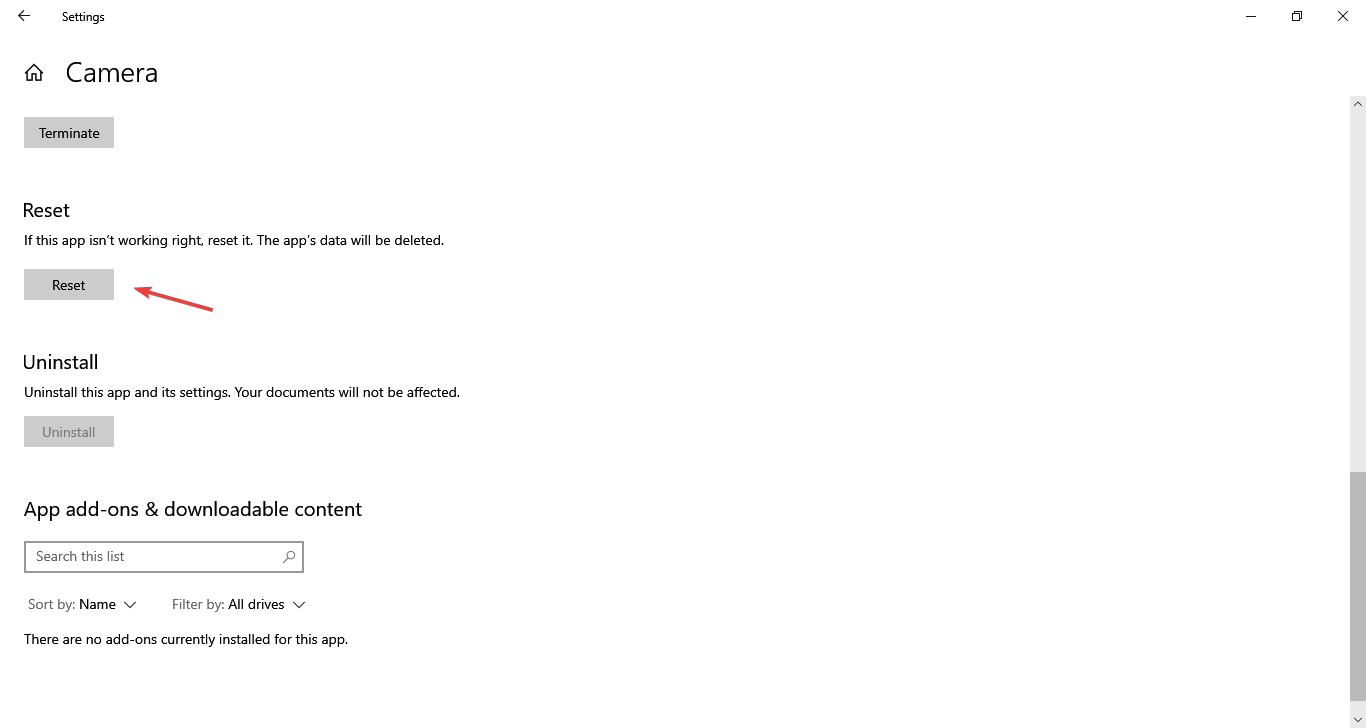
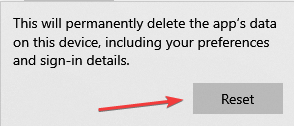
If the previous solutions didn’t work, it could be an issue with the app itself, and resetting it should fix the 0xa00f4243 Camera reserved by another app error.

Tip
In case nothing works, we recommend you update the BIOS. Before you proceed, make sure to check the exact process on the manufacturer’s website to avoid running into issues.
Also, if it turns out to be a hardware issue and you plan to get a new camera, check the best webcams for Windows.
For any other queries or to share a solution that’s not listed here, drop a comment below.

Web camera with Windows devices has become a dire need nowadays since work from home has got a huge impact on services. Windows 10 has a special application, i.e. UWP for the camera app to be used for recording videos, taking pictures. Surprisingly, some users have encountered annoying error code 0xa00f4243 while using the camera UWP app. This fatal code resembles that the camera has been used by another program already. Eventually, it will throw an error message as – “Close other apps. It looks like another app is using the camera already. If you need it, here’s the error code: 0xa00f4243<CameraReservedByAnotherApp> (0xc00d3704)”
Not only in the current version of Windows 10, but we also have the same camera error existing in older editions of the Operating System as well. Error code 0xa00f4243 prevents users from using the camera application thereby restricting access to record videos and take photos as well as other associated tasks. Usually, the issue shows up due to outdated webcam firmware, software conflict, and corrupted system components, and oftentimes due to invalid entries in Windows Registry.
Here is how to fix 0xa00f4243CameraReservedByAnotherApp (0xc00d3704) Windows 10 –
1] Update Web cab driver to the latest firmware
Error 0xa00f4243 often gets generated when the webcam driver you are using is an outdated version. Drivers are the firmware maintaining interaction between the accessory and the associated software. An outdated driver becomes the root cause of many severe issues and like the one, we are now dealing with. You can easily update the drivers from Windows 10 devices as there is default Device Manager to serve this purpose. To carry out this task, follow the below guidelines –
- Press the – Windows + S.
- In the search bar, type – devmgmt.msc.
- Hit – Enter.
- When Device Manager shows up, double-click – Cameras.
- From the expanded list, right-click on the camera driver and select – Update driver.
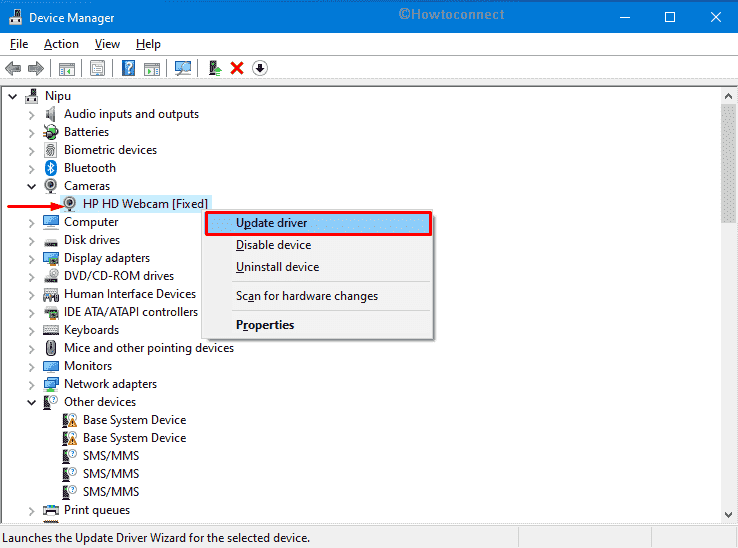
- Opt for – Search automatically for drivers.
- Comply with the on-screen instructions to get the updated driver.
- Once the process ends, restart your PC.
2] Reinstall camera driver
In most cases, updating the camera driver is the key solution to standalone errors rooted in software conflicts. However, this doesn’t go straight always as there is a good deal of buggy update available all around. Installing a defective update might cause additional misery in the system in lieu of settling the error.
Hence, you can permanently erase that driver from Device Manager and then reinstall webcam driver from trusted vendor sites. If updating the webcam driver doesn’t fix the Error 0xa00f4243, follow the below instructions to re-install the driver –
- Right-click on Start button and choose – Device Manager.
- When the dedicated window appears, double-click – Cameras.
- Right-click the installed camera driver and choose – Uninstall device.
- To give final consent, click – Uninstall.
- If the system asks for a restart, do it.
- When the system powers up, the webcam driver will be installed automatically.
- Alternatively, you can visit the makers’ site to download the compatible driver manually and install the same.
3] Check whether your device can access camera
If the system doesn’t have permission to access the camera, numerous errors may prompt while using it. Though camera access remains active by default, it may go off for some inconvenience. However, you can allow access again by making little changes in the settings. Steps are as followed –
- Press – Windows + I.
- From the Settings window, click – Privacy.
- Once on the next page, choose Camera from the left sidebar.
- Move to the right.
- Click – Change.
- Switch the toggle button to right in order to allow camera access for this device.
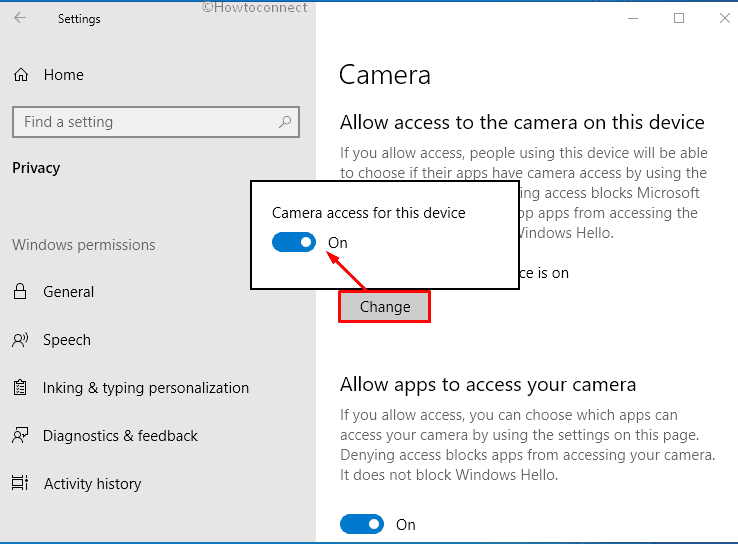
If any specific app triggers 0xa00f4243<CameraReservedByAnotherApp> (0xc00d3704) in your Windows 10, check whether that application has permission to use the camera. For that –
- Visit the same settings page as we discussed above.
- Turn on the toggle button present beneath Allow apps to access your camera.
- Scroll down a bit and look for the app triggering the issue.
- Allow access for the same by switching on its toggle button.
4] Close other applications using Camera
The error code 0xa00f4243<CameraReservedByAnotherApp> (0xc00d3704) clearly indicates another application is using the camera app. The system also urges to close other applications using camera as well. However, if you have applications running in the background like Skype, Zoom, Facebook Messenger, Yahoo Messenger, the system may trigger this error. Therefore to annihilate this trouble, close the other application from Task Manager. To carry out this task, follow the below guidelines –
- Right-click on taskbar and choose – Task Manager.
- If the window is not expanded already, click – More details.
- From Processes tab, find out the programs that use camera.
- Once you find any, select the same and click – End task.
5] Set Camera as default app
Though the reason is unknown, many Windows 10 users said the issue 0xa00f4243<CameraReservedByAnotherApp> (0xc00d3704) gets resolved after setting camera as default app. You can give it a try too.
- Press – Windows + I.
- From the dedicated window, click – Apps.
- Move to the right of the consequent page.
- Go through the app list to find out Camera.
- When you get it, select the same and then click – Advanced options.
- Reach to the bottom of the next page and hit – Set defaults by app.
- Click on Camera and opt for – Manage.
- Make sure all applications have access to the Camera as the default one.
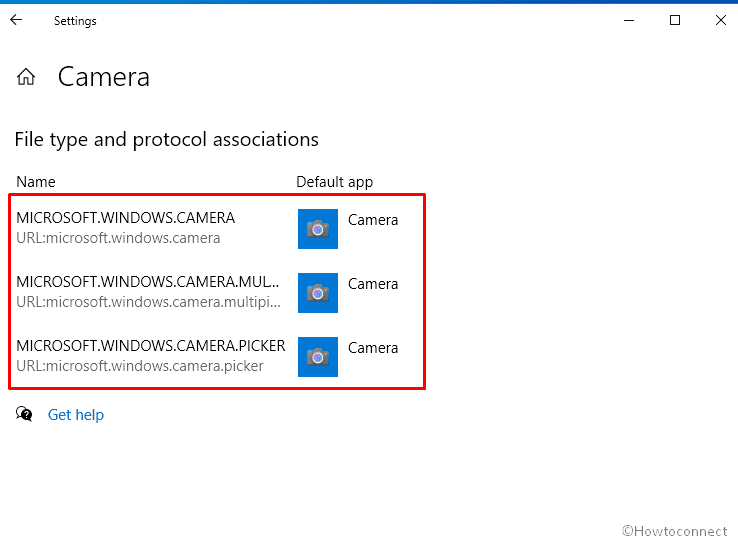
6] Deny Permission for other Camera apps
Some applications even after closing from Task Manager restarts after a certain interval. If you have closed them, they still can access the camera app and eventually end up showing error 0xa00f4243<CameraReservedByAnotherApp> (0xc00d3704). From the Task Manager, you can again manually close them but that will be a little tiresome.
The ideal way is to deny their permission for the apps using camera for some instances. This will disable their function in the background and would not be able to importune the camera request. Eventually, there will be no chance of getting the error subsequently. To accomplish this workaround, follow the below guidelines –
- Open Windows Settings app.
- Click – Privacy.
- From left column, choose – Camera.
- Shift to the right and make sure the Allow apps to access your camera toggle button is on.
- Scroll down a bit and disallow the apps that utilize the webcam except Camera app.
7] Reset Camera Application
Resetting the camera app oftentimes can eliminate the Error 0xa00f4243 in case other workarounds don’t come into effectiveness. To do this, follow the below guideline’s –
- Right-click Start button and select Settings.
- Click on Apps.
- Move to the right pane of the appearing page and find Camera.
- Select the same and then click – Advanced options link.
- Scroll down a bit and thereafter hit – Reset button.
- To give final consent, once again click – Reset.
8] Enable the camera using dedicated laptop key
Some laptop allows users to enable or disable built-camera using physical shortcut keys. If your webcam is disabled, you might need to press the hotkey to enable it again. Since the key varies from device to device, take help of Google search to find out the key that will work for your laptop. However, FN + F8 shortcut key works in enabling the camera on most laptops.
9] Run the Windows Store App Troubleshooter
Windows Store is the most trusted source of application and obviously, the programs are certified by Microsoft. However, some apps don’t count the legacy and come with buggy components inside. Since the Camera app is one of the built-in apps in the Windows Store, it’s not strange to have issues with it. However, you can resolve the trouble easily by carrying on the Windows Store App troubleshooter. Here are the guidelines to accomplish this –
- Press – Windows + I.
- Select – Update & Security.
- From the left column, choose – Troubleshoot.
- Move over to right and then click the link saying – Additional troubleshooters.
- Locate – Windows Store Apps.
- Select the same and click – Run the troubleshooter.
- Comply with on-screen instructions to finish the procedure.
10] Ensure Capability Access Manager (CamSvc) Service is running
Services are the core components of Windows Operating System and their task is to enable the creation and management of long-term processes. Likewise, Capability Access Manager (CamSvc) service is pretty much essential in order to run the Camera app without any issue. If this service is not enabled by any chance, you can have error 0xa00f4243<CameraReservedByAnotherApp> (0xc00d3704) while accessing the Camera in Windows 10. Starting the service will be the key solution and for that, follow the below guidelines –
- Open Services.
- Look for – Capability Access Manager service.
- Right-click the same and choose – Properties.
- Change the Startup type to Automatic.
- If the service is not running already, click – Start.
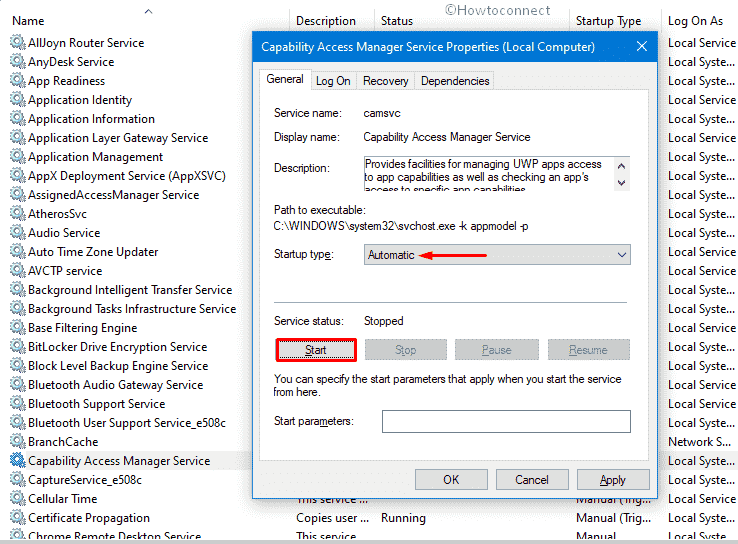
- Hit Apply followed by OK.
11] Make use of default Hardware and device troubleshooter
The method of identifying, diagnosing the operational as well as technical issues in a Hardware device in Windows 10 is the Hardware Troubleshooter. You can settle down any physical or logical problems easily only by running this built-in utility.
Since Webcam is a Hardware utility, any issue related to this can be resolved by running the Hardware and Device Troubleshooter. Here are the guidelines to run this –
- Open Command Prompt as administrator.
- Insert the following in the black pane and hit Enter –
msdt.exe -id DeviceDiagnostic
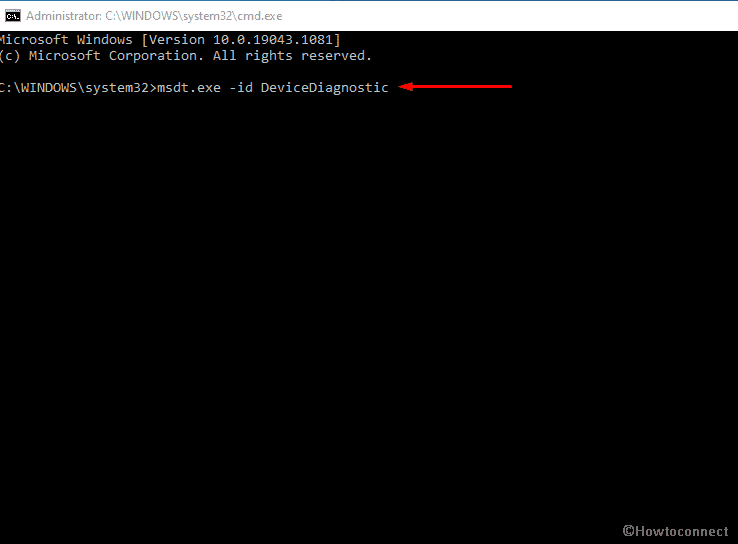
- When Hardware and Devices Troubleshooter prompts, click – Next.
- If the utility presents a list of display devices that have issues, select camera since you want to troubleshoot.
- Click – Next.
- If the tool comes up with an automatic repair, hit – Apply this fix.
- Lastly, click Next and let the system restart.
12] Rectify corrupted system components with SFC scan
Corrupted system components are more likely to cause unexpected issues in Windows 10. 0xa00f4243<CameraReservedByAnotherApp> (0xc00d3704) can be a result of same. By running SFC scan, you can resolve the corruption moreover replace the missing system elements that are necessary to run the system smoothly. The utility mainly replaces any corrupted system files with fresh locally stored copies.
- Click search icon from the taskbar.
- Type – cmd.exe.
- When you see Command Prompt at top of result flyout, press – Ctrl + Shift + Enter.
- To allow User Account Control, click – Yes.
- In the appearing black pane, type – sfc /scannow.
- Hit – Enter key.
- When the scanning process ends, reboot your PC.
13] Start dedicated camera service
Some of the users who were struggling with 0xa00f4243<CameraReservedByAnotherApp> (0xc00d3704) error reported that the issue resolved after starting the dedicated camera service. The camera might be using a different service, hence the name of the service that you need to enable may vary.
- Press – Windows + R.
- In Run dialog, insert – services.msc.
- Click – OK.
- When Services window appears, look for the camera service dedicated to your device.
- Usually, the name of the service remains Intel(R)RealSense(TM)Depth.
- Right-click the same and select – Start.
14] Tweak the registry
Lately, Microsoft has come up with a new rollout that is no longer supporting the MJPEG or H264 encoding standards. Therefore, some of the devices that use these encodes for built-in webcam videos or images will have issues like Error 0xa00f4243.
However, if you have received the new rollout in a relatively older version of Windows 10 operated devices can ignore this feature. For that, you have to tweak Windows Registry a bit and change DWORD to disable the underlying feature. Follow the below steps to accomplish –
- In Windows search, type – regedit.
- Hit – Enter.
- When User Account Control asks for consent, click – Yes.
- Once in the Registry Editor window, navigate to –
Computer\HKEY_LOCAL_MACHINE\SOFTWARE\WOW6432Node\Microsoft\Windows Media Foundation\Platform
- Move over to the right pane.
- Right-click on an empty space and choose New => DWORD (32-bit) Value.
- Name the key EnableFrameServerMode.
- Double-click the newly created DWORD key.
- Also, Put 0 in the Value data box.
- To save the changes, click – OK.
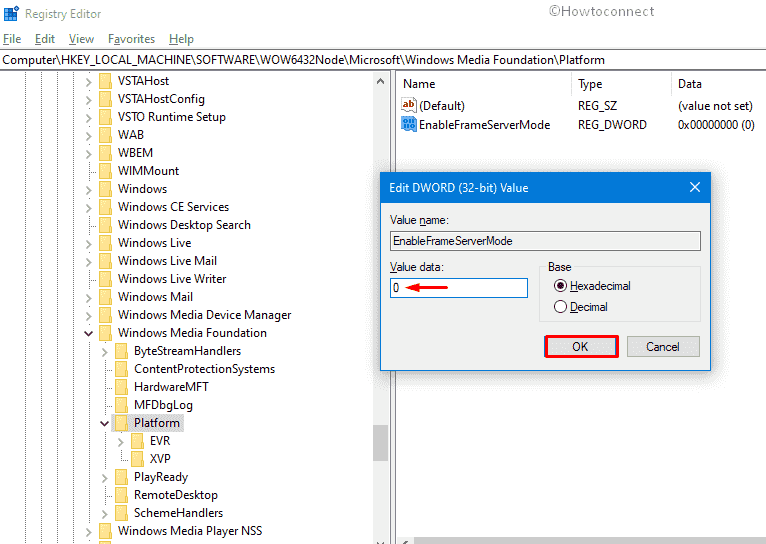
- Restart the device and check for the error.
1] How to Fix Windows 11 Camera not working (Solved!)
3] Fix 0xA00F4289 ActiveCameraUnplugged Webcam Error in Windows 10
4] Fix – Windows 10 Camera not working
5] Fix – Error Code 0xa00f4244 <nocamerasareattached> in Windows 10
Methods list:
1] Update Web cab driver to the latest firmware
2] Reinstall camera driver
3] Check whether your device can access camera
4] Close other applications using Camera
5] Set Camera as default app
6] Deny Permission for other Camera apps
7] Reset Camera Application
8] Enable the camera using dedicated laptop key
9] Run the Windows Store App Troubleshooter
10] Ensure Capability Access Manager (CamSvc) Service is running
11] Make use of default Hardware and device troubleshooter
12] Rectify corrupted system components with SFC scan
13] Start dedicated camera service
14] Tweak the registry
That’s all!!
Repair any Windows problems such as Blue/Black Screen, DLL, Exe, application, Regisrty error and quickly recover system from issues using Reimage.