
Ошибка появляется при установке обновлений системы, компонентов, или защитника windows. (windows defender / microsoft security essentials).
Причина — необходима поддержка механизма подписи sha-2 пакетов msi.
Затронутые системы Windows server 2008, 2008r2, windows 7 всех редакций.
Решение — установка обновления kb4474419.
Статья на сайте Майкрософт — https://support.microsoft.com/en-us/topic/sha-2-code-signing-support-update-for-windows-server-2008-r2-windows-7-and-windows-server-2008-september-23-2019-84a8aad5-d8d9-2d5c-6d78-34f9aa5f8339
Каталог обновлений Microsoft — https://www.catalog.update.microsoft.com/Search.aspx?q=4474419
Ошибка 800b0109 – это ошибка обновления Windows. Это происходит, когда пользователь пытается обновить или обновить приложения Windows. Иногда это также происходит, когда системные файлы не запускаются. Приложения Microsoft Health и подкасты – два из наиболее распространенных приложений, которые вызывают это сообщение об ошибке, когда пользователь пытается их обновить.
Центр обновления Windows код ошибки 800b0109 обычно отображает сообщение ниже, в котором говорится:
«Обнаружена ошибка (S): код 800B0109 Центр обновления Windows обнаружил неизвестную ошибку. »
Эта ошибка может быть вызвана разными причинами:
- Поврежденные системные диски или файлы
- Вирусная атака на систему
- Поврежденные компоненты обновления Windows
- Неполная установка компонентов Центра обновления Windows
Обычно ошибка обновления Windows 800b0109 возникает, когда компоненты обновления повреждены, обновляют Windows или заражены вирусом.
Проверьте Дисковую утилиту
Как я уже упоминал выше, из-за повреждения Windows Update 800B0109 Error может появиться из-за поврежденных файлов обновления, поэтому нам придется запустить сканирование SFC с помощью командной строки, чтобы восстановить файл.
1) Перейти в Пуск и ищи Командная строка
2) Кликните правой кнопкой мыши на нем и выберите Запустить от имени администратора
3) Нажмите Да в «Контроль учетных записей пользователей» диалоговое окно
4) Тип CHKDSK C: / F и нажмите Enter ключ
5) После завершения процесса перезагрузите систему..
Запустить проверку системных файлов
1) Перейдите в Пуск и введите cmd.
2) Кликните правой кнопкой мыши в командной строке и выберите Запустить от имени администратора
3) Выберите да в диалоговом окне «Контроль учетных записей пользователей»
4) Введите sfc / scannow в окне командной строки и нажмите Enter.
5) После завершения сканирования и автоматического восстановления системы закройте окно и запустить снова систему.
Загрузочная система в безопасном режиме
Есть вероятность исправить ошибку Windows Update 800B0109, перезагрузив компьютер в безопасном режиме. Это остановит все ненужные приложения и позволит вашей системе работать без сбоев:
1) Нажмите Пуск и выберите значок питания.
2) Нажмите и удерживайте Shift и одновременно нажмите « Перезагрузить».
3) Выберите Устранение неполадок, а затем нажмите на « Дополнительные параметры».
4) Выберите « Параметры запуска» и нажмите « Перезагрузить».
5) Нажмите F4. Windows автоматически перезагрузится в безопасном режиме.
Запустить восстановление системы
Это самый простой способ исправить ошибку 800b0109, но его нужно сделать, наконец, если вышеуказанный метод не работает:
1) Нажмите Win + R
2) Введите rstrui.exe и нажмите ОК.
3) Нажмите Далее
4)Выберите точку восстановления с прежнего времени или даты и нажмите « Далее».
5) Нажмите Готово.
6) Выберите да в окне предупреждения.
7) Перезагрузите компьютер.
Запустите антивирус
Иногда, если система Windows заражена вредоносным ПО или вирусом, он изменяет компоненты обновления Windows и не позволяет загрузить последний патч. Таким образом, важно выполнить полное сканирование системы с помощью хорошего антивируса, такого как Kaspersky.
Выполнение полного сканирования системы может занять несколько часов в зависимости от того, сколько данных хранится на ваших жестких дисках.
Сбросить этот компьютер
Это еще один способ исправить ошибку 800b0109 в Windows 10, следуйте приведенному ниже методу:
1) Кликните логотип Windows и введите Reset this PC.
2) Нажмите по нему
3) Нажмите на НАЧАТЬ РАБОТУ
4) Нажмите на первый вариант с надписью «Сохранить мои файлы».
5) Дайте системе выполнить операцию, а затем перезагрузите компьютер.
Теперь вы можете обновить Windows без ошибки 800b0109. Я надеюсь, что вышеупомянутый метод поможет вам избавиться от этой досадной проблемы, дайте знать, если вы все еще сталкиваетесь с какой-либо проблемой.
Microsoft frequently fixes minor or major bugs and security patches with new Windows updates. Every time the latest update arrives, ideally you should update your Windows with the latest one. However, not every time you’d get to install the update flawlessly, and many users encounter various problems while installing updates on their PC.
Today we are going to discuss one such error, Windows Update 800B0109 Error. This error occurs with the following message saying “Error(S) found: Code 800B0109 Windows Update encountered an unknown error.” The source of Error 800b0109 could be a number of things such as Windows Registry, Windows File System, Internet access, Windows Update service, File corruption, Misconfiguration, Adware, Viruses, and Malware.
Regardless of whatever causes the error, we’re here to find the fix. Moreover, in this post, we shall tell you six possible solutions to resolve the issue. Do note that there’s no universal fix as such. You will have to try out each of the below-mentioned workarounds and see which one works best in your favor. So with that in mind, let’s get started.
Fix 1: Stop and Start Windows Update Service
Since Error 800b0109 is an update error, to fix this the first thing we will do is stop and restart the Windows Update Service. Further in this method, we are going to do three things–
- Stop Windows Update service.
- Clean the Windows Update temporary cache folder.
- Restart the Windows Update service again.
Stop Windows Update service.
Step 1: Press the Windows-key+S key together to open the search box then search for service.msc in the search box.
Step 2: Open the Services app.

Step 3: In the new window all the services in Windows will show up.
Step 4: Search for Windows Update. To find the Windows Update service easily click on any of the services and type W until you find it or go to the bottom and search for Windows Update.

Step 4: Right-click the Windows Update and then click Stop, Wait for some time until it gets stopped.

Clean the Windows Update temporary cache folder.
Windows Update service has stopped. Now we have to clean the Windows update cache folder. Here are the steps:
Step 1: Press the Windows-Key+R together.
Step 2: Type %windir%\SoftwareDistribution\DataStore in the newly opened window’s search box.

Step 3: Click on OK.
Step 4: You’ll land in a folder containing all the cache files. Select all files by pressing Ctrl+A and Delete all contents of this folder.

Restart Windows Update Service
After clearing all the cache files. We’ll start the Windows Update Service again. Here is how.
Step 1: Go back to the Windows Update service window. (Follow the steps from 1 to 3 of the stop Windows update service method)
Step 2: Currently it is stopped, to start it again right-click on it and click on Start
So, this is the first method you should try to fix Windows Update 800 errors. However, if this method doesn’t work try a different one, shared below —
Fix 2: Run the System File Checker (SFC) Utility
In this method, we’ll run the System File Checker(SFC). SFC is a built-in tool to check the file system of your system. To run it, follow these steps:
Step 1: Press Windows-Key+S simultaneously to open the search box.
Step 2: Type cmd in the search box.
Step 3: You’ll see Command Prompt App from the list of results. From the right preview pane, click on Run as administrator and then select Yes.

Step 4: Type sfc/scannow (note the space between “sfc” and “/”) and press Enter.

Step 6: Wait for some time, this step may take a few minutes to start and up to 30 minutes to complete.) You can minimize the windows and do other stuff.
Step 7: After you see a message that says, “Verification 100% complete,” type Exit.
Step 8: Now Restart your computer and then Check for Updates. The update error should be fixed by now.
Fix 3: Check Disk Utility
You can check the logical and physical errors of the hard disk. Disk Utility can be used to fix Windows Update-related errors.
Step 1: In the search box on the taskbar, type cmd
Step 2: From the right preview windows, Click on Run as administrator, and then select Yes.
Step 3: Run as administrator, and then select Yes.
Step 4: Type chkdsk C: /f (note the space between “C:” and “/”) and press the Enter key.

Step 5: Restart your PC when the process is finished.
Fix 4: Check the Windows Firewall
Error in Firewall settings also can be a source of Error 800b0109 Windows Update Error. In order to fix the update error make sure everything is fine in the Windows Firewall setting. To make sure follow the steps:
Step 1: In the search box on the taskbar, type ‘Check Firewall Status’.

Step 2: Open it.
Step 3: Take a look if there is an error. If there are no red highlights then everything is fine and you don’t need to take any action.

Fix 5: Clean Up Files
Clearing some temp and unwanted system files may cure the Windows 800 Update Error. Here we are going to clear temp, %temp%, and cleanmgr files. Here is how.
Clean Temp Files for System
Step 1: Type Windows-Key+R together. A “Run” dialog box window will pop up.
Step 2: Type the command temp and press Enter key.

Step 3: Now the Temp folder will open up. Select all the files in the folder by pressing Ctrl+A at once.
Step 4: Press the Shift+Delete button to permanently delete all the files.
> Note: Some files may not be able to be deleted. If you are prompted about files that are missing or in use, click the check box next to “Do this for all current items” and click “Skip.”
Clean %temp% files
Step 1: Press the Windows Button + R to open the “Run” dialog box.
Step 2: Enter this text: %temp%
Step 3: Click “OK.” This will open your temp folder.
Step 4: Now, repeat the same steps as mentioned before in Steps 3 to Step 5.
Clean up unwanted System files
Step 1: Press the Windows Button + R to open the “Run” dialog box.
Step 2: Enter this text: cleanmgr.exe

Step 3: Now disk cleanup windows shall open. Select the drive you want to clean up. (Normally C: Drive) Click OK.

Step 4: Select the files you want to delete from your system. You can check the list of files. Select all except Recycle Bin and Previous Windows Installations.

Step 5: Click the OK button to start cleaning up. Wait until it is done.
Fix 6: Reset your PC
If none of the above-shared methods are able to fix the 800b0109 Error, only then you should try to Reset This PC option. It will reinstall the Windows of your PC, however, you get to choose whether you want to keep or remove your personal files. To reset your PC, follow these steps:
Before you proceed further let me warn you again – you only choose this method if none of the other methods work. Resetting your PC is not the ideal solution to a minor error like this. Reset This PC is a repair tool for serious operating system problems. Reset This PC removes all of your software or driver, meaning you will have to reinstall that software and driver.
Step 1: Press Windows Key + S to open the Search bar and type Reset this PC.

Step 2: Open it.
Step 3: Click the Get Started button.

Step 4: Click on the option that says Keep my files.

Now sit back and wait until your PC reset successfully.
Bottom Line
So these were the best fixes for the error 800b0109. I hope you found the article helpful. Please comment on which method worked for you. Also, if the problem persists, please let us know.
Learn to fix this on Windows 10 & Windows 11
by Loredana Harsana
Loredana is a passionate writer with a keen interest in PC software and technology. She started off writing about mobile phones back when Samsung Galaxy S II was… read more
Updated on
- If you encounter Installer encountered an error 0x800b0109 message, use built-in troubleshooters to fix it.
- Repairing your system files can help with all sorts of update problems and errors.
- Entering Safe Mode is a great way to troubleshoot this Windows Update error and many other PC issues.
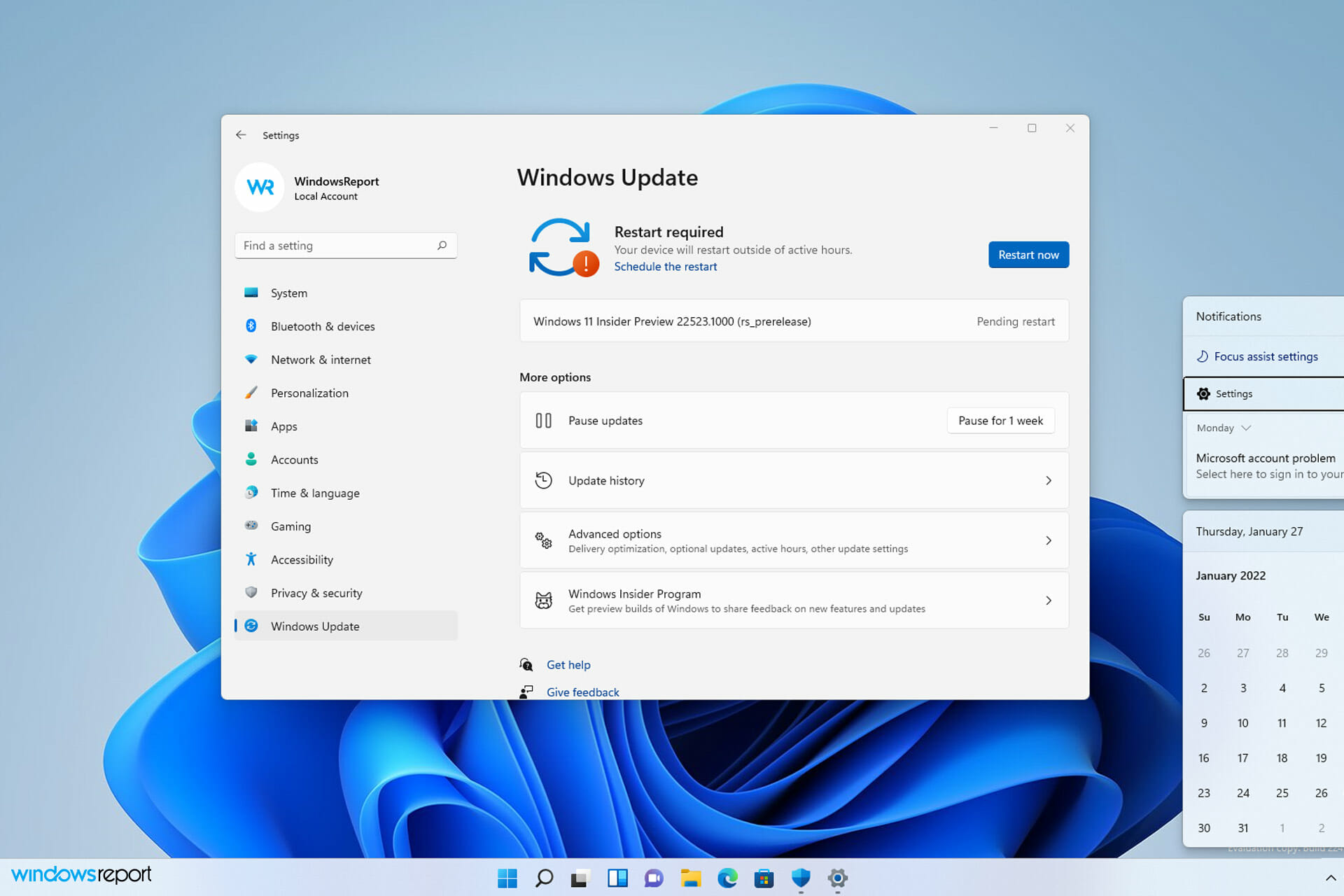
Keeping your Windows up to date is important, especially if you want to ensure that your PC is running bug-free.
However, sometimes, issues with the update process can occur, and you’re unable to install updates.
Many users reported Installer encountered an error 0x800b0109 error when installing updates, and in today’s guide, we’re going to show you how to fix this issue.
Why does the update error 0x800b0109 occur?
In most cases, this and many other update errors occur because there’s an issue with the Windows Update component.
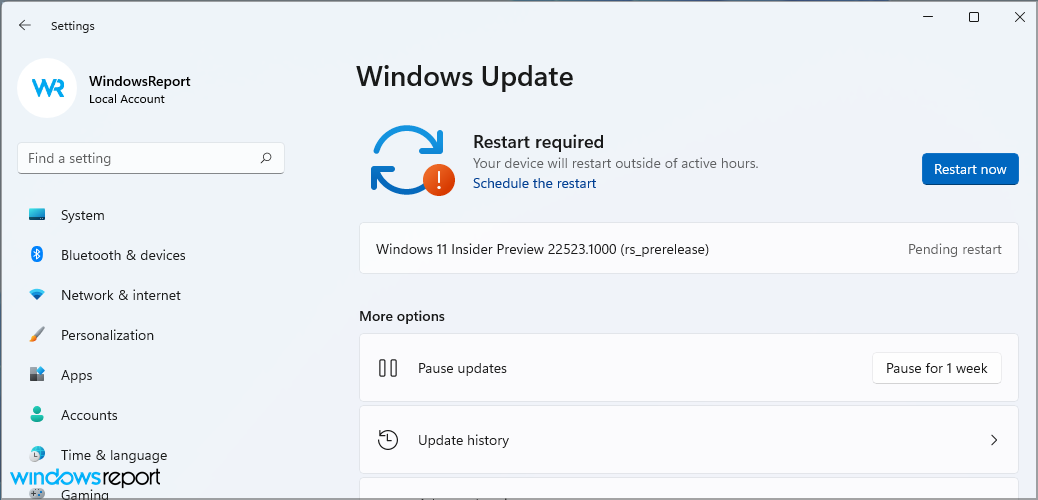
It’s also possible that your system files are damaged or that an application is interfering with the update process.
Is error code 0x800b0109 serious?
The error will prevent you from downloading updates, and if you can’t update your operating system, it will become vulnerable.
In addition to vulnerability, this error will prevent you from getting patches and new features, so it’s important to fix it.
How can I fix the 0x800b0109 error?
- Why does the update error 0x800b0109 occur?
- Is error code 0x800b0109 serious?
- How can I fix the 0x800b0109 error?
- 1. Run the Windows Update troubleshooter
- 2. Disable or uninstall third-party antivirus
- 3. Run SFC and DISM scans
- 4. Enter Safe Mode
- 5. Perform an in-place upgrade
- 6. Use System Restore
- What to do if the Installer encountered an error 0x800b0109 on Windows 11?
- Download the update manually
- Is it possible to download updates outside of Windows Update?
- How can I remove Windows updates?
1. Run the Windows Update troubleshooter
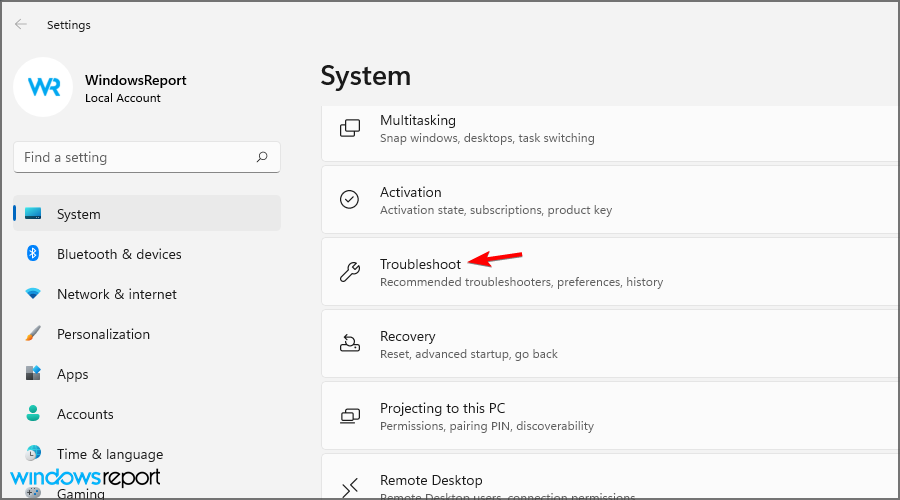
- Press Windows key + I to open the Settings app.
- Now navigate to Troubleshoot.

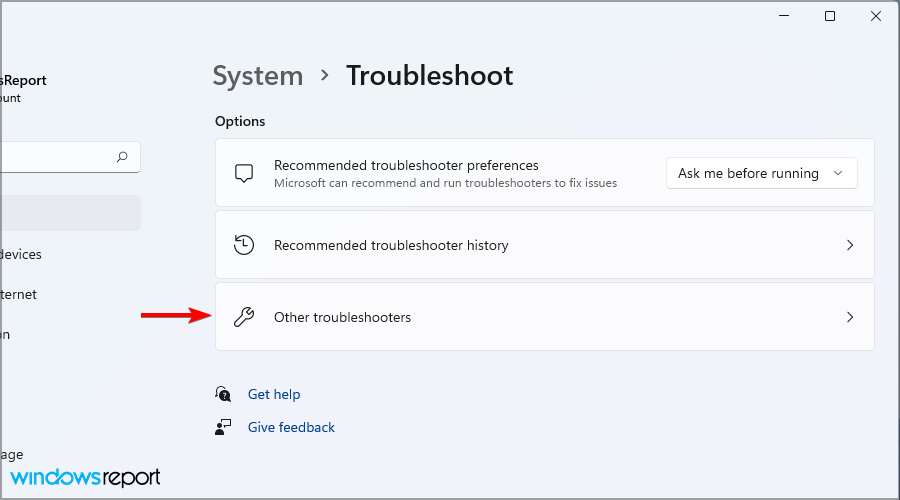
- Click on Other troubleshooters.
- Now locate Windows Update and click on Run.
- Wait for the process to finish.
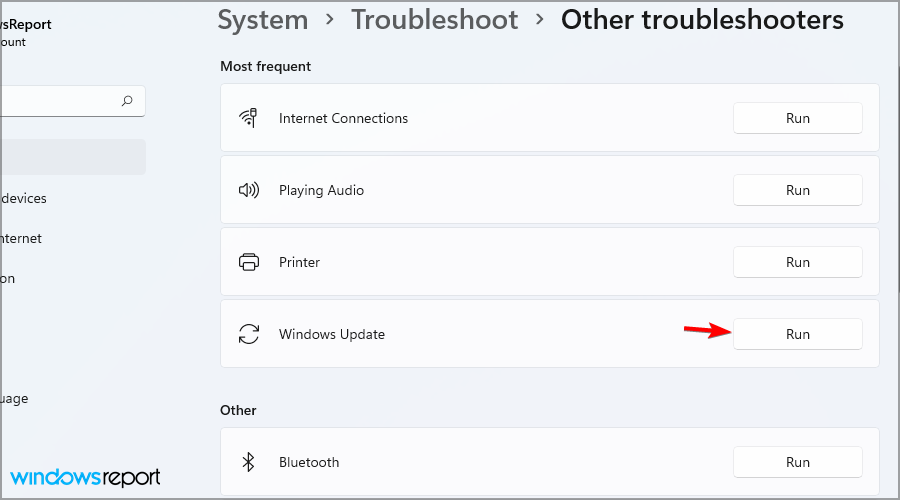
If the troubleshooter didn’t work for you, you might want to try using specialized repair software such as Fortect to fix this issue.
2. Disable or uninstall third-party antivirus
- Disable your antivirus software and check if that solves the issue. If not, move to the next step.
- Click on Start and select Settings.

- Go to Apps and select Installed apps.
- Locate your antivirus software, click the three dots next to it and choose Uninstall.
- Follow the instructions on the screen to complete the process.
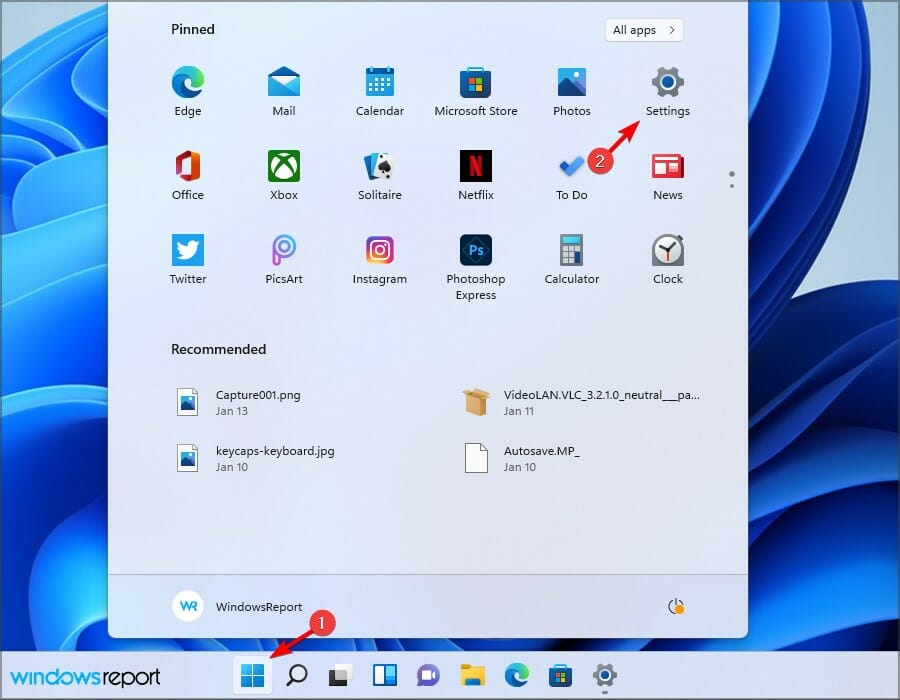

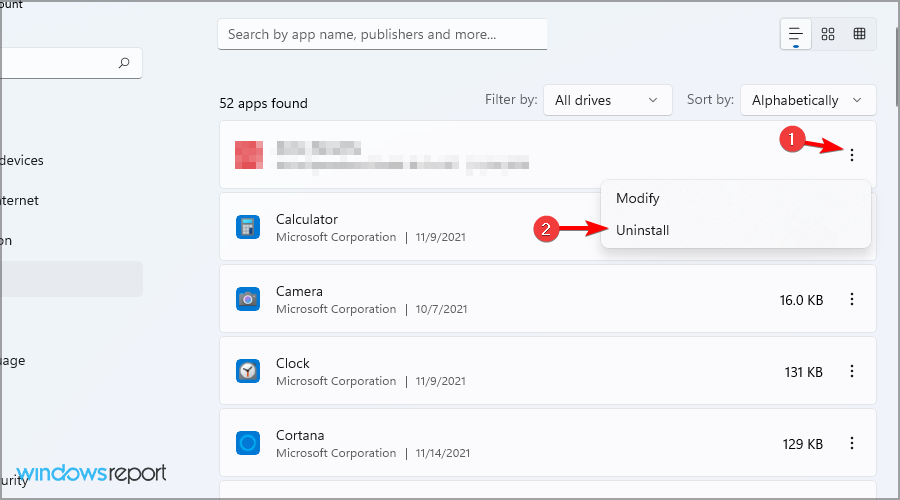
After removing your antivirus, check if the problem is resolved. Alternatively, you might want to consider using antivirus software for Windows 11 to avoid such issues in the future.
3. Run SFC and DISM scans
- Press Windows key + X and select Windows Terminal (Admin).
- Now run the following command:
sfc /scannow - Wait for the process to finish.
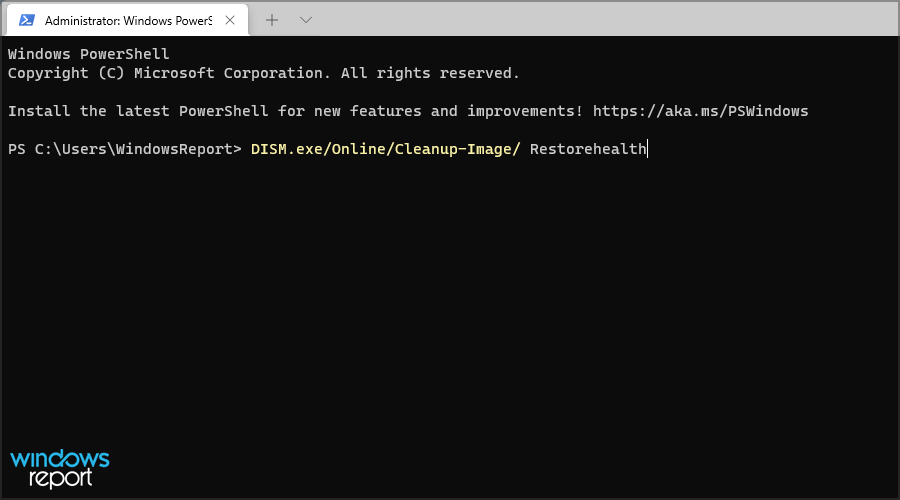
- Run this command:
DISM.exe/Online/Cleanup-Image/ Restorehealth - Wait patiently for the process to finish.

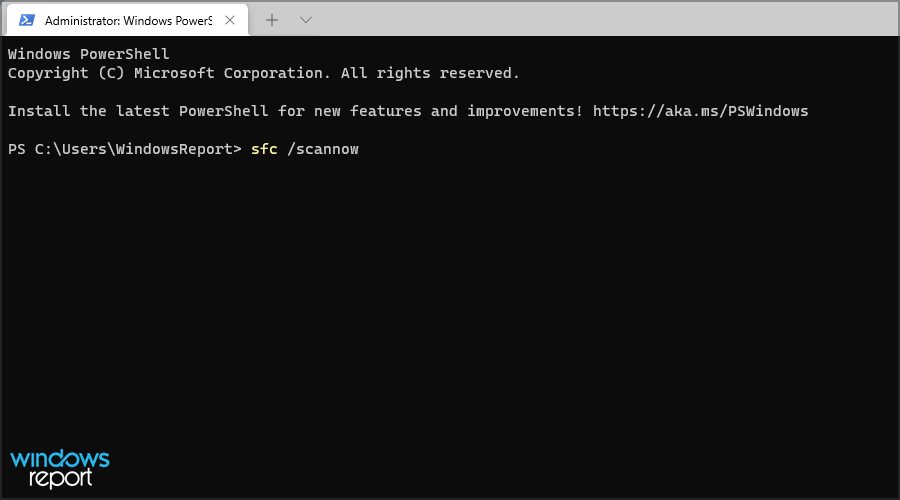
4. Enter Safe Mode
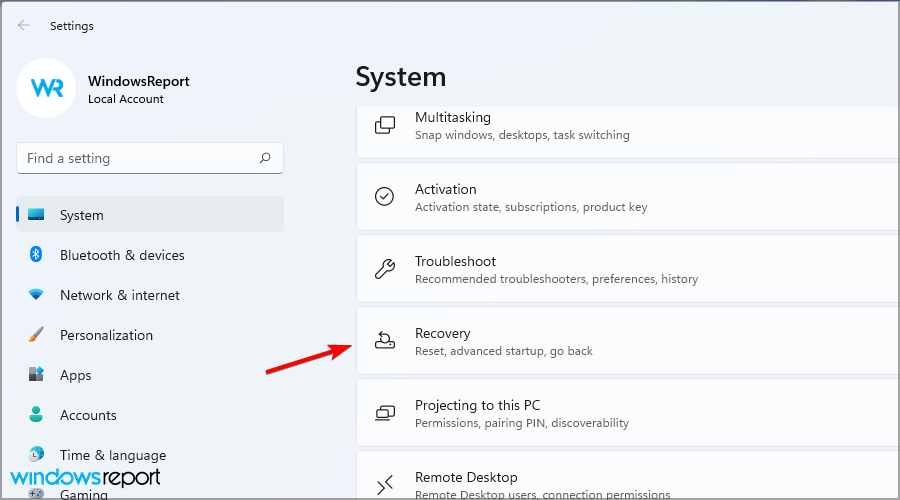
- Click on Start and navigate to Settings.
- Select Recovery.
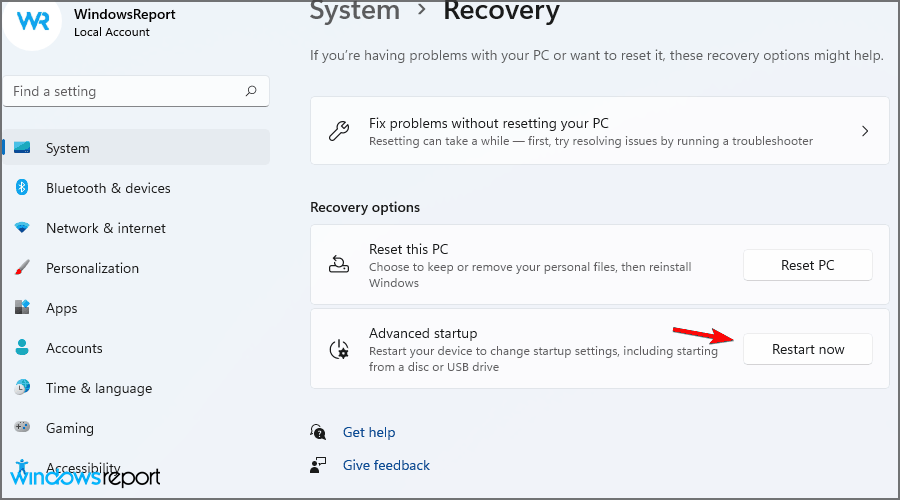
- Click the Restart now button in the Advanced startup section.
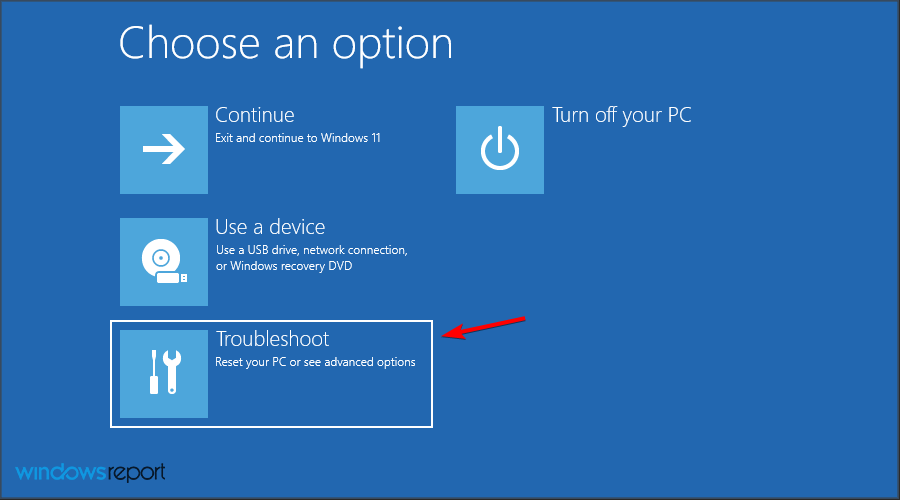
- Choose Troubleshoot from the list of options.
- Navigate to the Advanced options.
- Select Startup settings and click Restart.
- Now you just need to press F5 or 5 to select Safe Mode with Networking.
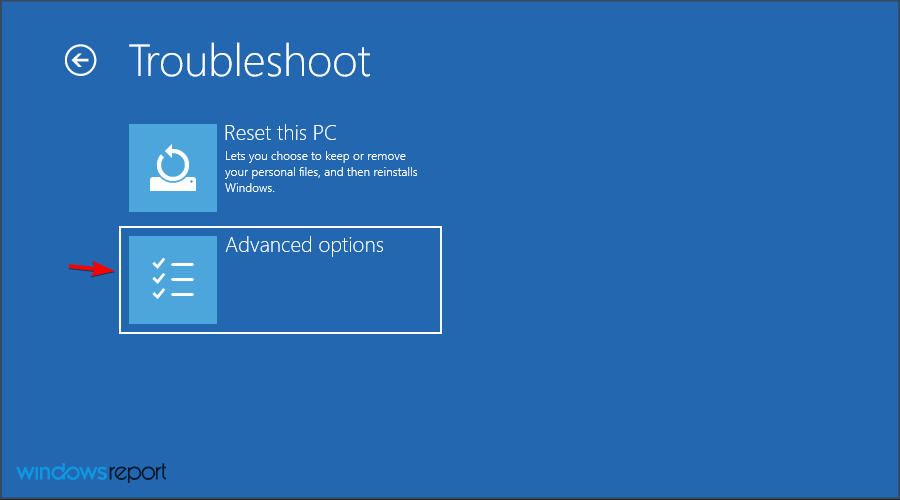
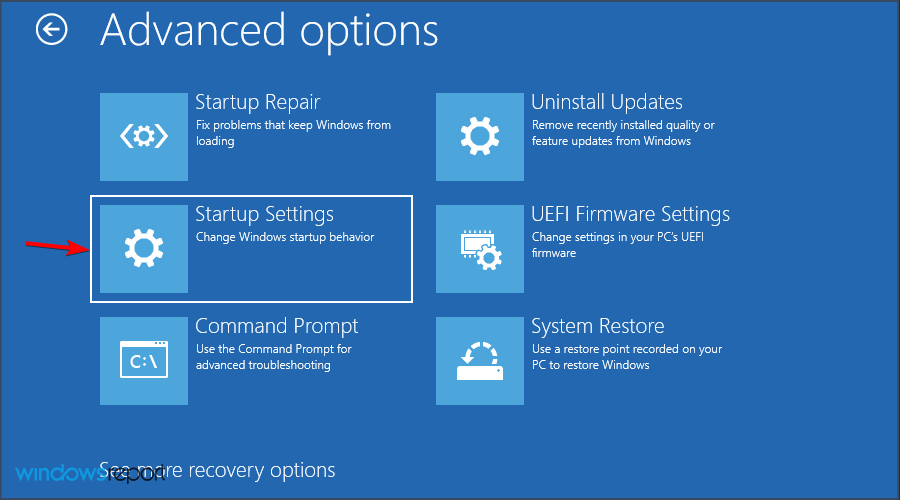
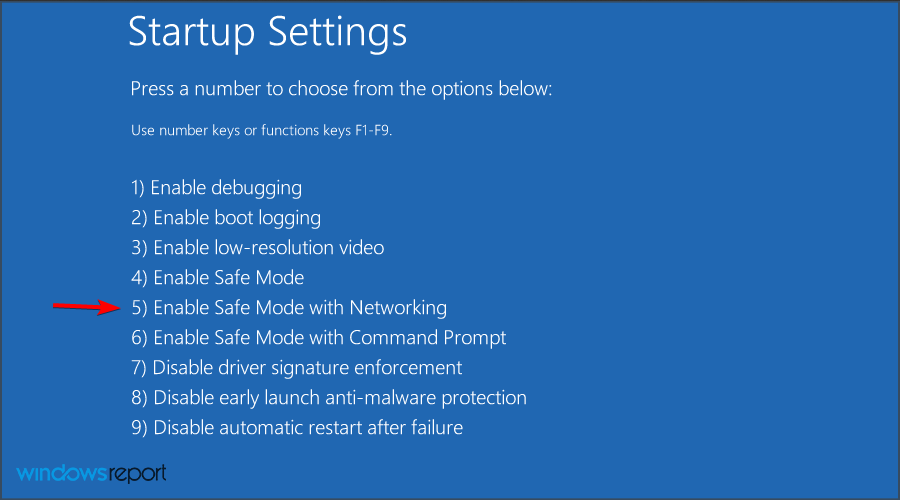
Once you enter Safe Mode, try to update your PC again. If you’re having issues performing these steps, we suggest reading our guide on how to access Safe Mode on Windows 11.
5. Perform an in-place upgrade
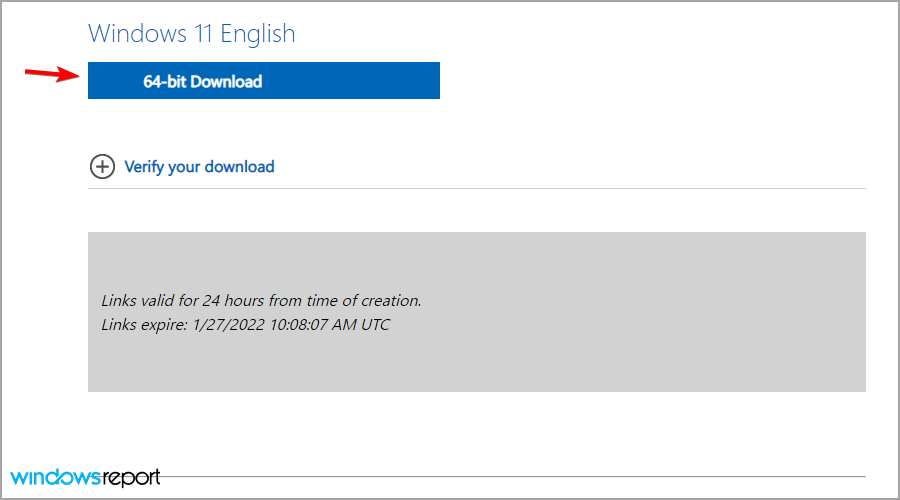
- Head to Windows 11 webpage.
- Select the desired version and click on Download.
- Choose the language you wish to use. Now click on Confirm.
- Select 64-bit download.
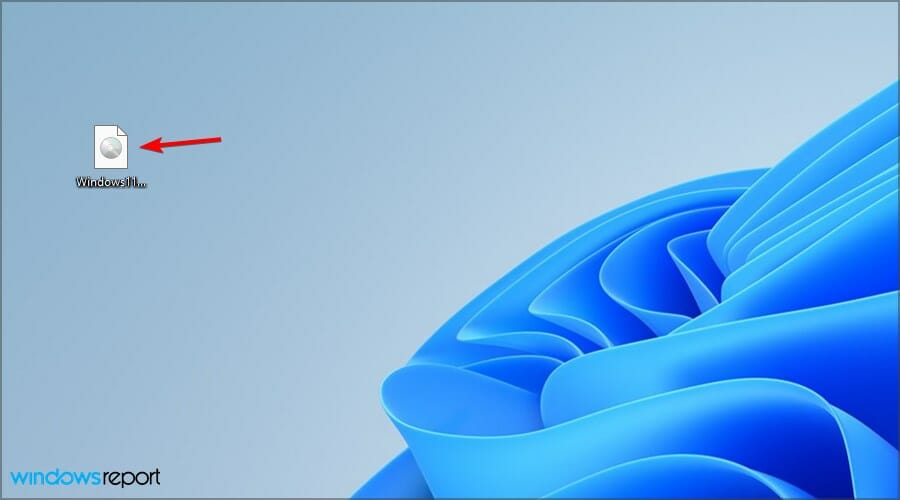
- Wait for the download to complete.
- Double-click the file that you downloaded.
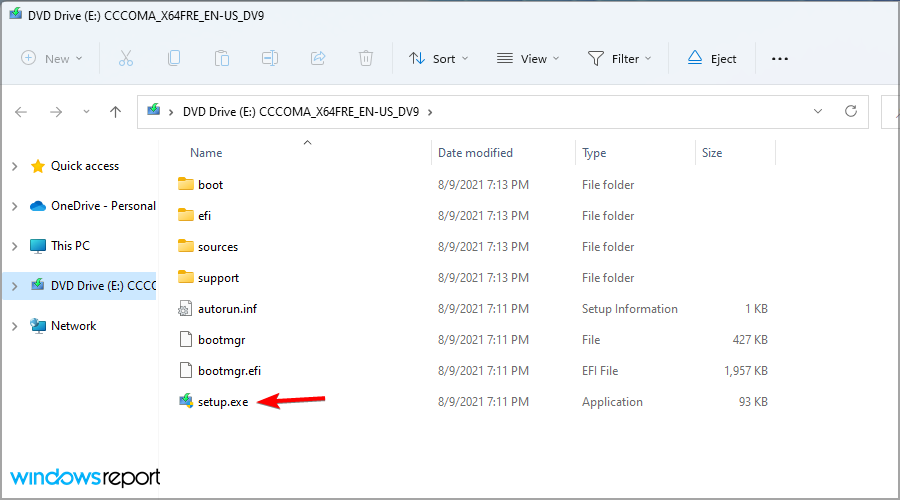
- A new window will appear. Locate setup.exe and double-click it.
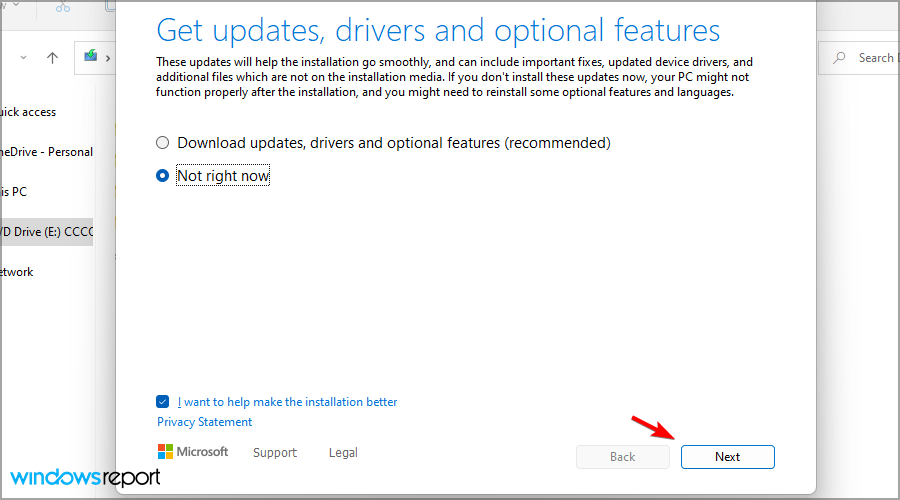
- Pick if you want to download the available updates and click Next.
- Select Keep personal files and apps if possible and click Next.

- Follow the instructions on the screen to finish the setup.

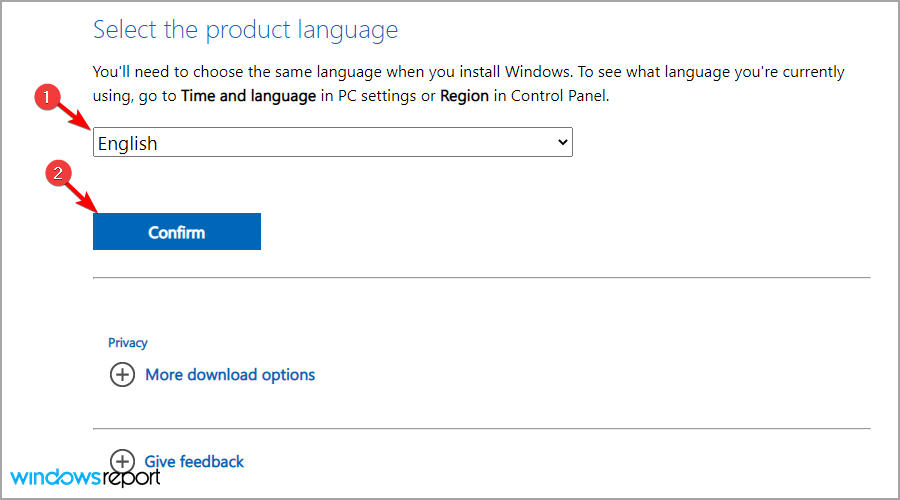
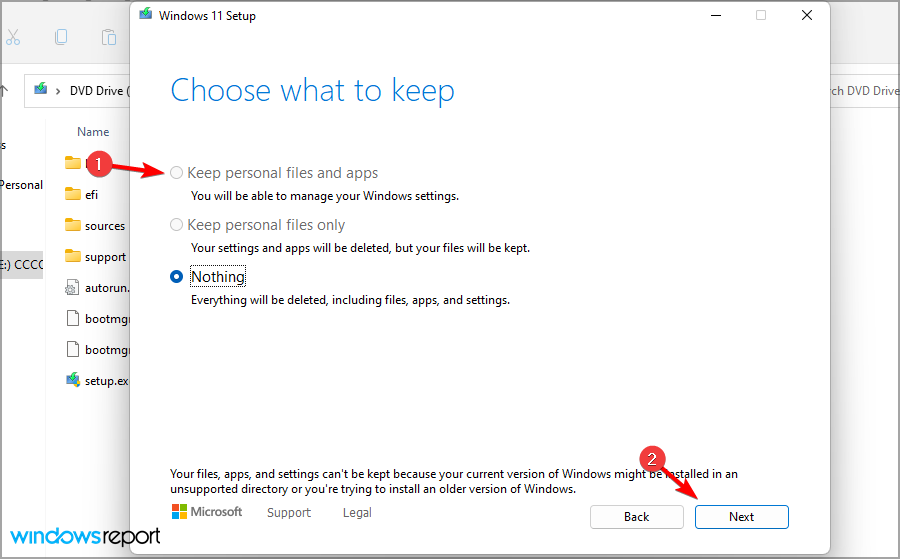
Only use the option to keep your personal files and apps or else this process will reinstall Windows instead of upgrading it.
6. Use System Restore
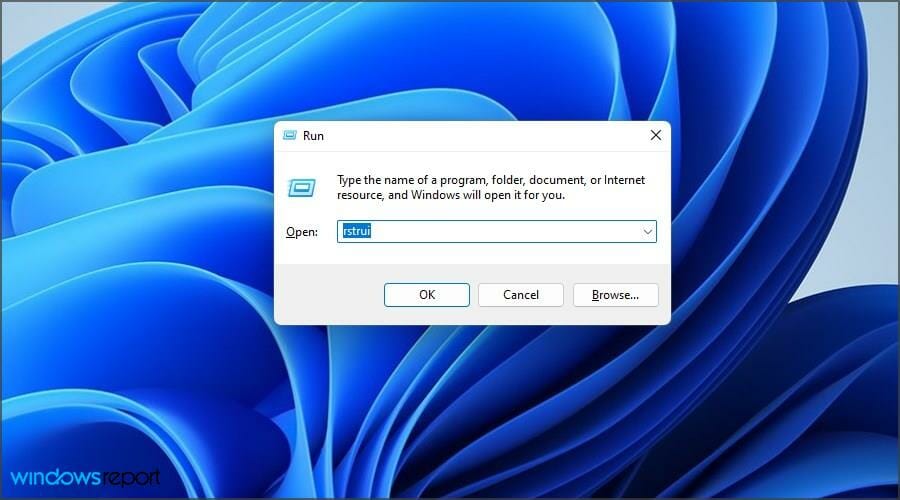
- Press Windows key + R to open the Run dialog. Type rstrui and press Enter.
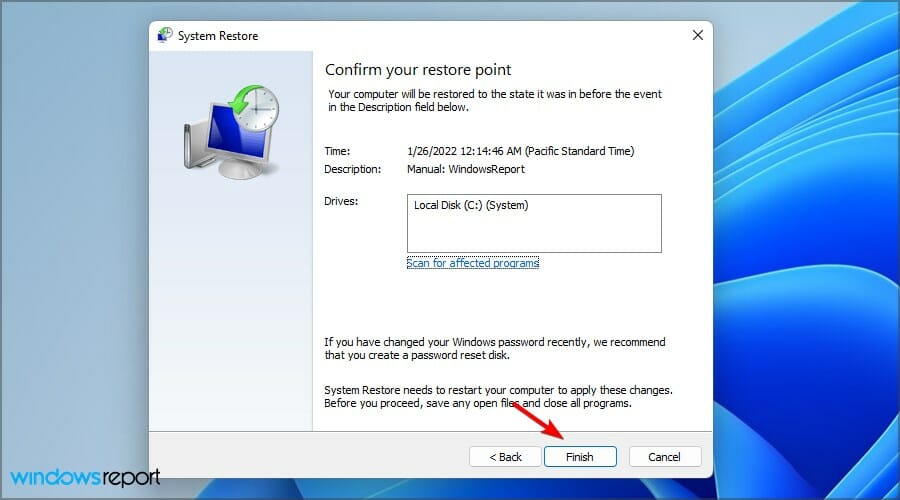
- Choose a restore point and click Next.
- Now press Finish.
- Wait while the restoration process is finished.

To learn more about this feature, we suggest reading our guide on how to create Windows 11 restore points.
What to do if the Installer encountered an error 0x800b0109 on Windows 11?
Download the update manually
- Locate the KB number of the update. You can find it in the Windows Update section.
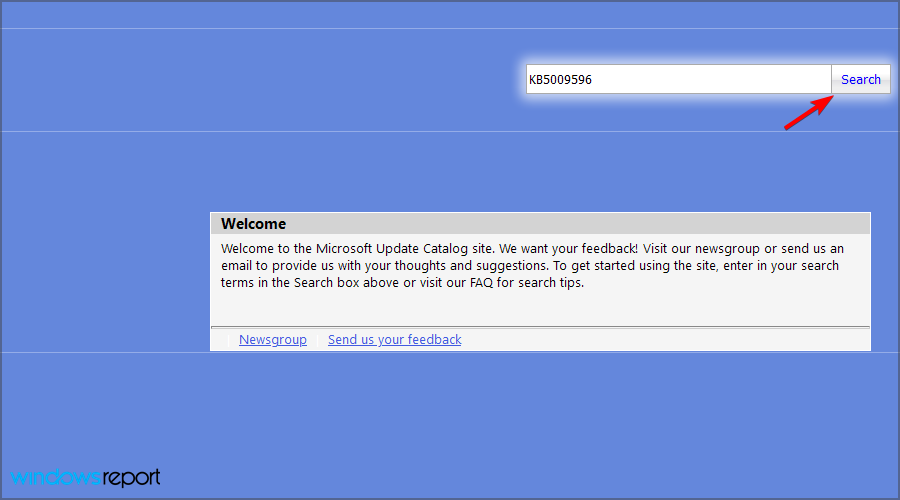
- Go to the Microsoft Update Catalog website.
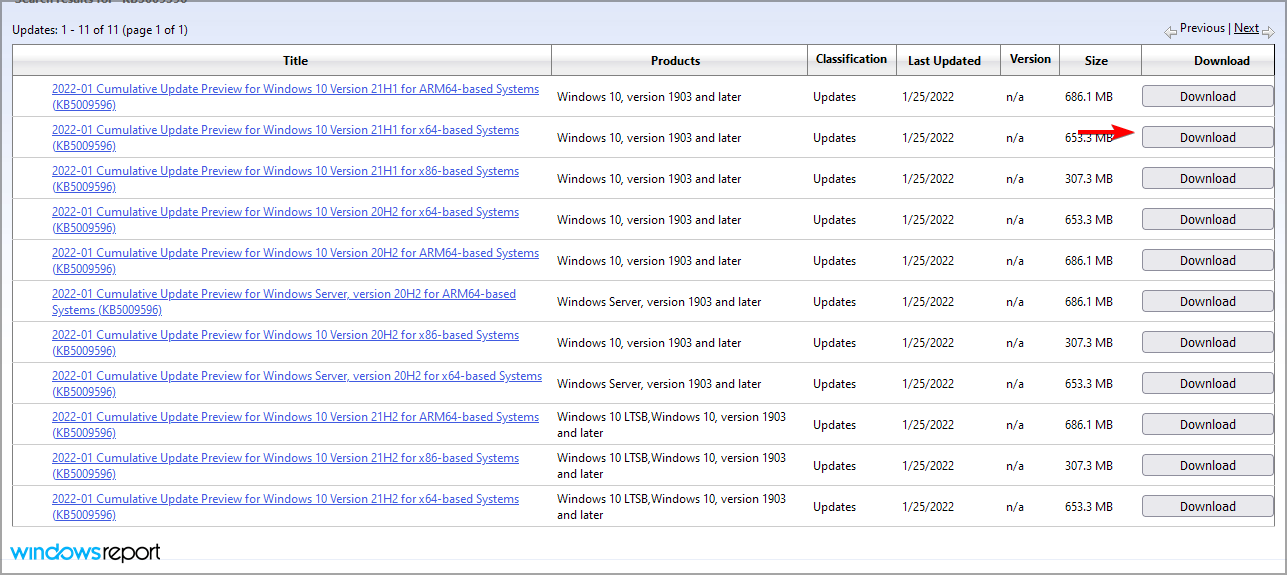
- Enter the KB number and click on Search.
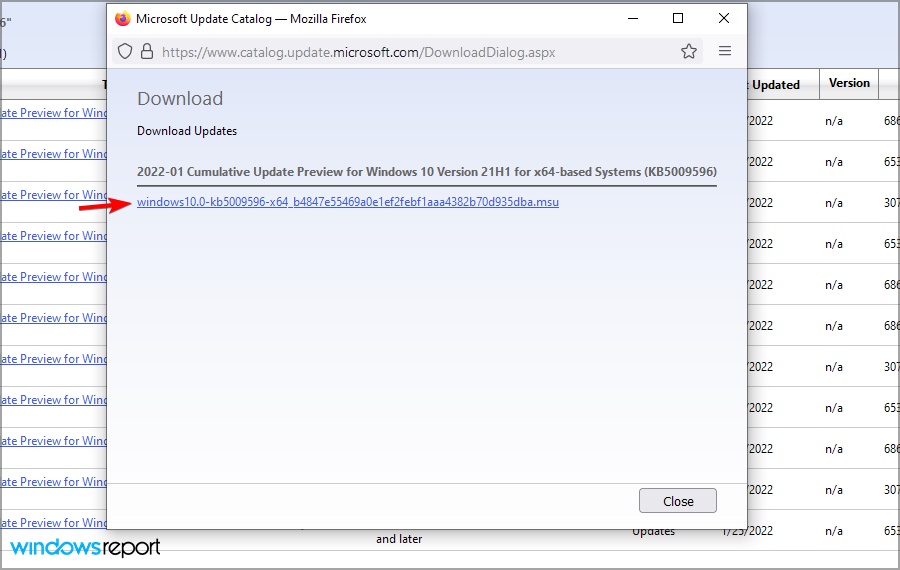
- Find the update that matches your system architecture and click on Download.

- Now click on the available link to download the update.

- Once the file is downloaded, run it to install the update.
Is it possible to download updates outside of Windows Update?
Yes, Microsoft Update Catalog allows you to download individual updates as files and install them on your PC.
The website is created by Microsoft, so you can rest assured that updates from it are completely safe to download and install.
How can I remove Windows updates?
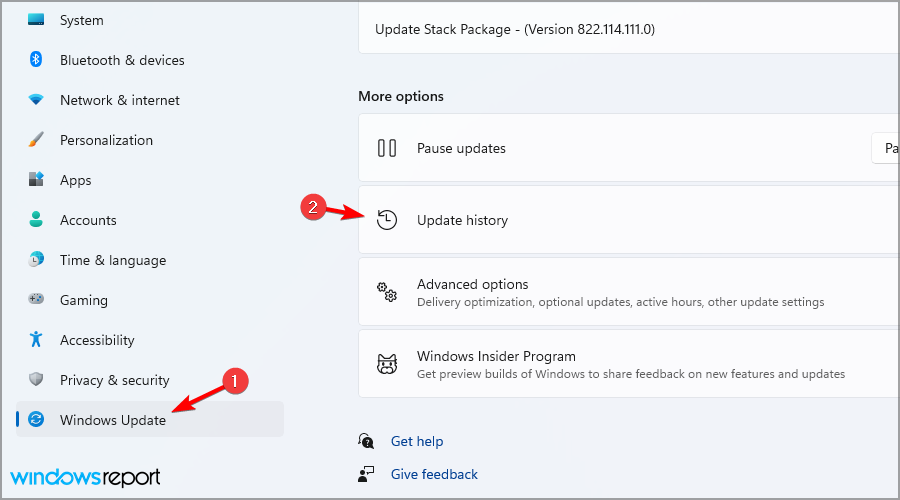
- Open the Settings app using the Windows key + I shortcut.
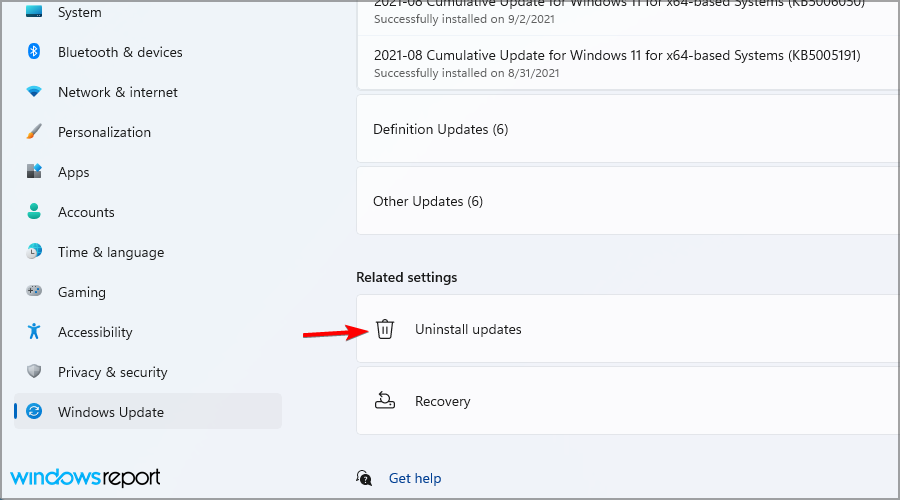
- Head to the Windows Update section and select Update history.
- Select Uninstall updates.
- Double-click the update you want to uninstall.
- Follow the instructions on the screen.
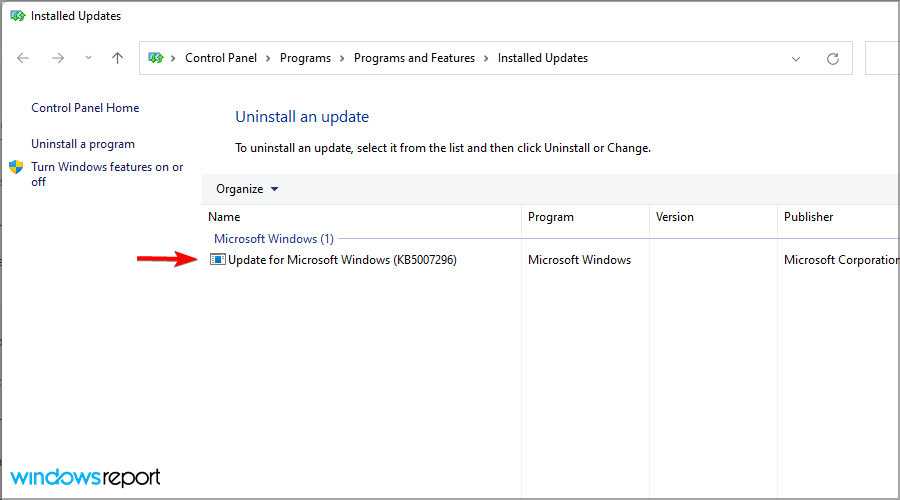
Getting the Installer encountered an error 0x800b0109 message prevents you from installing updates, but hopefully, you should be able to fix it with these solutions.
In case you’re having additional problems, we suggest visiting our 0x800f0831 Windows 11 update error article for more solutions.
Did you find an alternative solution for this error? If so, feel free to share it with us in the comments section below.

Вы можете столкнуться с этой ошибкой при попытке обновить Windows 10 до последней сборки. Код ошибки, связанный с этой ошибкой: (0x800b0109), означает, что обновление, которое вы пытаетесь загрузить или установить, повреждено или повреждено. Обновление повреждено не на серверах Microsoft, а на вашем компьютере.
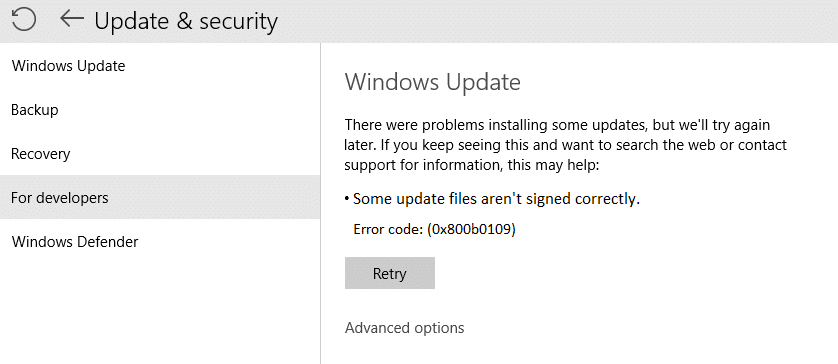
В сообщении об ошибке говорится: «Некоторые файлы обновлений подписаны неправильно. Код ошибки: (0x800b0109) », что означает, что вы не сможете обновить Windows из-за этой ошибки. Поэтому, не теряя времени, давайте посмотрим, как на самом деле исправить проблему с неправильной подписью некоторых файлов обновления при обновлении Windows с помощью приведенного ниже руководства по устранению неполадок.
СОДЕРЖАНИЕ
- Исправить некоторые файлы обновлений не подписаны правильно
- Метод 1. Запустите средство устранения неполадок Центра обновления Windows.
- Метод 2: запустить SFC
- Метод 3: запустите DISM (обслуживание образов развертывания и управление ими)
- Метод 4: исправление реестра
Исправить некоторые файлы обновлений не подписаны правильно
Обязательно создайте точку восстановления на случай, если что-то пойдет не так.
Метод 1. Запустите средство устранения неполадок Центра обновления Windows.
1. В панели управления найдите « Устранение неполадок» в строке поиска в правом верхнем углу и нажмите « Устранение неполадок».

2. Затем в левом окне на панели выберите Просмотреть все.
3. Затем в списке Устранение неполадок компьютера выберите Центр обновления Windows.

4. Следуйте инструкциям на экране и запустите средство устранения неполадок Центра обновления Windows.

5. Перезагрузите компьютер и посмотрите, сможете ли вы исправить некоторые файлы обновления, которые не подписаны правильно при обновлении Windows 10.
Метод 2: запустить SFC
1. Откройте командную строку . Пользователь может выполнить этот шаг, выполнив поиск «cmd» и нажав Enter.
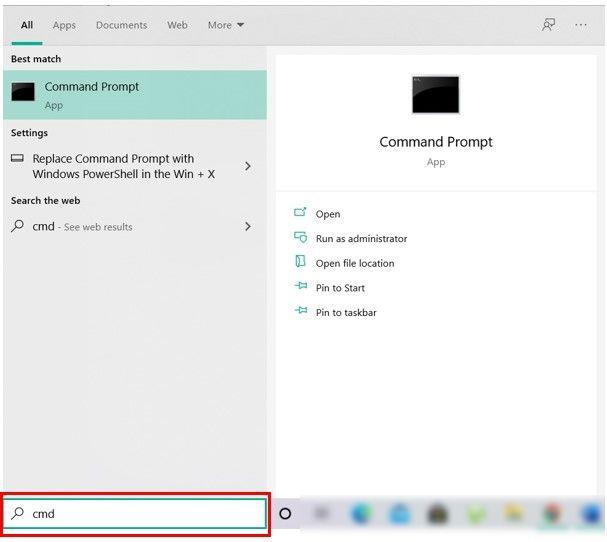
2. Теперь введите в cmd следующее и нажмите Enter:
Sfc / scannow
sfc / scannow / offbootdir = c: \ / offwindir = c: \ windows (Если выше не удалось, попробуйте это)
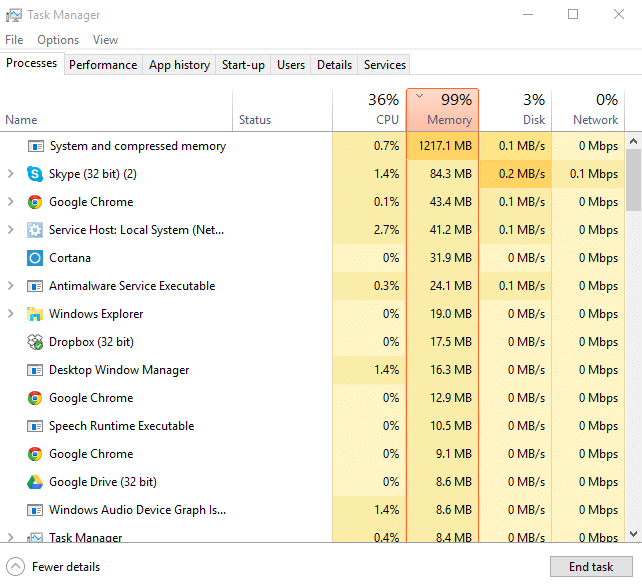
3. Дождитесь завершения описанного выше процесса и после завершения перезагрузите компьютер.
Метод 3: запустите DISM ( обслуживание образов развертывания и управление ими)
1. Откройте командную строку . Пользователь может выполнить этот шаг, выполнив поиск «cmd» и нажав Enter.
2. Введите следующую команду в cmd и нажимайте Enter после каждой:
Dism / Online / Cleanup-Image / CheckHealth
Dism / Online / Cleanup-Image / ScanHealth
Dism / Online / Cleanup-Image / RestoreHealth
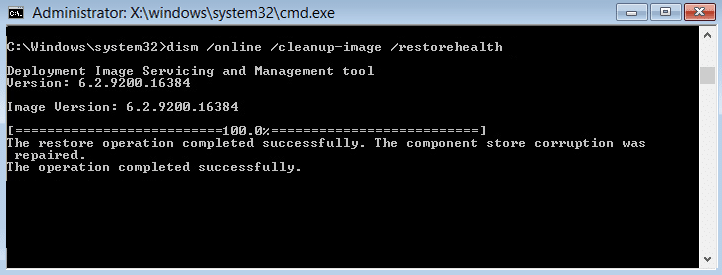
3. Дождитесь выполнения команды DISM и дождитесь ее завершения.
4. Если указанная выше команда не работает, попробуйте следующее:
Dism / Изображение: C: \ offline / Cleanup-Image / RestoreHealth / Источник: c: \ test \ mount \ windows
Dism / Online / Cleanup-Image / RestoreHealth / Источник: c: \ test \ mount \ windows / LimitAccess
Примечание. Замените C: \ RepairSource \ Windows источником восстановления (установочный диск Windows или диск восстановления).
5. Перезагрузите компьютер, чтобы сохранить изменения и посмотреть, сможете ли вы исправить некоторые файлы обновлений, подписанные некорректно при попытке обновить Windows 10, в противном случае перейдите к следующему методу.
Метод 4: исправление реестра
Сделайте резервную копию реестра, прежде чем двигаться дальше, на случай, если что-то пойдет не так, вы можете легко восстановить реестр.
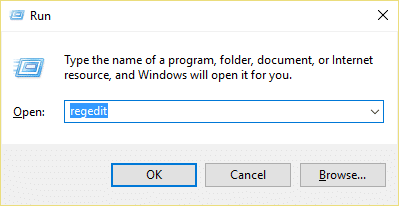
1. Нажмите Windows Key + R, затем введите regedit и нажмите Enter, чтобы открыть редактор реестра.
2. Перейдите к следующему разделу реестра:
HKEY_LOCAL_MACHINE \ SOFTWARE \ Policies \ Microsoft \ Windows \ WindowsUpdate
3. Щелкните правой кнопкой мыши раздел WindowsUpdate и выберите Удалить.
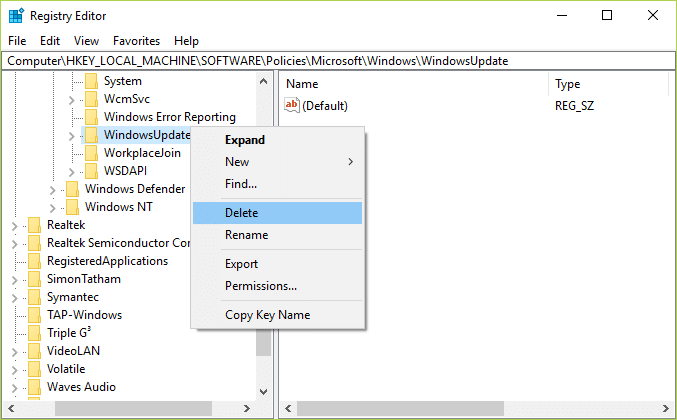
4. Закройте редактор реестра и снова нажмите Windows Key + R, затем введите services.msc и нажмите Enter.
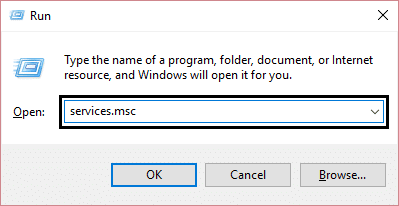
5. Найдите в списке Центр обновления Windows и Фоновую интеллектуальную службу передачи . Затем щелкните правой кнопкой мыши по каждому из них и выберите « Перезагрузить».
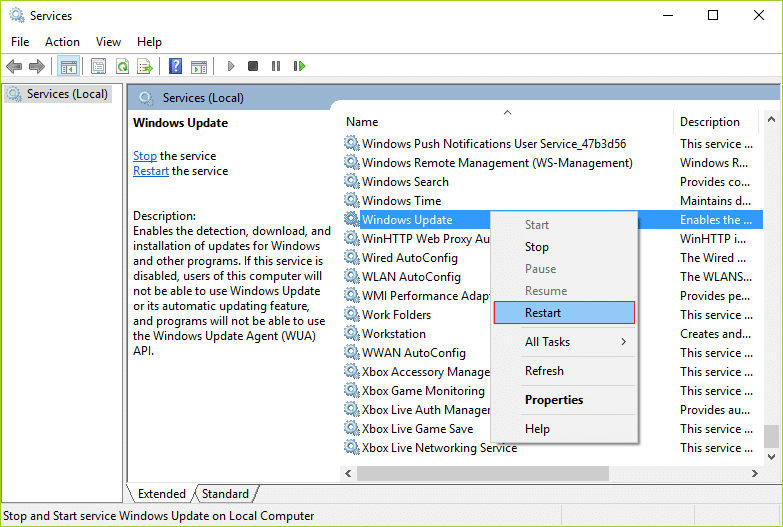
6. Это перезапустит Центр обновления Windows и фоновую интеллектуальную службу передачи.
7. Снова попробуйте обновить Windows, если это все еще не удается, перезагрузите компьютер и обновите Windows.
Рекомендуемые:
- Исправить ошибку обновления Windows 10 0x8007042c
- Исправить Windows не может подключиться к принтеру
- Как исправить ошибку 0X80010108 в Windows 10
- Исправить ошибку Центра обновления Windows 0x800706d9
Вот и все, что вы успешно исправили. Некоторые файлы обновлений не подписаны правильно при обновлении Windows 10 до последней сборки, но если у вас все еще есть какие-либо вопросы относительно этого сообщения, не стесняйтесь задавать их в разделе комментариев.