
Outlook 0x800408FC error occurs when the mail server that you ‘re trying to connect to, cannot by found on the network. The “0x800408FC” error during Outlook Send/Receive error, can occur in any version of Outlook (2003, 2007, 2010 or 2013) and usually is happened suddenly and without changing any settings in Outlook program or Network.
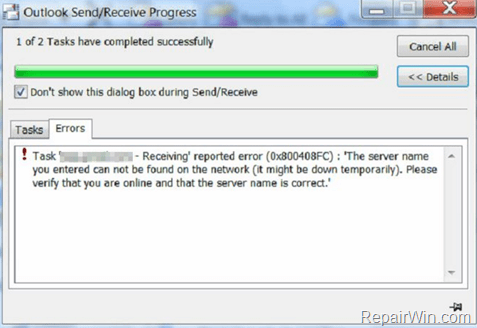
The error 0x800408FC commonly happens when you have specified wrong the mail servers (incoming or outgoing) in Outlook mail settings. At this case you’ll be informed from Outlook that «The server name you entered can not be found on the network (it might be down temporarily). Please verify that you are online and that the server name is correct».
In this tutorial you can find detailed instructions to resolve the 0x800408FC error during Outlook Send/Receive. (Outlook 2016, 2010, 2007 & 2003)
How to Fix the Outlook Send/Receive Error 0x800408FC.
Important: Before you continue to the methods below, first ensure that you have specified the correct mail server settings (Incoming and Outgoing) for your e-mail account.
Method 1. Disable TCP/IPv6 Protocol.
The first and most worked method to fix the Outlook 0x800408FC error, is to disable the “Internet Protocol Version 6 (TCPIP/IPv6)» in your active network adapter. To do that:
1. Press Windows  + R keys to open the run command box.
2. Type ncpa.cpl and press Enter.
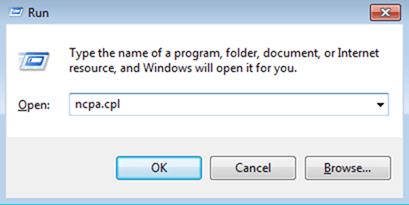
3. Double click at your active Network Adapter.
4. Click Properties.
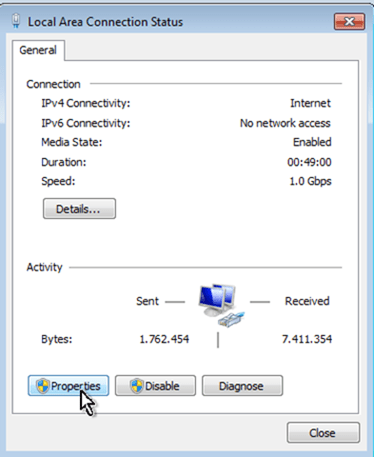
5. Uncheck the Internet Protocol Version 6 (TCPIP/IPv6) checkbox and click OK.

6. Launch Outlook to find out if the Outlook 0x800408FC error, during Send & Receive, is solved.
Method 2. Change Mail Server Ports.
The second method to resolve the 0x800408FC error during Outlook Send/Receive, is to change the incoming and outgoing mail server ports in Outlook mail program. To do that:
1. Open Outlook.
2. Go to File –> Account Settings.

3. In Email tab, double click at your e-mail account, to change its settings.
4. Press the More Settings button.
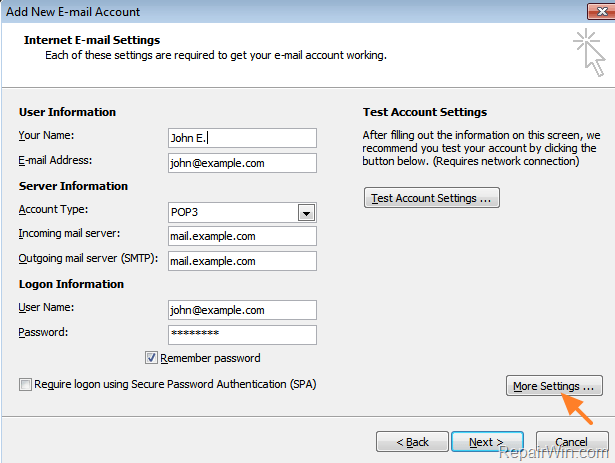
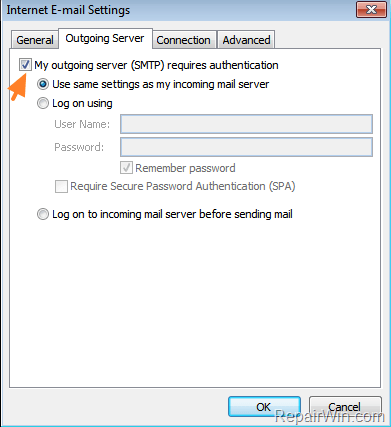
5. At Outgoing Server tab, check the My outgoing server (SMTP) requires authentication checkbox.
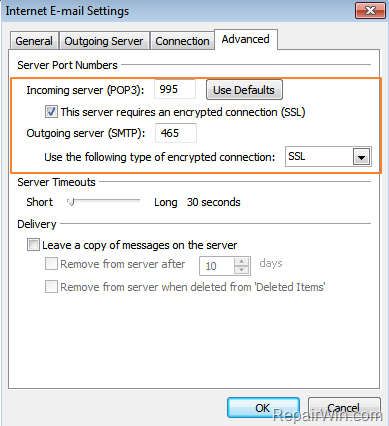
6. Then select the Advanced tab and apply the following settings:
1. Check the This Server requires an encrypted connection SSL checkbox
2. Set the Incoming server (POP3) Port to 995 or to 993 if you’re using an IMAP account.
3. Change the Use the following type of encrypted connection to SSL
4. Set the Outgoing server (SMTP) Port to 465
5. Click OK to apply changes.
7. Restart Outlook.
Method 3. Verify that the Mail Server is up and running.
The final method to resolve the 0x800408FC error in Outlook, is to use the old-fashioned ‘ping’ command and check if your mail server(s), is reachable from your network. *
* For example: If your e-mail server’s name is «mail.example.com» then in command prompt give the following command and press Enter:
- ping mail.example.com
– If you don’t receive a response (reply) from the mail server (request time out), or if you receive that the «Ping request could find host» error, but you can access other Internet sites by using your Web browser, then check your firewall settings or speak with your e-mail service provider, to verify that the mail server name(s) is correct and the server is up and running.

Additional help for Google based e-mail accounts.
– If you ‘re using a GMAIL account in Outlook and you receive the 0x800408FC during «Send/Receive» progress (in GMAIL account), then Sign-In to your GMAIL account, by using your Web browser and:
a. Allow Less Secure Applications & Apps to Access GMAIL.
b. Disable the 2-Step verification in GMAIL
c. Unlock the Captcha function
That’s all folks! Did it work for you?
Please leave a comment in the comment section below or even better: like and share this blog post in the social networks to help spread the word about this solution.
If this article was useful for you, please consider supporting us by making a donation. Even $1 can a make a huge difference for us.

Error messages usually hint you at the root of the problem you’re experiencing. In this case, the Outlook Error 0x800408FC message tells you that two factors cause it – you’re offline, or the server name is wrong. This is similar to the issue of emails stuck in the Outbox.
The server name you entered cannot be found on the network (it might be down temporarily). Please verify that you are online and that the server name is correct.
If you’re online, then you can almost be sure that it’s an issue of an incorrect server name. But this isn’t always the case. After a Windows update, users have received this error, even when their server name is correct.
This guide shows you how to fix the Outlook error 0x800408FC. Follow the troubleshooting steps below to repair your Outlook.
- Confirm that you’re connected to the internet.
- Correct your Outlook email account settings.
- Correct your mail server settings.
- Allow Outlook files through your firewall.
- PING your mail server.
- Use Outlook in Safe Mode.
Continue reading as I break down the above solutions into detailed steps.
1] Confirm that you’re connected to the internet
Before you go crazy troubleshooting the Outlook Error 0X800408FC, you should know that the issue is most commonly a result of connectivity problems. Therefore, test your internet connection to be sure you’re online.
Check the network icon on your taskbar to see if it’s connected. If in doubt, hover your mouse on it. If it says Not connected, that’s the root of the Outlook error 0X800408FC. Alternatively, launch your web browser and visit a random site, such as thewindowsclub.com. If it doesn’t open, fix your internet.
2] Correct your Outlook email account settings
Another factor that can cause the Outlook error 0X800408FC is misconfigured Outlook email account settings, such as incorrect server name. To fix this problem, you need to go back to the drawing board and reconfigure your Outlook.
3] Correct your mail server settings
Launch Outlook and click on the File menu. Select Account Settings from the right-hand pane. From the dropdown options, click on Server Settings.
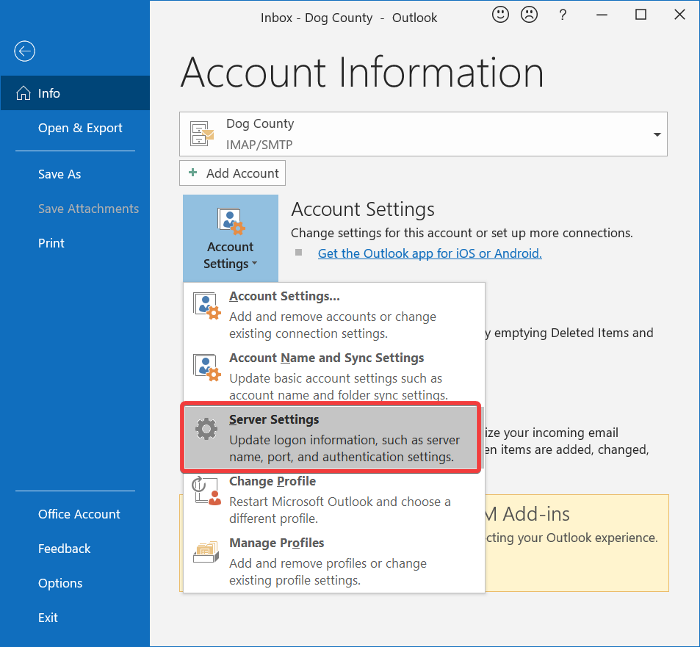
Confirm that the username, password, server, port, and encryption methods are right. If in doubt, use the following options where applicable:
- Incoming server (POP3) port: 995 or 993
Outgoing server (SMTP) port: 465 - Mark the My outgoing (SMTP) server requires authentication checkbox.
- After these, click on the OK button to save your changes and restart Outlook.
4] Allow Outlook files through your firewall
The Windows firewall protects your system from malicious activities. Therefore, this solution isn’t recommended. I advise that you only try it out to see if it’s the cause of the Outlook Error 0X800408FC.
Press the Windows key and search for Firewall. Open Windows Defender Firewall with Advanced Security from the suggestions.
Select Inbound Rules and click on the Action menu.
From the dropdown options, select New Rule.
On the Rule Type window, choose the Program option and hit the Next button.
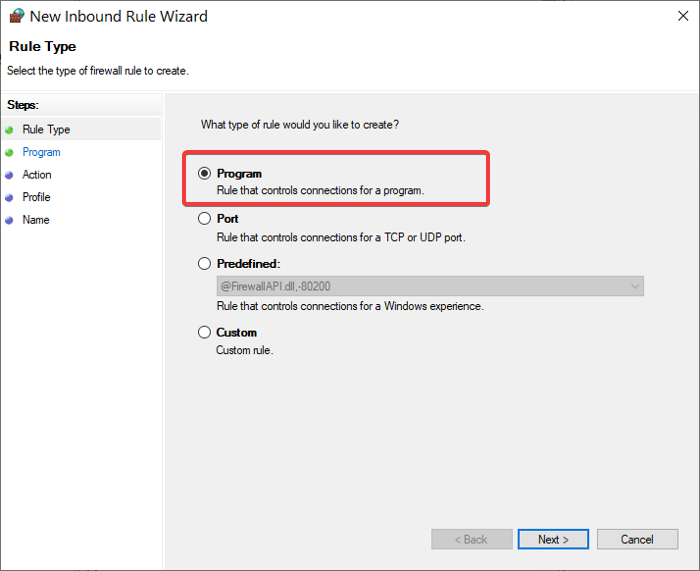
Select This program path and click on the Browse button. Go to the following path:
C:\Program Files\Microsoft Office\root\Office16
NOTE: The path may be different in your installation and Outlook version, especially the Office16 part. Get your correct directory by right-clicking on the Outlook icon and selecting Open file location.
In this directory, select Outlook.exe and hit Open. Click on the Next button to continue.
Select Allow the connection and hit Next.
Mark the checkboxes beside Domain, Private, and Public. Click Next.
Finally, give the rule a name and optional description. Hit the Finish button to complete the process.
5] PING your mail server
Pinging is a networking process that tests the communication between a specific channel. It’s also used for confirming that a network destination is reachable.
First, get the correct mail server and open Command Prompt. For this guide, we’ll assume that your mail server is mail.yourhost.com.
In the Command Prompt window, type the following command with the assumption of your mail server:
ping mail.yourhost.com
Remember to change the mail.yourhost.com part to your actual mail server address. Hit the ENTER key after entering the above command to run it.
You should get a response from the mail server or an error in the process. If the response says that the service timed out or couldn’t find the host, then the mail server is down, incorrect, or you’re offline.
6] Use Outlook in Safe Mode
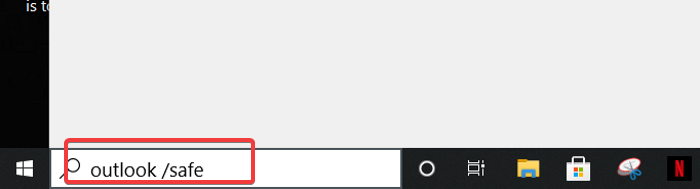
Now that we’ve troubleshot the connectivity and Outlook account, the next step is to confirm that the Outlook application itself isn’t buggy. For this, you use the Safe Mode.
This method also checks for issues on your profile. Here’s how to do it.
Press the Windows key and click on the search box at the bottom.
Enter the following command and hit ENTER.
outlook.exe /safe
Select a profile next. If there’s a problem, you’ll immediately get a notification that indicates damage in your profile or conflict from add-ins or other software.
Hope something here helped you fixed your error.
Обновлено сентябрь 2023: перестаньте получать сообщения об ошибках и замедлите работу вашей системы с помощью нашего инструмента оптимизации. Получить сейчас в эту ссылку
- Скачайте и установите инструмент для ремонта здесь.
- Пусть он просканирует ваш компьютер.
- Затем инструмент почини свой компьютер.
Ошибка Outlook 0x800408FC возникает, когда почтовый сервер, к которому вы хотите подключиться, не может быть найден в сети. Ошибка «0x800408FC» при отправке и получении Outlook может возникать в любой версии Outlook (2003, 2007, 2010 или 2013) и обычно возникает внезапно и без изменения программы Outlook или сетевых настроек.
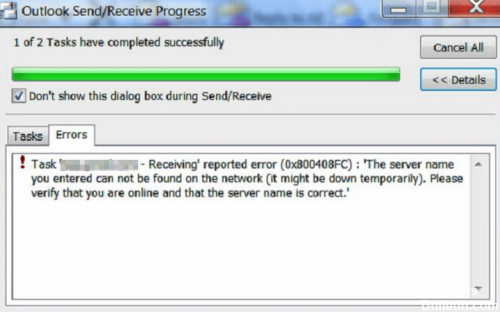
Ошибка 0x800408FC часто возникает, если вы неправильно указали почтовые серверы (входящие или исходящие) в настройках почты Outlook. В этом случае Outlook сообщит вам, что «введенное вами имя сервера не может быть найдено в сети (возможно, он временно вышел из строя). Пожалуйста, проверьте, подключены ли вы к сети и правильно ли указано имя сервера ».
Это Microsoft Ошибка Outlook может быть вызвано поврежденным профилем Outlook, он может попытаться решить эту проблему, просто создав новый профиль. Если вы попытаетесь отправить или получить электронное письмо в Outlook, вы получите следующее сообщение об ошибке
0x800408fc: файл данных Outlook не доступен (или)
0x800408fc: Операция не выполнена, объект не найден.
Отключите брандмауэр Windows.
Обновление за сентябрь 2023 г .:
Теперь вы можете предотвратить проблемы с ПК с помощью этого инструмента, например, защитить вас от потери файлов и вредоносных программ. Кроме того, это отличный способ оптимизировать ваш компьютер для достижения максимальной производительности. Программа с легкостью исправляет типичные ошибки, которые могут возникнуть в системах Windows — нет необходимости часами искать и устранять неполадки, если у вас под рукой есть идеальное решение:
- Шаг 1: Скачать PC Repair & Optimizer Tool (Windows 10, 8, 7, XP, Vista — Microsoft Gold Certified).
- Шаг 2: Нажмите «Начать сканирование”, Чтобы найти проблемы реестра Windows, которые могут вызывать проблемы с ПК.
- Шаг 3: Нажмите «Починить все», Чтобы исправить все проблемы.

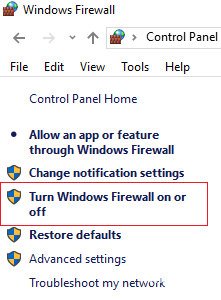
- Перейдите в панель управления и нажмите на брандмауэр Windows.
- Нажмите Включить или отключить брандмауэр Windows.
- Нажмите Отключить брандмауэр Windows (не рекомендуется) под каждым активным сетевым подключением.
Создать новый профиль Outlook
- Откройте систему и перейдите в меню «Пуск».
- В меню «Пуск» поле поиска входит в панель управления и нажимает на нее.
- Затем откройте панель управления и измените значок категории на маленькие значки в правом верхнем углу.
- Затем вы автоматически меняете маленькие значки.
- Затем нажмите «Почта» или «Почта» (биты 32).
- Затем откройте новое окно.
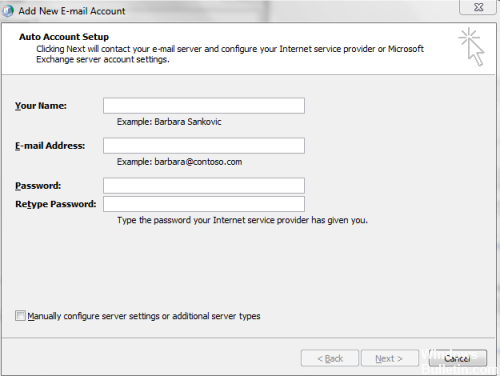
- Затем нажмите кнопку «Добавить», откройте окно нового профиля и введите имя профиля в нужном месте.
- Затем откройте окно «Добавить новую учетную запись электронной почты» и заполните все данные после нажатия кнопки «Далее».
- Профиль будет создан. Наконец, Outlook успешно выполнил новое профилирование после нажатия кнопки Готово.
Очистка системных файлов
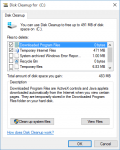
- Нажмите одновременно клавиши Windows и «R», чтобы открыть командное окно «Выполнить».
- Теперь введите команду «cleanmgr» без кавычек.
- Затем выберите раздел диска во всплывающем меню во всплывающем окне и нажмите кнопку «ОК».
- По завершении поиска ненужных данных выберите элементы в списке, кроме корзины.
- Нажмите на кнопку «ОК» и дождитесь завершения процесса.
Пожалуйста, оставьте комментарий в разделе комментариев ниже или еще лучше: наслаждайтесь и делитесь этим постом в социальных сетях, чтобы распространять информацию об этом решении.
Совет эксперта: Этот инструмент восстановления сканирует репозитории и заменяет поврежденные или отсутствующие файлы, если ни один из этих методов не сработал. Это хорошо работает в большинстве случаев, когда проблема связана с повреждением системы. Этот инструмент также оптимизирует вашу систему, чтобы максимизировать производительность. Его можно скачать по Щелчок Здесь

CCNA, веб-разработчик, ПК для устранения неполадок
Я компьютерный энтузиаст и практикующий ИТ-специалист. У меня за плечами многолетний опыт работы в области компьютерного программирования, устранения неисправностей и ремонта оборудования. Я специализируюсь на веб-разработке и дизайне баз данных. У меня также есть сертификат CCNA для проектирования сетей и устранения неполадок.
Сообщение Просмотров: 1,476
Summary: Outlook 0x800408fc is a common error in many of the Outlook versions when trying to send or receive emails. This can be due to many factors, including your incorrect mail server in the settings. This article provides a detailed guide on error 0x800408fc, from the cause to solutions when you encounter the error. So, go through this article to learn more.
Content Table:
- What is Outlook 0x800408fc error?
- How Repair Outlook 0x800408fc Error?
- Method 1: Check internet connection
- Method 2: Disable TCP/IPv6 protocol
- Method 3: Reconfigure account credentials
- Method 4: Change server settings
- Method 5: Ping mail server
- Method 6: Use Outlook in Safe Mode
- How to Repair Corrupted PST File?
- Use ScanPST tool
- Use SFWare PST Repair tool
The Outlook 0x800408fc error, when trying to send or receive emails, a message show as “The Server Name You Entered Cannot be Found on The Network.” This can be due to many reasons; some of the common ones are,
- Incorrect server name: The server’s name given in Outlook might be incorrect, or there may be a mistake in the name.
- Network connection problems: The network connection issues prevent Outlook from connecting to the mail server.
- DNS issues: The DNS server may be unable to resolve the server’s name to an IP address.
- Firewall or antivirus software: The software might be blocking the connection to the mail server.
How Repair Outlook 0x800408fc Error?
We now learned about the common reasons for the error Outlook 0x800408fc; the next step in troubleshooting the issue is to repair Outlook 0x800408fc. We have tested some of the solutions when you see the server name you entered cannot be found on the network in Outlook. Go through them and follow the steps.
Method 1: Check Internet Connection
The Outlook 0x800408fc is a connectivity issue, so the first step of troubleshooting a connection issue is to check the internet connection. Most of the connectivity issues arise when you lose the internet connection. If your internet shows Not Connected or No Connection Available, this means you are facing internet connection issues.
Method 2: Disable TCP/IPv6 Protocol
If the internet connection is good, then TCP/IPv6 protocol is causing the issue. The TCP/IPv6 is a protocol used to communicate between devices in a network. So, follow the steps below to disable TCP/IPv6 protocol,

- Press Window + R keys to open the Run dialogue box.
- In the dialogue box type ncpa.cpl and press Enter.
- Right-click on the active network adapter and click on Properties.
- In the properties window remove the Tick mark from Internet Protocol Version 6 (TCP/IPv6).
- Now click on OK, and verify the issue is solved.
Method 3: Reconfigure Account Credentials
Now that we have ruled out internet connection issues. The next method is to solve the Outlook settings. First, we need to check the account settings, such as the incorrect server name. Follow the steps below to reconfigure your account credentials,
- Open Control Panel by searching on the Search bar.
- Select Mail from the Control Panel.
- Select Email Accounts from Mail Setup – Outlook.

- In the Account Settings window, select the email account and click on Change.

- Check the details shown in the Change Account window and make the necessary changes.
Method 4: Change Server Settings
If you are still facing issues, then it is time to change the server settings. Now we need to make the necessary server settings changes. Follow the steps below to do this,
- Follow the above steps and reach Change Account

- Now click on More Settings to open Internet Email Settings
- In the Outgoing Server tab, add a tick to the My outgoing server (SMTP) requires authentication check box.

- Now click on the Advanced tab, and check the following details:
- Incoming Server (POP3) port: 995 or 993
- Outgoing Server (SMTP) port: 465

- Click Ok and restart the Outlook application.
Method 5: Ping Mail Server
Now the last connection troubleshooting method is to Ping the mail server. By Pinging a server, you could check if the server is reachable or not. Follow the steps below,

- Open Command Prompt by typing CMD in the search bar and select Run as administrator.
- Type ping domain.com and press Enter.
Note: You must change the mail.domain.com with the name of your mail server.
If the server is working properly then you will get no error. But if there are issues it will show a timeout or could not find the host.
Method 6: Use Outlook in Safe Mode
If you still face issues after completing all the troubleshooting methods, then you should open Outlook in Safe mode. Safe mode opens the application with default settings. Open Safe mode in Outlook with the below steps,
- Press Window + R keys to open the Run dialogue box.
- Type exe /safe and press Enter.

- Select the profile and click on Ok.

If there are any PST file errors, it will notify you immediately.
How to Repair Corrupted PST File?
Now we have tried all the solutions to solve error 0x800408fc in Outlook and reach the conclusion of PST file corruption. A corrupted PST file could cause many issues in Outlook, including a 0x800408fc error. You can use one of the two methods to repair a corrupt PST file.
1. Use ScanPST Tool
ScanPST is a built-in tool to repair issues with Outlook data files – PST or OST. You can find scanpst.exe in the below locations,
- Outlook 2019: C:\Program Files (x86)\Microsoft Office\root\Office16
- Outlook 2016: C:\Program Files (x86)\Microsoft Office\root\Office16
- Outlook 2013: C:\Program Files (x86)\Microsoft Office\Office15
- Outlook 2010: C:\Program Files (x86)\Microsoft Office\Office14
- Outlook 2007: C:\Program Files (x86)\Microsoft Office\Office12
Note: If you use a 64-bit version of Windows, then the ScanPST.exe tool will be in the Program Files folder instead of the Program Files (x86) folder.

- Open the ScanPST tool by double-clicking on the .exe file.
- In the Enter the name of the file you want to scan field, enter the required file details.
Note: You can click on the Browse button to locate the file as well.
- Click on the Start
- If any errors are found, click on the Repair
Once the repair is complete, open Outlook and check if the issue has been resolved.
2. Use SFWare PST Repair tool
If you want to use a professional repair tool then we recommend the SFWare PST Repair tool, a purpose build tool to deal with tons of Outlook data file issues. Download and install the tool then launch the tool and follow the steps below to repair corrupt PST files.

- Select the Open PST option from the main screen.

- Give the corrupted PST file path and click Next.

- In the next screen, select one of the scanning methods –
- Normal Scan – For a low level of corruption.
- Smart Scan – When the Normal Scan is not enough.
- Now give the location to save the repaired Outlook data file.
- Click on the Repair button to begin the repair process.

Note: When the repair process is complete, you can preview the repaired Outlook data file to ensure that all data has been successfully restored.
- Save the repaired Outlook data file to the desired location.
Conclusion
You may see the message “The server name you entered cannot be found on the network” in Outlook when you are trying to send or receive mail. This is mostly due to a connectivity error 0x800408fc. We have discussed the error in this article and provided some solutions. If you find them useful let us know.
Сообщения об ошибках обычно намекают на корень проблемы, с которой вы столкнулись. В этом случае Ошибка Outlook 0X800408FC Сообщение сообщает вам, что это вызвано двумя факторами – вы не в сети или неверно имя сервера. Это похоже на проблему с сообщениями, застрявшими в папке «Исходящие».
Введенное вами имя сервера не может быть найдено в сети (возможно, он временно не работает). Убедитесь, что вы подключены к сети и что имя сервера указано правильно.
Если вы в сети, то можете быть почти уверены, что это проблема неправильного имени сервера. Но так бывает не всегда. После обновления Windows пользователи получали эту ошибку, даже если их имя сервера было правильным.
В этом руководстве показано, как исправить ошибку Outlook 0X800408FC. Следуйте приведенным ниже инструкциям по устранению неполадок, чтобы восстановить Outlook.
- Подтвердите, что вы подключены к Интернету.
- Исправьте настройки учетной записи электронной почты Outlook.
- Исправьте настройки вашего почтового сервера.
- Разрешите файлы Outlook через брандмауэр.
- ПИНГ на свой почтовый сервер.
- Используйте Outlook в безопасном режиме.
Продолжайте читать, поскольку я разбиваю приведенные выше решения на подробные шаги.
1]Убедитесь, что вы подключены к Интернету.
Прежде чем сходить с ума по устранению ошибки Outlook 0X800408FC, вы должны знать, что проблема чаще всего является результатом проблем с подключением. Поэтому проверьте подключение к Интернету, чтобы убедиться, что вы в сети.
Проверьте значок сети на панели задач, чтобы узнать, подключена ли она. Если сомневаетесь, наведите на него указатель мыши. Если отображается сообщение Не подключен, это корень ошибки Outlook 0X800408FC. Или же запустите свой веб-браузер и посетите случайный сайт, например thewindowsclub.com. Если он не открывается, исправьте свой интернет.
2]Исправьте настройки учетной записи электронной почты Outlook.
Еще один фактор, который может вызвать ошибку Outlook 0X800408FC, – это неправильно настроенные параметры учетной записи электронной почты Outlook, например неправильное имя сервера. Чтобы решить эту проблему, вам нужно вернуться к чертежной доске и перенастроить Outlook.
3]Исправьте настройки почтового сервера.
Запустите Outlook и щелкните значок Файл меню. Выбирать Настройки учетной записи из правой панели. В раскрывающемся списке выберите Настройки сервера.
Подтвердите правильность имени пользователя, пароля, сервера, порта и методов шифрования. В случае сомнений используйте следующие варианты, где это возможно:
- Порт входящего сервера (POP3): 995 или же 993
Порт исходящего сервера (SMTP): 465 - Отметьте Мой исходящий (SMTP) сервер требует аутентификации флажок.
- После этого нажмите на Ok кнопку, чтобы сохранить изменения и перезапустить Outlook.
4]Разрешите доступ к файлам Outlook через брандмауэр.
Брандмауэр Windows защищает вашу систему от злонамеренных действий. Поэтому это решение не рекомендуется. Я советую вам попробовать только это, чтобы увидеть, является ли это причиной ошибки Outlook 0X800408FC.
Нажмите клавишу Windows и найдите Брандмауэр. Открыть Брандмауэр Защитника Windows в режиме повышенной безопасности из предложений.
Выбирать Входящие правила и нажмите на Действие меню.
В раскрывающемся списке выберите Новое правило.
В окне Тип правила выберите Программа вариант и нажмите Следующий кнопка.
Выберите этот путь к программе и нажмите на Просматривать кнопка. Идите по следующему пути:
C:Program FilesMicrosoft OfficerootOffice16
ПРИМЕЧАНИЕ: Путь может отличаться в вашей установке и версии Outlook, особенно в Офис16 часть. Получите правильный каталог, щелкнув правой кнопкой мыши значок Outlook и выбрав Откройте расположение файла.
В этом каталоге выберите Outlook.exe и нажмите Открыть. Нажать на Следующий кнопку, чтобы продолжить.
Выбирать Разрешить соединение и ударил Следующий.
Установите флажки рядом с Доменом, Частным и Общедоступным. Нажмите Следующий.
Наконец, дайте правилу имя и необязательное описание. Нажмите кнопку «Готово», чтобы завершить процесс.
5]ПИНГ на свой почтовый сервер
Пинг – это сетевой процесс, который проверяет связь между определенным каналом. Он также используется для подтверждения доступности сетевого пункта назначения.
Сначала получите правильный почтовый сервер и откройте командную строку. В этом руководстве мы предполагаем, что ваш почтовый сервер mail.yourhost.com.
В окне командной строки введите следующую команду, исходя из вашего почтового сервера:
ping mail.yourhost.com
Не забудьте изменить mail.yourhost.com часть вашего фактического адреса почтового сервера. Нажмите клавишу ENTER после ввода вышеуказанной команды, чтобы запустить ее.
Вы должны получить ответ от почтового сервера или ошибку в процессе. Если в ответе указано, что истекло время ожидания службы или ей не удалось найти хост, значит, почтовый сервер не работает, работает некорректно или вы не в сети.
6]Используйте Outlook в безопасном режиме
Теперь, когда мы устранили неполадки с подключением и учетной записью Outlook, следующий шаг – убедиться, что само приложение Outlook не содержит ошибок. Для этого вы используете безопасный режим.
Этот метод также проверяет наличие проблем в вашем профиле. Вот как это сделать.
Нажмите клавишу Windows и щелкните поле поиска внизу.
Введите следующую команду и нажмите ENTER.
outlook.exe /safe
Далее выберите профиль. Если возникнет проблема, вы сразу же получите уведомление, указывающее на повреждение вашего профиля или конфликт из-за надстроек или другого программного обеспечения.
Надеюсь, что-то здесь помогло вам исправить вашу ошибку.